How to Enable Wake Timers in Windows 11


Wake timers let Windows 11 bring your computer out of sleep or hibernation to run scheduled maintenance and backups. This guide shows how to check whether they are working, turn them on in your power plan, and give a scheduled task permission to use them.
Enable wake timers by opening Control Panel , navigating to Hardware and Sound Power Options, changing plan settings, and setting “Allow wake timers” to Enable under Sleep. If this doesn’t work, use Task Scheduler to ensure your tasks can wake the computer.
Understanding Wake Timers in 🪟 Windows 11
Think of wake timers as alarms for your PC. At a set time, the timer wakes the computer from sleep or hibernation so it can run updates or backups while you are away. This lets the PC handle background work without you touching it.
Why do this? You may want the PC to run maintenance, install updates , or do backups while you are not around. Without wake timers, a sleeping PC skips those jobs until you wake it yourself.
When a wake timer fires, Windows wakes the computer and the scheduled task runs. After the task finishes, the computer goes back to sleep, as long as your power settings tell it to do so.
Modern Standby vs. S3 Sleep: Why Wake Timers Fail
Hardware power management often blocks these triggers. Modern Standby (a low-power sleep state) frequently overrides traditional S3 Sleep (a deeper power-saving mode), which causes wake timers to fail.
Many newer laptops and tablets use Modern Standby, and some desktops do too. On those machines, a wake timer can behave differently or not fire at all, even when every setting below is correct. If you follow this guide and the PC still won’t wake, check this first. Firmware or BIOS settings can also block wake events on some machines.
How to Check Wake Timers via Command Line
Command Prompt is a quick way to see what is already scheduled. Before you change any settings, check which tasks are set to wake your PC.
- Click the Start button and type cmd.
- Right-click Command Prompt and select Run as administrator. Power queries can need administrator rights.
- If User Account Control asks for permission, click Yes. You should now see a Command Prompt window with an Administrator title.
- Run this command to list the scheduled tasks set to wake your PC:
powercfg /waketimers
If the list is empty, no task is currently set to wake your PC. That is normal on a fresh install. If you do see entries, each one shows what will wake the computer. To see which devices are allowed to wake your computer, use this command:
powercfg /devicequery wake_armed
How to Enable Wake Timers in 🪟 Windows 11
To turn the feature on, you change an advanced power plan rule in the legacy Control Panel . This works on every edition of Windows 11, Home included, and it does not need a restart.
- Open the Control Panel . You can also click Start and type Control Panel .
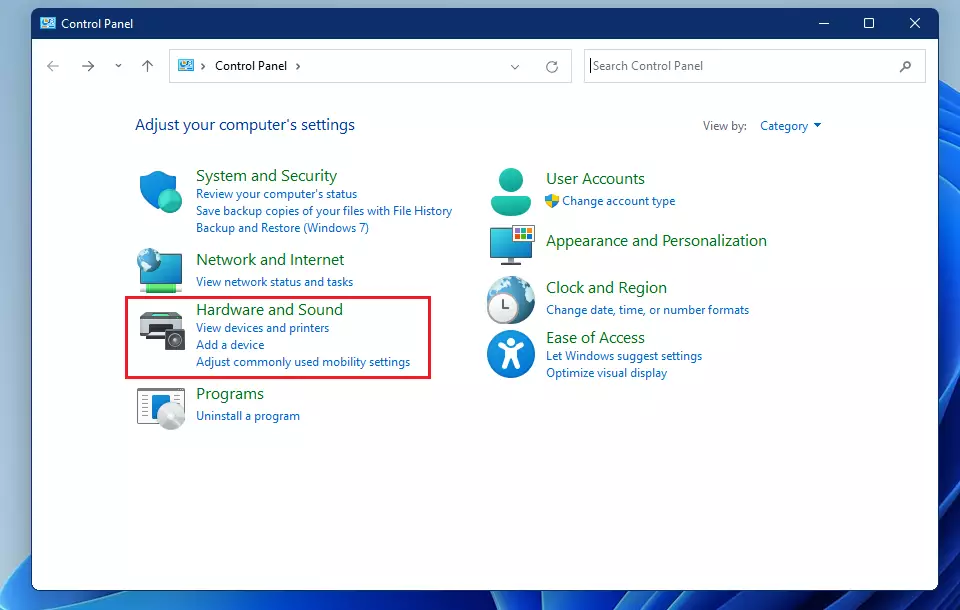
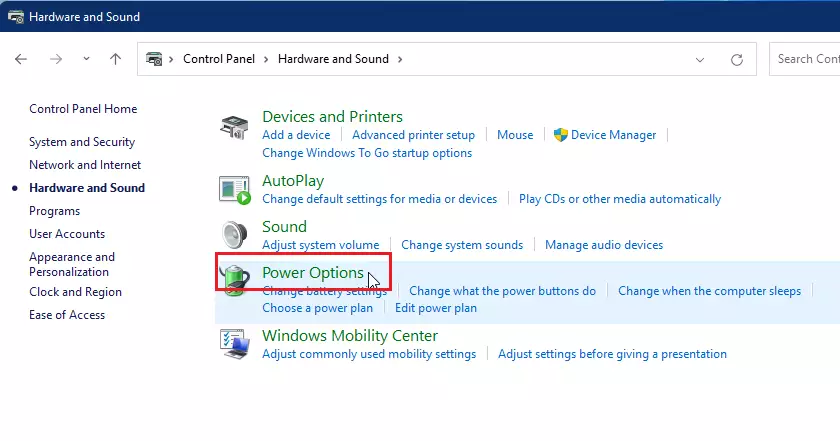
- Go to Hardware and Sound Power Options If Control Panel shows large or small icons instead of categories, click Power Options directly.
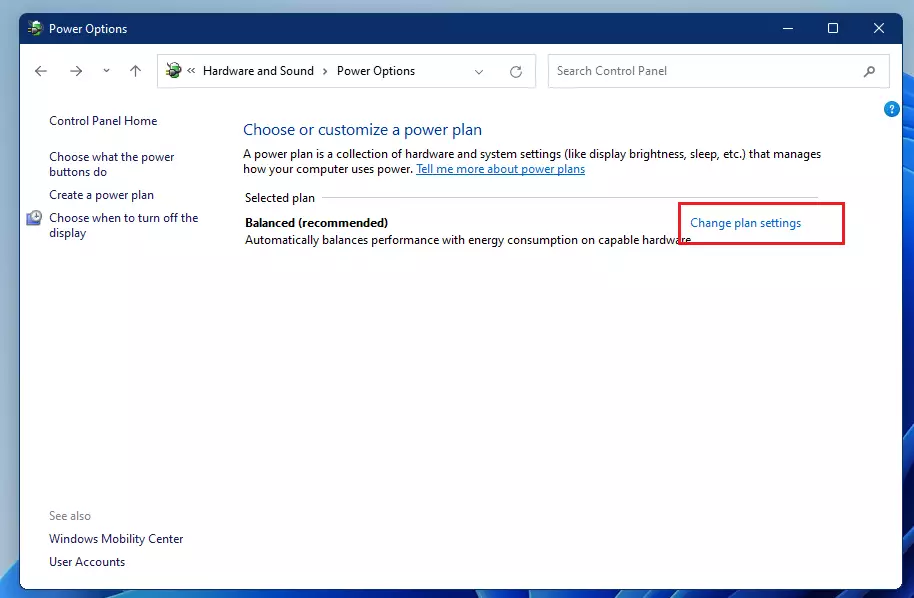
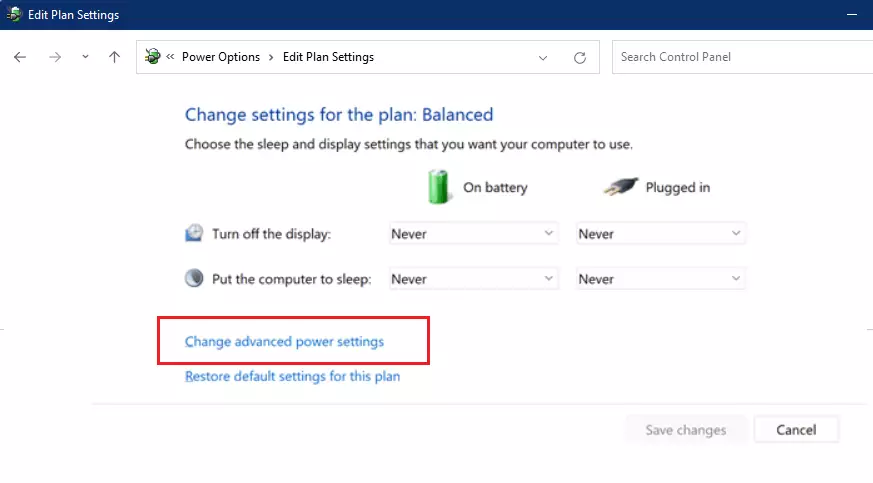
- Click Change plan settings next to your active plan, then select Change advanced power settings. A small Power Options window opens with a list of settings you can expand.
- Expand Sleep, then expand Allow wake timers. You will see two entries, On battery and Plugged in. On a desktop PC, you may only see Plugged in.
- Set both On battery and Plugged in to Enable. The drop-down also offers Disable and Important Wake Timers Only. The last one allows only system-critical timers, such as Windows update tasks. Choose Enable if you want your own tasks to wake the PC. Keep in mind that a laptop on battery will wake and use power while you are away.
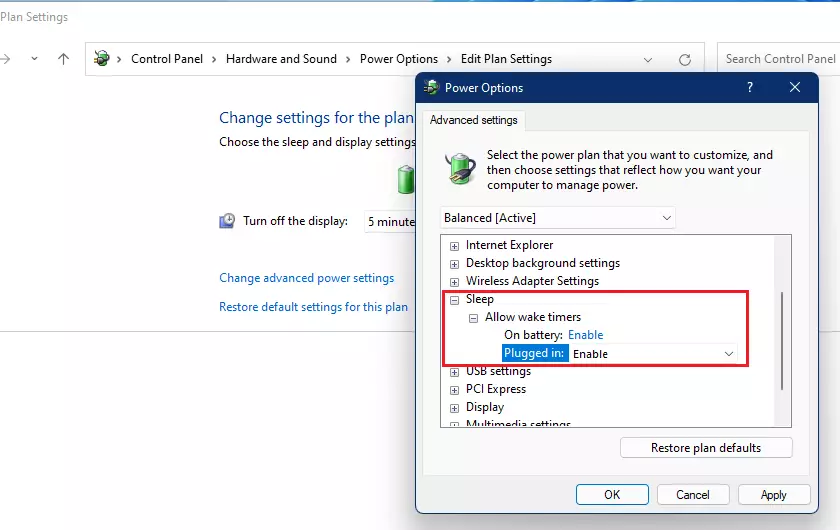
- Click OK to save. The change applies right away.
This setting belongs to one power plan. If you switch to another plan, repeat the steps there. To undo the change, go back to the same screen and set the entries to Disable.
Using Task Scheduler for Automated Backups
Turning on wake timers in the power plan only allows them. To make sure a specific task can wake your computer, you also set it up in the Windows 11 Task Scheduler and check one box.
- Click Start, type Task Scheduler, and open it.
- Select Task Scheduler Library in the left pane, then double-click your task in the middle pane. Its Properties window opens.
- Click the Conditions tab.
- Under Power, check Wake the computer to run this task.
- On a laptop, look at Start the task only if the computer is on AC power. If it is checked, the task will not run on battery. Clear it if you want the task to run on battery too.
- Click OK to save the task.
The task also needs a trigger, such as a daily time, so the wake timer has something to fire on. To undo this, clear the Wake the computer to run this task box.
Summary
- Wake timers allow your PC to wake from sleep for scheduled tasks.
- Modern Standby may prevent traditional wake timers from functioning.
- Use
powercfg /waketimersto verify active schedules. - Configure tasks in Task Scheduler to ensure they have permission to wake the system.
- Always check your power plan settings in the Control Panel to ensure wake timers are enabled.
Have a question about this guide?
Answered by AI from this guide. Good questions may be added to this page — please don't include personal details.
Did this guide fix your problem?

About the Author
Richard
Tech Writer, IT Professional
Richard is a writer at Geek Rewind who turns complex IT tasks into clear, step-by-step guides. He draws on years of hands-on experience in system administration and enterprise IT operations, focusing on Windows, Linux and WordPress: the problems people actually run into, and the fixes that work. His server and WordPress guides come from systems he runs himself. Richard builds and maintains the platform behind Geek Rewind, from its Ubuntu servers and Nginx configuration to its custom WordPress plugins. Many new tutorials start with readers' questions, and he's always glad to answer them in the comments.
No comments yet — be the first to share your thoughts!