How to Turn On or off Random Hardware (MAC) Addresses for Wi-Fi in Windows 11

Random hardware addresses (MAC addresses) protect your privacy on Windows 11 by hiding your network adapter’s permanent physical ID behind a temporary identifier. A MAC address (Media Access Control address) is a unique serial number assigned to your Wi-Fi card. Stores, cafes and public networks can use it to recognize your device and track you as you move from place to place.
Windows 11 includes this feature, and you can turn it on or off for all Wi-Fi networks at once or for one network at a time. Don’t assume your PC already has it on. On many installs the toggle is Off until you switch it. Check your own setting using the steps below.
Open Settings, go to Network & internet, then Wi-Fi. Use the toggle to turn Random hardware addresses On or Off for all networks. For specific networks, go to Manage known networks, select a network, and choose your preferred setting from the Random hardware addresses drop-down.
Two Ways to Use Random Hardware Addresses
You have two ways to apply the setting. Pick the one that fits how you connect.
- For all Wi-Fi networksUse random addresses for every network your PC connects to. This is the simplest choice if you use public Wi-Fi often.
- For a specific Wi-Fi networkUse random addresses only for networks you pick. This suits you if one network, such as your home router, needs to recognize your PC’s real address.
How to Turn On or Off Random Hardware Addresses for All Wi-Fi Networks
This method changes the setting for every Wi-Fi network at once. It works the same on Windows 11 Home and Pro.
- Press Win+I to open Settings.
- Click Network & internet on the left side. You should see the network options on the right.
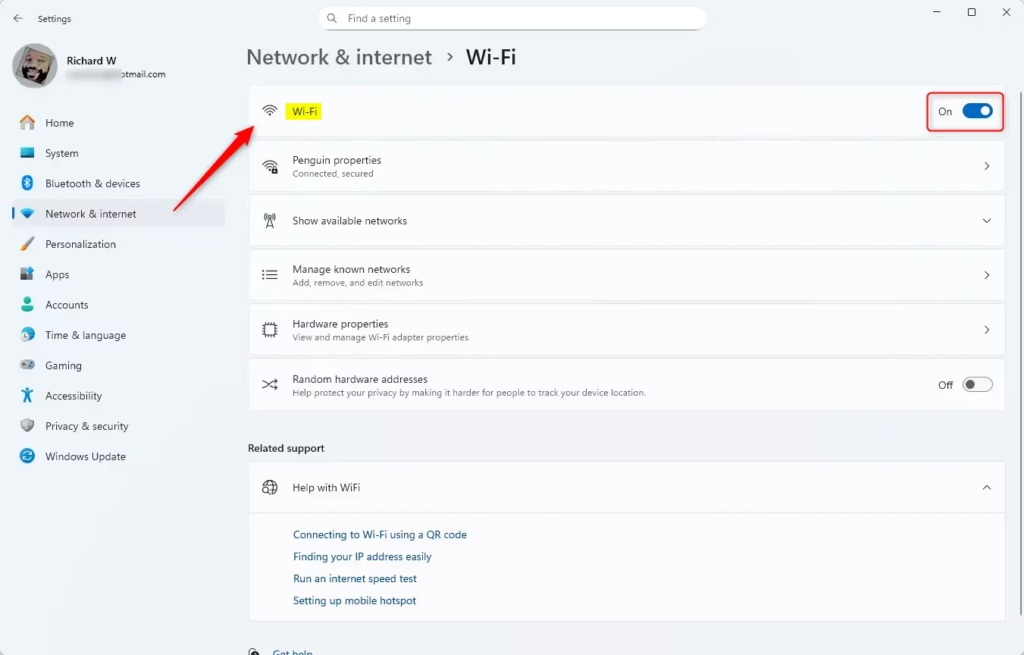
- Click Wi-Fi on the right. The Wi-Fi page opens.
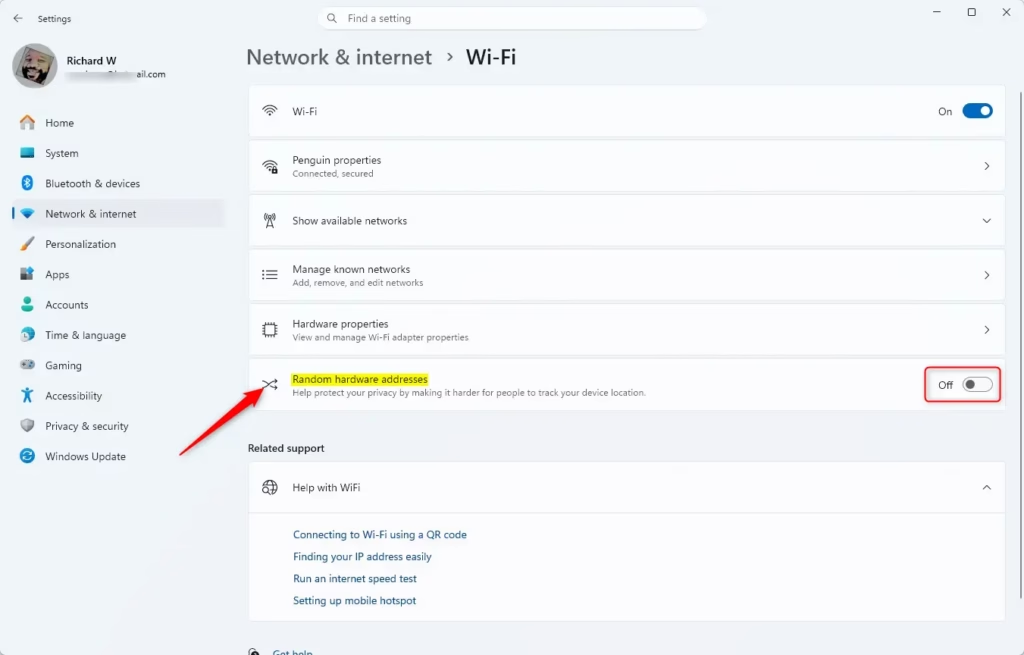
- Click the toggle to turn Random hardware addresses On or Off for all networks. The toggle should change to the new state straight away.
- Close Settings when done.
If you don’t see the Random hardware addresses toggle, your Wi-Fi adapter or its driver probably doesn’t support the feature. It also won’t show on a PC with no Wi-Fi adapter. Updating the Wi-Fi driver from your PC maker’s site sometimes fixes this. You don’t need to restart Windows, but the change applies to a network the next time you connect to it. If you’re already connected, turn Wi-Fi off and on again, or disconnect and reconnect. To undo the change, flip the same toggle back.
How to Turn On or Off Random Hardware Addresses for a Specific Wi-Fi Network
Use this method when you want different behavior for different networks. For example, you can use random addresses on a coffee shop network and keep your real address on your home network. These steps work on both Windows 11 Home and Pro.
- Press Windows key + I to open Settings.
- Click Network & internet on the left, then Wi-Fi on the right.
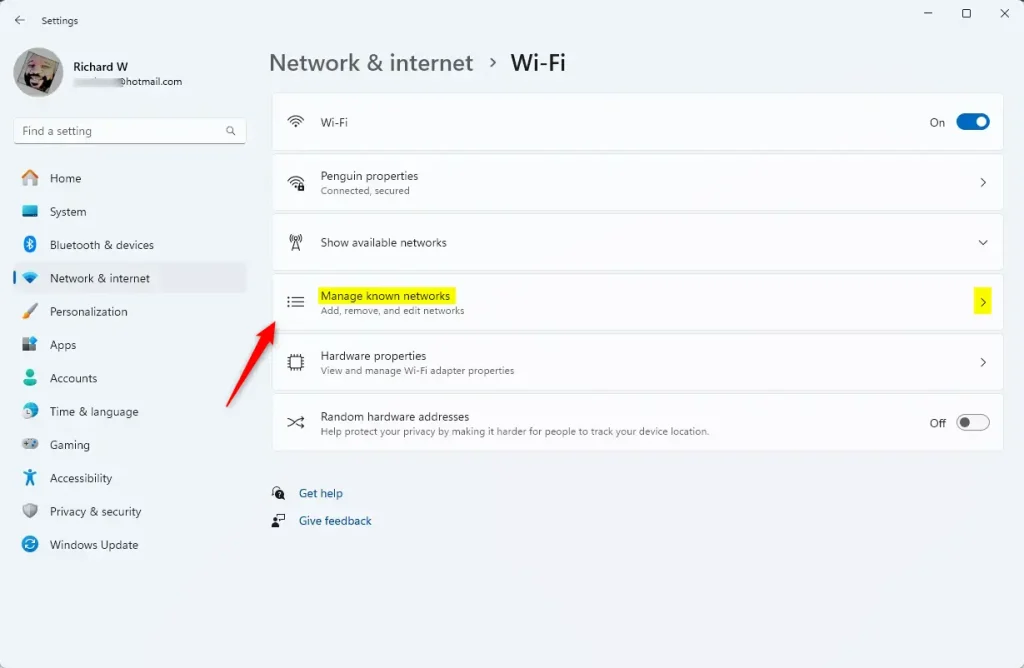
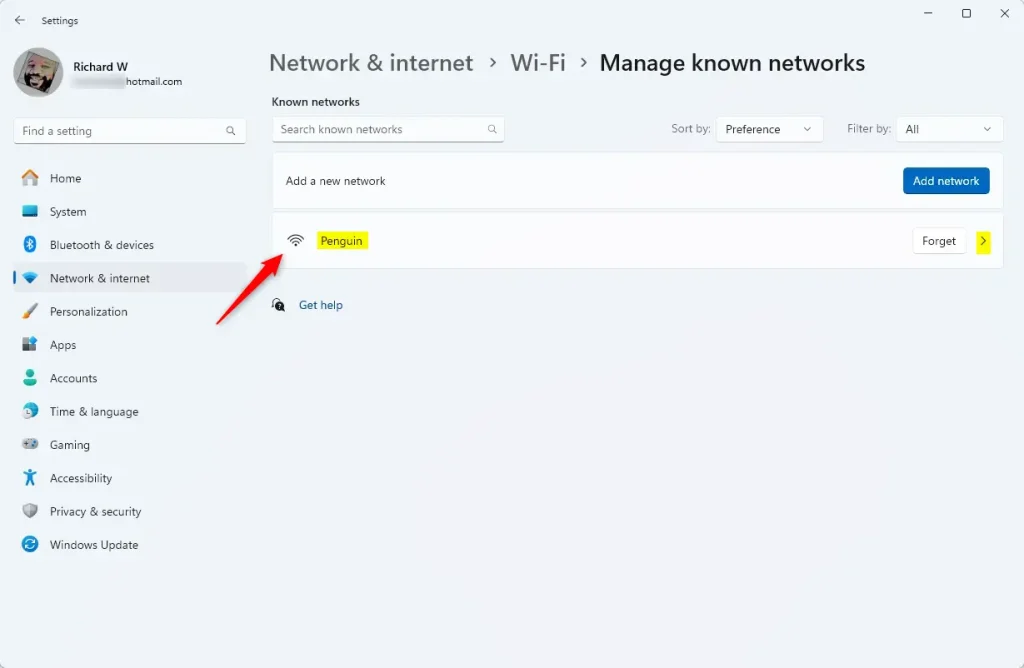
- Click Manage known networks. A list of the Wi-Fi networks your PC has saved appears.
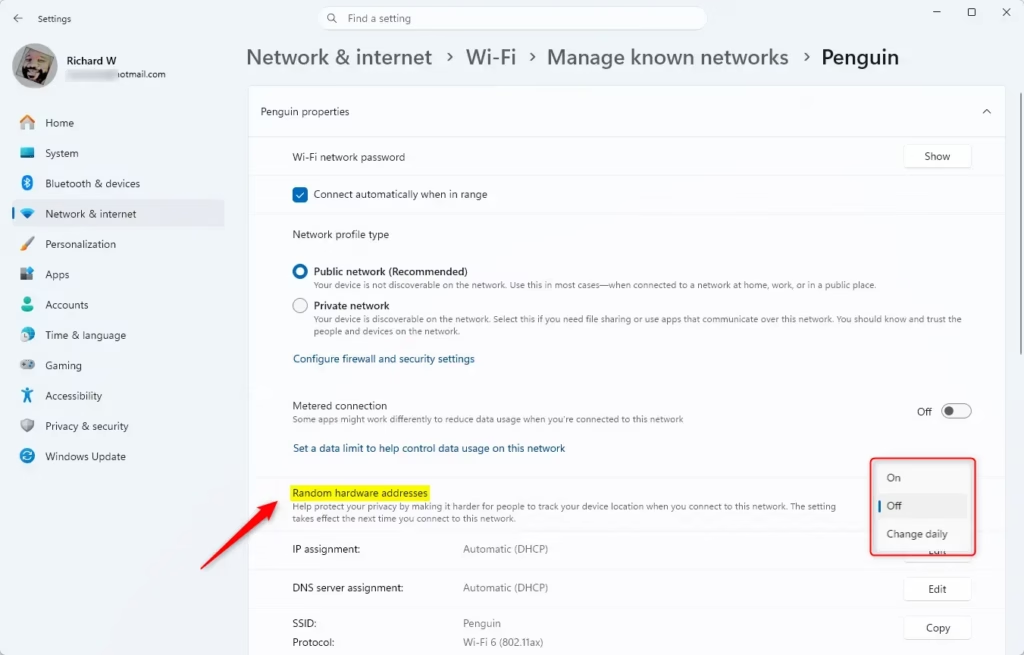
- Find and click the Wi-Fi network you want to change. Its settings page opens.
- In the drop-down for Random hardware addresses, choose On, Off, or Change daily. Change daily gives that network a new random address each day instead of keeping one.
- Close Settings when finished.
Managing a random MAC address Windows 11 setting for a single connection lets you control privacy on specific Wi-Fi networks without changing how your computer connects to others. The new address is used the next time you connect, so disconnect and reconnect to that network to apply it.
There is one common reason to turn the feature off for a network. Some routers use MAC filtering, and some public or hotel networks tie a login to your device's address. If a network that used to work stops letting you in, or keeps asking you to sign in again, set it to Off for that network. To go back, choose On again.
Why Should You Use Random Hardware Addresses?
- It helps keep your device private by stopping others from tracking your location using your MAC address.
- You can turn it on for all networks or just for some you want extra privacy on.
- It's easy to change anytime in your Windows 11 Settings, and no restart is needed.
- Good practice to check your Wi-Fi privacy settings regularly, especially after a major Windows update or a driver update.
- Protect yourself especially when using public Wi-Fi in places like cafes, airports, or shopping centers.
Using a random MAC address Windows 11 setting stops people on public Wi-Fi networks from tracking your physical location or monitoring your device by its permanent hardware ID. Turning on this feature masks your computer's real physical address, giving you better online privacy whenever you connect to wireless networks outside your home. If a network starts to misbehave afterward, turn the setting off for that one network only and leave it on for the rest.
Have a question about this guide?
Answered by AI from this guide. Good questions may be added to this page — please don't include personal details.
Did this guide fix your problem?

About the Author
Richard
Tech Writer, IT Professional
Richard is a writer at Geek Rewind who turns complex IT tasks into clear, step-by-step guides. He draws on years of hands-on experience in system administration and enterprise IT operations, focusing on Windows, Linux and WordPress: the problems people actually run into, and the fixes that work. His server and WordPress guides come from systems he runs himself. Richard builds and maintains the platform behind Geek Rewind, from its Ubuntu servers and Nginx configuration to its custom WordPress plugins. Many new tutorials start with readers' questions, and he's always glad to answer them in the comments.
No comments yet — be the first to share your thoughts!