How to Enable USB Battery Saver in Windows 11

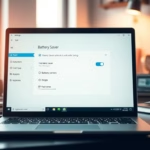
USB Battery Saver in Windows 11 cuts power to plugged-in USB devices like mice and flash drives the moment your screen turns off. This power-saving feature stops idle accessories from draining your laptop battery in the background.
Turning on this setting takes just a few clicks in your power options and helps your battery last longer throughout the day.
Enable USB Battery Saver in Windows 11 by opening Settings, navigating to Bluetooth & devices, clicking USB, and toggling the USB battery saver option on. This feature conserves power by cutting electricity to idle USB devices when your screen turns off.
Is USB battery saver enabled by default in 🪟 Windows 11?
Yes, Windows 11 often enables basic power management features by default to optimize system latency and battery life. However, depending on your laptop manufacturer’s power delivery profiles, you may need to adjust these settings manually to balance performance with longevity.
How to change USB battery saver settings
You change USB battery saver settings in Windows 11 by opening the main Settings app , selecting Bluetooth & devices, and adjusting your power preferences. This built-in feature helps your laptop battery last longer by reducing the power sent to connected USB accessories when you are not plugged into a wall outlet.
- Open Settings by pressing the Win+I on your keyboard.
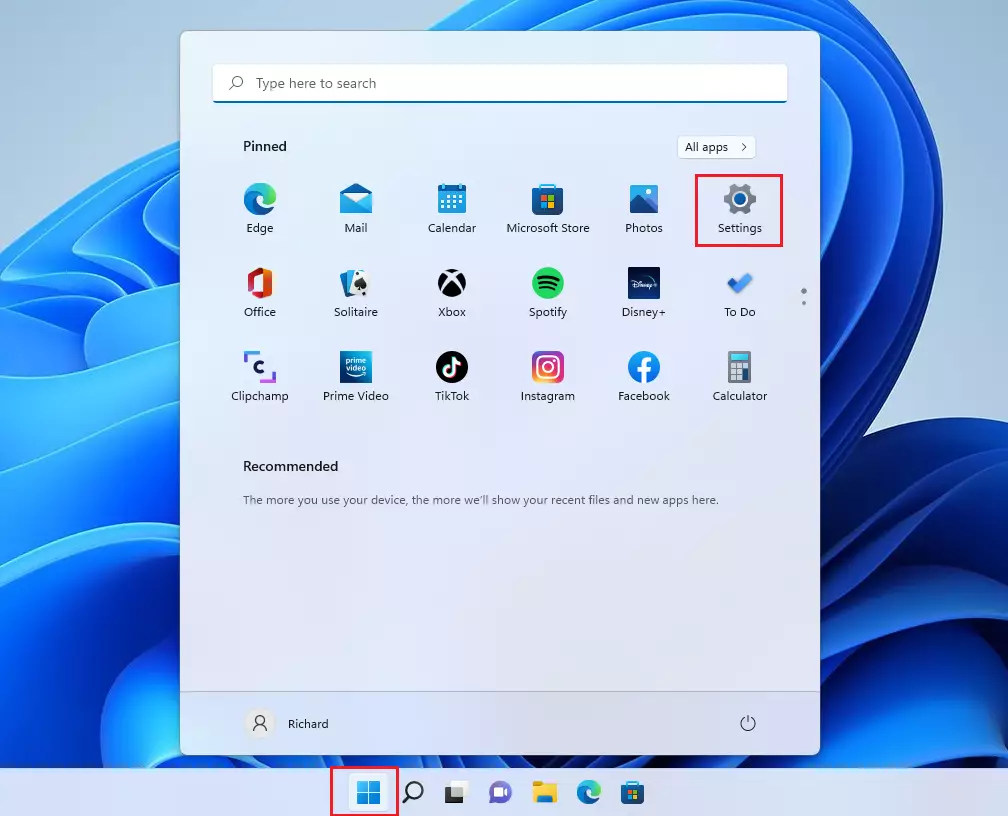
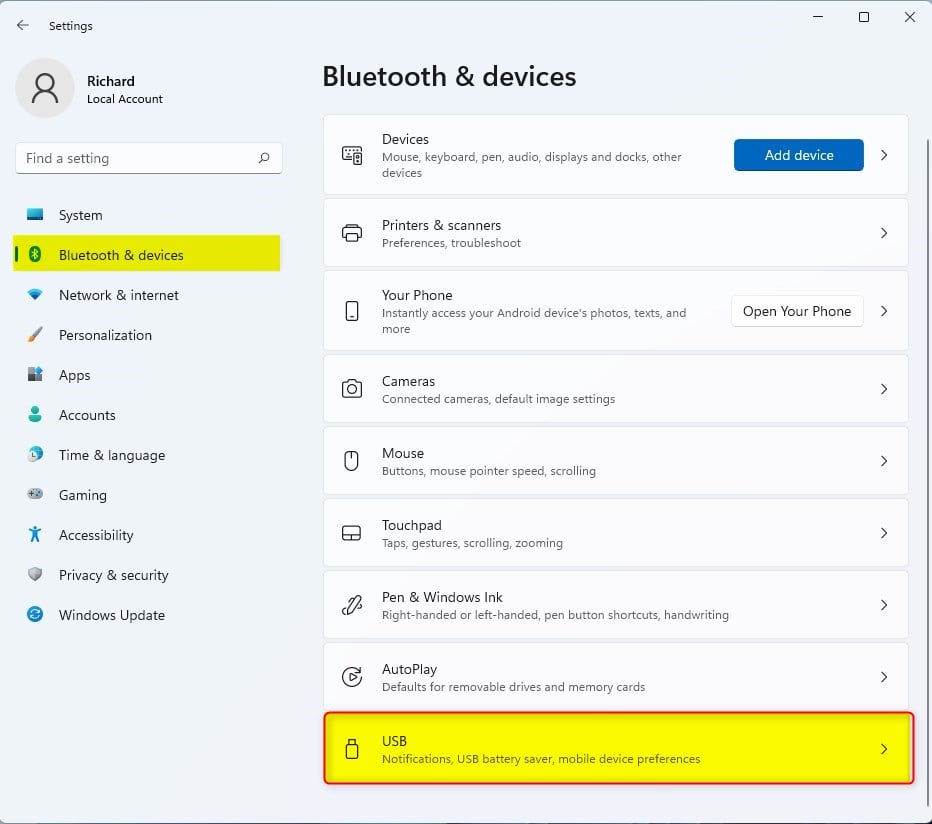
windows 11 start menu settings updated - In the menu on the left, click Bluetooth & devices.
- On the right side of the screen, click the USB tile.
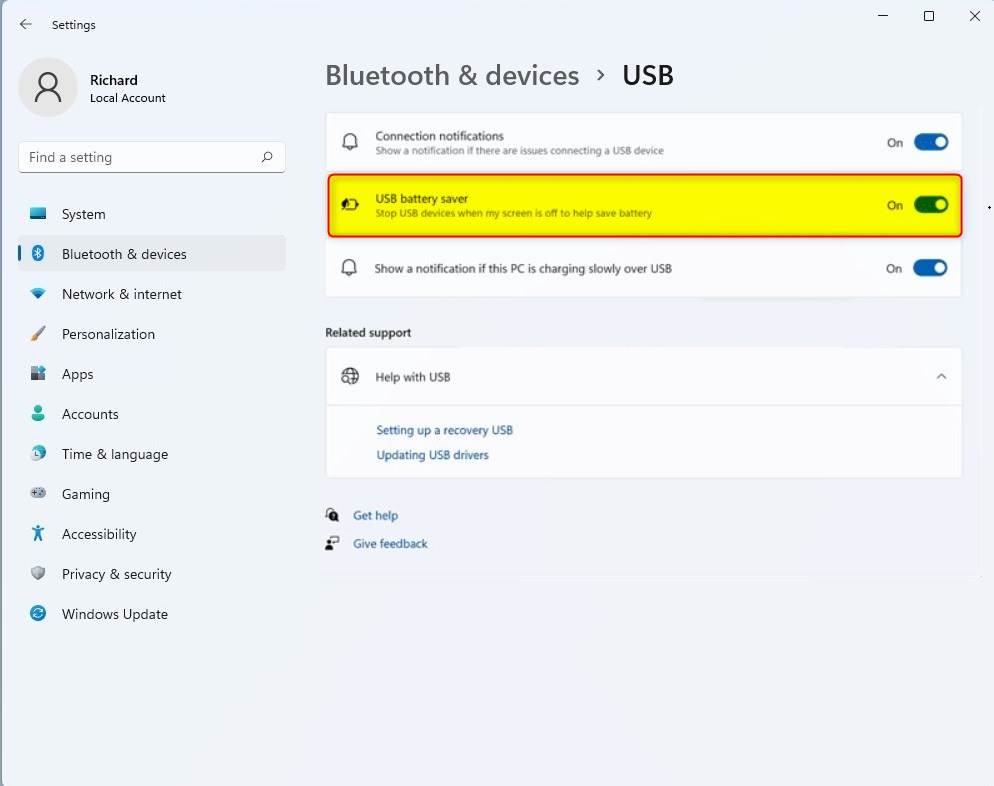
windows 11 bluetooth and devices usb - Find the USB battery saver option and toggle it On or Off.
windows 11 usb battery saver on off
Advanced Power Management: USB Selective Suspend
USB Selective Suspend is a power management feature in Windows 11 that helps conserve your laptop battery. It works by putting unused USB ports into a low-power state so they stop draining energy when your devices are plugged in but not actively being used.
Steps to access legacy Power Options (Requires Admin Privileges):
- Press Windows key + R, type powercfg.cpl, and press Enter.
- Click Change plan settings next to your active power plan.
- Click Change advanced power settings.
- Expand USB settings and then USB selective suspend setting.
Troubleshooting USB Connectivity Issues
USB devices frequently disconnect in Windows 11 when the operating system cuts power to save battery. You can fix this common connectivity problem by changing your device power management settings in Device Manager to stop Windows from turning off your hardware automatically.
Steps to disable power management for a specific device (Requires Admin Privileges):
- Right-click the Start button and select Device Manager.
- Expand Universal Serial Bus controllers.
- Right-click your USB Root Hub and select Properties.
- Go to the Power Management tab and uncheck Allow the computer to turn off this device to save power.
USB4 and Power Delivery
While USB battery saver is great for basic peripherals, high-performance docks and external GPUs may require consistent power. Always check the official Microsoft USB documentation for compatibility details.
Pro-Tip: Prevent Windows from turning off USB ports
If you have a device that keeps disconnecting, navigate to the Device Manager, find the device under Human Interface Devices, and uncheck the power saving box in the Power Management tab to keep it active at all times.
Summary
The USB battery saver in Windows 11 is a straightforward way to help your laptop battery last longer by stopping power to USB devices when not needed.
Does USB battery saver affect gaming mouse performance?
Yes, it can. If the system cuts power to your USB port, your gaming mouse may experience input lag or disconnect entirely when the screen goes dark. For competitive gaming, it is recommended to disable power-saving features for your specific USB ports to ensure consistent peripheral latency.
Why does my keyboard disconnect after enabling USB power saving?
This happens because the power management system incorrectly identifies your keyboard as an idle device. When the screen turns off, Windows suspends the USB port to save energy. You can fix this by disabling the power management setting for that specific device in the Device Manager.
Was this guide helpful?

About the Author
Richard
Tech Writer, IT Professional
Richard, a writer for Geek Rewind, is a tech enthusiast who loves breaking down complex IT topics into simple, easy-to-understand ideas. With years of hands-on experience in system administration and enterprise IT operations, he’s developed a knack for offering practical tips and solutions. Richard aims to make technology more accessible and actionable. He's deeply committed to the Geek Rewind community, always ready to answer questions and engage in discussions.



No comments yet — be the first to share your thoughts!