How to Enable or Disable Enhanced Security Mode in Edge


Enhanced Security Mode in Microsoft Edge is a built-in safety setting that isolates web traffic into separate processes to block malicious code from reaching your system. You can turn this mode on or off, and control whether people on your computer are allowed to bypass security rules for unverified sites.
Companies often lock down this setting using the EnhanceSecurityModeAllowUserBypass policy to stop anyone from changing it.
To control the bypass of Enhanced Security Mode, open Registry Editor and navigate to Computer\🗝️HKEY_LOCAL_MACHINE\
Enable or disable Enhanced Security Mode bypass using the Windows Registry editor
Controlling the Enhanced Security Mode Edge bypass feature requires changing a specific key in the Windows Registry Editor. You can turn this setting on or off by navigating to the MicrosoftEdge policy key and editing the EnhanceSecurityModeAllowUserBypass value. This method works well when you need to manage browser security settings across your computer without using the standard interface.
Press the Win, type regedit, and press Enter to open Registry Editor. Go to this path in the left sidebar:
ComputerHKEY_LOCAL_MACHINESOFTWAREPoliciesMicrosoftEdge
Locate the EnhanceSecurityModeAllowUserBypass (REG_DWORD) name in the right pane of the Explorer key and double-click it to open it.
Type 0 into the value data box to block users from bypassing the security restriction.
If missing, right-click a blank area and create a new DWORD (32-bit) Value named 'EnhanceSecurityModeAllowUserBypass'.
Then, enter the name 'EnhanceSecurityModeAllowUserBypass'.
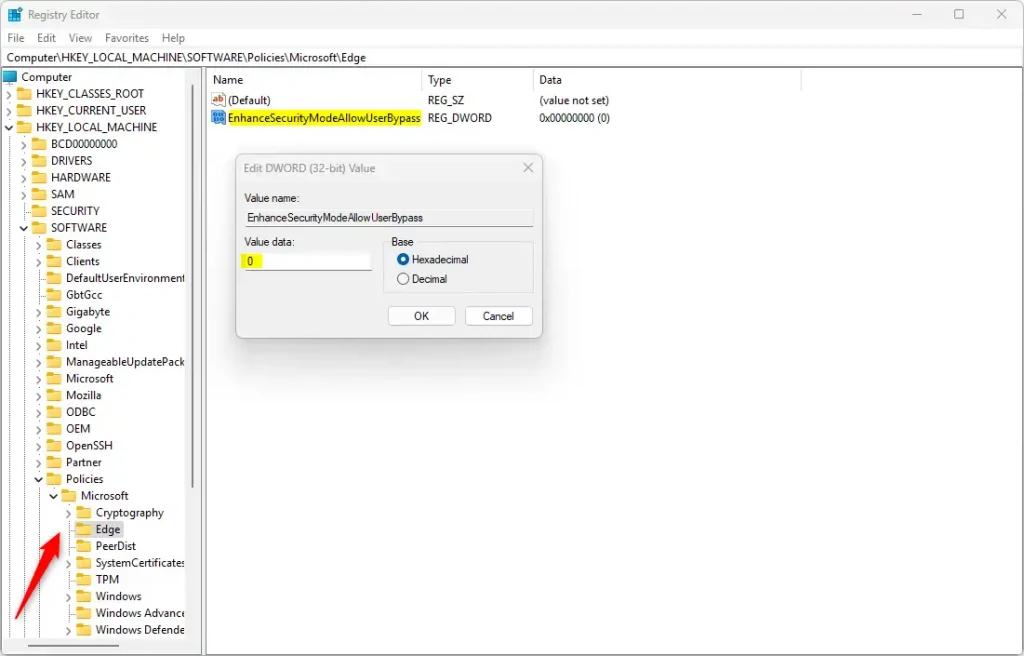
To revert to the default behavior and allow users to bypass Enhanced Security Mode, delete the 'EnhanceSecurityModeAllowUserBypass' item.
Rebooting the computer applies the changes.
Restart your computer to apply the changes.
Conclusion:
- Enabled or disabled bypassing the Enhanced Security Mode in the Microsoft Edge browser using the Windows Registry Editor.
- Explained the steps to enable or disable the feature, providing clear instructions for users to follow.
- Emphasized the importance of this feature in enhancing browsing security and the instances where bypassing it may be necessary.
- Encouraged feedback and additional contributions from readers through the comments section.
Was this guide helpful?

About the Author
Richard
Tech Writer, IT Professional
Richard, a writer for Geek Rewind, is a tech enthusiast who loves breaking down complex IT topics into simple, easy-to-understand ideas. With years of hands-on experience in system administration and enterprise IT operations, he’s developed a knack for offering practical tips and solutions. Richard aims to make technology more accessible and actionable. He's deeply committed to the Geek Rewind community, always ready to answer questions and engage in discussions.



No comments yet — be the first to share your thoughts!