How to Change Your Diagnostic Data Setting in Windows 11

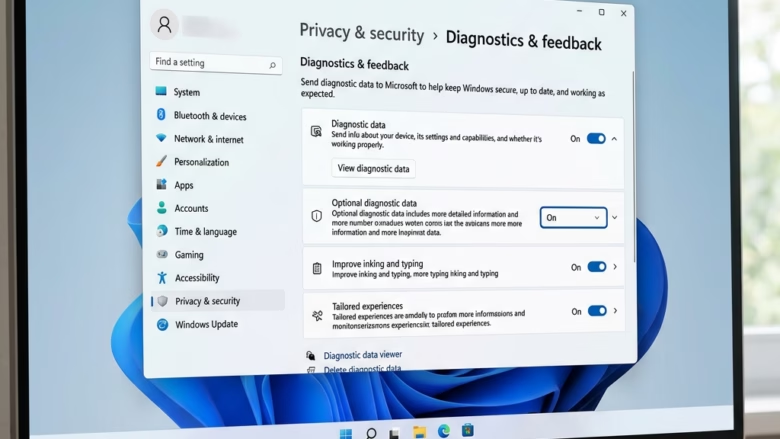
Diagnostic data in Windows 11 sends background info about your PC and apps to Microsoft to fix bugs and improve stability. You can choose between two levels: Required (basic details to keep your device secure) or Optional (extra details about websites you visit and app usage).
Open Settings and go to Privacy & security to change this setting at any time. Lowering the setting to Required stops extra sharing while keeping your PC running normally.
Go to Settings , then Privacy & security, and select Diagnostics & feedback. Here, you can choose between “Required” and “Optional” diagnostic data settings. “Required” sends only essential information, while “Optional” includes more details to help improve Windows.
What is Diagnostic Data?
Windows 11 diagnostic data is the information your computer automatically sends to Microsoft about your device health and how you use the system. Microsoft splits this windows 11 diagnostic data into two levels: required data for basic security and optional data that includes extra details about app usage and website visits.
There are two main types:
- Required diagnostic data: This is the basic info needed to keep Windows safe, updated, and working. It includes your device’s setup and if it’s running okay.
- Optional diagnostic data: This is more detailed. It can include extra info about your device, how you use apps (called “usage data”), and more detailed error reports. Sending this helps Microsoft find and fix problems faster, making Windows better for everyone.
Even if you only send Required data, your device stays secure and works normally. The choice is about how much extra information you’re okay with sharing to help improve products.
Ready to take control? Here’s how to adjust your diagnostic data settings in Windows 11.
- Or, press the Windows key + I on your keyboard. This shortcut opens Settings quickly.
Navigate to Privacy & security
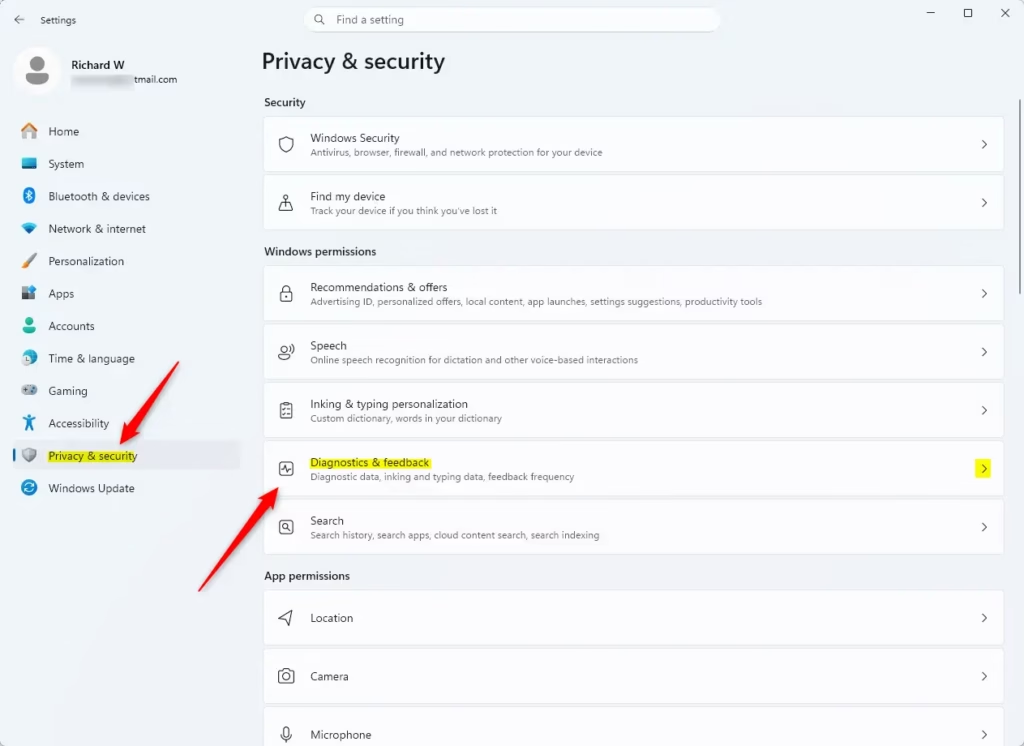
In the Settings window, look at the list on the left. Scroll down to Privacy & security and click it.💡TipThe Settings app has many options.If you can't find something, use the search bar at the top. Type "diagnostics" to go straight there.
Locate Diagnostics & feedback
In the "Privacy & security" section, find Diagnostics & feedback. This is where you control what Windows sends to Microsoft. Click on it.Adjust the Diagnostic data setting
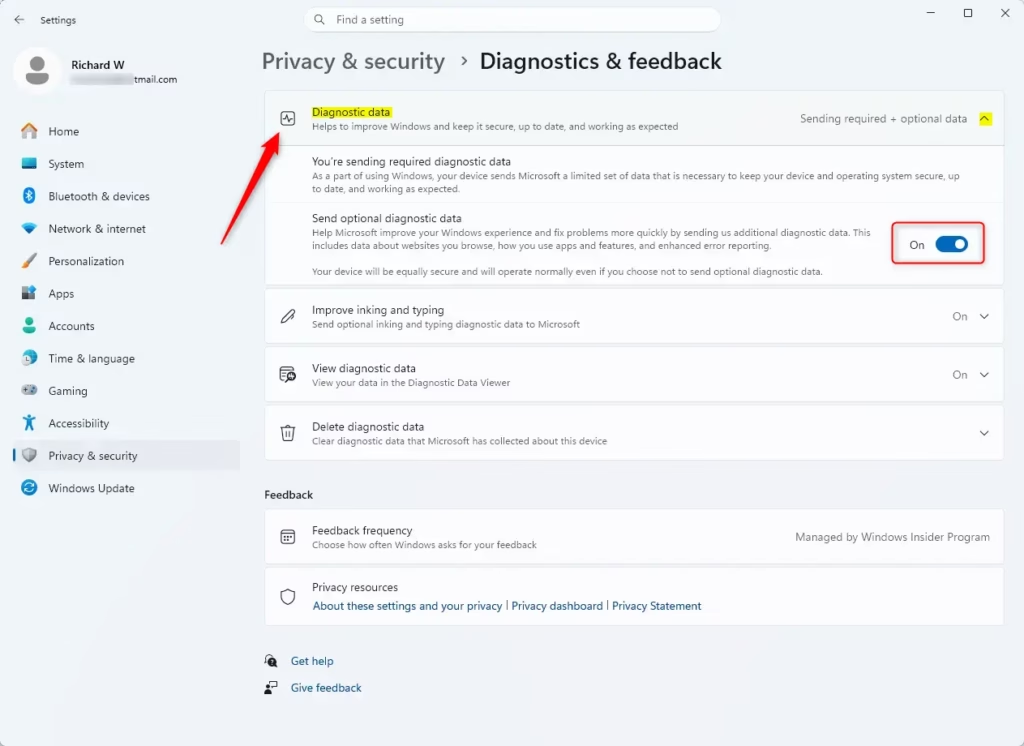
Now you're in the right spot! Look for the Diagnostic data section. You'll see choices for how much data you want to send.Change your windows 11 diagnostic data setting by going to Privacy & security and then Diagnostics & feedback inside the Settings app. From that menu, you can switch your preference between the Required and Optional choices depending on how much system information you want to share with Microsoft.
Click the option you are most comfortable with. If you're not sure, choosing "Required" is a good start.Practical Tip: If you want to know more about what "Optional" data includes, look for links on this screen. Microsoft often provides more details there.
Warning: You might need to restart your PC for these changes to fully work, especially if you switch between Required and Optional. Windows will usually tell you if a restart is needed.- Required: Sends only the essential data for security, reliability, and basic functions.
- Optional: Includes Required data plus extra information to help Microsoft improve products and features.
Review Other Related Settings
While you are in "Diagnostics & feedback," look at the other settings:Review other related windows 11 diagnostic data options on the Diagnostics & feedback screen to control extra features like inking and typing improvements or tailored experiences. These secondary toggles let you decide if Microsoft can use your writing samples and diagnostic insights to personalize your device.
- Improve inking & typing: If you use a pen or touch screen, this lets Windows collect samples to improve handwriting recognition and text suggestions.
- Tailored experiences (or Personalized offers): This uses your diagnostic data to give you personalized tips and recommendations in Microsoft services. Turn this off if you prefer not to have personalized offers.
- Delete diagnostic data: You might see an option to delete diagnostic data already collected from your device.
Reference:
Summary
Manage windows 11 diagnostic data easily by opening your privacy settings to switch between required and optional reporting levels. You can also turn off tailored experiences and delete your past information history right from the same menu whenever you want to limit what your computer shares.
Was this guide helpful?
100% of readers found this helpful (1 votes)

About the Author
Richard
Tech Writer, IT Professional
Richard, a writer for Geek Rewind, is a tech enthusiast who loves breaking down complex IT topics into simple, easy-to-understand ideas. With years of hands-on experience in system administration and enterprise IT operations, he’s developed a knack for offering practical tips and solutions. Richard aims to make technology more accessible and actionable. He's deeply committed to the Geek Rewind community, always ready to answer questions and engage in discussions.

No comments yet — be the first to share your thoughts!