
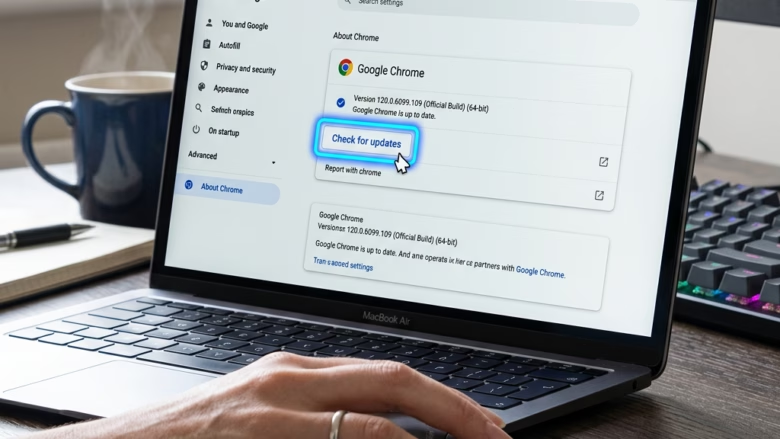
Microsoft Edge gets a new major version about every 4 weeks. Each one brings new features and security fixes to your Windows 11 PC. Edge is the web browser built into Windows 11.
Most of the time Edge updates itself in the background and you never have to think about it. It usually applies the update when you close and reopen the browser. If you leave Edge open for days, you can fall a version or two behind. Checking by hand takes a few clicks and confirms you are on the newest, safest version right now.
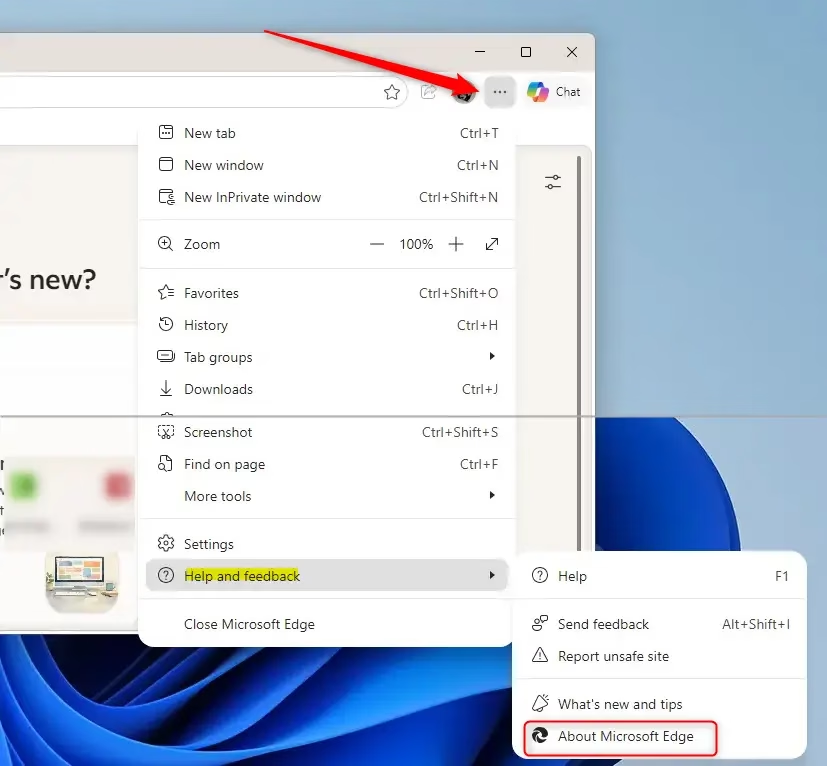
Open Microsoft Edge, click the three dots in the top-right corner, select Settings, then click About Microsoft Edge at the bottom of the left menu. The browser checks for updates automatically and downloads any available version. Click the Restart button when it appears to finish the update.
Check for Edge Updates Inside the Browser
The quickest way to update is from inside Edge. The browser has an About page that checks for updates the moment you open it, so you don’t need to visit any website. This method works the same on Home and Pro editions.
- Open Microsoft Edge. Click the blue and green Edge icon on the taskbar or Start menu . A browser window opens.
- Open Settings . Click the three dots in the top-right corner of the window, then click Settings in the list. A Settings tab opens with a list of categories on the left.💡TipYou can type
edge://settings/helpinto the address bar and press Enter to go straight to the settings page. - Go to the About page. At the bottom of the left-hand list, click About Microsoft Edge. You can also reach the same page from the three-dot menu by choosing Help and feedback, then About Microsoft Edge. If you can’t see the left-hand list, the window may be too narrow. Click the menu icon (three horizontal lines) at the top left of the Settings page, or make the window wider.
- Let Edge check for updates . The page checks as soon as it opens. If an update is available, Edge downloads it, and you may see a progress bar or percentage if the download is large. If you are already current, the page says Microsoft Edge is up to date and shows your version number.
- Restart Edge to finish. When the download completes, a Restart button appears. Click it. Edge closes and reopens on the new version.
Warning: Save any work you have open in Edge before you click Restart. Closing and reopening the browser closes all your tabs. Edge usually offers to restore them, but anything you typed into a web form and did not submit can be lost.
On a work PC, ask your IT team. Otherwise, try the next two methods.
Update Edge Through Windows Update
You can also check for updates through Windows Update in Settings. Edge normally updates itself with its own updater, so Windows Update is not the main route. Still, it is worth running because it keeps the rest of the system patched and can bring in Edge-related components. Treat it as a backup, not a guarantee that Edge is current.
- Open Windows Settings. Press Windows key + I on your keyboard. Or click the Start button and then click the gear icon (Settings). The Settings app opens.
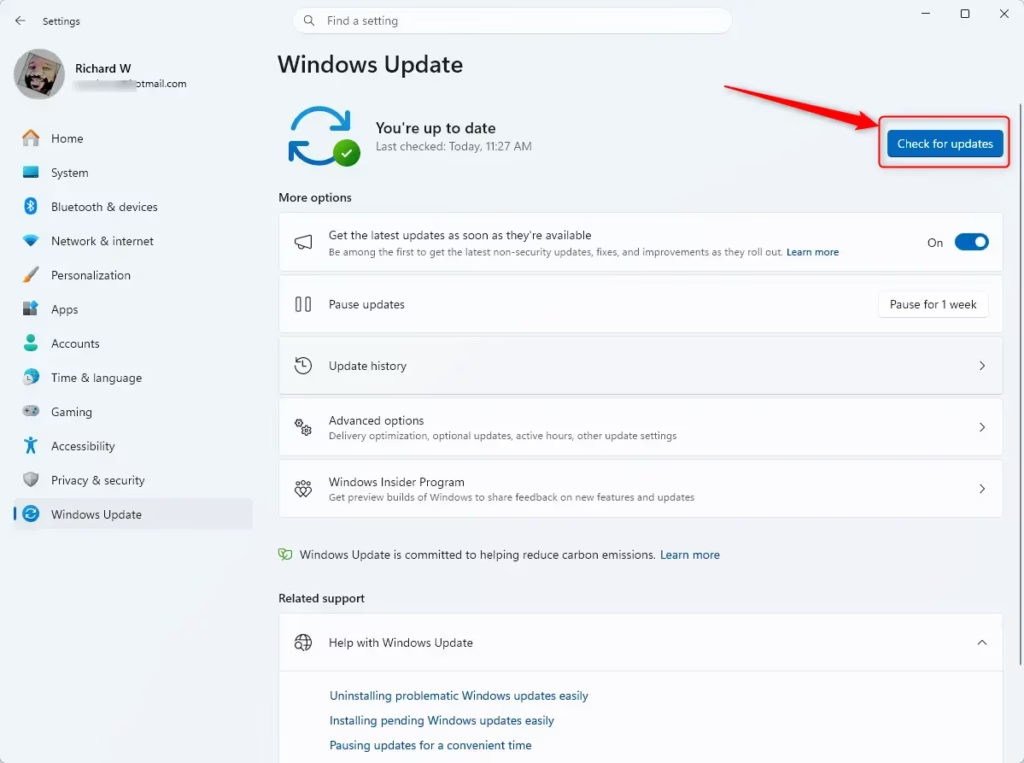
- Go to Windows Update. In Settings, click Windows Update (on Windows 11). On Windows 10 the entry is called Update & Security. The update status page opens.
- Check for updates. Click the Check for updates button. Windows looks for updates and shows what it finds. If nothing is waiting, it says You're up to date.
- Install and restart. If Windows finds updates, it downloads them and then installs them. Any Edge update found installs along with the others. Some updates need a restart to finish. When that happens, click Restart now, or schedule it for a time that suits you. Save your work first.
Checking for Windows updates regularly is good practice. It keeps the whole computer safe and running well. It can also help you pick up browser updates without opening Edge separately.
If Windows Update offers no updates for other Microsoft products, open Advanced options on the Windows Update page and check whether Receive updates for other Microsoft products is turned on. On a work-managed PC this setting may be locked or missing, because your organization controls it.
Download and Install the Latest Edge Manually
If the automatic methods fail, download the Edge installer directly from Microsoft and run it. Installing over your existing copy brings Edge up to the latest version. Your bookmarks, history and saved passwords stay in place, because they belong to your profile and not to the program files.
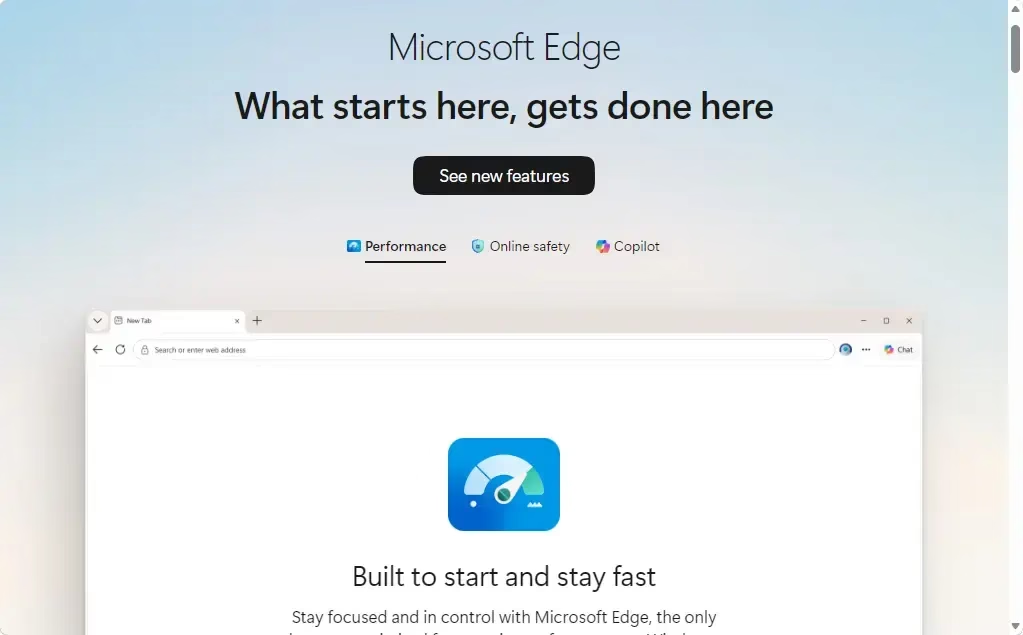
- Go to the Microsoft Edge download page. Open any web browser, type
https://www.microsoft.com/edgeinto the address bar, and press Enter. Only use the official Microsoft page. Avoid third-party download sites. - Find the download button. Look for a button that says Download Edge or Download now. Make sure the version matches your Windows computer. On Windows 11 the page normally picks the right one for you.
- Run the installer. When the download finishes, open your Downloads folder and double-click the file. Windows may show a User Account Control prompt asking for permission. Click Yes or Allow.
- Admin privilege required: You may need administrator rights to run the installer. On a standard account, Windows asks for an administrator password.
- Follow the instructions. The installer shows what to do. Follow the steps on screen. Edge installs or updates, and it usually opens by itself when it is done.
- Restart if needed. You might need to restart Edge or your computer to finish the update. To confirm the result, open the About page from the first method. It should say Edge is up to date.
Reference:
https://support.microsoft.com/en-us/edge/getting-the-latest-microsoft-edge-update-just-got-easier
Summary
Updating Microsoft Edge matters for both security and performance. You can update it from the browser's own settings menu, through Windows Update, or by downloading the latest version from the Microsoft website. The About page is the fastest and most reliable of the three. Use the download method when the others fail. Any of them gets you onto the latest, most secure version of your browser.
Have a question about this guide?
Answered by AI from this guide. Good questions may be added to this page — please don't include personal details.
Did this guide fix your problem?

About the Author
Richard
Tech Writer, IT Professional
Richard is a writer at Geek Rewind who turns complex IT tasks into clear, step-by-step guides. He draws on years of hands-on experience in system administration and enterprise IT operations, focusing on Windows, Linux and WordPress: the problems people actually run into, and the fixes that work. His server and WordPress guides come from systems he runs himself. Richard builds and maintains the platform behind Geek Rewind, from its Ubuntu servers and Nginx configuration to its custom WordPress plugins. Many new tutorials start with readers' questions, and he's always glad to answer them in the comments.
No comments yet — be the first to share your thoughts!