How to Start or Stop Windows Automatic Maintenance


Windows Automatic Maintenance runs background system chores like security scans, software updates, and drive cleanups once every 24 hours while your PC is idle and plugged in. You can manually start or stop these background tasks at any time to keep your system fast and prevent performance slowdowns during your work.
You can start or stop Windows Automatic Maintenance via the Control Panel . Navigate to Security and Maintenance, then click Start maintenance or Stop maintenance as needed. Alternatively, use the Windows Terminal with commands like MSchedExe.exe Start or MSchedExe.exe Stop.
Understanding Windows Automatic Maintenance
Windows Automatic Maintenance (often called WAM) keeps your computer running well by handling crucial system chores behind the scenes.
How to Start or Stop Windows Automatic Maintenance
Windows Automatic Maintenance runs background checks and updates when you are not using your PC. You can start or stop Windows Automatic Maintenance manually through the Control Panel if background tasks slow down your computer or run at the wrong time. Open the Control Panel, go to System and Security Security and Maintenance Automatic Maintenance, and click the Start maintenance button to run tasks right now.
- Open the Control Panel .
- Go to System and Security > Security and Maintenance > Automatic Maintenance.
- If the task is not running, click the Start maintenance link.
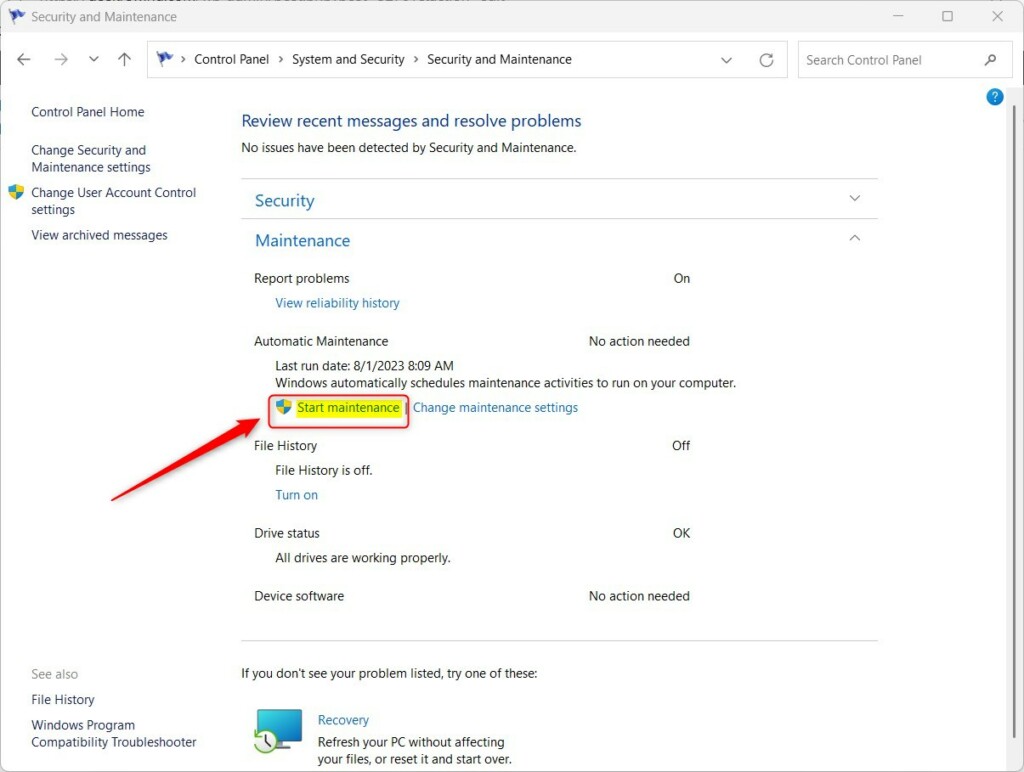
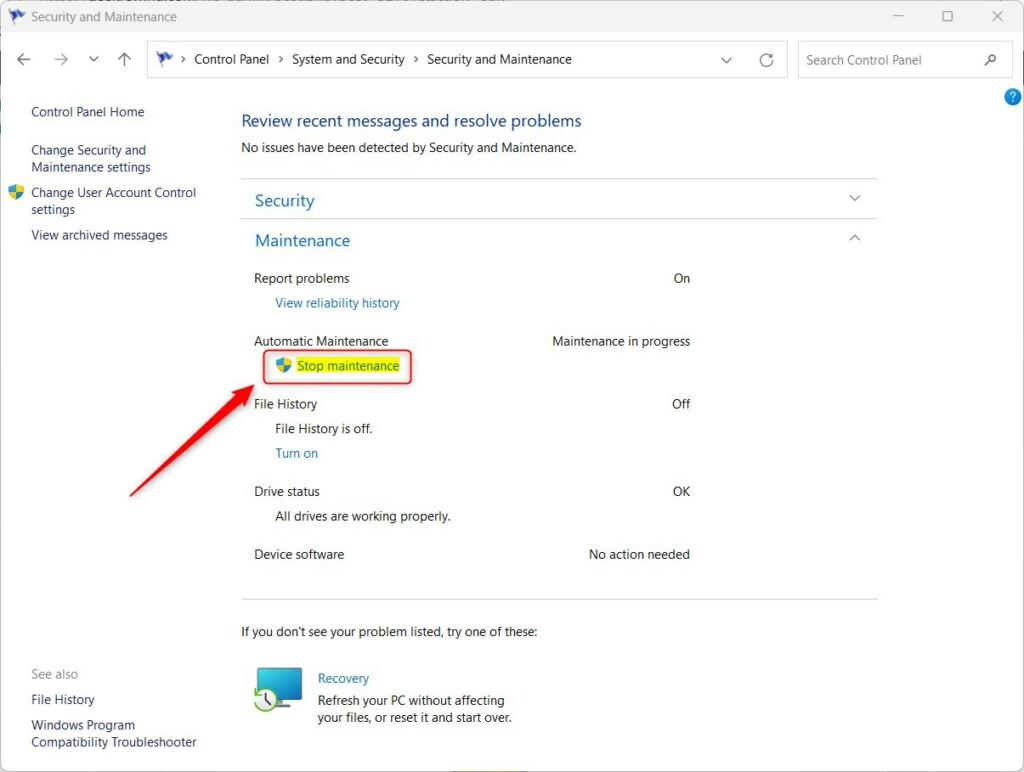
Active tasks display a Stop maintenance link. Clicking that option ends the process immediately.
Advanced Control via Windows Terminal
Windows Terminal lets you start or stop Windows Automatic Maintenance using text commands instead of clicking through menus. This method works well if you prefer command lines or need to script maintenance tasks across multiple computers. Open the Windows Terminal as an administrator, type the specific commands for your task, and press Enter to control the background schedules right away.
- Open the Windows Terminal as an administrator.
- To start the maintenance, type the following command and press Enter:
MSchedExe.exe Start - To stop the maintenance, type the following command and press Enter:
MSchedExe.exe Stop
Registry and Group Policy Alternatives
You can also disable Windows Automatic Maintenance through the Registry Editor (a database for low-level Windows settings ) or the Group Policy Editor.
Pros and Cons of Disabling Maintenance
| Pros | Cons |
|---|---|
| Prevents performance drops during heavy use. | System updates may fail to install. |
| Stops background disk activity. | Security scans might be missed. |
| Saves battery life on laptops. | System performance may degrade over time. |
Summary
Windows Automatic Maintenance keeps your system healthy by ensuring your machine stays updated and secure. Running these routines optimizes overall system performance. Control Panel modules and command-line interfaces both offer management paths. Administrator privileges remain mandatory for advanced system alterations.
Is it safe to disable Windows Automatic Maintenance?
Disabling this function carries inherent risks. Background noise stops, but Windows loses the ability to perform critical disk cleanup and security updates. Manual execution of these maintenance tasks becomes mandatory to keep the computer secure and prevent performance degradation or file system errors.
Why does my computer freeze during automatic maintenance?
Resource exhaustion causes freezing during automatic maintenance since these intensive operations demand heavy system power.
Was this guide helpful?

About the Author
Richard
Tech Writer, IT Professional
Richard, a writer for Geek Rewind, is a tech enthusiast who loves breaking down complex IT topics into simple, easy-to-understand ideas. With years of hands-on experience in system administration and enterprise IT operations, he’s developed a knack for offering practical tips and solutions. Richard aims to make technology more accessible and actionable. He's deeply committed to the Geek Rewind community, always ready to answer questions and engage in discussions.

[…] can change the default run time or manually trigger it to start. The Automatic Maintenance feature is enabled by default in Windows, but you can disable it if you […]
[…] If you want, you can change the time it runs or start it manually whenever you like. […]