How to Set Dev Drive as Trusted or Untrusted in Windows 11

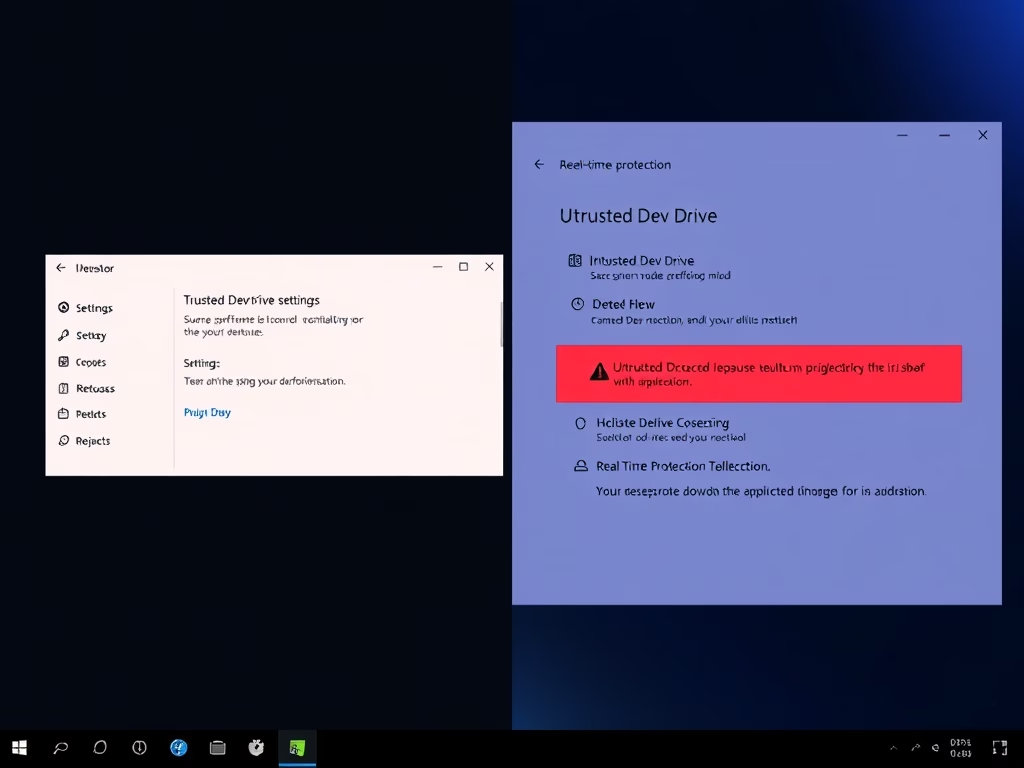
A Dev Drive is a storage volume built for coding projects. In Windows 11 version 22H2 and newer (with current updates installed), it can speed up your builds because Microsoft Defender Antivirus checks its files differently from files on a normal drive.
When you set a Dev Drive as trusted, Defender uses performance mode on that volume. Instead of blocking each file operation until the scan finishes, it scans in the background, so builds and package restores run faster. When you set the drive as untrusted, Defender goes back to full real-time protection on it. That is safer, but it slows down file-heavy work. This tutorial shows you how to check the current status and switch between the two with a few terminal commands.
Open Windows Terminal as administrator, then run fsutil devdriv query D: to check your Dev Drive’s current trust status. To set it as trusted, run fsutil devdriv trust D:. To set it as untrusted, run fsutil devdriv trust D: /untrusted. Replace D with your Dev Drive’s letter.
What is a Dev Drive?
A Dev Drive is a storage volume built on ReFS (Resilient File System). It is tuned for the many small file reads and writes that coding projects generate, such as source trees, package caches and build output. The trust setting decides how Defender treats the volume, and it is what you change in this tutorial.
Trust is set per volume. Changing one Dev Drive does not affect your other drives or any other Dev Drive on the machine.
Windows trusts a newly created Dev Drive by default. Windows Defender (the built-in security software) runs in performance mode on that volume. This balances protection with fast file access, and it is the right choice for most developers working with their own code and well-known package sources.
Marking a Dev Drive as untrusted gives you stricter protection. Defender applies full real-time protection to the volume, just as it does on a normal drive. The cost is some performance overhead, which you will notice most during large builds or when restoring many packages.
Consider untrusted if you store code or downloads from sources you do not fully trust on the drive, or if your organization's security policy requires full scanning everywhere.
This setting only affects the Dev Drive you target.
How to Set a Dev Drive as Trusted or Untrusted
Checking and changing the trust status of a Dev Drive takes a few terminal commands. You will need an elevated (administrator) Windows Terminal, the drive letter of your Dev Drive, and Windows 11 with Dev Drive support. If the commands are not recognized, update Windows and try again.
Step 1Open Windows Terminal as Administrator
Open Windows Terminal as administrator. Without elevated permissions, the commands that change trust will fail with an access error. You can open it from the Start menu with the steps below. Alternatively, right-click the Start button (or press Win+X) and choose Terminal (Admin).
- Click the Start button (the Windows icon on the taskbar).
- Type Terminal in the search box. Windows Terminal should appear at the top of the results.
- Right-click Windows Terminal and select Run as administrator. If the User Account Control prompt appears, click Yes. A terminal window opens, and "Administrator" shows in its title bar.
Learn how here. Only do this if you are comfortable running every terminal session as administrator.
Step 2Check Your Dev Drive's Current Status
Before you change anything, find out whether the drive is currently trusted or untrusted. A simple query command in Windows Terminal shows this.
- Find the drive letter of your Dev Drive in File Explorer under This PC.
- In the elevated terminal, type fsutil devdrv query followed by a space, your drive letter and a colon, as in the original form fsutil devdrv query :, then press Enter.
- Read the output. It states whether the volume is a Dev Drive and whether it is trusted or untrusted.
If the output says the volume is not a Dev Drive, check that you typed the right drive letter. The trust commands only work on Dev Drives.
fsutil devdrv query <drive letter>:Replace the placeholder with the actual drive letter assigned to your Dev Drive. In this tutorial the Dev Drive is the W: drive, so targeting it means entering the following command:
Changing a Dev Drive from untrusted to trusted turns the performance optimizations back on for that volume. The tool `DevDriveManager.exe` completes the trust update. Run the command below in the same elevated terminal and press Enter.
fsutil devdrv trust W:Running this command marks the W: drive as trusted. To confirm, run the query command again and check that the output now reports the drive as trusted. If it still shows untrusted, make sure the terminal is elevated and the drive letter is correct.
Step 4Set the Dev Drive as Untrusted
If you want maximum security, set the Dev Drive to untrusted. This is also how you undo the trusted setting.
- Open Windows Terminal as administrator, as described above.
- Type fsutil devdrv untrust W: and press Enter. Replace W with your actual drive letter. This turns on standard real-time protection for the volume.
- Run the query command again to confirm that the drive now shows as untrusted.
fsutil devdrv untrust W:This command changes the W: drive designation to untrusted. Your files are not touched, and only the way Defender scans them changes. To go back, run the trust command from the previous section.
Summary
- Trusted Dev Drive: Windows Defender runs in performance mode, which is faster for builds and file-heavy work.
- Untrusted Dev Drive: Defender uses full real-time protection, which is more secure but slower.
- You can switch between trusted and untrusted at any time with simple commands in an elevated Windows Terminal, and you can check the result with the query command.
Pick the setting that fits how you work. Trusted drives let Defender run in performance mode, which suits day-to-day coding on projects you control. Untrusted drives get strict real-time protection, which makes more sense when you handle code or files from sources you cannot vouch for, or when your security policy demands it.
Learn More
For more technical details, see the official Microsoft documentation on Trusted Dev Drives.
Have a question about this guide?
Answered by AI from this guide. Good questions may be added to this page — please don't include personal details.
Did this guide fix your problem?

About the Author
Richard
Tech Writer, IT Professional
Richard is a writer at Geek Rewind who turns complex IT tasks into clear, step-by-step guides. He draws on years of hands-on experience in system administration and enterprise IT operations, focusing on Windows, Linux and WordPress: the problems people actually run into, and the fixes that work. His server and WordPress guides come from systems he runs himself. Richard builds and maintains the platform behind Geek Rewind, from its Ubuntu servers and Nginx configuration to its custom WordPress plugins. Many new tutorials start with readers' questions, and he's always glad to answer them in the comments.
No comments yet — be the first to share your thoughts!