How to Set Active Hours for Windows 11

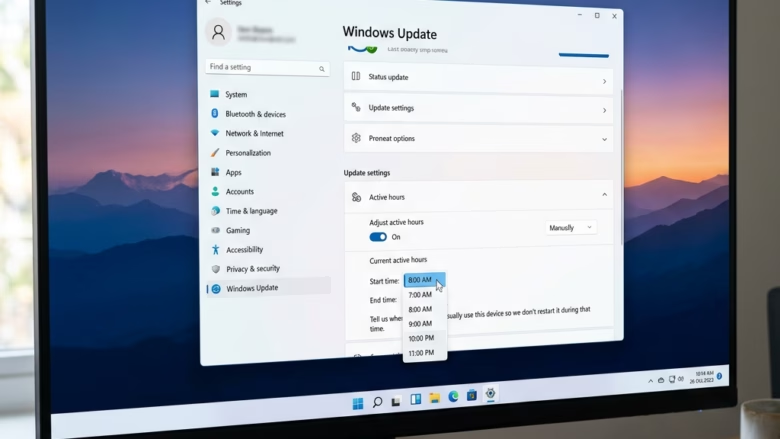
Active hours in Windows 11 block automatic system restarts by letting you set a specific daily work schedule of up to 18 hours. This feature tells your PC to hold off on installing updates and rebooting until your workday ends.
Set active hours in Windows 11 Settings by going to Windows Update Advanced options Active hours. Choose “Automatically” or set your preferred “Manually” start and end times to prevent unexpected restarts.
Why use Active Hours?
Preventing reboots in the middle of a workflow keeps productivity high. System security stays intact without sacrificing day-to-day focus.
What happens when done?
Defining a custom schedule stops sudden update reboots. Windows waits until those hours pass before restarting the machine. Keeping the system updated happens without disrupting daily tasks.
Reference: Keep your PC up to date with active hours – Microsoft Support
Option 1Set Active Hours in Settings
Setting Windows 11 active hours through the Settings app stops your computer from restarting while you work. You can use this menu to tell Windows when you are normally using your PC so updates wait until you step away. This built-in feature gives you control over your daily schedule without needing extra tools.- Open Settings (press Win+I).
- Click Windows Update on the left, then click Advanced options. Open Advanced options settings
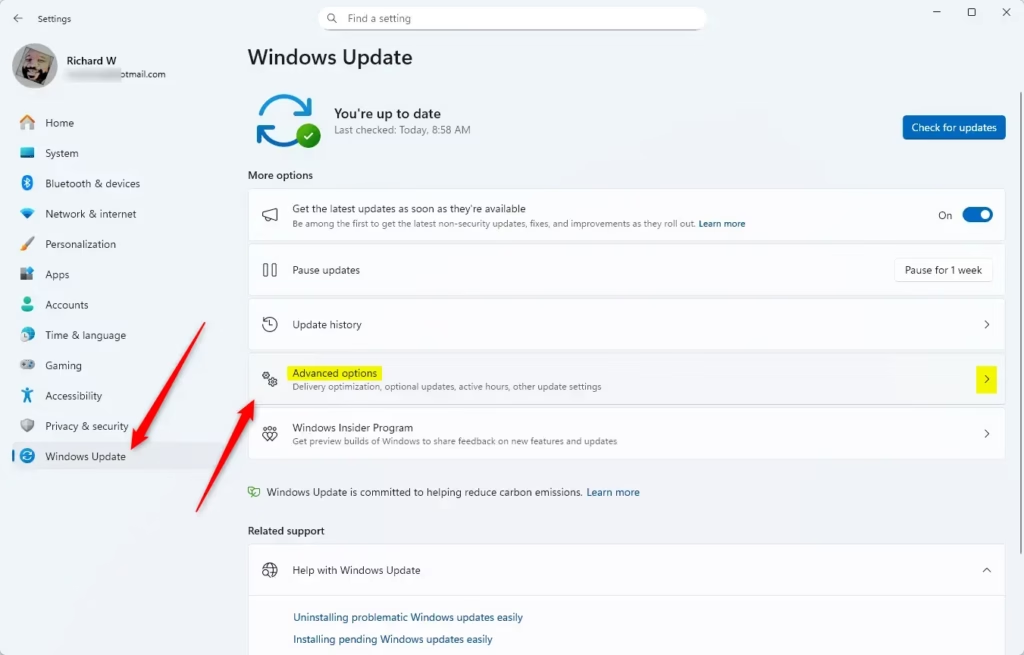
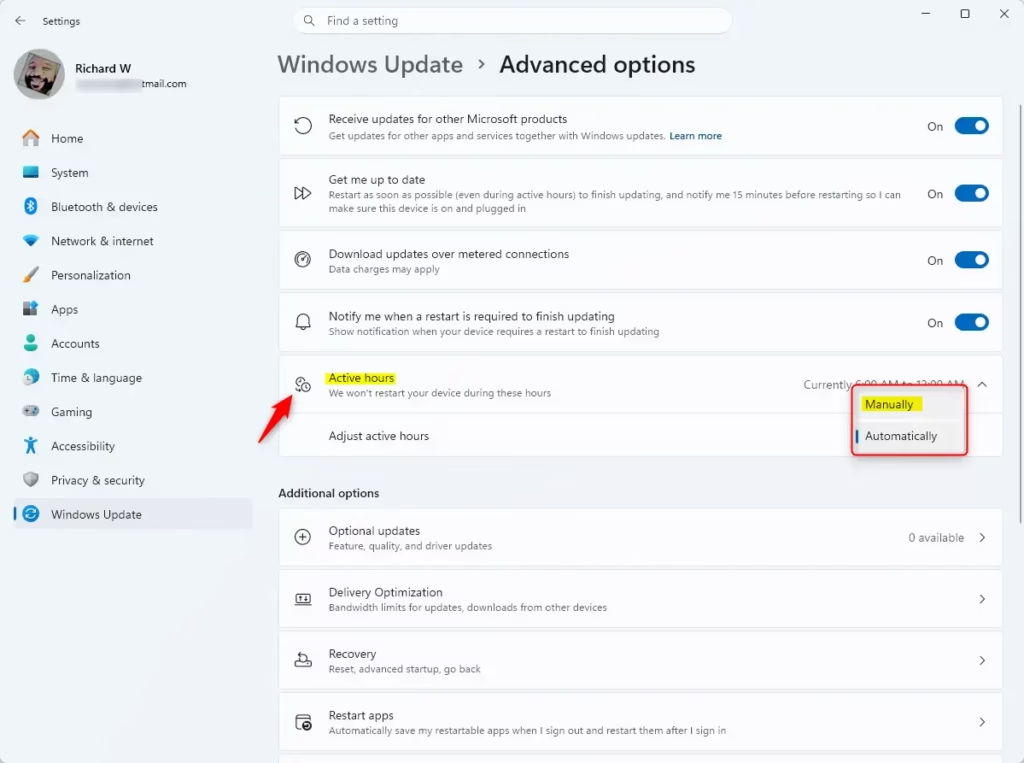
- Click Active hours to expand the menu.
- Choose Automatically or Manually from the drop-down menu.
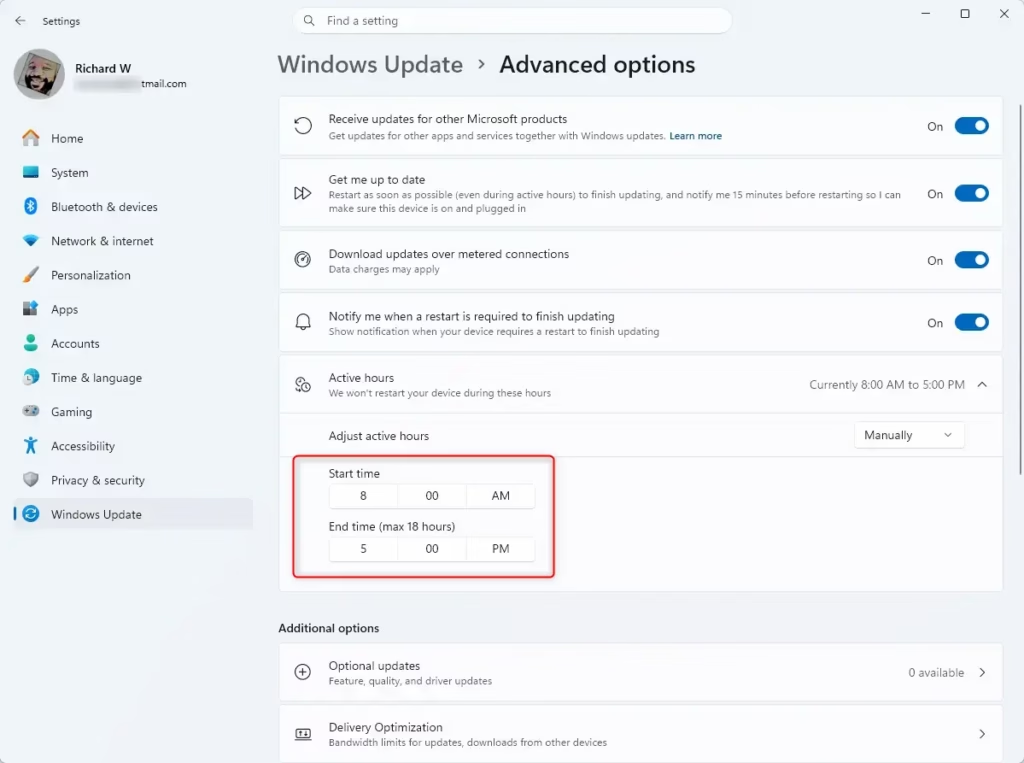
- If you choose Manually, pick your preferred start and end times, then click the check mark to save.
Troubleshooting: Why 🪟 Windows 11 Ignores Active Hours
Critical updates override custom schedules. Delayed reboots from previous pending updates also cause unexpected restarts.
🪟 Windows 11 Pro vs Home Limitations
Windows 11 Home users have fewer options for controlling updates. Pro, Enterprise, and Education editions support Group Policy Objects (administrative tools for enforcing strict update rules across network computers). Home editions remain restricted to the standard Settings menu.
Option 2Set Active Hours in Registry Editor
- Open Registry Editor (regedit.exe).
- Go to:
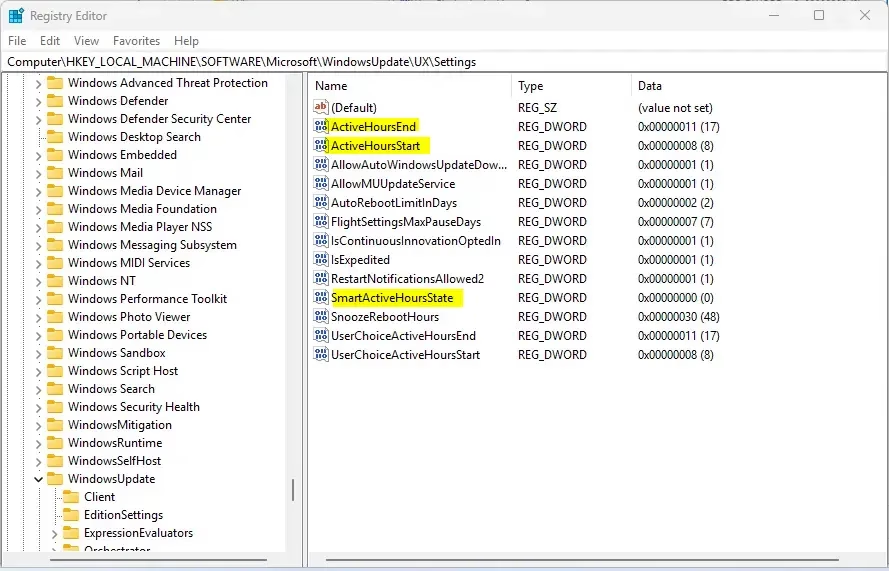
HKEY_LOCAL_MACHINE\SOFTWARE\Microsoft\WindowsUpdate\UX\Settings
Change SmartActiveHoursState to 0 for manual settings, or 1 for automatic. Adjust ActiveHoursStart and ActiveHoursEnd using decimal values in a 24-hour format (e.g., 14 for 2 PM).
Option 3Set Active Hours via Local Group Policy
Configuring Windows 11 active hours through the Local Group Policy Editor (gpedit.msc) lets administrators lock down update restart times across compatible systems. This method works well for office networks or advanced setups where you need to enforce specific rules for when your computer can reboot after installing updates.
- Open Local Group Policy Editor (gpedit.msc).
- Navigate to:
Computer Configuration\Administrative Templates\Windows Components\Windows Update\Manage end user experience
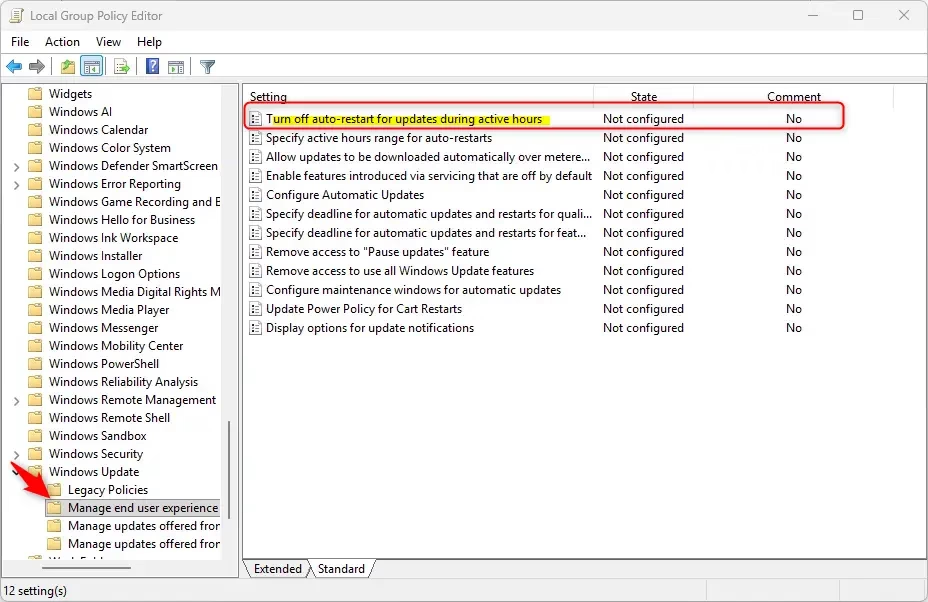
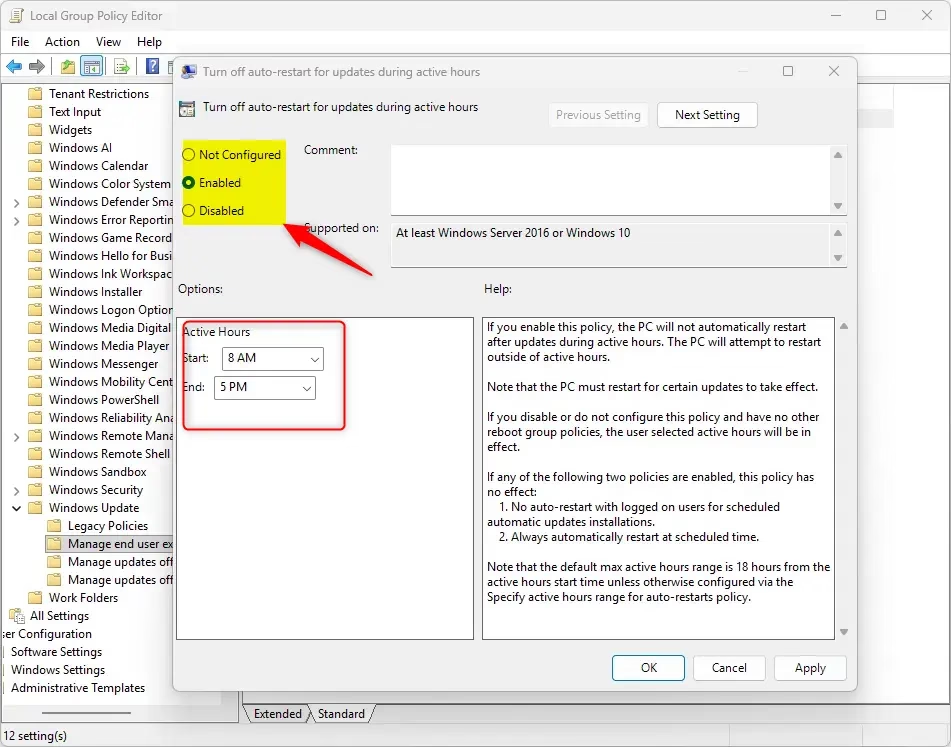
- Double-click Turn off auto-restart for updates during active hours.
- Select Enabled to set your custom times.
Summary
Active hours stop unwanted reboots. Configuring schedules works through the Settings app, Registry editor, or Group Policy Objects. Troubleshooting unresponsive settings requires checking the Windows Update Service status or metered connection configurations.
Why does 🪟 Windows 11 ignore my active hours?
Critical security patches override custom schedules. Pending reboots from prior updates will also bypass active hours. Metered connections alter how Windows handles download and restart scheduling.
Can I set active hours for more than 18 hours?
Windows 11 caps manual active hours at 18 hours per day. This built-in restriction guarantees the system finds a window for essential security installations. Standard user settings and registry modifications cannot bypass this limit.
Does sleep mode affect active hours?
Sleep mode pauses restart attempts while the hardware powers down. The system respects the configured schedule immediately upon waking.
Was this guide helpful?

About the Author
Richard
Tech Writer, IT Professional
Richard, a writer for Geek Rewind, is a tech enthusiast who loves breaking down complex IT topics into simple, easy-to-understand ideas. With years of hands-on experience in system administration and enterprise IT operations, he’s developed a knack for offering practical tips and solutions. Richard aims to make technology more accessible and actionable. He's deeply committed to the Geek Rewind community, always ready to answer questions and engage in discussions.


No comments yet — be the first to share your thoughts!