Run File Explorer as Administrator in Windows 11


Running File Explorer as an administrator in Windows 11 lets you bypass standard security limits to modify protected system files and folders. File Explorer (the default app you use to browse files) normally runs with basic permissions that block changes to critical directories like 📁C:\
You need elevated administrator rights when standard user access prevents you from editing, moving, or deleting deep system files. This guide gives you the exact steps to launch File Explorer with full administrative control.
To run File Explorer as administrator in Windows 11, open Task Manager (Ctrl+Shift+Esc), click File Run new task, check “Create this task with administrative privileges,” and type “explorer.exe.” Alternatively, navigate to 📁C:\
How to open File Explorer in Windows as an administrator
To run File Explorer as administrator in Windows 11, you need to use Task Manager to restart the process with elevated permissions. Standard shortcuts only open File Explorer with normal user rights, but ending the active task and starting a new one from Task Manager lets you check the box to run it with full administrator rights.
First, open File Explorer from the Taskbar or press the Windows + E keys on your keyboard.
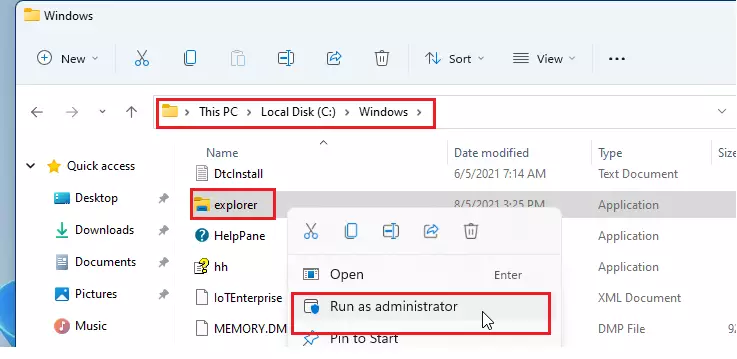
Next, navigate to the C:\Windows folder. Locate the explorer app, then right-click it and select Run as administrator.
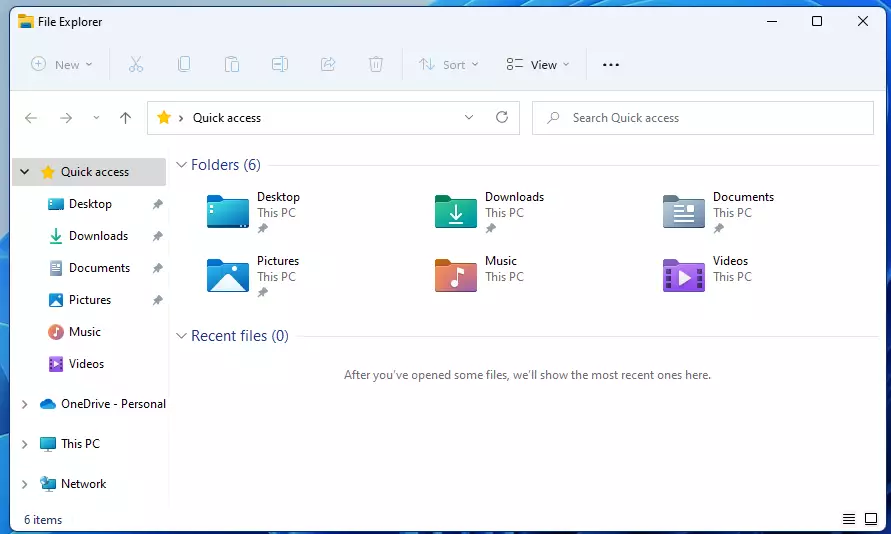
A new File Explorer window will now open with administrator privileges.
You can also use Task Manager to launch File Explorer with elevated rights. Open Task Manager, click File Run new task, and check the box for "Create this task with administrative privileges." Type explorer.exe into the box and press Enter.
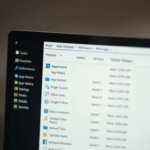
First, open the Task Manager in Windows 11.
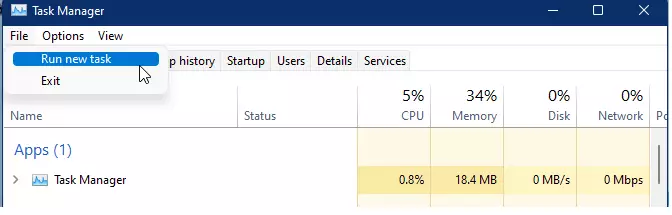
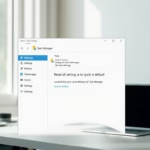
If prompted, select More details. Then, click File ==> Run a new task, as shown below.
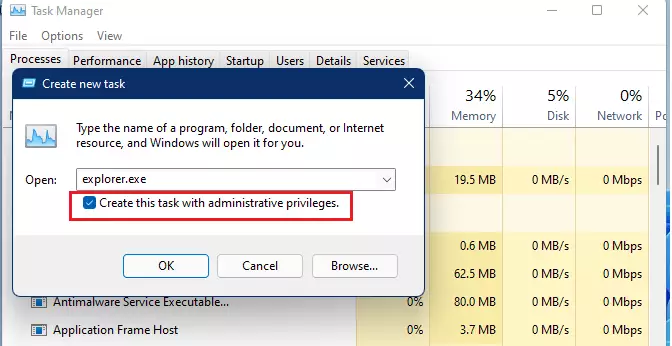
In the pop-up window, check the box labeled "Create this task with administrative privileges." Then, type the command below into the box and press Enter.
explorer.exe
After pressing Enter, a new File Explorer window will open with administrator privileges.
That completes the process.
Conclusion:
- Opening File Explorer with administrative privileges can enhance your ability to manage files and folders effectively.
- You can easily run File Explorer as an administrator using the right-click option or through the Task Manager.
- Ensuring your account has administrator permissions is crucial for executing these tasks.
- Familiarize yourself with these steps to optimize your Windows 11 experience and improve your productivity.
- Experiment with both methods to determine which one works best for your workflow.
Was this guide helpful?

About the Author
Richard
Tech Writer, IT Professional
Richard is a writer at Geek Rewind who turns complex IT tasks into clear, step-by-step guides. He draws on years of hands-on experience in system administration and enterprise IT operations, focusing on Windows, Linux and WordPress: the problems people actually run into, and the fixes that work. His server and WordPress guides come from systems he runs himself. Richard builds and maintains the platform behind Geek Rewind, from its Ubuntu servers and Nginx configuration to its custom WordPress plugins. Many new tutorials start with readers' questions, and he's always glad to answer them in the comments.

No comments yet — be the first to share your thoughts!