How to Restore Windows 11

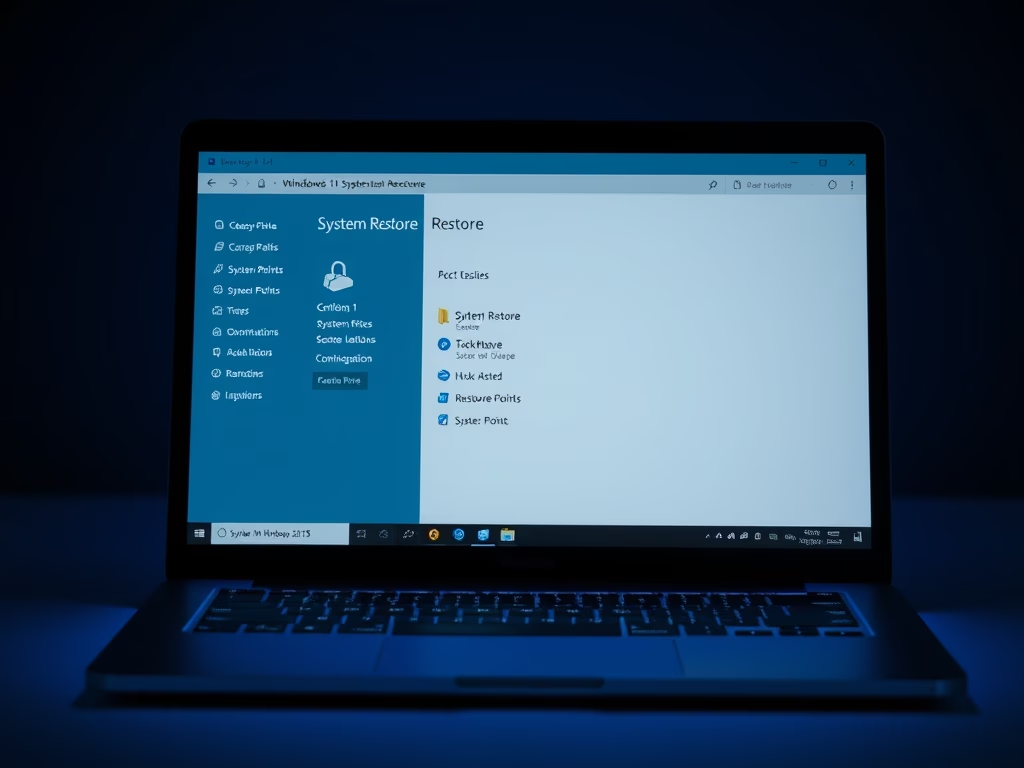
You can restore Windows 11 to an earlier point to fix recent software or driver issues.
System Restore is a built-in Windows feature that lets you revert your PC’s system files and settings to a previous state, effectively undoing recent changes that might be causing problems.
This process uses restore points, which are snapshots of your system taken at specific times, typically before a problematic update or installation. For example, if your computer started glitching after a Windows 11 update on October 26th, you could revert to a restore point created on October 25th.
Restoring your system will not affect your personal files like documents or photos, but it will remove any apps, drivers, or updates installed after the chosen restore point’s date.
To restore Windows 11, open Settings, go to System > About > System protection, click System Restore, choose a restore point, and follow the prompts. This reverts your system to a previous state without affecting personal files.
Factory Reset vs. System Restore
System Restore only rolls back system files and settings. A factory reset, however, is more drastic. It can remove all your apps and even personal files. Use a factory reset only if System Restore fails to fix your issues.
Accessing the Windows Recovery Environment (WinRE)
If your PC won’t boot, you need the Windows Recovery Environment. You can access this by restarting your PC three times while it is loading. This triggers the automatic repair screen. From here, you can access Startup Repair or Command Prompt to run system fixes.
Frequently Asked Questions
Summary
Restoring your Windows 11 PC is a powerful way to fix software conflicts. Use System Restore for minor issues, and reserve Factory Reset for major system failures. Always back up your data first. For more advanced tools, visit the official Microsoft documentation.
Can I perform a System Restore if my PC doesn’t start?
Yes. If your PC fails to boot, you can access the Windows Recovery Environment by interrupting the startup process. From the Troubleshoot menu, select Advanced options, then System Restore. This allows you to revert your system to a previous state even when you cannot log into Windows normally.
Will a 🪟 Windows 11 reset delete my personal files?
It depends on the option you choose. When performing a reset, Windows 11 gives you the choice to ‘Keep my files’ or ‘Remove everything.’ Selecting ‘Keep my files’ preserves your documents and photos, while ‘Remove everything’ performs a clean wipe of your user data and installed applications.
How long does a 🪟 Windows 11 factory reset take?
A factory reset typically takes between 30 minutes and two hours. The duration depends on your computer’s speed, the amount of data being removed, and whether you choose a cloud download or local reinstall. Always ensure your device is connected to a power source to prevent interruptions during the process.
Was this guide helpful?

About the Author
Richard
Tech Writer, IT Professional
Richard, a writer for Geek Rewind, is a tech enthusiast who loves breaking down complex IT topics into simple, easy-to-understand ideas. With years of hands-on experience in system administration and enterprise IT operations, he’s developed a knack for offering practical tips and solutions. Richard aims to make technology more accessible and actionable. He's deeply committed to the Geek Rewind community, always ready to answer questions and engage in discussions.



[…] windows includes a System Protection feature that creates restore points so your computer can be restored to previous working states to resolve potential […]
[…] System Restore helps restore Windows from the image […]