How to Reset Windows Terminal to Default Settings in Windows 11

Resetting Windows Terminal in Windows 11 clears out custom tweaks and puts the app back to its original state. Windows Terminal is a free tool that brings Command Prompt, PowerShell, and Linux tabs together into one window.
Most problems start inside the settings .json file found at 📂%LocalAppData%\
Open Settings , click Apps, then Installed apps. Find Terminal, click the three dots, and select Advanced options. Click the Reset button to restore default settings. Alternatively, delete the settings .json file via Command Prompt, PowerShell, or File Explorer .
Method 1Use the Settings App
Windows Terminal settings can be reset to their default state using the built-in Settings app on Windows 11. This method works well if you prefer using menus instead of command-line tools to clear your custom configurations and start over fresh.
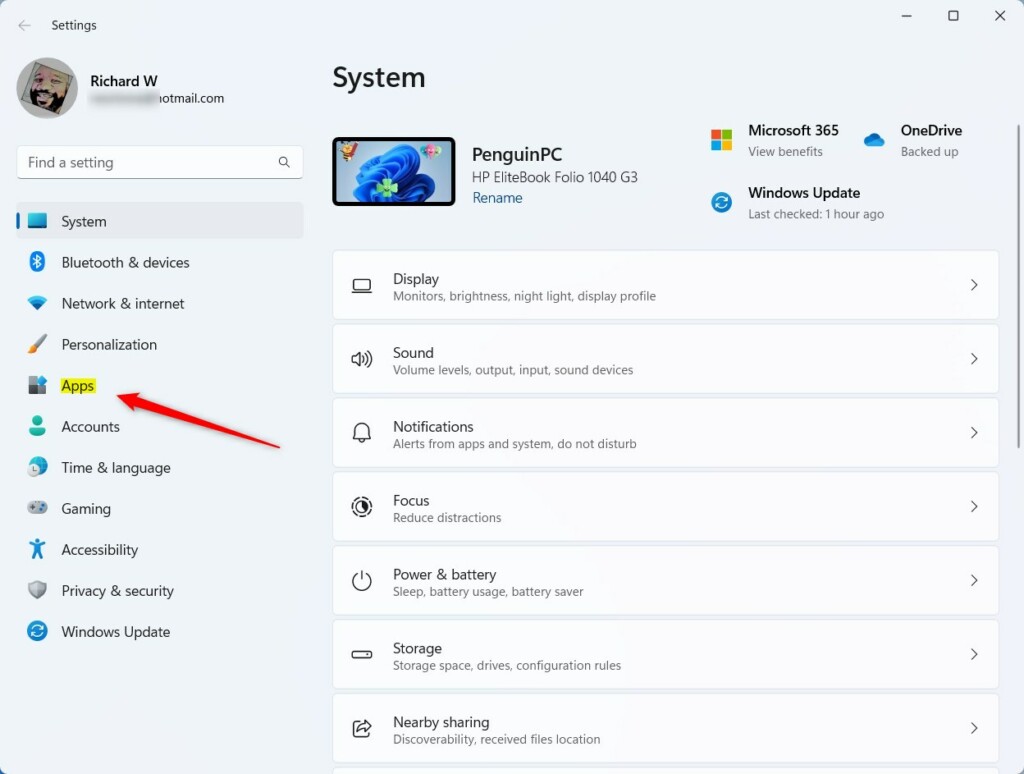
When Settings opens, click the Apps button on the left side.
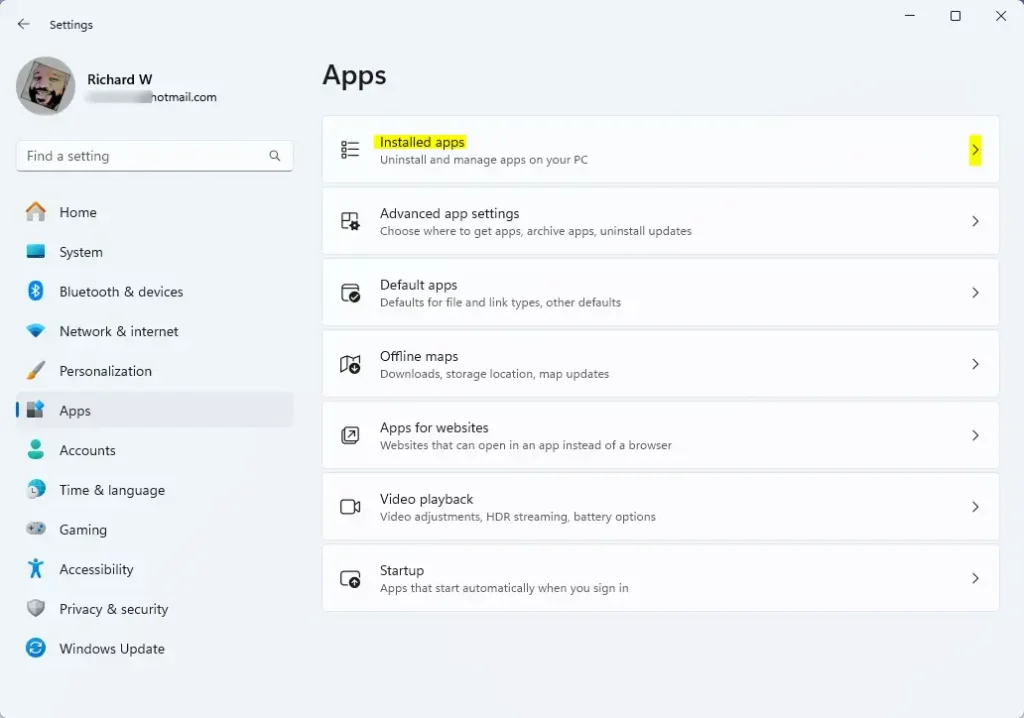
On the right side, select Installed apps to expand the list.
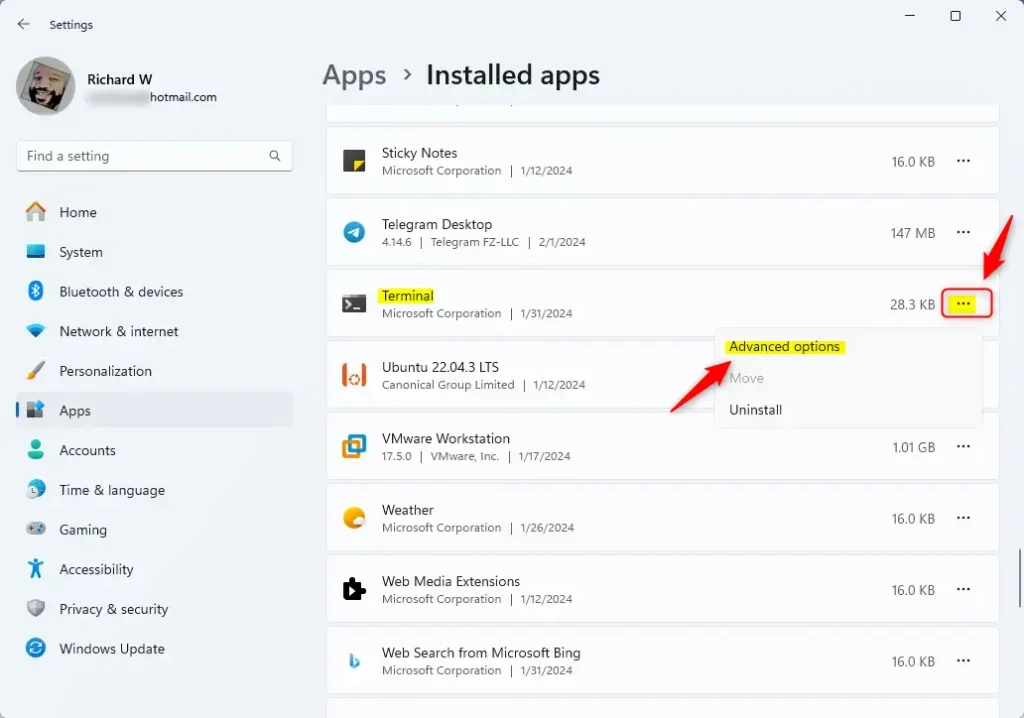
To reset the app using the Settings app, follow these steps. Locating the application in the list of installed programs comes first. Clicking the three dots that appear next to Windows Terminal opens a dropdown menu containing the "Advanced options" entry.
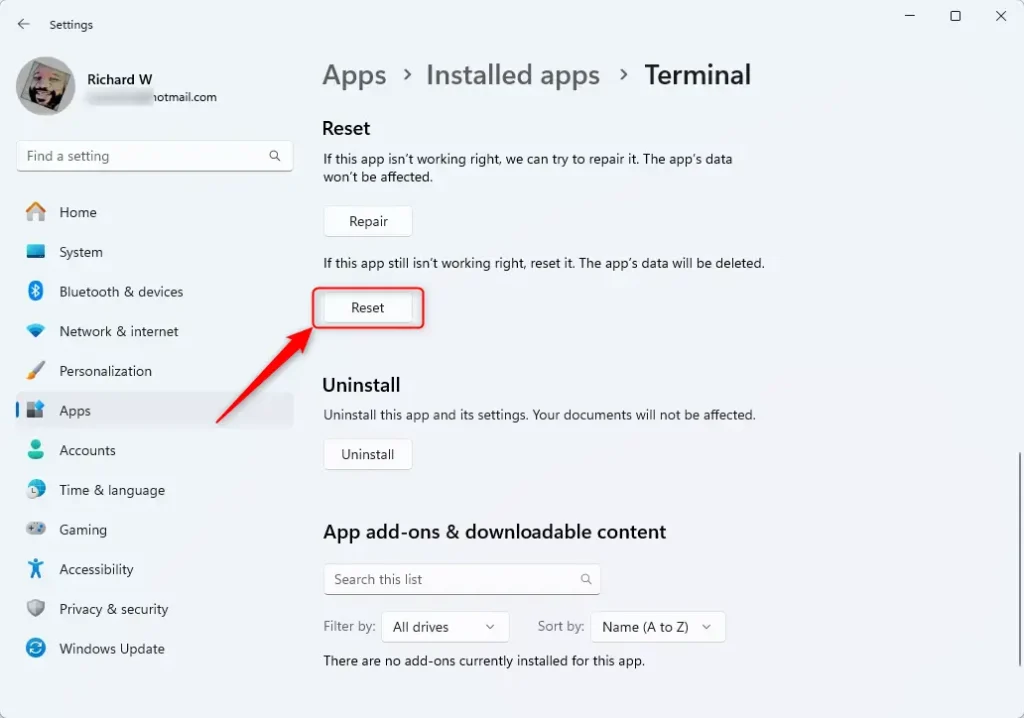
On the Windows Terminal settings page, clicking the Reset button restores all default settings for the application. This action returns the Windows Terminal to its original configuration, undoing any previous customizations.
Closing the Settings app finishes the process.
Method 2Use Command Prompt or PowerShell
Windows Terminal settings can be reset instantly by running a single command in Command Prompt or PowerShell. This method deletes the configuration file for you without requiring you to click through any graphical menus.
Using Command Prompt:
Open Command Prompt as an administrator. Run this command:
del /f /s /q /a "%LocalAppData%\Packages\Microsoft.WindowsTerminal_8wekyb3d8bbwe\LocalState\settings.json"
Using PowerShell:
Open PowerShell as an administrator. Run this command instead:
Remove-Item -Path "$env:LOCALAPPDATA\Packages\Microsoft.WindowsTerminal_8wekyb3d8bbwe\LocalState\settings.json" -Force
Method 3Use File Explorer
Windows Terminal settings can be reset manually by deleting the configuration file directly inside File Explorer. This approach lets you locate the settings folder yourself and remove the file to force the app back to its original state.
Open File Explorer. Click the address bar at the top and type this path:
%LocalAppData%\Packages\Microsoft.WindowsTerminal_8wekyb3d8bbwe\LocalState
Press Enter to go to that folder.
Find the file named settings.json. Right-click it and select Delete.
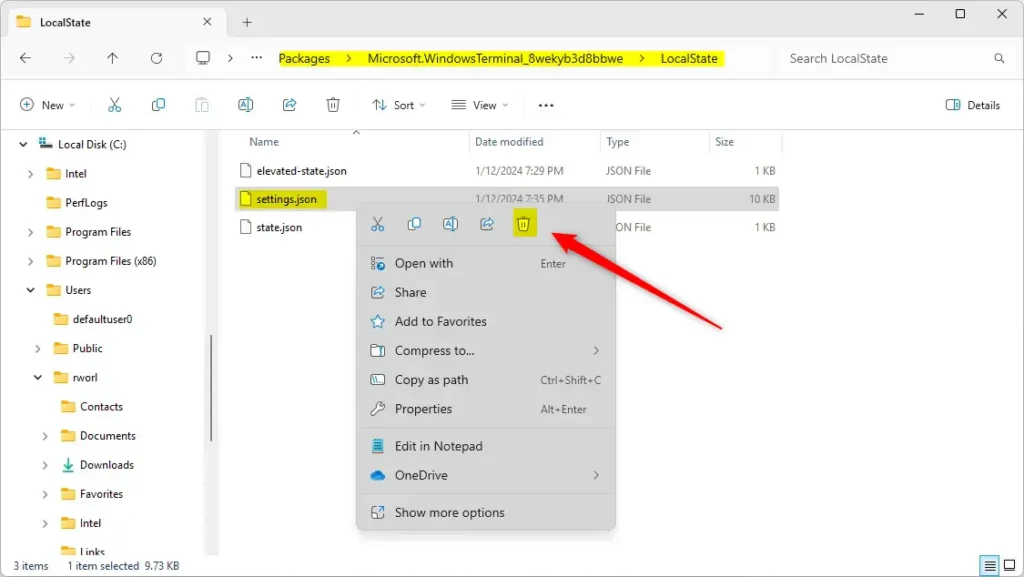
Windows Terminal is now reset to default.
Summary
You can reset Windows Terminal using the Settings app, the command line, or File Explorer.
Was this guide helpful?

About the Author
Richard
Tech Writer, IT Professional
Richard, a writer for Geek Rewind, is a tech enthusiast who loves breaking down complex IT topics into simple, easy-to-understand ideas. With years of hands-on experience in system administration and enterprise IT operations, he’s developed a knack for offering practical tips and solutions. Richard aims to make technology more accessible and actionable. He's deeply committed to the Geek Rewind community, always ready to answer questions and engage in discussions.


No comments yet — be the first to share your thoughts!