How to Enable File Preview in Windows 11 PowerToys

Peek in Microsoft PowerToys version 0.60 or later lets you preview documents, text files, and images directly in Windows 11 File Explorer without opening separate programs. This built-in feature works just like Quick Look on a Mac, meaning you can check file contents with a single click.
Turn on the preview pane by opening the PowerToys app and switching the peek option to on.
Open PowerToys, navigate to File Explorer Add-ons, and toggle on the desired previewers like SVG, Markdown, or source code. Ensure “Enable Thumbnail support” is also on. Then, open File Explorer and press Alt+P to reveal the Preview Pane and see file contents.
Prerequisites
Installing Microsoft PowerToys remains a prerequisite to using its features, including file preview.
Peek vs. File Explorer Add-ons
PowerToys offers two primary methods for file preview: Peek and File Explorer Add-ons, and they can sometimes be confused.
How to Enable PowerToys Peek
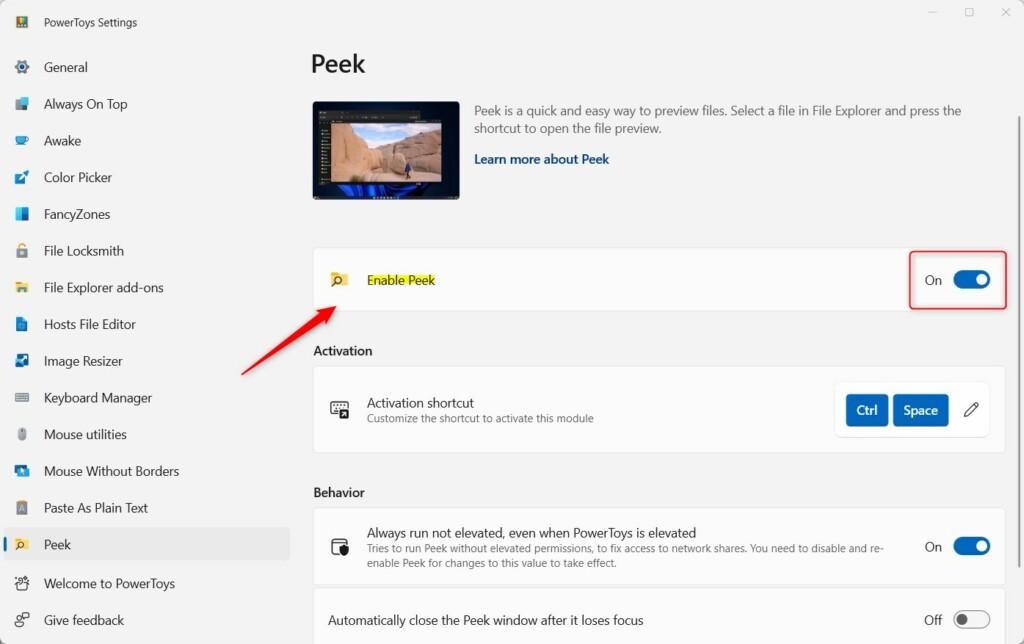
PowerToys file preview functionality is built into a tool called Peek, which lets you view pictures, documents, and code without fully opening them. To set this up, open the PowerToys app, select Peek from the left sidebar, and turn the main switch on. You can then test it immediately by highlighting any document in File Explorer and pressing CTRL + Spacebar.
- Open the PowerToys app.
- Select Peek from the left menu.
- Toggle Enable Peek to On.
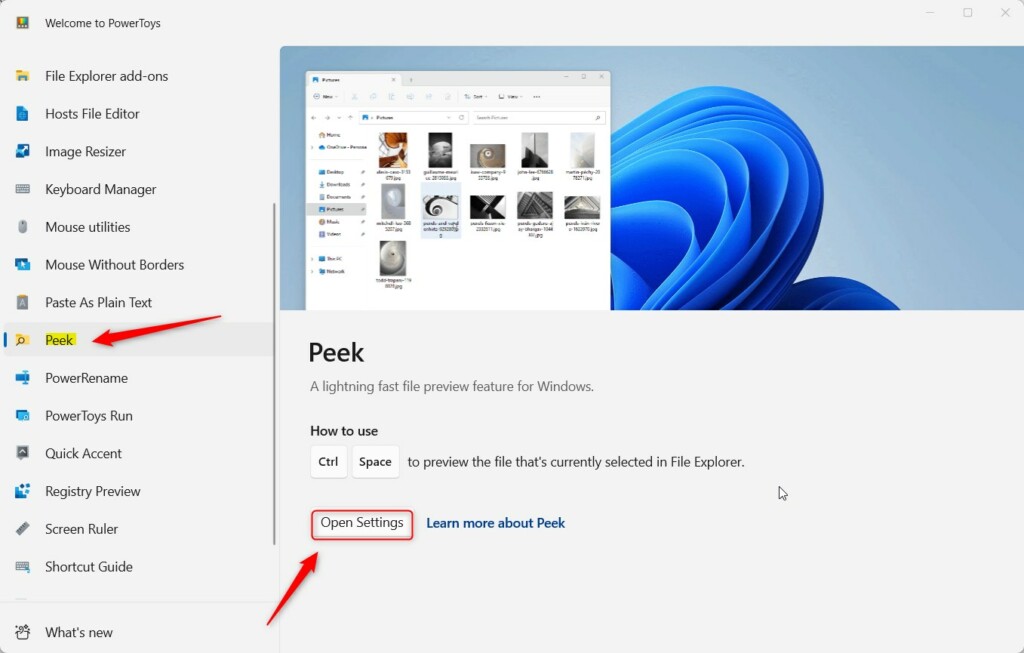
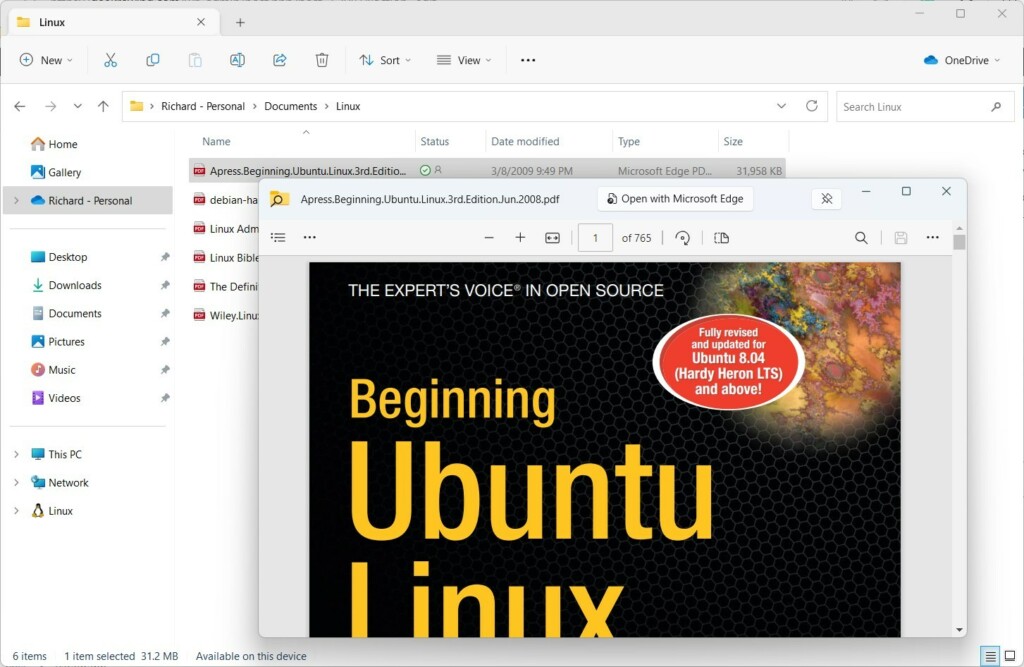
Pressing CTRL + Spacebar instantly triggers the viewer for any selected file. Arrow keys let you cycle through files residing in the same folder.
Using File Explorer Add-ons
PowerToys File Explorer Add-ons let you see rich previews for additional file types directly inside the standard Windows File Explorer preview pane. To use them, open the PowerToys dashboard, click File Explorer Add-ons, and turn on the switches for specific formats like SVGs, Markdown files, and source code. Make sure thumbnail support is also turned on so you can see image previews at a glance.
- Open PowerToys.
- Click File Explorer Add-ons.
- Toggle the switches for Enable SVG previewer, Enable Markdown previewer, and Enable source code previewer.
- Ensure Enable Thumbnail support is also turned on.
Once enabled, open File Explorer and press ALT + P to reveal the Preview Pane. Clicking on a file renders its contents automatically.
Troubleshooting
PowerToys preview not working issues usually happen when the background helper process freezes or a specific format gets turned off by mistake. Fix this by restarting the PowerToys app, verifying that your chosen file format is still active in the settings dashboard, and checking that you have read permissions for folders located in custom paths like C:\Users\GenericUser\Documents.
- Restart the PowerToys app.
- Check that the specific previewer (like SVG or Markdown) is toggled On in the settings.
- Ensure your file is not corrupted.
- If you are using a custom path like C:\Users\GenericUser\Documents, ensure you have read permissions for that folder.
Summary
PowerToys offers two robust methods for file preview: the Peek utility for immediate pop-up previews and File Explorer Add-ons for seamless integration with the Windows Preview Pane. Utilizing these tools saves time and enhances your daily workflow. For additional information, consult the official PowerToys documentation.
How do I enable the Preview Pane in 🪟 Windows 11?
Open File Explorer, click the View menu at the top, select Show, and then click Preview pane. Alternatively, pressing ALT + P on your keyboard while inside any folder toggles the pane on or off instantly.
Can I preview STL files in Windows Explorer using PowerToys?
Yes, PowerToys includes support for STL files. Enabling the Thumbnail support and Preview Pane features within the File Explorer Add-ons section of the PowerToys settings lets you view 3D models directly in your file manager without launching a dedicated 3D modeling application.
Was this guide helpful?

About the Author
Richard
Tech Writer, IT Professional
Richard, a writer for Geek Rewind, is a tech enthusiast who loves breaking down complex IT topics into simple, easy-to-understand ideas. With years of hands-on experience in system administration and enterprise IT operations, he’s developed a knack for offering practical tips and solutions. Richard aims to make technology more accessible and actionable. He's deeply committed to the Geek Rewind community, always ready to answer questions and engage in discussions.
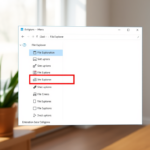


[…] Windows 11 thumbnail previews help you manage files visually. If they stop working, check your Folder Options first. If that fails, clear your thumbnail cache using Disk Cleanup or check your Registry settings. Always ensure you have enough disk space to allow Windows to save these preview images. For more advanced file viewing, consider using PowerToys. […]