How to Edit Hosts File Easily with PowerToys on Windows 11

- 7 steps
- Needs administrator rights
Want to quickly change your computer’s hosts file on Windows 11? Microsoft PowerToys makes it easy, even if you’re not a tech expert. The Hosts File Editor gives you a simple window where you add, change, or switch off entries. You don’t have to find the file in a protected system folder or open it in a text editor with admin rights.
Open PowerToys, click Hosts File Editor in the left menu, switch Enable Hosts File Editor and Launch as administrator to On, click Launch Hosts File Editor, approve the User Account Control prompt, then click New entry to add your IP address and website name.
What is Microsoft PowerToys?
PowerToys is a free set of tools from Microsoft. It helps you customize and improve how you use Windows. It includes handy features like a color picker, a keyboard shortcuts manager, and the Hosts File Editor that we’ll use here. Each tool can be turned on or off on its own, so you only run the ones you need.
What is the Hosts File?
The hosts file is a plain text document on your computer that maps names to IP addresses. Windows checks it before it asks a DNS server, so an entry here overrides what DNS says for that name. People use it to test a website before a DNS change goes live, to point a name at a local server, or to block a site on one PC.
Only an administrator can change it. That is why the editor needs to run with admin rights.
How to Edit Your Hosts File with PowerToys
Editing your hosts file on Windows 11 is simple with the PowerToys Hosts File Editor. Install PowerToys, turn on the Hosts File Editor, launch it, and add your entry. The steps below work the same on Windows 11 Home and Pro.
- Install PowerToys. Download and install PowerToys on your Windows 11 PC from this official link: Install PowerToys. Run the installer and follow the prompts. You need an administrator account to install it.
- Open PowerToys. Open the Start menu, type PowerToys, and select the app. The PowerToys settings window opens. If you don't see it, check the system tray, because PowerToys often runs in the background.
- Go to Hosts File Editor. In the left menu of PowerToys, click Hosts File Editor. The settings for this tool appear on the right.
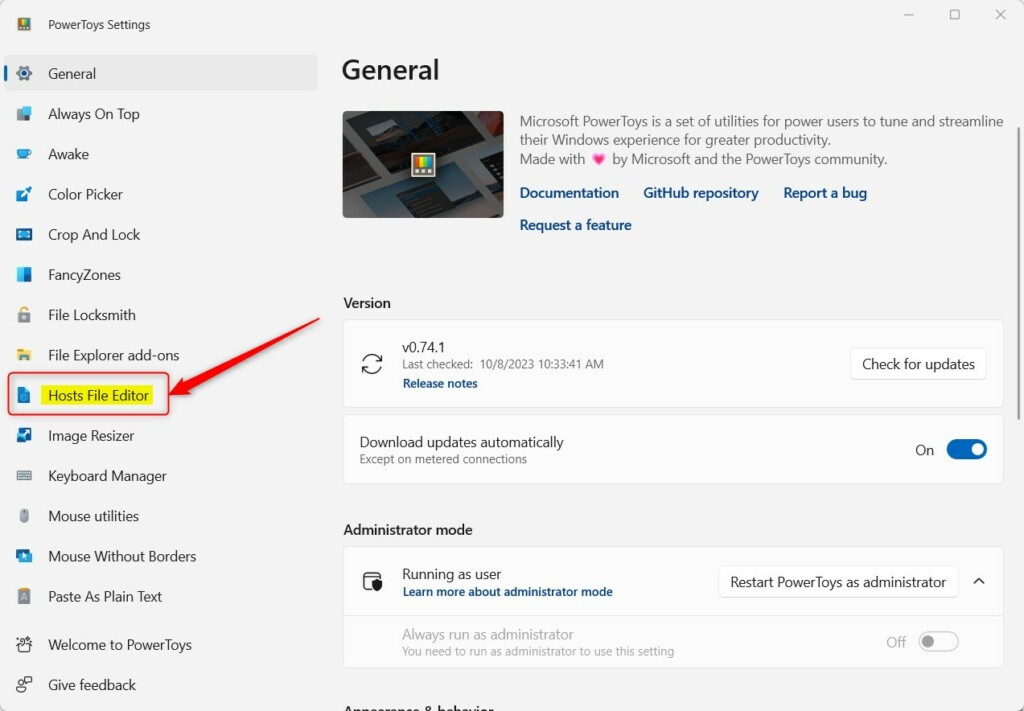
PowerToys Hosts File Editor menu - Turn on Hosts File Editor. On the right side, find Enable Hosts File Editor and switch it to On. If it stays off, the launch button in a later step won't work.
- Enable administrator mode. Also switch Launch as administrator to On. This lets PowerToys save changes to your hosts file. Without it, the editor can open but may not be able to save.
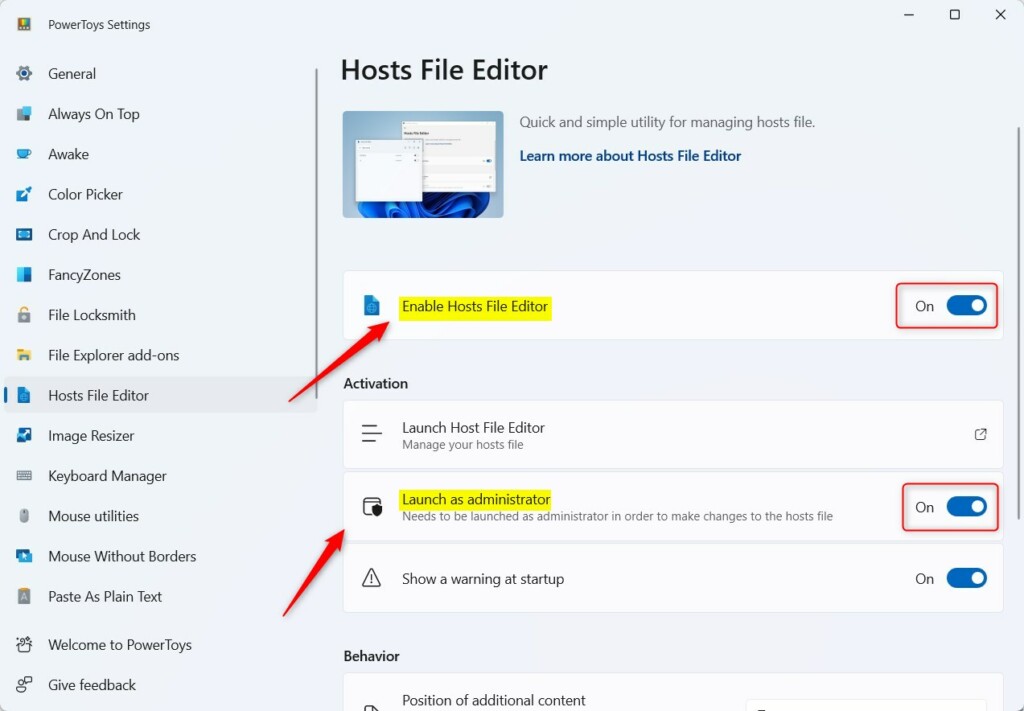
Enable Hosts File Editor and Administrator Mode in PowerToys If needed, close and reopen PowerToys for the changes to take effect.
- Open the Hosts File Editor tool. In PowerToys, click Launch Hosts File Editor to open the editor window. Windows asks you to approve the change with a User Account Control prompt. Click Yes. You may also see a warning about editing the hosts file. Read it, then continue. The editor window now shows a list of the current entries, with columns for the address, the host names, and a comment.
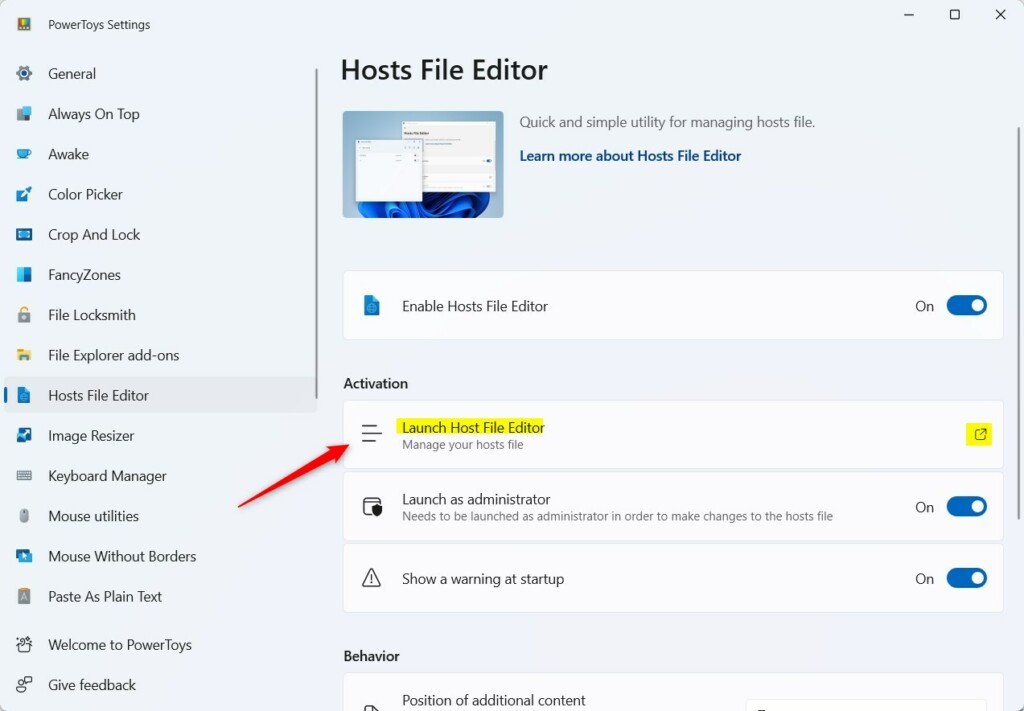
Launching Hosts File Editor in PowerToys - Add a new entry. Click the New entry button to add a new website address and IP.
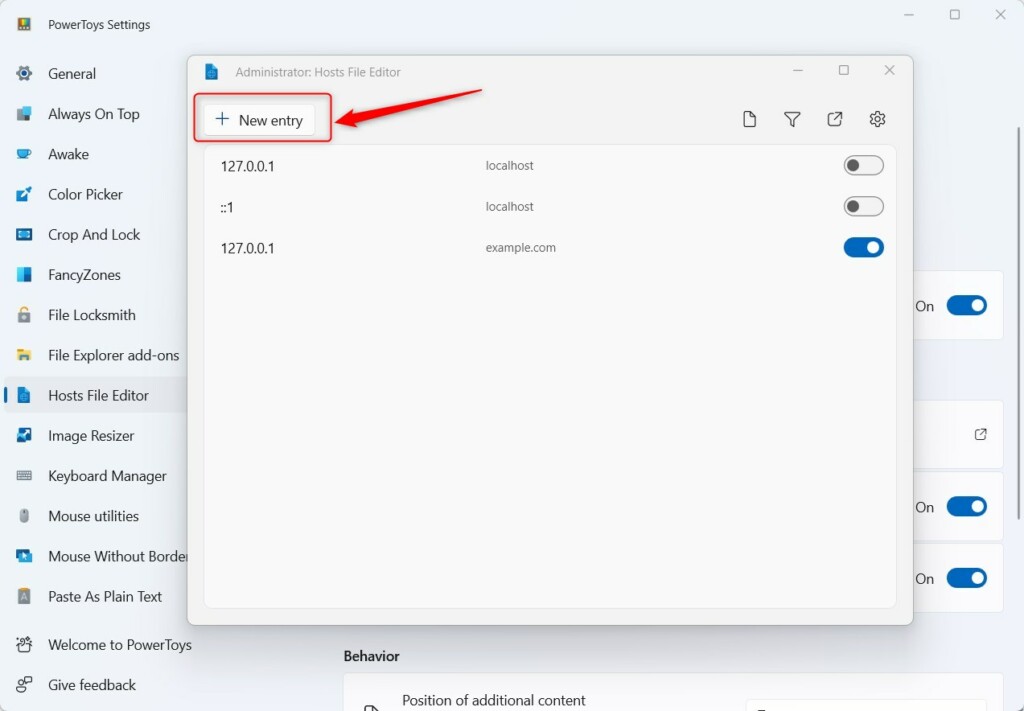
New entry button in Hosts File Editor In the window that pops up, type the IP address in the address field and the website name in the hosts field. Then click Add. You can also add a short comment so you remember why you made the entry.
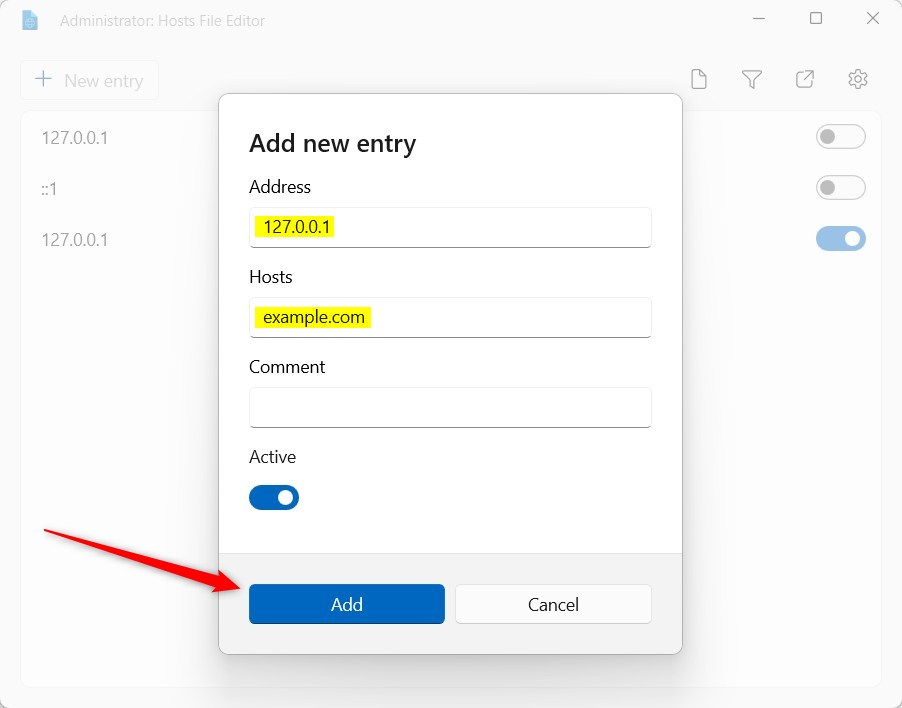
Adding new address and host in PowerToys Hosts File Editor Once added, the entry shows up in the list and your computer will use this new information right away when accessing that website. If a browser still loads the old address, close it completely and open it again, since browsers keep their own cache.
You can switch an entry off with its toggle, or delete it. Switching it off is handy if you may need the entry again. If PowerToys can't save, check that Launch as administrator is on and that you approved the User Account Control prompt.
Summary
- PowerToys is a free and easy way to customize Windows 11.
- The Hosts File Editor inside PowerToys lets you quickly update your hosts file without searching for it manually.
- It needs administrator rights to save, so turn on Launch as administrator and approve the prompt.
- Follow the steps above to add or change website addresses on your computer safely, and switch off or delete an entry to undo it.
PowerToys offers a free and simple way to manage your Windows 11 settings, including your hosts file. Its Hosts File Editor lets you quickly update website addresses without searching for the file manually. Following the steps above helps you safely add or change website entries on your PC.
Have a question about this guide?
Answered by AI from this guide. Good questions may be added to this page — please don't include personal details.
Did this guide fix your problem?

About the Author
Richard
Tech Writer, IT Professional
Richard is a writer at Geek Rewind who turns complex IT tasks into clear, step-by-step guides. He draws on years of hands-on experience in system administration and enterprise IT operations, focusing on Windows, Linux and WordPress: the problems people actually run into, and the fixes that work. His server and WordPress guides come from systems he runs himself. Richard builds and maintains the platform behind Geek Rewind, from its Ubuntu servers and Nginx configuration to its custom WordPress plugins. Many new tutorials start with readers' questions, and he's always glad to answer them in the comments.
No comments yet — be the first to share your thoughts!