Install PowerToys ADMX Files for Windows 11

PowerToys ADMX files are administrative template files that let you manage and lock down Microsoft PowerToys settings across Windows 11 PCs using the Local Group Policy Editor (gpedit.msc). You need these files to control tools like FancyZones or Text Extractor for multiple accounts or machines from one central spot.
After you copy the files to the right folder, the configuration rules appear under Computer Configuration and User Configuration in Administrative Templates Microsoft PowerToys
Download the PowerToys ADMX files, then copy PowerToys.admx to C:WindowsPolicyDefinitions and PowerToys.adml to C:WindowsPolicyDefinitionsen-US. These files enable Group Policy management for PowerToys settings.
Download PowerToys ADMX files
PowerToys ADMX installation requires you to download the policy template files from the official Microsoft PowerToys GitHub repository. You need to look in the Assets section of the latest release and download the zip file named GroupPolicyObjectsFiles-{version}.zip to get the necessary administrative templates for your computer.
Before you start, check two things. First, the Local Group Policy Editor is only included in Windows 11 Pro, Enterprise and Education. Windows 11 Home does not have it, so the templates will not help you there. Second, you need an administrator account, because the files go into a protected Windows folder. It also helps to have PowerToys already installed, so you can test the policies when you finish.
The download process follows these steps. Each step is shown with a screenshot, so you can compare your screen with the picture:
1. Download the PowerToys ADMX files. Look for the GroupPolicyObjectsFiles-{version}.zip file in the ‘Assets’ section of the official PowerToys GitHub page. You may need to click Show all assets to see the full list. Pick the file from the latest release, or from the release that matches the PowerToys version you have installed. Policies are tied to the version, so a mismatch can leave settings missing from the editor. Your browser saves the file to the Downloads folder by default.
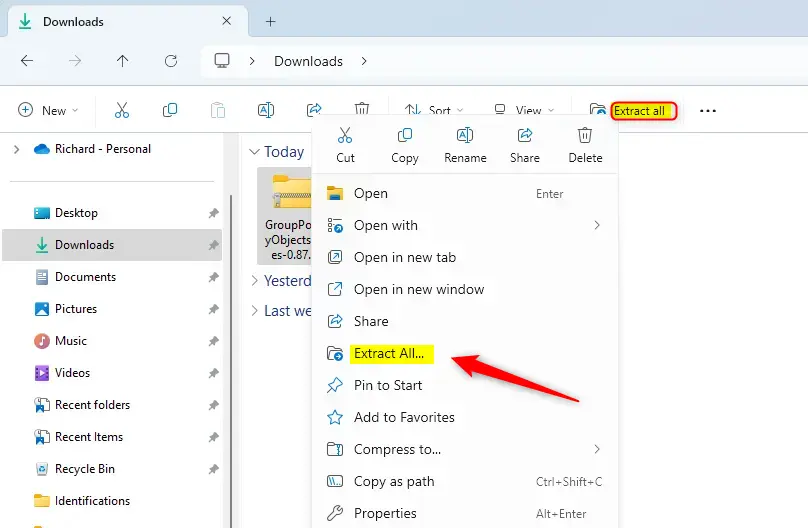
2. Extract the contents of the zip file. Open File Explorer, go to Downloads, right-click the zip file and choose Extract All. Then click Extract. A new folder with the extracted files opens. If you only open the zip without extracting it, Windows will not let you copy the files properly.
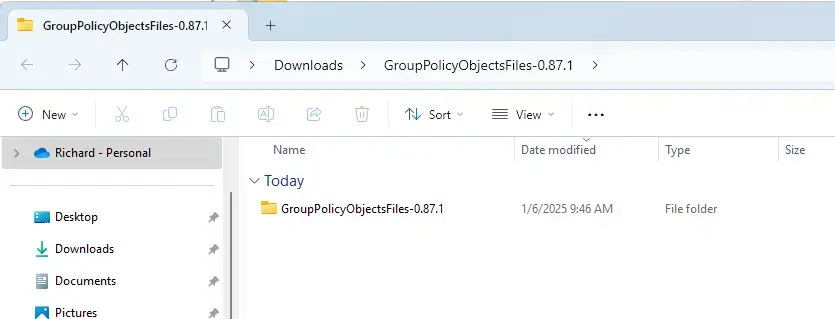
3. Open the extracted GroupPolicyObjectsFiles-{version} folder. Inside, you should see the ADMX file and a subfolder that holds the language file.
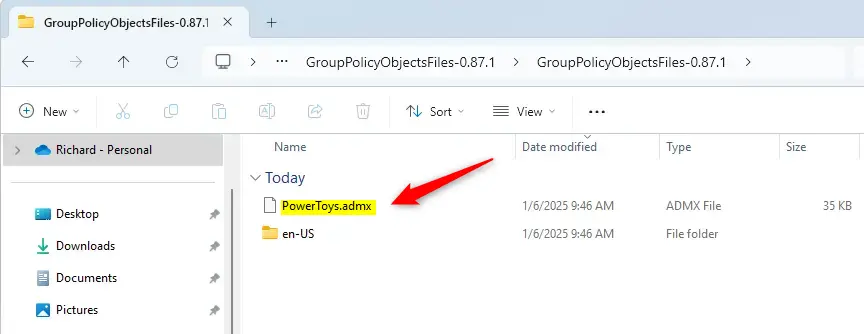
4. Copy the PowerToys.admx file and paste it into C:\Windows\PolicyDefinitions. Right-click the file and choose Copy, then open the destination folder in a second File Explorer window and paste. Windows will ask for permission to continue; the prompt is covered below. If an older copy of the file is already there, for example from an earlier PowerToys release, choose Replace the file in the destination so you end up with the current version.
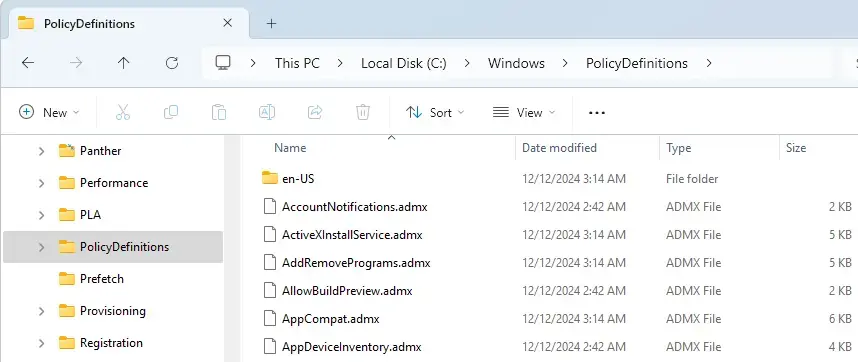
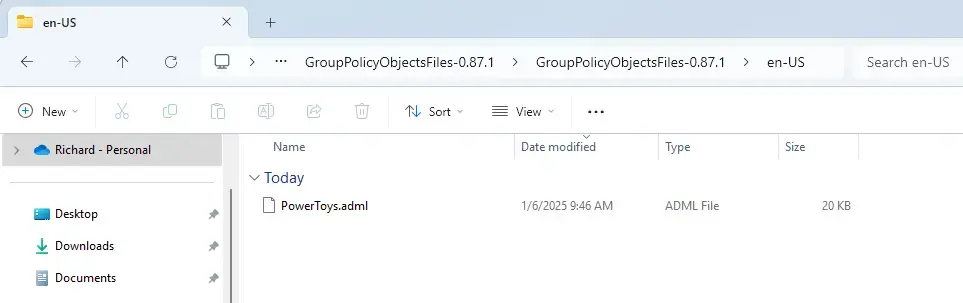
5. Navigate to the en-US subfolder within the extracted files and copy the PowerToys.adml file. This is the language file. It holds the readable names and descriptions that appear in the editor, and the ADMX file will not display properly without it.
6. Paste the PowerToys.adml file into C:\Windows\PolicyDefinitions\en-US. Keep the two files in their matching places. The ADMX file and the language file go in different folders, and swapping them is the most common reason the policies do not show up.
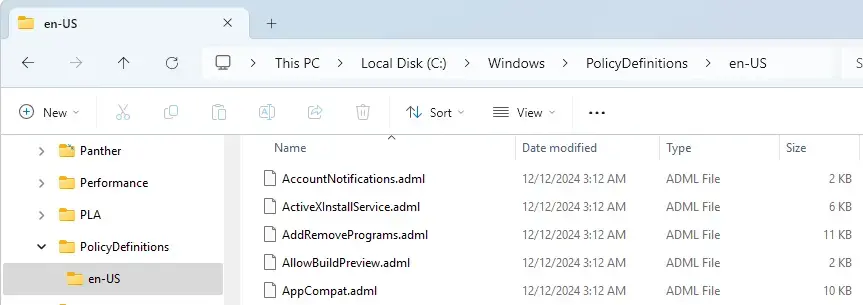
Administrator permissions are required for this action, so click 'Continue' when the system prompts. You will see this prompt once for each file you paste. If you are signed in as a standard user, Windows asks for administrator credentials instead. Enter them to go on.
Closing File Explorer finalizes the file placement. The new PowerToys policies now appear under Administrative Templates Microsoft PowerToys in both Computer Configuration and User Configuration folders, completing the setup process.
To check, press the Windows key plus R, type gpedit.msc and press Enter. If the editor was already open while you copied the files, close it and open it again, because it only reads the templates at start-up. No restart of Windows is needed. If the Microsoft PowerToys folder is missing, go back and make sure both files are in their folders. Also make sure you are not on Windows 11 Home. To undo the change, delete the two files you pasted, and the PowerToys folder disappears from the editor. Policies you set while the files were installed stay in the registry until you set them back to Not Configured, so reset them first.
Deploying PowerToys ADMX files alongside the Local Group Policy Editor yields several distinct administrative advantages:
- Enhanced Control: Enables administrators to restrict or enable specific PowerToys features according to organizational policies. For example, you can turn a single utility off for every user while leaving the rest available.
- Improved Security: Reduces the risk of users accessing potentially unapproved functionalities that could affect device performance or security.
- Streamlined Management: Simplifies the configuration of PowerToys across multiple devices using Group Policy settings. Copy the same two files to each PC, or to a central store if you use a domain, and every machine offers the same policy list.
- User Customization: Allows for tailored user experiences while adhering to company guidelines. Settings under User Configuration apply per account, so different users can have different rules on the same PC.
This integration brings PowerToys into your existing administrative framework while keeping standards consistent. When a new PowerToys release adds utilities, download the matching template files again and replace the old ones, so the new policies appear in the editor.
Have a question about this guide?
Answered by AI from this guide. Good questions may be added to this page — please don't include personal details.
Did this guide fix your problem?

About the Author
Richard
Tech Writer, IT Professional
Richard is a writer at Geek Rewind who turns complex IT tasks into clear, step-by-step guides. He draws on years of hands-on experience in system administration and enterprise IT operations, focusing on Windows, Linux and WordPress: the problems people actually run into, and the fixes that work. His server and WordPress guides come from systems he runs himself. Richard builds and maintains the platform behind Geek Rewind, from its Ubuntu servers and Nginx configuration to its custom WordPress plugins. Many new tutorials start with readers' questions, and he's always glad to answer them in the comments.
No comments yet — be the first to share your thoughts!