

This article explains how to change or move the Dropbox folder location in Windows 11.
Dropbox is a cloud storage service allowing users to store and share files and folders online. It offers features such as file syncing, file versioning, and collaboration tools, making it easier for teams to collaborate on projects.
One can configure many settings with the Dropbox app in Windows, including starting Dropbox on system startup, disabling Dropbox startup in the background, adding Microsoft Office add-in, turning notifications on or off, managing backups, turning automatic backups on or off, renaming backup device name, changing backup frequency, choosing back up folders, and more.
When you install the Dropbox app on Windows, it creates a Dropbox folder in your home directory. (Ex. C:Users<Username>Dropbox).
Users can use the app to move the Dropbox folder in their home directory to another location.
You may want to move your Dropbox folder to a different location on your computer for many reasons. One reason could be that you are running out of space on your primary hard drive and must move the Dropbox folder to a secondary drive with more space.
Another reason could be that you want to keep your Dropbox folder organized with other files and folders on your computer. Whatever the reason, moving the Dropbox folder location to Windows 11 is a simple process.
Change the Dropbox folder location
As mentioned, users can move their Dropbox folder to another folder or partition in Windows. Whatever the reasons, the steps below show you how to do that.
First, open the Dropbox flyout window from the notification area. You can do that by clicking the Taskbar overflow and selecting Dropbox’s icon to open its flyout window.

When the flyout opens, select the Settings (gear) at the top of the screen and click Preferences.

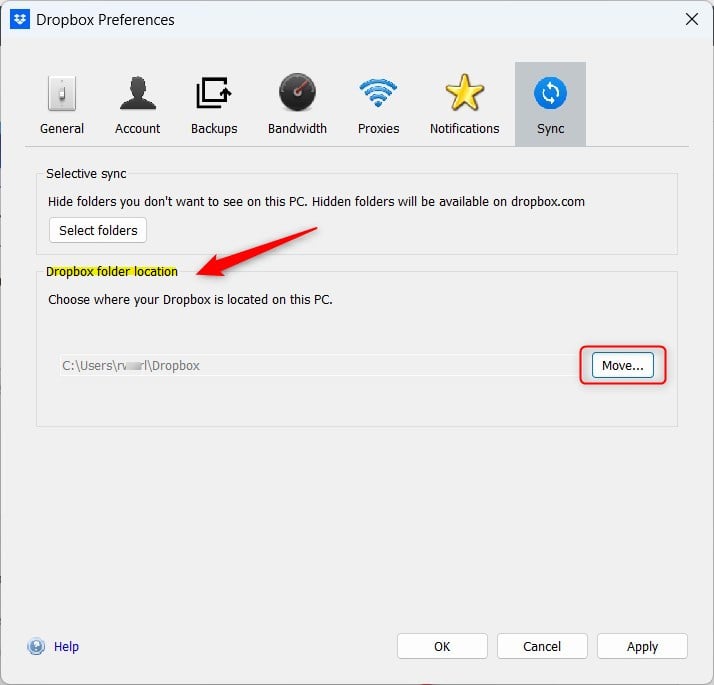
On the Preferences page, select the Sync tab. Under “Dropbox folder location,” click the Move button.
On the pop-up window, browse and choose a new place for your Dropbox. A folder named “Dropbox” will be created inside your selected folder.
There is no need to create a Dropbox folder, as one will be created for you at your chosen location.
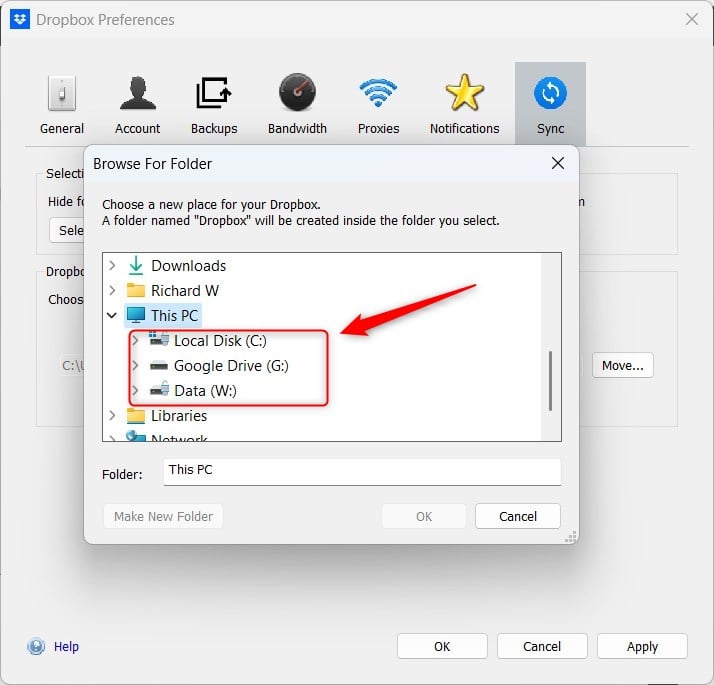
Once you are done, a new location for your Dropbox content will be visible under the Sync tab. All current files and folders will be moved, and the new data you save will be stored at the new location.
That should do it!
Conclusion:
- Changing the Dropbox folder location in Windows 11 allows you to organize your files and manage disk space efficiently.
- By following the simple steps outlined in this article, users can seamlessly move their Dropbox folder to a new location on their computer.
- Once the folder is relocated, all existing files and folders will be transferred, and new data will be stored at the new location.
- If you encounter any issues or wish to contribute additional insights, please use the comments section below the article.
Leave a Reply