How to install Fathom Analytics on Ubuntu 24.04


Hosting Fathom Analytics on Ubuntu 24.04 lets you run your own private website traffic tracker on a server using Docker (a tool that runs apps in isolated containers). Fathom Analytics is a privacy-friendly tool that shows you visitor numbers without storing personal data or tracking people across the web.
Setting this up requires a server running Ubuntu 24.04 LTS and administrator access to type commands in the terminal (the text-based command window).
Install Fathom Analytics on Ubuntu 24.04 by first installing and configuring PostgreSQL. Then, create a Fathom user, download the Fathom binary, and set up its environment file. Finally, run the Fathom server command and access it via your server’s IP address on port 8080.
Install PostgreSQL
PostgreSQL (a database program that stores your website traffic data) needs to be installed on your server before you can run Fathom Analytics. You install it by adding the official software repository and running standard package manager commands in your terminal.
Use the steps below to install it on Ubuntu.
First, add the PostgreSQL GPG key to Ubuntu. Run the command below to do that.
sudo apt install curl
curl https://www.postgresql.org/media/keys/ACCC4CF8.asc | gpg --dearmor | sudo tee /usr/share/keyrings/postgresql-key.gpg >/dev/null
Then, add the PostgreSQL APT repository to your sources list.
sudo sh -c 'echo "deb [signed-by=/usr/share/keyrings/postgresql-key.gpg arch=amd64] http://apt.postgresql.org/pub/repos/apt $(lsb_release -cs)-pgdg main" > /etc/apt/sources.list.d/pgdg.list'
Next, update and refresh the repository list and install PostgreSQL.
sudo apt update
sudo apt install postgresql postgresql-contrib
More details on installing PostgreSQL can be found in the link below.
Configure PostgreSQL and create a Fathom database
PostgreSQL configuration for Fathom Analytics requires opening the database command line, setting an administrator password, and creating a dedicated database. These steps give Fathom the secure storage it needs to save your visitor statistics.
First, log on to the PostgreSQL console by running the command below.
sudo -u postgres psql
Run the command below to change or create a password for the administrator account. Confirm the password when prompted.
password postgres
Next, create a Fathom database user account called ‘fathomuser.’
CREATE ROLE fathomuser WITH LOGIN ENCRYPTED PASSWORD 'type_strong_password_here';
Replace ‘type_strong_password_here‘ with your password.
Next, create a ‘fathomdb‘ database for Fathom and make the user above owner.
CREATE DATABASE fathomdb OWNER fathomuser;
Exit the database console.
q
Install Fathom
Fathom Analytics installation on Ubuntu involves creating a dedicated system user account, setting up a home directory, and downloading the application files. This keeps the analytics software isolated and secure from the rest of your server.
First, create a user account for Fathom Analytics.
sudo adduser --home /opt/fathom --disabled-password fathom
Next, make the fathom user owner of the /opt/fathom directory.
sudo chown -R fathom:fathom /opt/fathom
Next, download the Fathom binary package using the wget command below.
Once downloaded, extract the fathom binary file to the /usr/local/bin directory and make the fathom binary file executable.
wget https://github.com/usefathom/fathom/releases/download/v1.3.1/fathom_1.3.1_linux_amd64.tar.gz
sudo tar -C /usr/local/bin -xzf fathom_1.3.1_linux_amd64.tar.gz
sudo chmod +x /usr/local/bin/fathom
Next, switch to the Fathom user account and navigate to the Fathom's directory by running the command below.
sudo su - fathom
cd /opt/fathom
Then, create a new data directory and .env file using the command below.
mkdir -p /opt/fathom/data
touch /opt/fathom/data/.env
Use the following nano editor command to open the .env file.
nano /opt/fathom/data/.env
Add the lines below to the file, changing the details of the PostgreSQL database created above.
For FATHOM_SECRET, generate 20 alphanumeric characters and use it in the file.
FATHOM_GZIP=true
FATHOM_DEBUG=true
FATHOM_DATABASE_DRIVER="postgres"
FATHOM_DATABASE_NAME="fathomdb"
FATHOM_DATABASE_USER="fathomuser"
FATHOM_DATABASE_PASSWORD="type_password_here"
FATHOM_DATABASE_HOST="127.0.0.1"
FATHOM_DATABASE_SSLMODE="disable"
FATHOM_SECRET="fetL5tQSeKzK7eToKfD2"
Save and exit the file when finished.
While still in the Fathom home directory, change to the data folder and run the command below to start the Fathom server.
cd /opt/fathom/data
fathom server
Once started, browse to the server hostname or IP address followed by port 8080.
http://localhost:8080
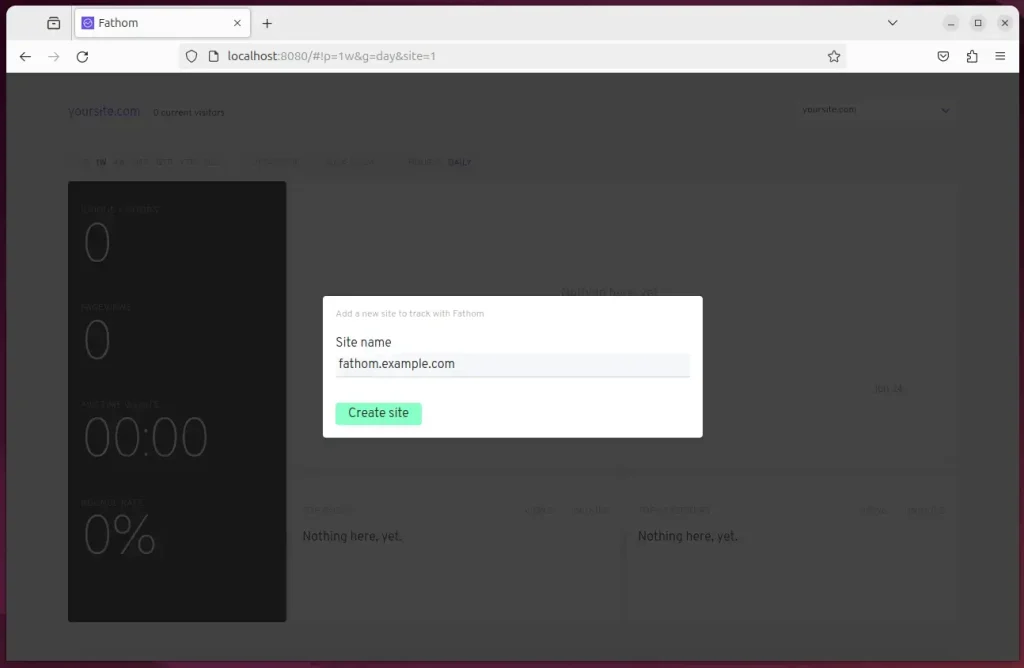
You should see the Fathom dashboard with a JavaScript code you can copy to the host you want to monitor.
Run Fathom as a System Service
Systemd (a system and service manager in Linux) allows Fathom Analytics to run continuously in the background and restart automatically if your server reboots. You set this up by creating a service configuration file in the system directory.
Run the command below to create a Fathom system service file.
sudo nano /etc/systemd/system/fathom.service
Copy and paste the lines below in the file and save it.
[Unit]
Description=Starts the fathom server
Requires=network.target
After=network.target

[Service]
Type=simple
User=fathom
Restart=always
RestartSec=3
WorkingDirectory=/opt/fathom/data
ExecStart=/usr/local/bin/fathom server

[Install]
WantedBy=multi-user.target
Enable and start Fathom.
sudo systemctl daemon-reload
sudo systemctl enable fathom
sudo systemctl start fathom
sudo systemctl status fathom
The status option will display Fathom as running and healthy.
fathom.service - Starts the fathom server
     Loaded: loaded (/etc/systemd/system/fathom.service; enabled; preset: enabl>
     Active: active (running) since Mon 2024-06-24 16:55:01 CDT; 6s ago
   Main PID: 10703 (fathom)
      Tasks: 6 (limit: 4561)
     Memory: 6.3M (peak: 6.7M)
        CPU: 29ms
     CGroup: /system.slice/fathom.service
             └─10703 /usr/local/bin/fathom server
Every time you start the machine, Fathom should be accessible using the local server name or IP address followed by the port number.
Set up a reverse proxy
A reverse proxy (a server that sits between web traffic and your app) lets you access Fathom Analytics using your own domain name and an SSL certificate. You can set this up using either Nginx or Apache depending on your server setup.
The two links below show you how to set up a reverse proxy using Nginx or Apache.
That should do it!
Conclusion:
- Installing and configuring Fathom Analytics on Ubuntu 24.04 enables tracking website traffic and understanding visitor behavior while prioritizing data privacy.
- By following the steps outlined in this guide, users can empower themselves with valuable insights into their website's performance without compromising the privacy of their visitors.
- Additionally, setting up Fathom as a system service ensures it is easily manageable, and utilizing a reverse proxy optimizes web traffic and allows access via a domain name.
Was this guide helpful?

About the Author
Richard
Tech Writer, IT Professional
Richard, a writer for Geek Rewind, is a tech enthusiast who loves breaking down complex IT topics into simple, easy-to-understand ideas. With years of hands-on experience in system administration and enterprise IT operations, he’s developed a knack for offering practical tips and solutions. Richard aims to make technology more accessible and actionable. He's deeply committed to the Geek Rewind community, always ready to answer questions and engage in discussions.




No comments yet — be the first to share your thoughts!