How to Install Eclipse IDE on Ubuntu 24.04


Eclipse IDE on Ubuntu 24.04 is a free software workspace that lets you write, test, and run code, especially in Java. The Eclipse 2024-03 release (version 4.31) brings faster speeds and newer tools to your computer.
You can set up the program in two ways. Download the official installer file straight from the website or use the Snap Store for a quick, automatic install.
Install Eclipse IDE by downloading the installer from the Eclipse website and running it, or use the command line with `sudo snap install eclipse –classic`. Both methods will guide you through the setup process for launching the IDE.
Download and install Eclipse
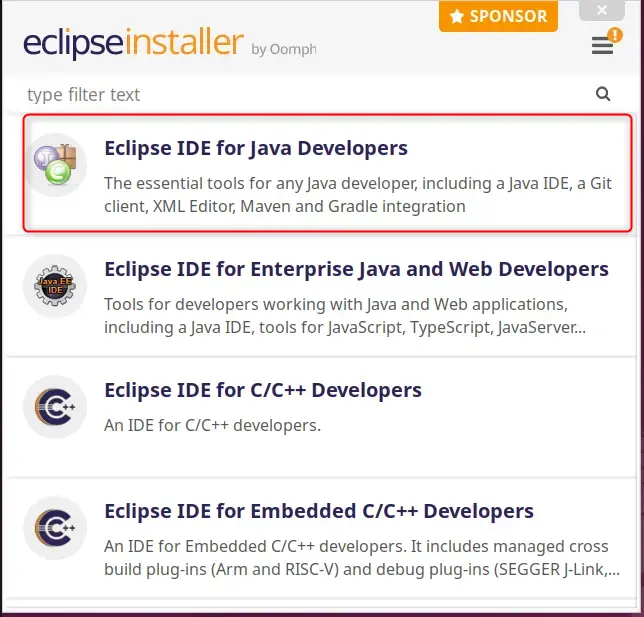
To install Eclipse IDE on Ubuntu 24.04 from the official website, download the Linux x86_64 tarball package. Extract the downloaded file to your home folder, open the extracted folder, and run the eclipse-inst program inside to launch the graphical installer. Choose Eclipse IDE for Java Developers from the list, select your Java installation path, and click install.
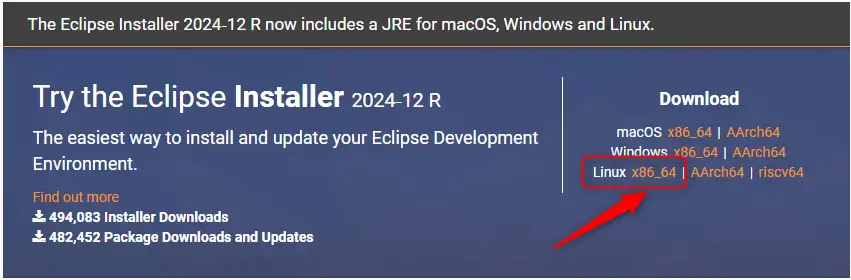
Clicking the ‘Download’ button initiates the package transfer for Eclipse on your Ubuntu machine. Locate the Eclipse Installer built for Linux systems with an x86_64 architecture, then click ‘Download’ to start. Alternatively, copy the download link and use the wget command to download it from the command line.
wget https://eclipse.mirror.rafal.ca/oomph/epp/2024-12/R/eclipse-inst-jre-linux64.tar.gz
Extract the archive using the terminal command shown below once the download completes.
tar -xzf eclipse-inst-jre-linux64.tar.gz
Change directories into the extracted folder and run the installer executable.
cd eclipse-installer
./eclipse-inst
The installation wizard appears immediately after running the script. Select the Eclipse IDE tailored for Java development to proceed through this tutorial.
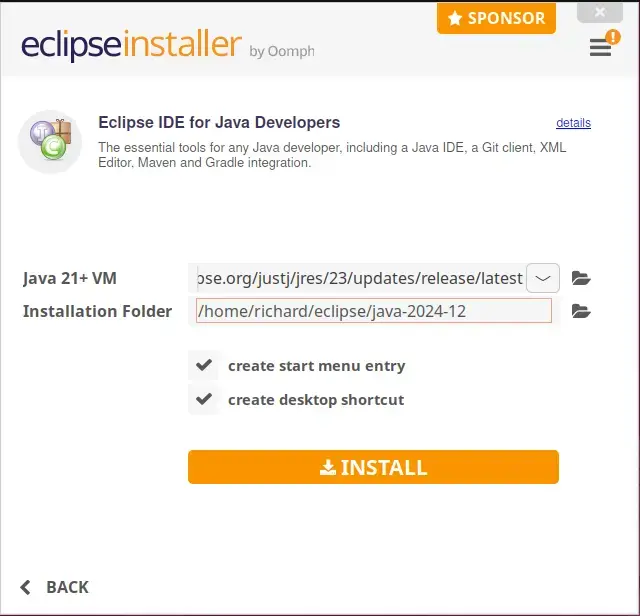
Pick the desired Java version, then trigger the Eclipse deployment by clicking the INSTALL button.
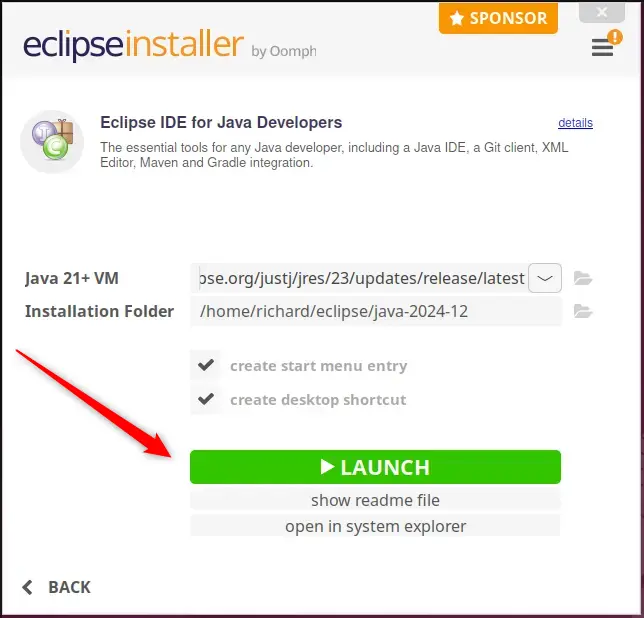
Click the LAUNCH button once the Eclipse IDE installation finishes. Confirm that the 'create start menu entry' and 'desktop shortcut' options stay selected to locate and open Eclipse IDE without hunting through menus later.
Eclipse stands ready for use.
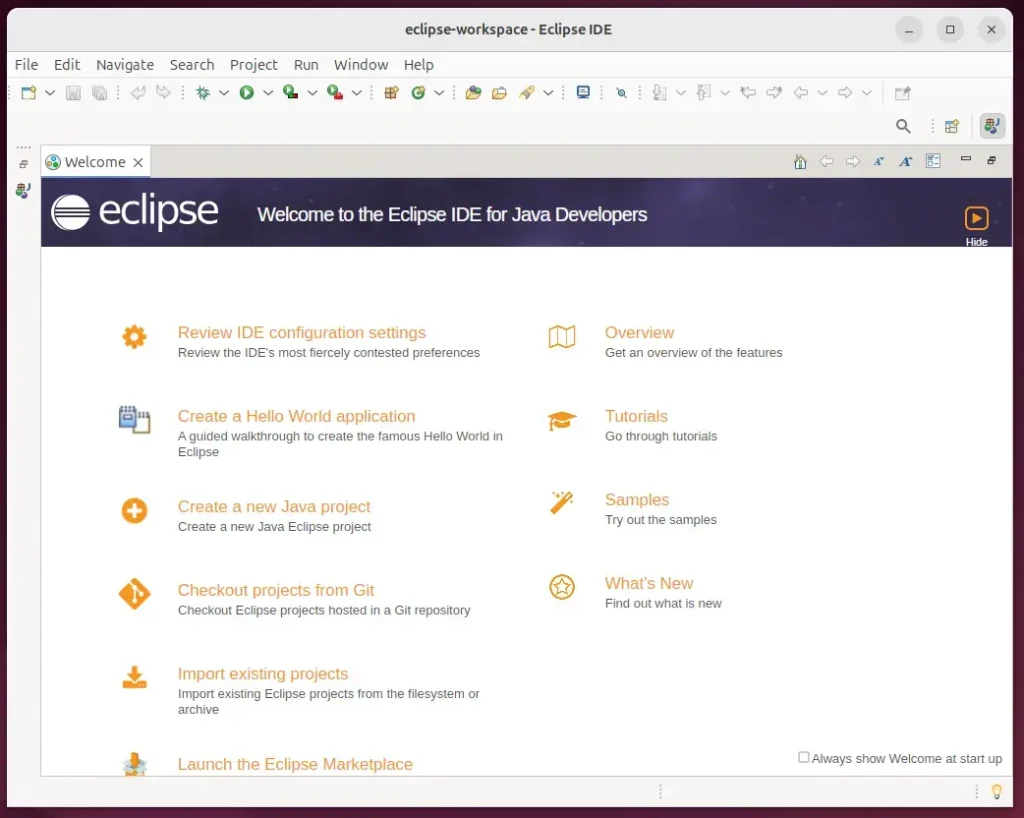
Launching Eclipse IDE later happens directly from the desktop by clicking its icon.
Install Eclipse using Snap
You can install Eclipse IDE on Ubuntu 24.04 quickly using the Snap package manager by running a single command in your terminal. First, make sure snapd (a package manager for containerized software) is active on your system. Then, run sudo snap install eclipse --classic to download and set up the application automatically.
Acquiring the Snap package manager comes first when setting up Eclipse IDE on Ubuntu 24.04. Install the package manager if it is absent from your system, since Eclipse distributes through a Snap package to streamline updates and deployment.
sudo apt install snapd
Run the command below to pull Eclipse through the Snap package manager. The Snap Store deploys the Eclipse IDE for Java developers by default.
sudo snap install eclipse --classic
Search for and launch the Eclipse application using the Dock on the left sidebar after installation completes.
Starting the app via the command line works too using the utility below.
snap run eclipse
Removing the application requires running the terminal instruction below.
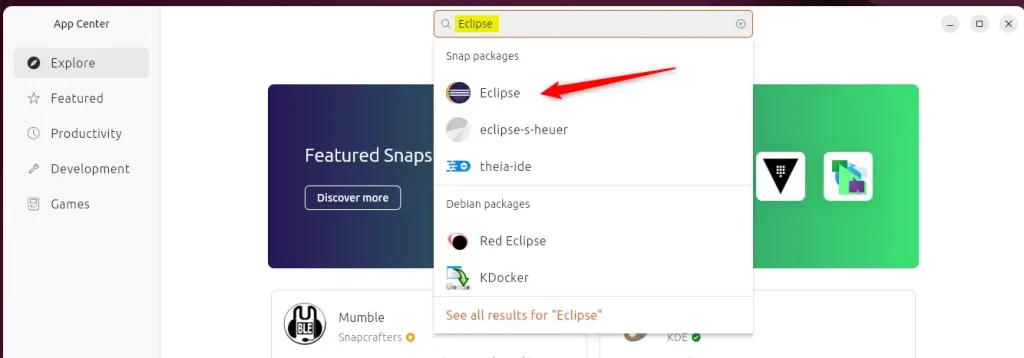
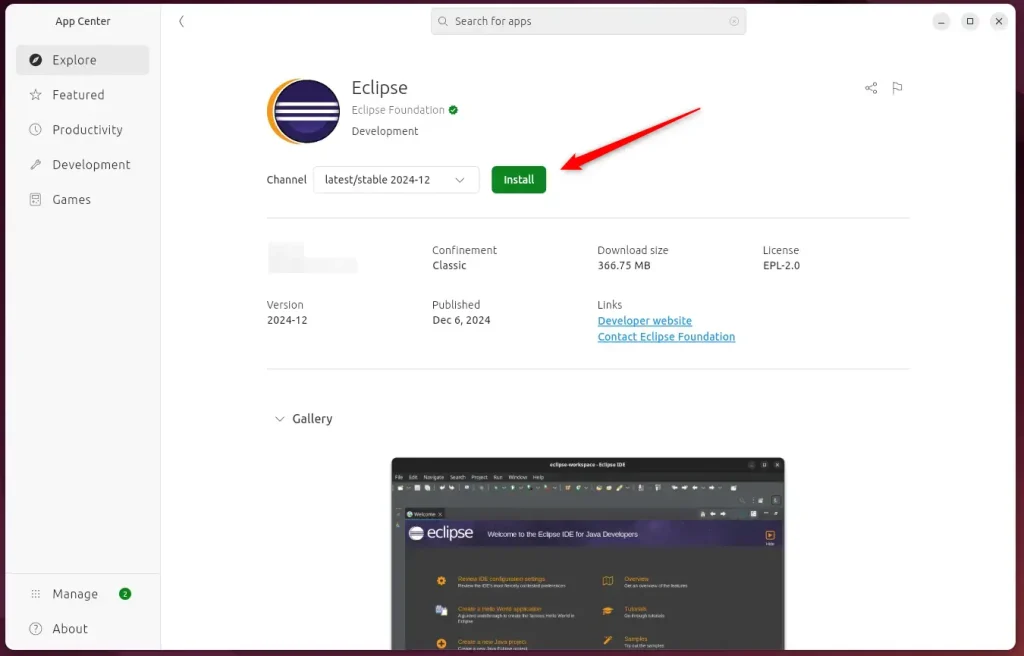
The App Center on Ubuntu 24.04 provides a graphical method for adding Eclipse IDE. Open the App Center, type 'Eclipse' into the search box, and click 'Install'. This action integrates Eclipse IDE into the Ubuntu workspace.

Locate Eclipse in the search interface when the window opens.
Install the application
Search for and open Eclipse through the Dock on the left sidebar once installation finishes.
That completes the setup process.
Conclusion:
Deploying Eclipse IDE on Ubuntu 24.04 accommodates different workflow preferences through multiple pathways. Review the key takeaways below:
- Versatility: Eclipse IDE is a powerful tool for Java development and supports multiple programming languages through plugins.
- Multiple Installation Methods: Options to install Eclipse include downloading directly from the Eclipse website, using the Snap package manager, or through the App Center.
- Ease of Use: Each method provides a user-friendly experience, ensuring developers can quickly start.
- Cross-Platform Compatibility: Eclipse runs on various operating systems, making it an excellent choice for developers in different environments.
- Community Support: As an open-source IDE, Eclipse benefits from a large community that contributes to its development and provides support.
Development, debugging, and project management for Java run smoothly inside a flexible workspace once Eclipse is installed. Enjoy building software!
How to install Eclipse enterprise edition in Ubuntu?
Working with the enterprise edition instead? Locate the downloaded installer package in your file manager to proceed. Verify that the file has execution permissions before double-clicking it.
How to download IDE in Ubuntu?
The Eclipse IDE package for the Ubuntu operating system measures around 83 megabytes, so allow a few moments for the download to finish.
Was this guide helpful?

About the Author
Richard
Tech Writer, IT Professional
Richard, a writer for Geek Rewind, is a tech enthusiast who loves breaking down complex IT topics into simple, easy-to-understand ideas. With years of hands-on experience in system administration and enterprise IT operations, he’s developed a knack for offering practical tips and solutions. Richard aims to make technology more accessible and actionable. He's deeply committed to the Geek Rewind community, always ready to answer questions and engage in discussions.



No comments yet — be the first to share your thoughts!