Install .NET 8.0 on Ubuntu 24.04


.NET 8.0 on Ubuntu 24.04 is a Microsoft software platform that lets you run and build apps on your Linux computer using APT (Ubuntu’s built-in package manager). Ubuntu 24.04 carries .NET 8 in its default repositories, so you don’t need to add a Microsoft repository first.
You need this framework whenever you want to run programs or websites built with Microsoft tools on your system. The whole setup takes a few minutes.
To install.NET 8 on Ubuntu 24.04, open a terminal and run sudo apt update, then sudo apt install dotnet-sdk-8.0. Ubuntu 24.04 includes.NET 8 in its default repositories, so you don’t need to add a Microsoft repository first. Type Y at the prompt, then confirm the install with dotnet –version, which should start with 8.0.
Install .NET 8
Installing .NET 8 on Ubuntu 24.04 takes just two commands in your terminal. First you update your package list so APT knows about the latest package versions. Then you run the installation command, which sets up the .NET software development kit (SDK) on your machine.
You need an account with sudo rights, because APT installs software system-wide.
Do this in order:
- Open a terminal window. You can press Ctrl+Alt+T on a standard Ubuntu desktop.
- Run the command below to install .NET 8 on Ubuntu. If you haven’t refreshed your package list yet, do that first with the update command shown earlier.
sudo apt update
sudo apt install dotnet-sdk-8.0
Enter your password if sudo asks for it. APT lists the packages it will add and waits for your confirmation. Type Y and press Enter. When the prompt returns without errors, the install is finished. No restart is needed.
Once installed, run the command below to verify the .NET version number.
You should see a version number starting with 8.0. If the shell says the command isn't found, the install didn't complete. Run the install command again and read the output for errors. Make sure the package list was updated first.
dotnet --version
Create Hello World app
Creating a Hello World app lets you test your .NET 8 installation on Ubuntu 24.04 to make sure everything works properly. You use the built-in dotnet command to generate a new console project. This creates a basic template you can run right away.
Run the command below to create a simple Hello World app. It creates a new folder named helloworld in your current directory, so run it from a place where you want your projects to live, such as your home folder.
The first time you use the SDK, dotnet may print a welcome message and some telemetry information before it creates the project. That is normal. A message saying the template was created successfully means it worked.
dotnet new console -o helloworld
Now change into the helloworld folder and run the app. The first run takes a few seconds longer, because dotnet restores packages and builds the project before it starts.
cd helloworld
dotnet run
If everything works, the app prints the following line in your terminal and then exits:
[Hello World]If you see that line, the SDK can build and run code on your system.
Creating an ASP.NET app is also possible. This is a small web app that listens for browser requests. Run the command below from the folder where you keep your projects, not from inside the helloworld folder.
dotnet new razor -o asp.net
Change into the asp.net folder and run the app. The terminal doesn't return to a prompt this time, because the web server keeps running until you stop it.
Look for the "Now listening on" line in the output. It shows the exact address and port the app uses.
cd asp.net
dotnet run --urls=http://0.0.0.0:5000/
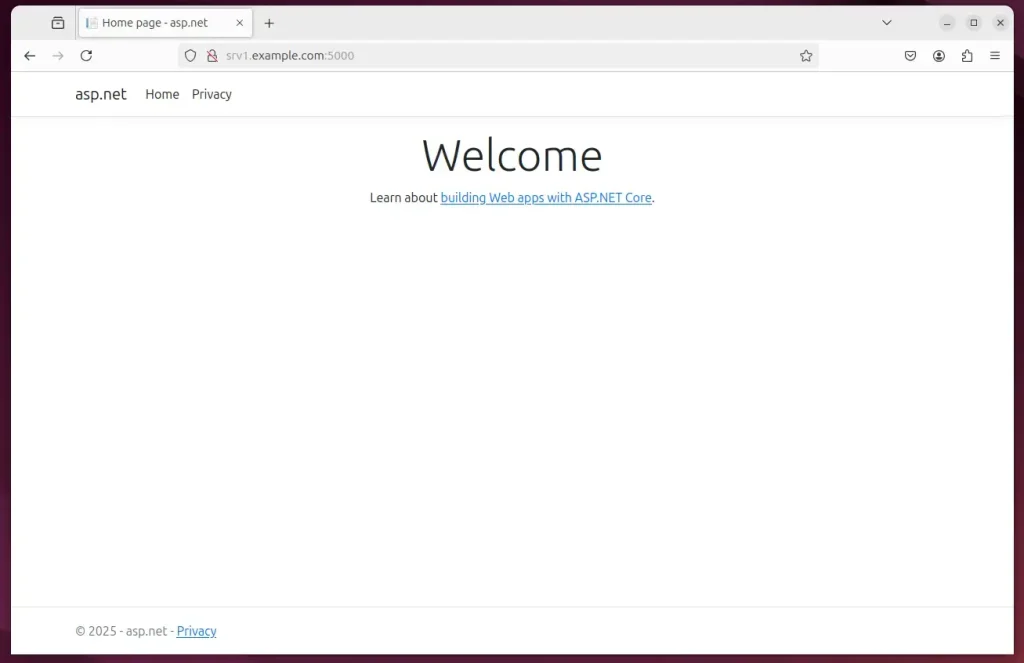
To test, open your browser and navigate to the server hostname or IP address followed by port number 5000. If you are working on the same machine, use localhost instead of the hostname.
If the page doesn't load, check these things:
- Compare the port in your browser with the one in the "Now listening on" line. Use the port the app actually reports if it differs from 5000.
- An app that listens only on localhost can't be reached from another computer. In that case, test from the server itself.
- If you are connecting from another machine and the app does listen on the network, check that no firewall is blocking the port.
Press Ctrl+C in the terminal to stop the web app when you are done.
http://srv1.example.com:5000
To undo it, delete the test project folders and remove the .NET package with APT, the same way you installed it.
Conclusion:
Keep these key takeaways in mind as you build:
- Cross-Platform Development: .NET 8 allows for the development of applications across various platforms.
- Streamlined Installation: Installation has been simplified with packages available in the default repositories.
- Easy Verification: The command to check the .NET version allows for quick installation confirmation.
- Hello World Example: Creating a basic "Hello World" app helps beginners start with .NET 8.
- ASP.NET Capability: Developers can easily create and run ASP.NET applications for web development.
- Accessibility: Applications can be accessed via a web browser, demonstrating successful deployment.
These benefits empower developers to build robust applications efficiently.
Have a question about this guide?
Answered by AI from this guide. Good questions may be added to this page — please don't include personal details.
Did this guide fix your problem?

About the Author
Richard
Tech Writer, IT Professional
Richard is a writer at Geek Rewind who turns complex IT tasks into clear, step-by-step guides. He draws on years of hands-on experience in system administration and enterprise IT operations, focusing on Windows, Linux and WordPress: the problems people actually run into, and the fixes that work. His server and WordPress guides come from systems he runs himself. Richard builds and maintains the platform behind Geek Rewind, from its Ubuntu servers and Nginx configuration to its custom WordPress plugins. Many new tutorials start with readers' questions, and he's always glad to answer them in the comments.
No comments yet — be the first to share your thoughts!