How to End Unresponsive Apps in Windows 11


Task Manager is a built-in Windows 11 tool that forces frozen or unresponsive apps to close when normal closing methods fail. A frozen program stops responding to clicks and keystrokes because it gets stuck on a task or runs out of system memory.
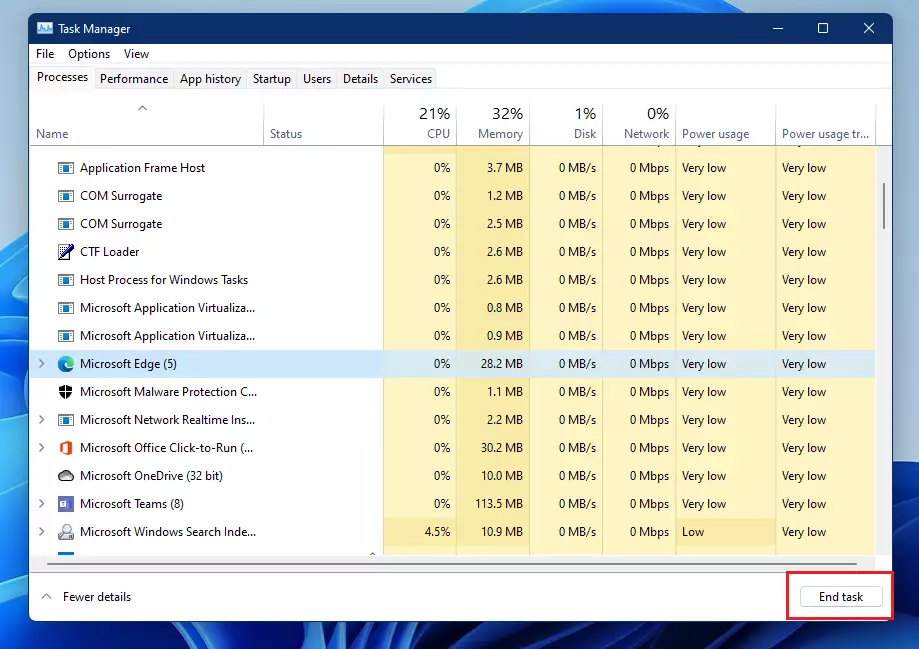
Press the Ctrl+Shift+Esc keys on your keyboard to open Task Manager instantly when an app freezes on your screen. Select the stuck program from the list and click the End Task button to shut it down right away without restarting your whole computer.
Use Task Manager to force close unresponsive apps. Press Ctrl+Shift+Esc to open Task Manager , select the frozen app, and click “End task.” This stops the program without affecting other applications.
Why end unresponsive apps?
Leaving frozen software running drains system resources and drags down overall performance.
What happens when done?
When you end an unresponsive app, it closes immediately, freeing up your computer’s resources.
How to force quit an app in 🪟 Windows 11
If you have a frozen application, several methods can stop it. The most common way is using the Task Manager .
Pro Tip: Use Keyboard Shortcuts
Task Manager (the built-in Windows tool for managing running programs) opens instantly when you press Ctrl+Shift+Esc on your keyboard. This shortcut helps you quickly end unresponsive apps by opening the process list, letting you select the frozen program, and clicking End task to close it without waiting for Windows to respond.
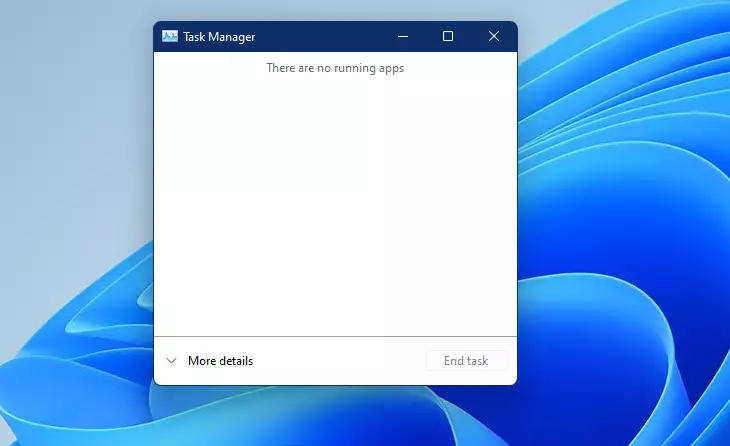
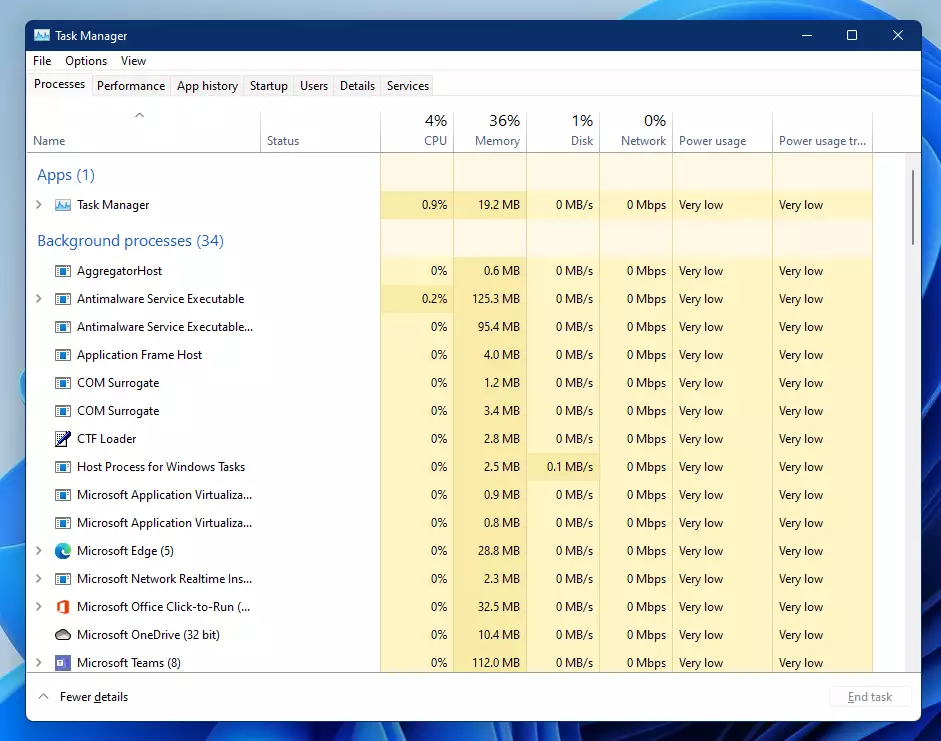
Once Task Manager is open, look for the app in the list. If it is frozen, it will often say Not Responding next to the name. Click the app, then click End task at the top.
Advanced Methods: Using Command Prompt
Command Prompt (a text-based tool for running system commands) lets you end unresponsive apps by using a specific text command. You open the tool with administrator permissions, type taskkill /F /IM "appname.exe", and press Enter to force close any frozen program instantly using its exact background file name.
Right-click Command Prompt and select Run as administrator to ensure you have the necessary permissions.
taskkill /F /IM "appname.exe"This command finds the process by its name and forces it to stop immediately.
Summary
Knowing how to end unresponsive apps helps you manage your computer's performance effectively.
Was this guide helpful?

About the Author
Richard
Tech Writer, IT Professional
Richard is a writer at Geek Rewind who turns complex IT tasks into clear, step-by-step guides. He draws on years of hands-on experience in system administration and enterprise IT operations, focusing on Windows, Linux and WordPress: the problems people actually run into, and the fixes that work. His server and WordPress guides come from systems he runs himself. Richard builds and maintains the platform behind Geek Rewind, from its Ubuntu servers and Nginx configuration to its custom WordPress plugins. Many new tutorials start with readers' questions, and he's always glad to answer them in the comments.



No comments yet — be the first to share your thoughts!