How to Enable or Disable Flashing Taskbar Apps in Windows 11


Flashing taskbar apps in Windows 11 make an application icon blink orange or white when a program needs your attention, such as when a new chat message arrives or a download finishes.
By default, Windows flashes the icon 7 times. After that, the icon stops blinking and stays highlighted. If the blinking distracts you, you can turn it off completely in the Settings app or in the Registry Editor. You will still get your standard system notifications.
The Settings method is the easy one and works on every edition, Home included. The registry method lets you set the exact number of blinks. It also works on every edition, but it needs more care.
Open Settings with Win+I, then go to Personalization Taskbar Taskbar behaviors and uncheck Show flashing on taskbar apps. The change takes effect immediately with no restart needed. To change how many times an icon blinks instead, edit ForegroundFlashCount under 🗝️HKEY_CURRENT_USER\
Change Settings via Windows Settings
The switch is a single checkbox under Taskbar behaviors. A restart is not needed, and the change takes effect straight away.
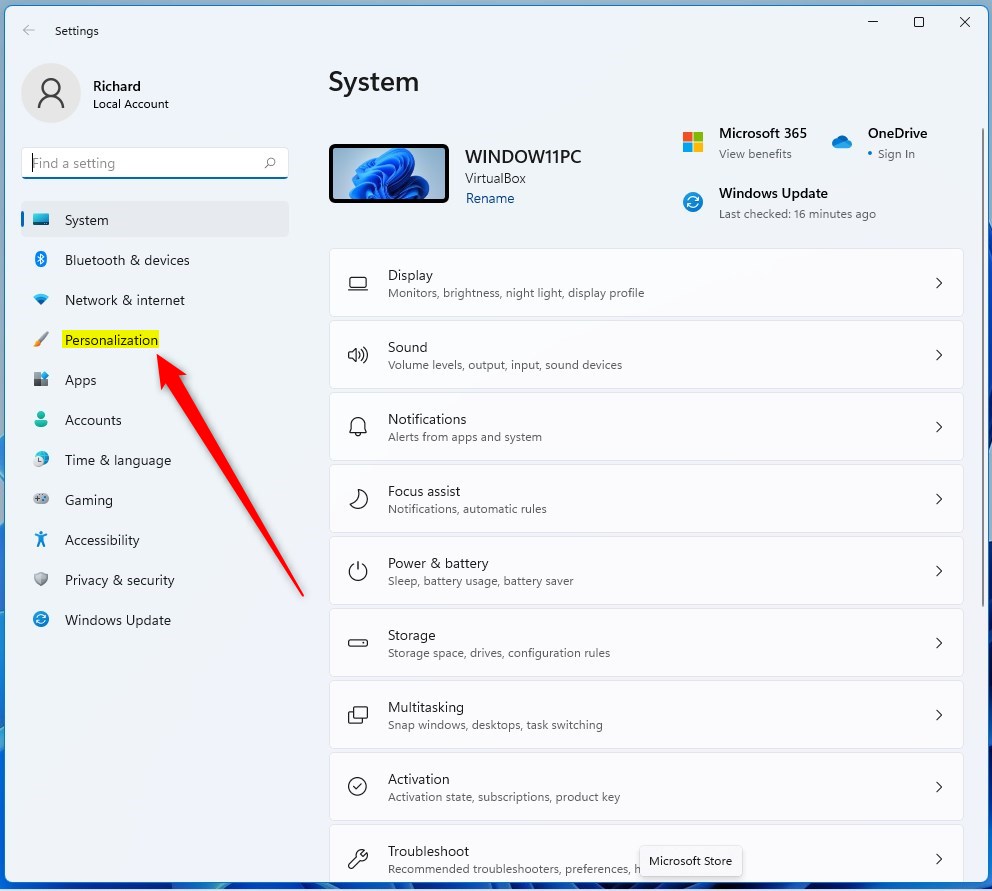
- Open the Settings app by pressing Win+I. The Settings window opens with the System page showing.

- Click Personalization in the left menu. The right side now shows the personalization options, such as Background, Colors and Themes.
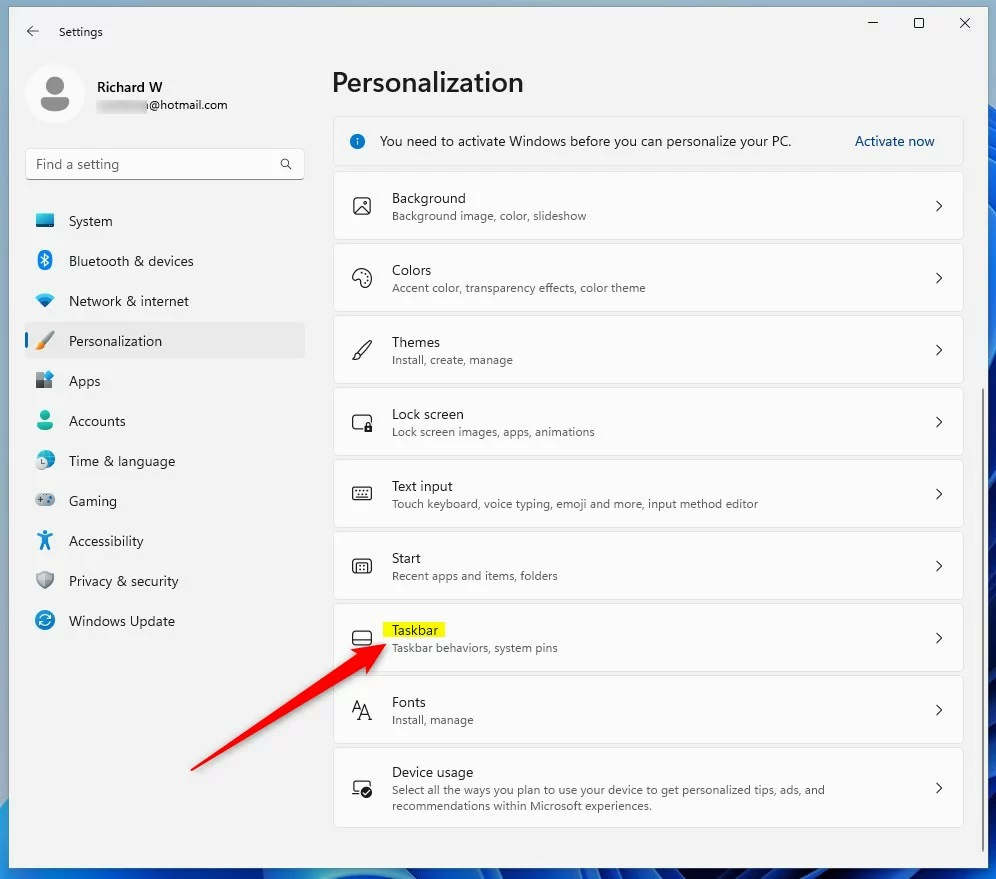
- Select Taskbar on the right. You may need to scroll down the list to find it. The Taskbar page opens with its sections listed.
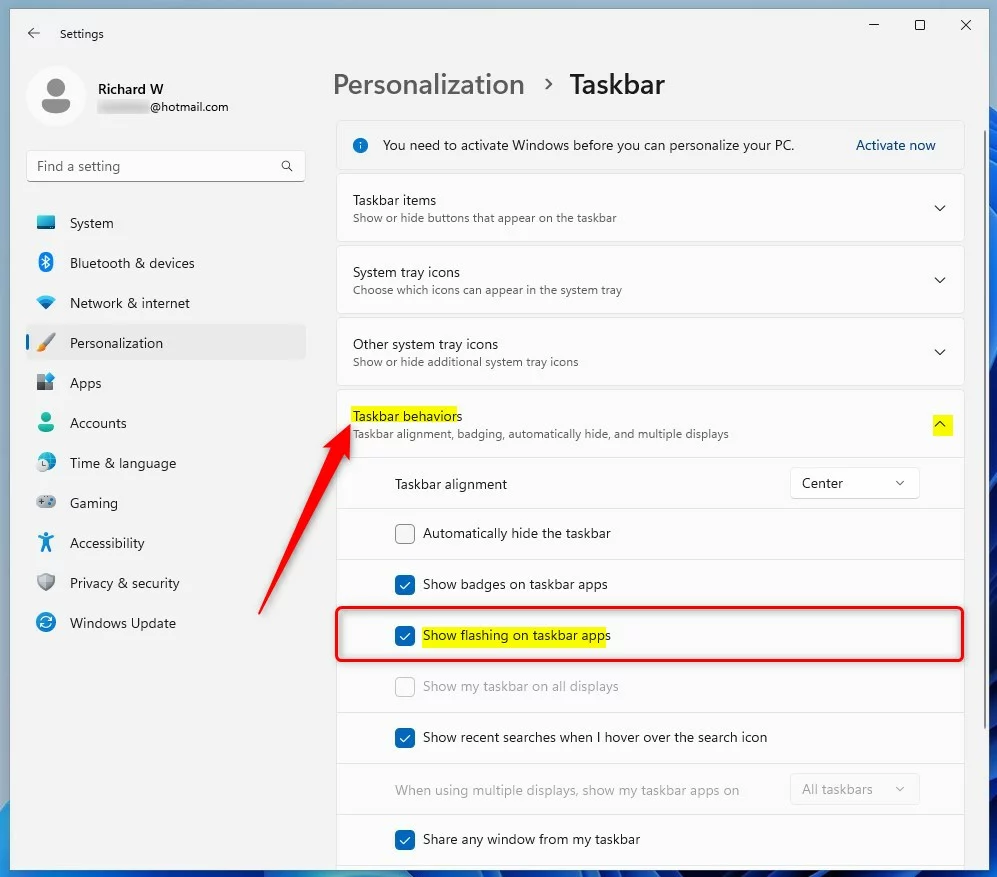
- Click Taskbar behaviors to expand it. A list of checkboxes appears, including alignment, badges and the option for flashing.
The Show flashing on taskbar apps setting controls whether apps blink to get your attention.
- To turn flashing on, check the box next to Show flashing on taskbar apps.
- To turn flashing off and stop apps from blinking, uncheck the box.
Close Settings when you are done. To undo the change, come back to Settings Personalization Taskbar Taskbar behaviors and set the box the way it was. If you don’t see the option, check that Windows Update has installed the latest updates. Older Windows 11 builds put fewer options under Taskbar behaviors.
Advanced: Registry Editor Method
Be careful here. A wrong edit in the registry can cause system problems. Before you change anything, back up the key: in Registry Editor, select it, then go to File Export and save the file somewhere safe. You can double-click that file later to restore the old values.
The value you will edit is ForegroundFlashCount, under HKEY_CURRENT_USER\Control Panel\Desktop. Because it lives under HKEY_CURRENT_USER, the change applies only to your own user account. Use an account that can approve the User Account Control prompt.
The ForegroundFlashCount setting sets how many times a flashing icon blinks on the taskbar before it stops. A lower number means less blinking, and 0 is the way to manage distractions most strictly.
- Press Windows key + R, type regedit, and press Enter. If User Account Control asks for permission, click Yes. The Registry Editor opens.
- Navigate to:
HKEY_CURRENT_USER\Control Panel\Desktop. You can expand the folders in the left pane one by one. The values for that key then appear in the right pane.
- Find ForegroundFlashCount in the right pane.
- Double-click ForegroundFlashCount. The Edit window opens with the current value.
- Type a new number in the Value data box. Setting the value to 0 stops the taskbar app from flashing altogether. Any other number sets how many times it blinks.
- Click OK, then close the Registry Editor.
Sign out of Windows and sign back in, or restart the PC, so the new value is picked up. To undo the change, edit the value again and enter 7, which is the Windows default. You can also import the backup file you exported earlier.
Troubleshooting Persistent Flashing
If apps keep flashing after you turn the setting off, work through these checks:
- Check your Focus Assist settings. This is the Windows feature that can silence notifications. On newer builds of Windows 11 it is called Do not disturb.
- Look at notification badges and background apps. Sometimes these force the taskbar to alert you, even when flashing is off.
- Sign out and back in if you changed the registry value, since the change is not picked up until you do.
- Make sure your system is up to date. Visit the official Microsoft support documentation for taskbar customization.
Summary
Managing flashing taskbar apps in Windows 11 lets you stop annoying blinking or bring back alerts you missed. For a quick on or off choice, use the Settings app under Taskbar behaviors. If you want to set the exact blink count, use the Registry Editor and the ForegroundFlashCount value. Both changes are easy to reverse.
Have a question about this guide?
Answered by AI from this guide. Good questions may be added to this page — please don't include personal details.
Did this guide fix your problem?

About the Author
Richard
Tech Writer, IT Professional
Richard is a writer at Geek Rewind who turns complex IT tasks into clear, step-by-step guides. He draws on years of hands-on experience in system administration and enterprise IT operations, focusing on Windows, Linux and WordPress: the problems people actually run into, and the fixes that work. His server and WordPress guides come from systems he runs himself. Richard builds and maintains the platform behind Geek Rewind, from its Ubuntu servers and Nginx configuration to its custom WordPress plugins. Many new tutorials start with readers' questions, and he's always glad to answer them in the comments.
[…] recently showed you how to enable or disable Show flashing on taskbar apps in Windows 11 to get your attention when specific actions are […]