

This article explains how to turn on or turn off Narrator extensions in Windows 11.
Narrator is a built-in app in Windows that reads text on your screen out loud. It also describes what’s happening on your screen. This helps people who have trouble seeing or are blind.
When you use the Narrator app, you can enable or disable Narrator phonetic reading, pause for punctuation, adjust how the Narrator read advanced details, adjust the way capitalized text is read, add a braille display with Narrator, change input and output language for braille with Narrator, enable the Narrator announcing function keys, modifier keys, and more.
Narrator has an experimental feature. This feature lets you add extensions to make Narrator work better in some apps. When you turn this on, it will find and download new extensions when Narrator starts up.
Why Turn Narrator Extensions On or Off?
Turning Narrator extensions on or off can make Narrator work better for you. Extensions give extra features and support for certain apps. This makes it easier to use if you need Narrator for help.
How to Turn Narrator Extensions On or Off in Windows 11
Follow these steps to turn this experimental feature on or off.
- First, open the Windows Settings app.
Click the Start menu and select Settings. Or press Windows key + I on your keyboard to open Settings app.
- When the Settings app opens, click Accessibility on the left side.
Then click the Narrator tile on the right side to open it.

- Find “Experimental Features” in the Narrator settings.
Click the “Enable Narrator extensions” tile. Then move the toggle switch to On or Off.
- When you open that tile, you can also check or uncheck the box that says “Find and download new extensions on Narrator startup.”
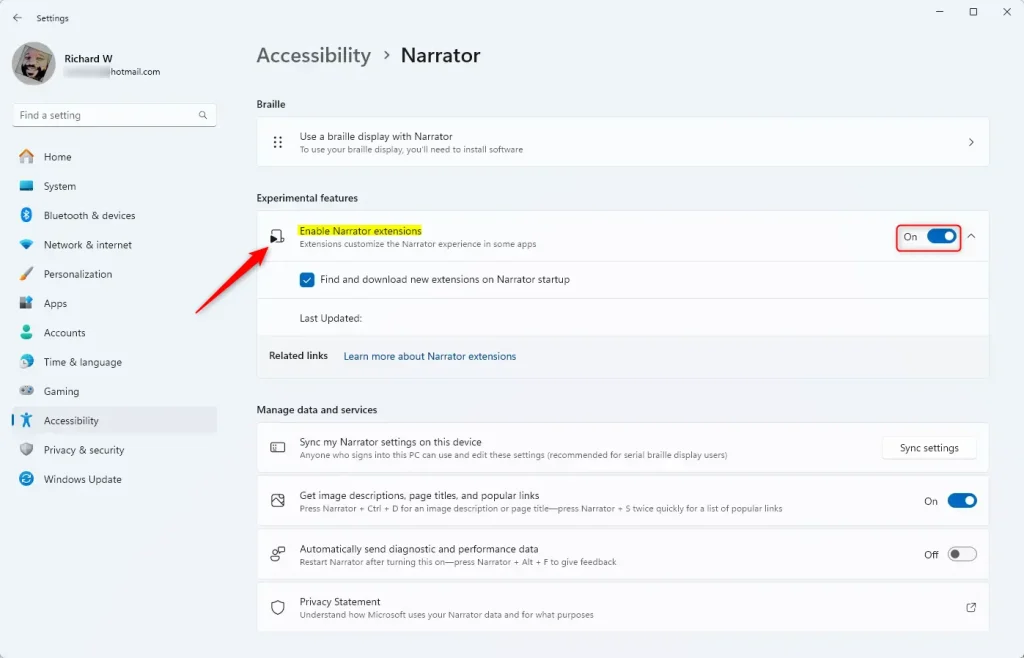
That’s all you need to do!
What Happens When You Enable Narrator Extensions?
When you turn on Narrator extensions, Windows can find and download new extensions when Narrator starts. These extensions add new features for specific apps. This makes Narrator more helpful for your needs.
Summary
Turning Narrator extensions on or off in Windows 11 is easy. Just open Settings, go to Accessibility, find Narrator, and toggle the “Enable Narrator extensions” switch. You can also choose to find and download new extensions when Narrator starts. This feature helps make Narrator work better for you in different apps.



Leave a Reply