How to Enable Mouse Gestures in Microsoft Edge

Microsoft Edge mouse gestures let you control the browser by drawing shapes with your mouse. These gestures let you go back to a previous page, open new tabs, and perform other common actions just by moving your mouse in a specific way while holding down a button.
Microsoft Edge doesn’t have this feature built-in. You need to add it by installing a browser extension from the Edge Add-ons store. One popular option, the “Mouse Gestures” extension by Foscus, works with Edge version 110 and newer.
Adding this extension gives you quick shortcuts for browsing the web. You can easily find and install extensions by going to the Edge Add-ons store and searching for “mouse gestures.”
Install a mouse gesture browser extension from the Microsoft Edge Add-ons store. Open Edge settings, navigate to Appearance, and toggle the Mouse Gesture switch to On. Alternatively, advanced users can enable it via the Windows Registry Editor.
Why use Mouse Gestures?
Mouse gestures let you control your browser with quick movements instead of clicking small buttons. This saves time when you are browsing the web.
What happens when done?
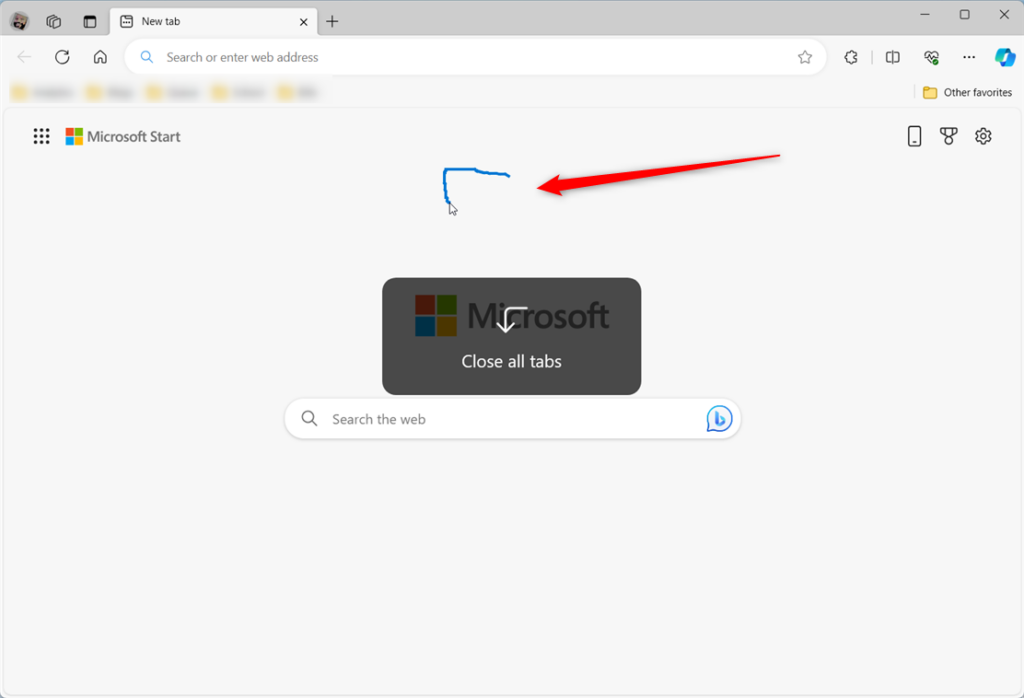
Mouse gestures in Microsoft Edge let you control the browser quickly by drawing simple shapes with your right mouse button instead of clicking toolbar buttons. When you finish the setup, drawing a line to the left takes you back a page, drawing a line to the right moves you forward, and drawing other shapes lets you refresh the page or open new tabs instantly without touching your keyboard.
- Go Back: Draw a line to the left.
- Go Forward: Draw a line to the right.
- Refresh Page: Draw a line up, then down.
- Open New Tab: Draw a line down, then right.
- Close Tab: Draw a line down, then left.
Turn on ‘Mouse Gesture’ on or off in Edge
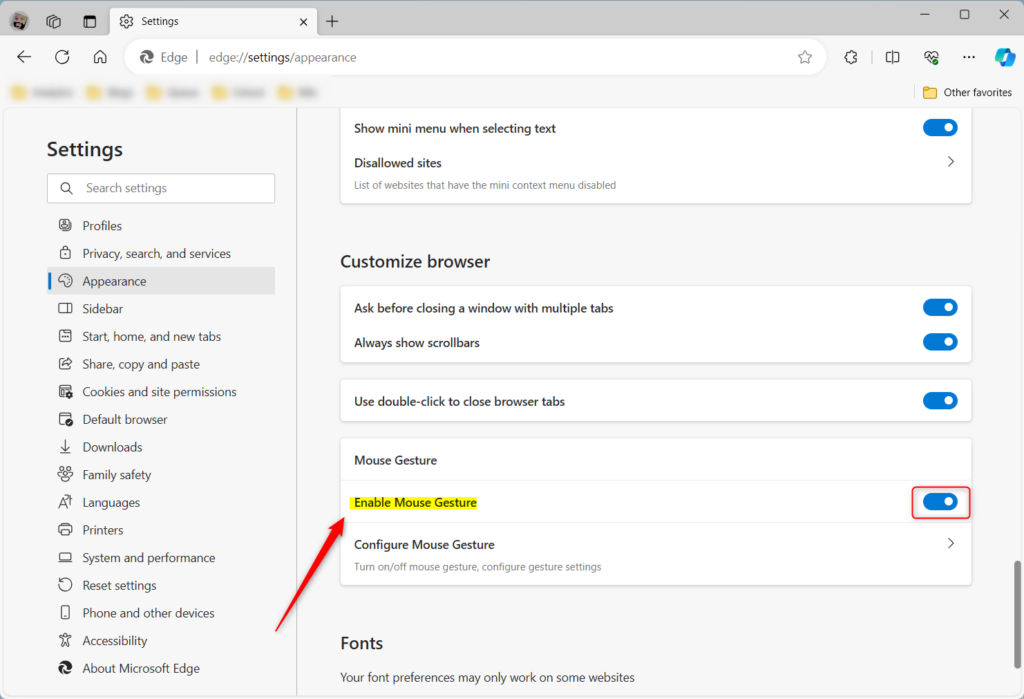
You can enable mouse gestures Edge settings by opening the browser menu and toggling the feature on under the appearance section. This built-in browser switch lets you turn mouse gestures on or off without needing any extra extensions or tools, giving you instant access to shortcut drawings for everyday web browsing.
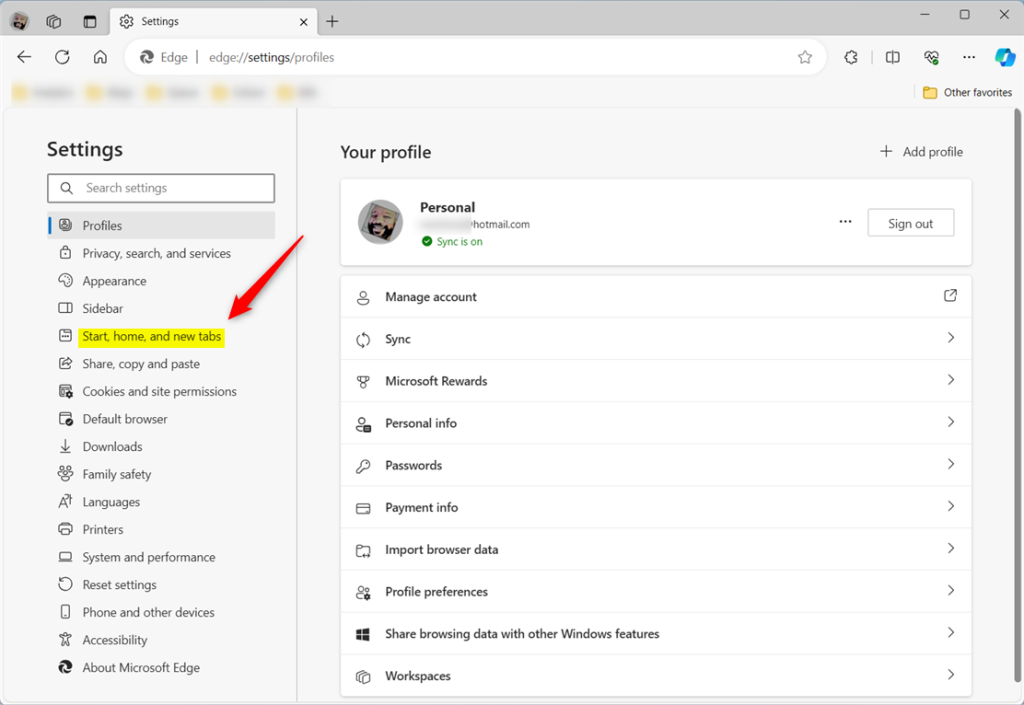
- Click the Settings and more (three dots) icon in the top right corner.
- Select Settings from the menu.
- On the left sidebar, click Appearance.
- Scroll down to the Mouse Gesture section.
- Toggle the switch to On or Off based on your preference.

Turn Mouse Gesture on or off using the Windows Registry Editor
Advanced users can enable mouse gestures Edge functionality by creating a specific policy entry in the Windows Registry Editor at Computer\HKEY_LOCAL_MACHINE\SOFTWARE\Policies\Microsoft\Edge. This method allows network administrators or power users to force the setting on or off across the entire computer system rather than changing it inside individual browser profiles.
First, open the Windows Registry Editor. Then, navigate to this path:
Computer\HKEY_LOCAL_MACHINE\SOFTWARE\Policies\Microsoft\Edge
If the path doesn't exist, you may need to create the necessary folders. Once you're there, double-click the MouseGestureEnabled (REG_DWORD) value in the right pane:
- Set the value to 1 to enable Mouse Gestures.
- Set the value to 0 to disable Mouse Gestures.
To create the MouseGestureEnabled item in the Windows Registry, right-click an empty area, choose 'New,' then 'DWORD (32-bit) Value,' and name it 'MouseGestureEnabled.' Restart Microsoft Edge for these registry changes to take effect.

Experimenting with mouse gestures will help you decide if they make your browsing faster and more comfortable. If you find mouse gestures get in the way, you can turn them off using the same steps above.
How do I enable mouse gestures in edge?
Method 1: Control mouse gestures via Microsoft Edge settings. Select the three-dot menu (•••) on the top-right and press Settings. Click Appearance, then scroll down until you find Browser behavior and features. Find and toggle Enable mouse gesture to match the setting you prefer: On: Allows mouse gestures for Edge.
What does "enable mouse gesture" mean?
Enabling mouse gestures in Edge means you can perform actions like scrolling, opening new tabs, or refreshing pages by drawing patterns with your right mouse button, rather than clicking buttons.
How do I turn on mouse gestures?
And if you start typing mouse. Then you will see a feature called as mouse. Gesture. Under mouse gesture you can enable the mouse gesture. So I'll just enable it. And configure mouse gesture.
Was this guide helpful?

About the Author
Richard
Tech Writer, IT Professional
Richard, a writer for Geek Rewind, is a tech enthusiast who loves breaking down complex IT topics into simple, easy-to-understand ideas. With years of hands-on experience in system administration and enterprise IT operations, he’s developed a knack for offering practical tips and solutions. Richard aims to make technology more accessible and actionable. He's deeply committed to the Geek Rewind community, always ready to answer questions and engage in discussions.



[…] is only available in the latest Microsoft Edge Dev and Canary versions. Additionally, the Mouse Gesture feature must be turned on to use Circle to […]