Enable or Disable Dim Screen in Ubuntu Linux

Dim screen in Ubuntu Linux is a power-saving feature that automatically darkens your display after a set time of inactivity to help save battery life. Ubuntu 22.04 and newer versions include this control to reduce eye strain when you step away from your computer.
You can turn off this feature if you hate your screen going dark while you read or watch something. Open your system settings, find the Power section, and change the blank screen timer or turn off screen dimming completely.
Go to Settings , then Power. Find the “Dim Screen When Inactive” option and toggle the switch to On to enable it or Off to disable it. This setting controls automatic screen dimming due to inactivity.
How to turn on or off the dim screen in Ubuntu Linux
To turn on or off the dim screen in Ubuntu Linux, open Settings , select Privacy, click Power, and toggle the Screen Blanks or Dim Screen switch to your preferred setting. This lets you choose whether your display dims automatically to save battery power or stays at the exact brightness level you set.
You can turn the screen dimming feature off if you prefer your screen to stay at its current brightness. You should keep the screen dimming feature on if you want to save battery.
Follow these steps to change the setting:
- Open your Activities overview and type Settings.
- Click on the Settings icon.
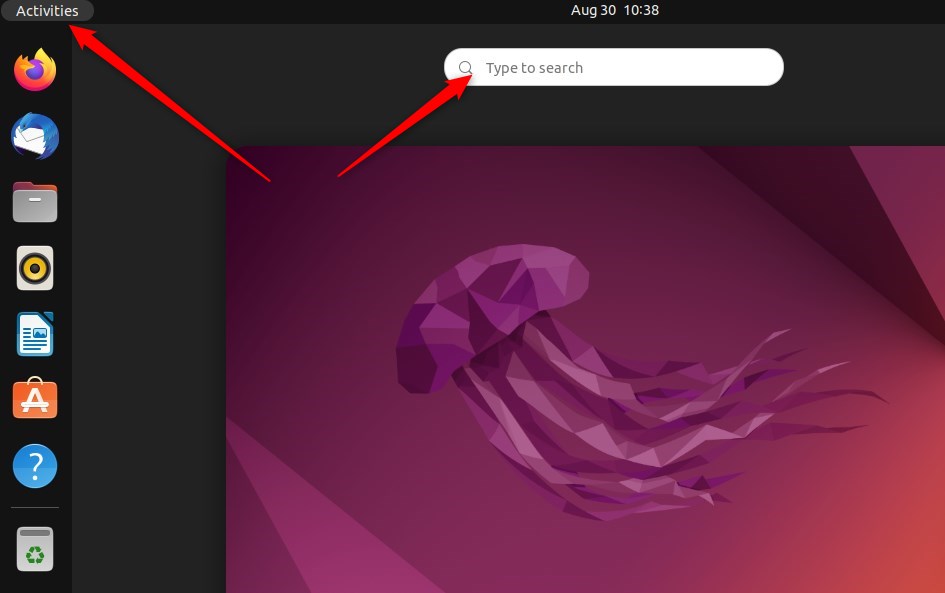
ubuntu linux activities overview - Alternatively, click the system menu in the top-right corner of your screen and select Settings.
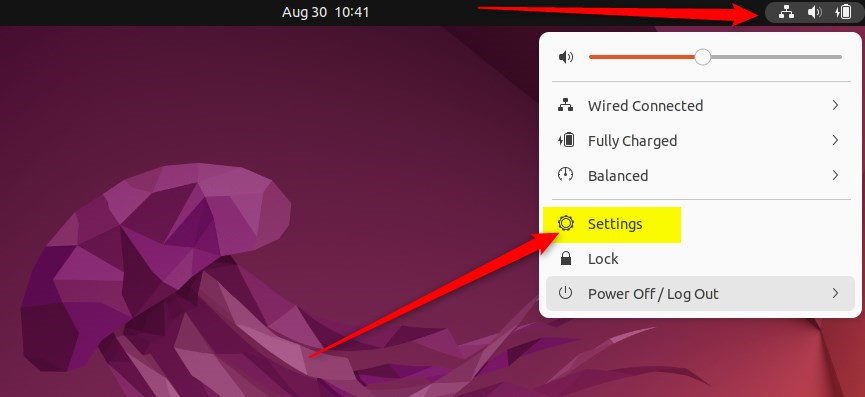
ubuntu linux system menu top bar settings - In the sidebar on the left, click on Power (or Power & Battery, depending on your hardware).
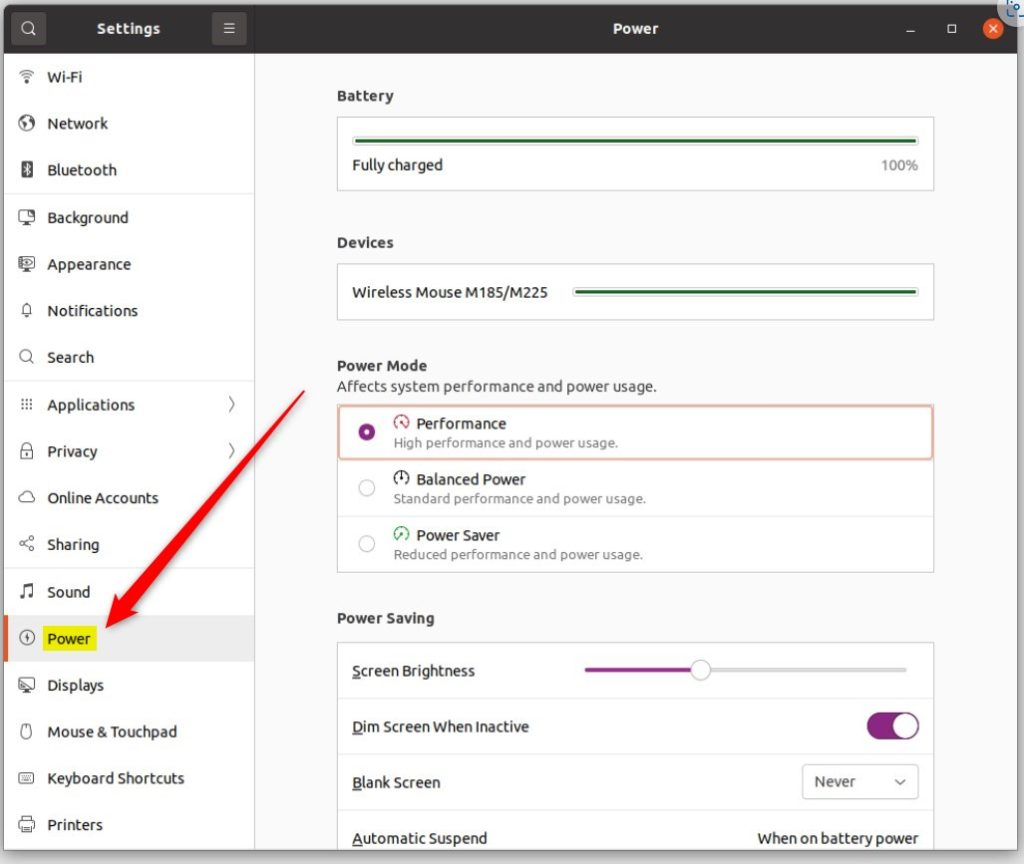
ubuntu linux power tile - Look for the Power Saving section.
- Find the Dim Screen When Inactive option.
- Toggle the switch to On to save power, or Off to keep your screen bright.
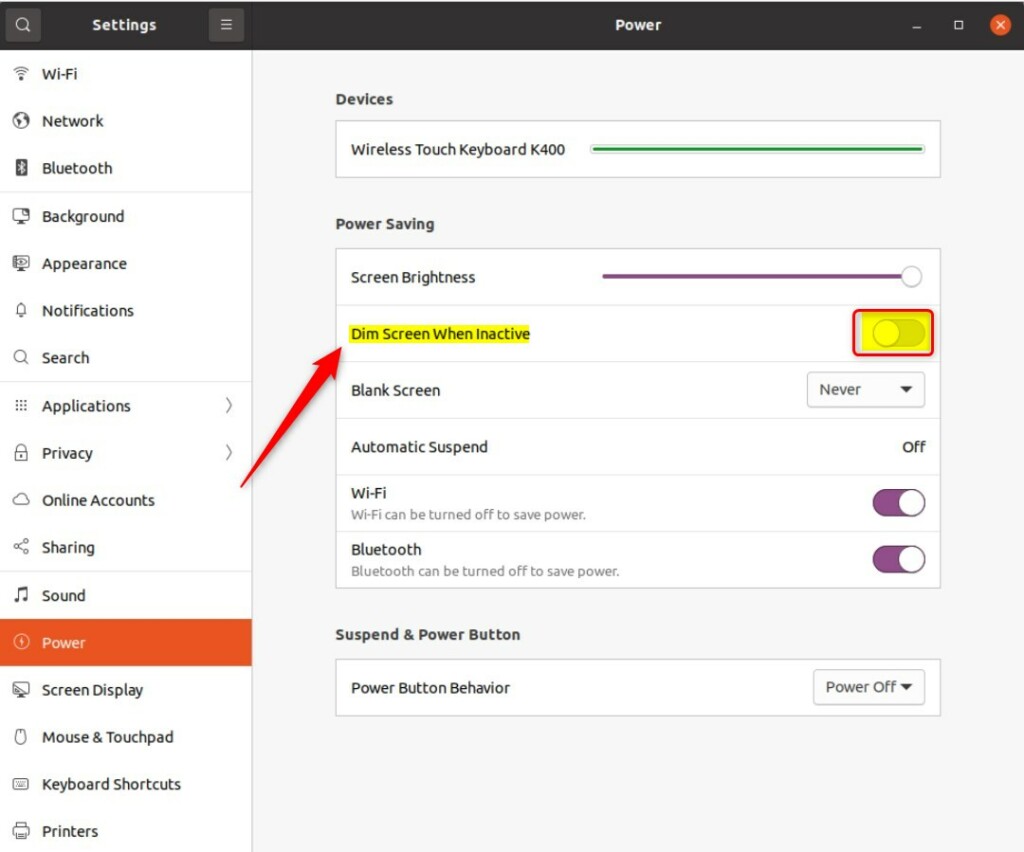
ubuntu linux dim screen button
Conclusion
Adjusting your screen’s dimming behaviour in Ubuntu Linux is simple and helps manage your laptop’s energy use, but remember other power settings can also affect brightness.
How do I dim the screen in Ubuntu?
On Ubuntu, it's easy to change the brightness of the built-in monitor. Just click the system menu on the right side of the top bar and adjust the screen brightness slider to the value you want to use. The change should take effect immediately.
How do I turn off dim screen in Ubuntu?
In the Settings application, go to the Power settings from the left sidebar. Under the Power Saving option, you can see the Automatic Brightness option. Toggle the button to turn it off or on.
How do I decrease my screen brightness?
And right here. You can toggle this option off the adaptive brightness or toggle this option. On this way you will adjust your screen brightness through the settings.
Was this guide helpful?

About the Author
Richard
Tech Writer, IT Professional
Richard, a writer for Geek Rewind, is a tech enthusiast who loves breaking down complex IT topics into simple, easy-to-understand ideas. With years of hands-on experience in system administration and enterprise IT operations, he’s developed a knack for offering practical tips and solutions. Richard aims to make technology more accessible and actionable. He's deeply committed to the Geek Rewind community, always ready to answer questions and engage in discussions.



No comments yet — be the first to share your thoughts!