How to Download Bing Wallpaper for Windows 11

Bing Wallpaper is a free Microsoft app that puts a new high-resolution photo on your desktop background every 24 hours. The app automatically fetches professional landscape and nature photography from around the world to keep your screen fresh.
You can run this background tool on any PC using Windows 10 or Windows 11 without noticing a drop in system speed.
Download the Bing Wallpaper app from the official website and run the BingWallpaper.exe file. Click “Install Now” in the installer, then “Finish” to set up the application. Your desktop background will update daily with new images.
Why use the Bing Wallpaper app?
The app pulls professional photos from around the globe automatically. This feature helps you discover new places visually, transforming your desktop into a daily adventure without requiring manual work.
What happens when you are done?
Once installed, your background shifts to a new professional-grade photograph every day. A small icon also appears in your system tray (the area on the taskbar with small icons for running apps), letting you manage settings or switch to previous images.
How to download and install
Bing Wallpaper Windows 11 setup starts by visiting the official Microsoft website to grab the installer file. You need administrator permissions (rights required to make changes to your PC) to finish the setup. Once the file finishes downloading to your computer, run it to add the daily desktop background app to your system.
- Open your web browser and go to the official download page: Download the Bing Wallpaper app.
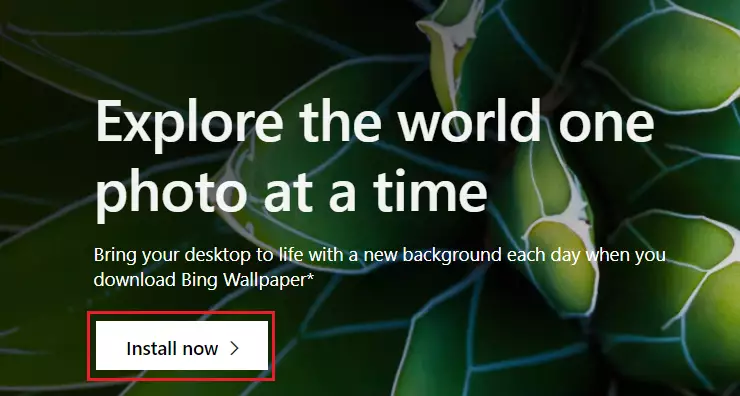
- Click the Install Now button on the website.
Files land in your Downloads folder by default. Administrator permissions (rights required to make changes to your PC) are required to finish the setup.
Log in as an administrator to proceed with the installation.
- Open your file explorer and navigate to your Downloads folder.
- Double-click the file named
BingWallpaper.exeto start the setup. - Click Install Now on the installer screen.
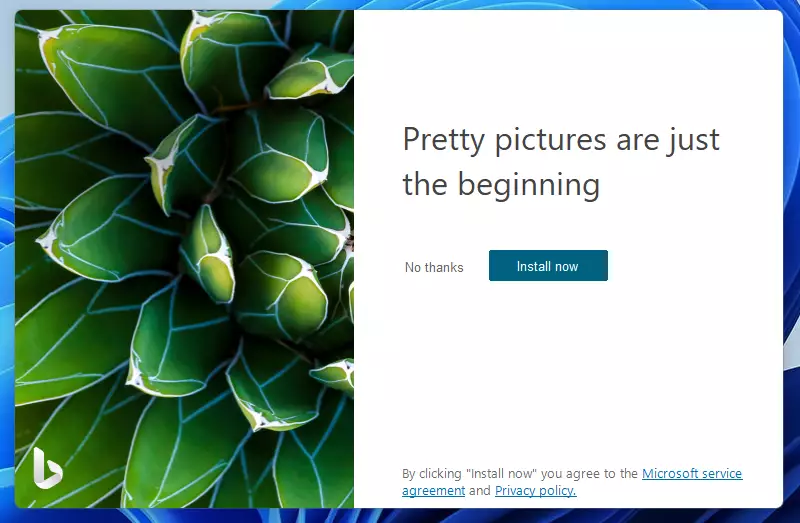
- Wait for the installation to finish, then click Finish.
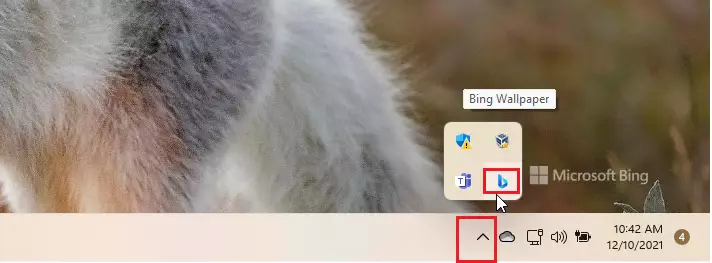
The app starts automatically whenever you turn on your computer. You can manage your wallpaper settings from the system tray icon.
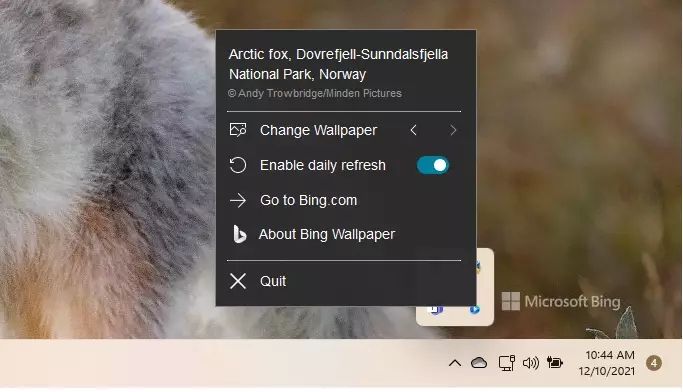
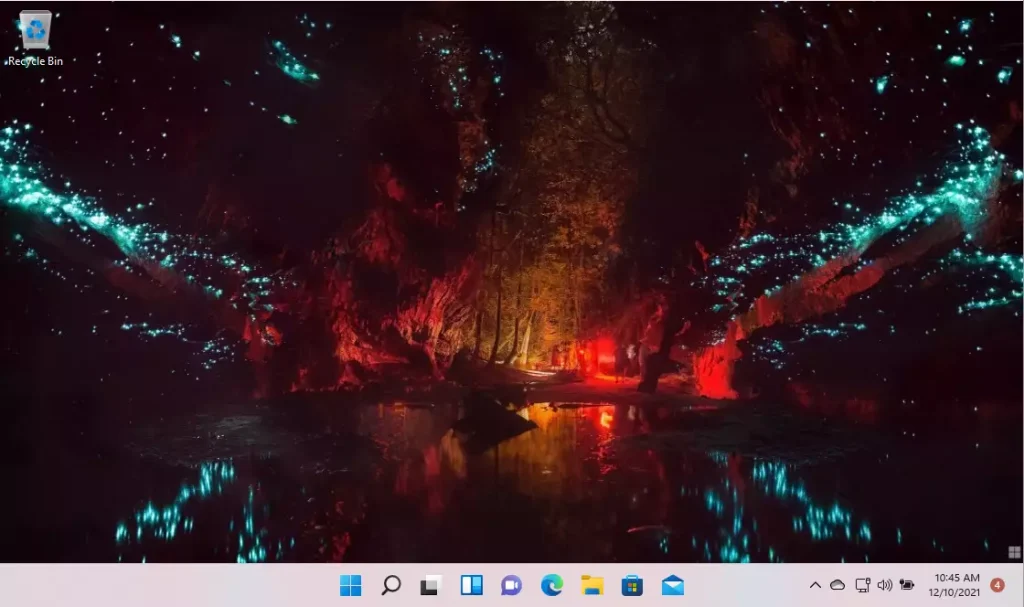
Your desktop background updates right away after installation finishes.
Troubleshooting and Uninstallation
You can prevent the app from starting automatically using Task Manager, or remove it entirely through Windows Settings under Apps.
Customization and Privacy
Bing Wallpaper offers configuration changes and privacy information. The application tracks zero personal data. However, it may prompt you to set Bing as your default search engine during initial installation.
Summary
The Bing Wallpaper app updates your background automatically with a new high-quality photo every day. It runs quietly in the background and gives you a way to browse older pictures through a system tray icon (the small icons next to your clock on the taskbar). The Bing Wallpaper app brings a rotating gallery of professional photography directly to your desktop. It installs rapidly, starts up with your computer, and provides access to previous photos through a system tray icon.- The Bing Wallpaper app provides a new, high-quality background for your Windows 11 desktop every day.
- Installation is fast and simple via the official Microsoft website.
- The app automatically starts when you log in, ensuring a fresh look without extra work.
- You can customize your experience by using the system tray icon to browse through past photos.
Related Articles
Was this guide helpful?

About the Author
Richard
Tech Writer, IT Professional
Richard is a writer at Geek Rewind who turns complex IT tasks into clear, step-by-step guides. He draws on years of hands-on experience in system administration and enterprise IT operations, focusing on Windows, Linux and WordPress: the problems people actually run into, and the fixes that work. His server and WordPress guides come from systems he runs himself. Richard builds and maintains the platform behind Geek Rewind, from its Ubuntu servers and Nginx configuration to its custom WordPress plugins. Many new tutorials start with readers' questions, and he's always glad to answer them in the comments.


I installed it, but there is no change in my wallpaper—in fact, the Desktop is solid black.
I’m having the same issue. Just black desktop and I’ve downloaded and installed several times. It does not show in my tray. It does not show up in Task Manager.
why won’t the bing wall paper change???