How to Install Custom Fonts on Windows 11

Custom fonts change how text looks in programs like Word and Notepad on Windows 11 by adding new typefaces to your PC. A font is a set of letters, numbers, and symbols in one design style. Once a font is installed, any program that lets you pick a font can use it.
Windows 11 has 2 main ways to install new font files. You can drag them into the Settings app, or you can place them directly in the 📁C:\
Download font files, then right-click and select “Install” or “Install for all users.” Alternatively, open Settings , go to Personalization, select Fonts, and drag your font files into the designated area.
Install or uninstall fonts on 🪟 Windows 11
The short version: download a font file from the internet, extract the zipped folder, then open the font file and click Install. If you later decide you don’t need a font, you can uninstall it from the font settings page. Both are covered below.
The steps below use a font from fonts.google.com, but any trustworthy font site works the same way. Fonts usually come as .ttf (TrueType) or .otf (OpenType) files, and both install the same way. Only download fonts from sources you trust, since a font is a file that will be loaded by your system.
- Go to the font site in your browser, find the font you want, and download it . On Google Fonts this gives you a zipped folder.
- Open File Explorer and go to your Downloads folder. You should see the zipped file there.
- Right-click the zipped file and select Extract All from the context menu (the list of options that appears when you right-click). You can also select the file and use the Extract all button on the toolbar.
- Confirm the destination in the window that opens and click Extract. A normal folder with the same name should open, holding the font files.
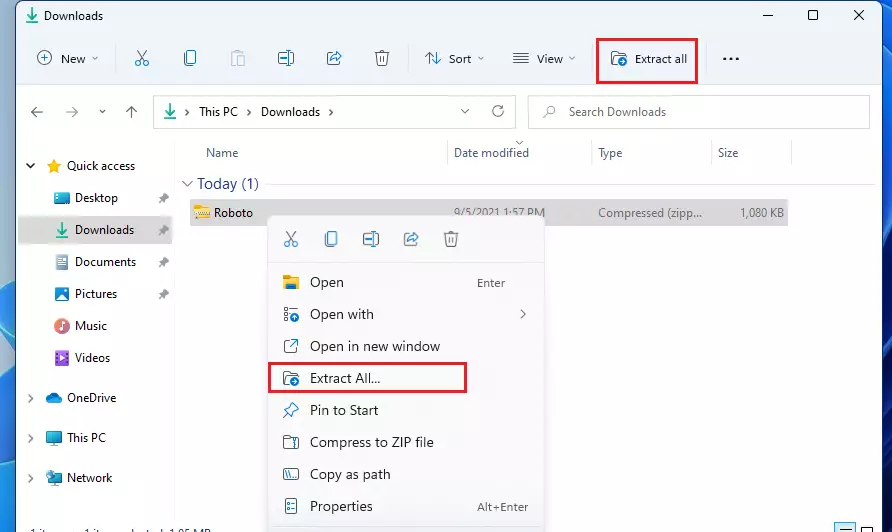
Extracting matters. If you open a font straight from inside the zipped file, the install options may not appear or may not work.
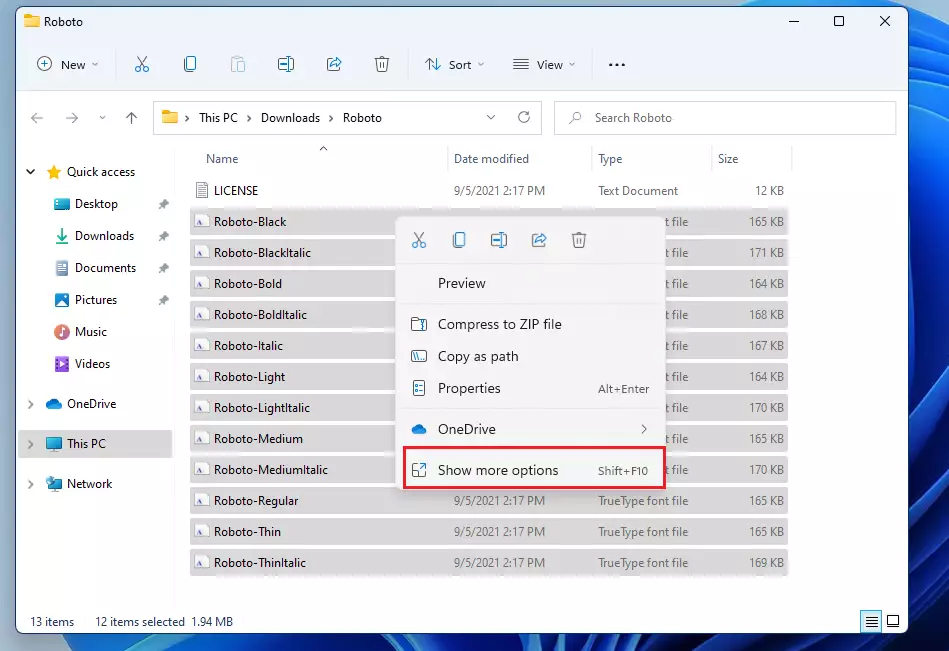
- Open the extracted folder and select all the font files. If the download contains several styles (Regular, Bold, Italic), select them all so they install together.
- Right-click the selected files and choose Show more options on the context menu , as shown below. The older, full context menu should now open.
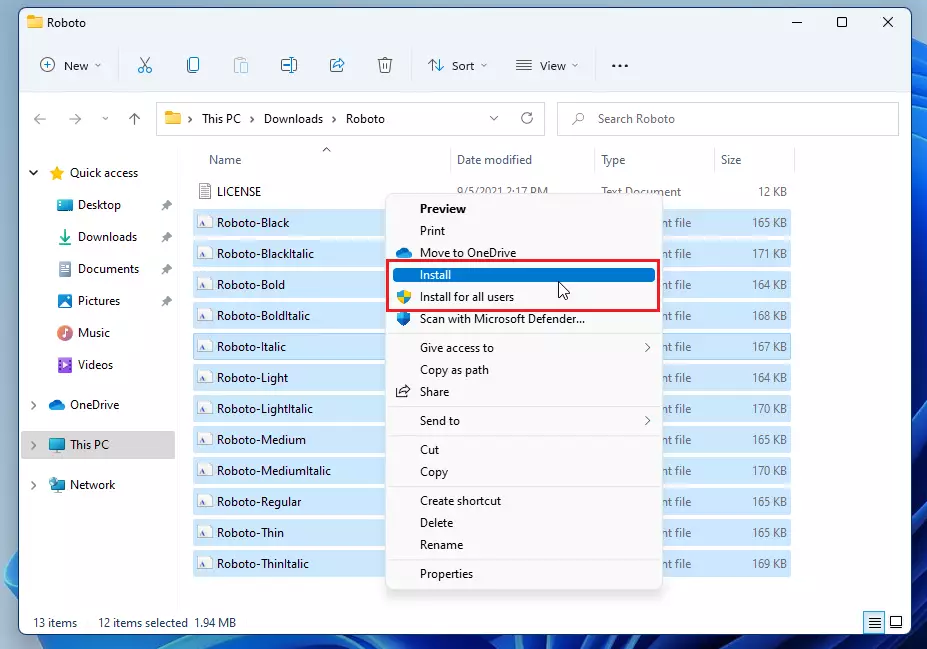
On the next context menu , choose how to install the font:
- Install adds the font for yourself only. It will be available only to your user account.
- Install for all users makes the font available to everyone who uses this PC. You need administrator rights for this, and Windows may ask you to confirm.
You can also double-click a single font file to open a preview window and click the Install button there. That gives the same result for one font.
Once installed, the fonts should appear in your applications and be ready for formatting documents. If a program was already open during the install, close it and reopen it. Some programs only read the font list when they start.
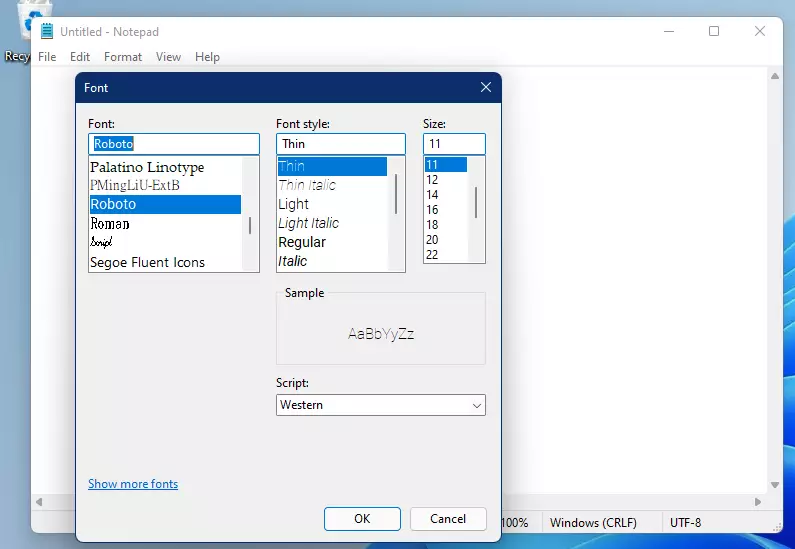
Manage and delete fonts on 🪟 Windows 11
Windows 11 has a dedicated fonts page inside the main Settings app. There you can see all installed typefaces, search for specific styles, and remove fonts you no longer want. This works the same on Home and Pro editions.
Windows 11 keeps most of its settings in one place. System configuration, user management, and Windows updates are all reachable from the System Settings pane.
- Open Settings by pressing the Windows key + I shortcut, or click on Start ==> Settings, as illustrated below. The Settings window should open.

Alternatively, use the search box on the taskbar to find and open Settings.
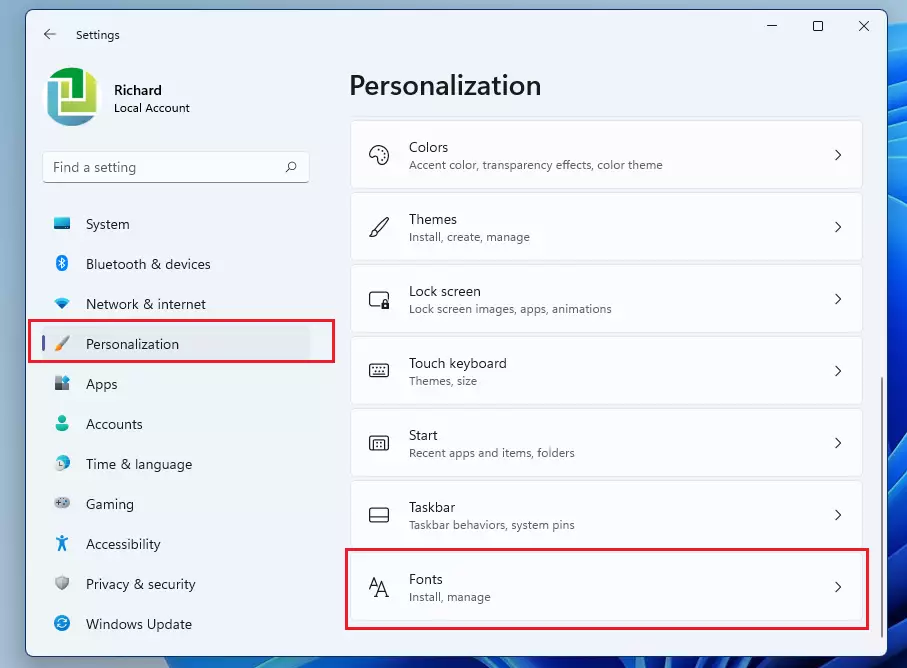
- Within Windows Settings, click Personalization in the left sidebar.
- Select Fonts on the right pane of your screen, as depicted below. The fonts page should open.
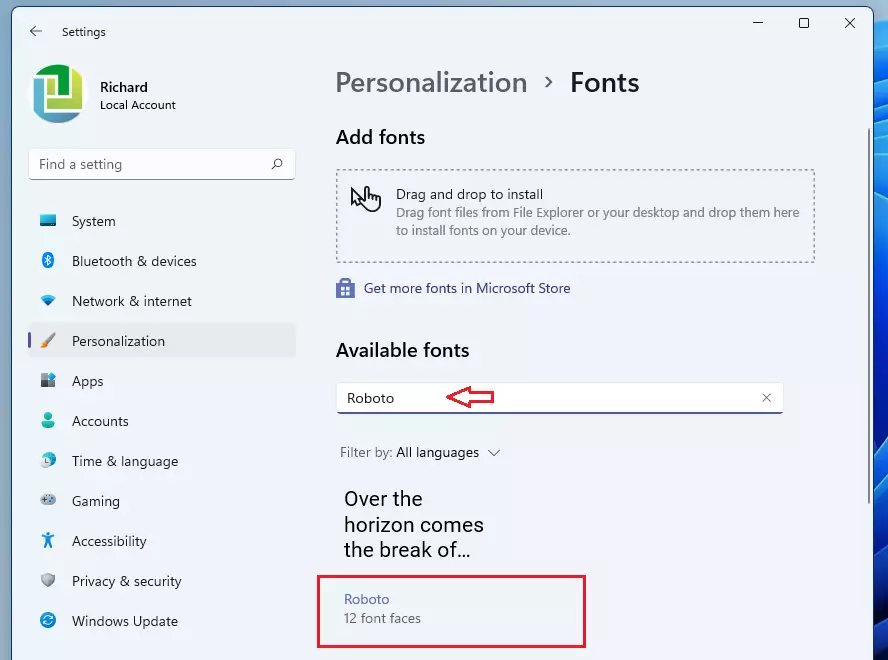
In the Fonts settings pane, you can use the search box to find your installed fonts, then select one to open it. You will see a preview and the styles that belong to that font family.
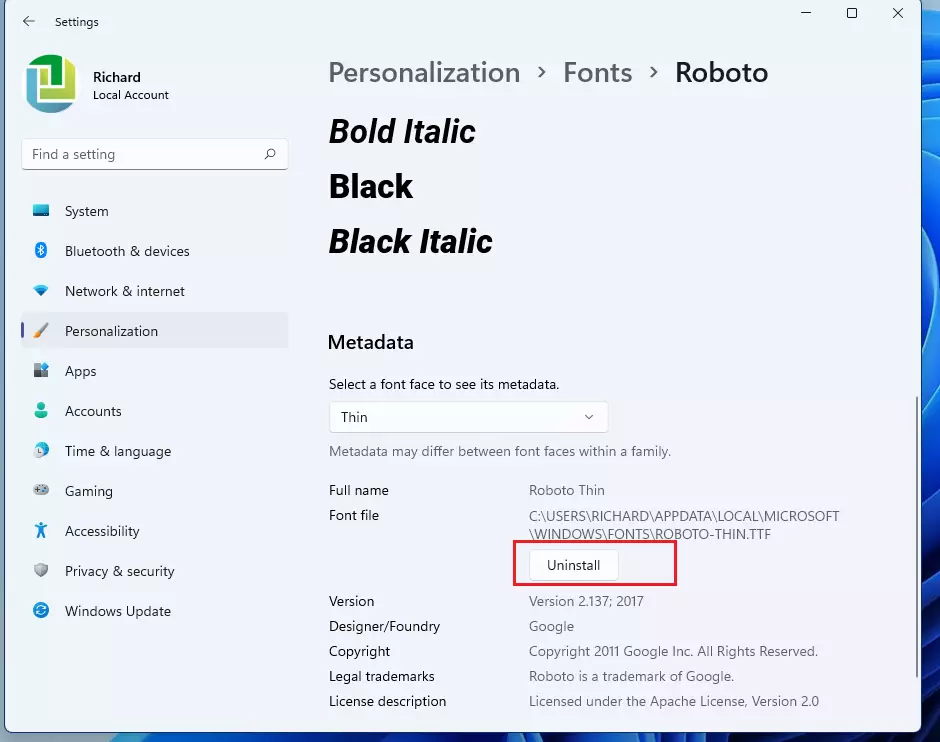
This is also where you manage and uninstall fonts. To remove one, select it in the list and click the Uninstall button on its page, then confirm if Windows asks. The font disappears from the list and from your apps, although programs that are already open may keep showing it until you restart them.
Be careful with fonts that ship with Windows, such as Segoe UI. The system and many programs rely on them, so only remove fonts you installed yourself. If you remove a font by mistake, just install it again from the original file using the steps above.
That's it!
- Custom fonts enhance the visual appeal of documents and applications in Windows 11.
- Installing fonts is a straightforward process that only requires a few clicks.
- Users can manage and uninstall fonts easily through the System Settings.
- Utilizing diverse fonts can improve creativity and personalization in digital projects.
- Regularly explore new font options from websites like Google Fonts to keep your typography fresh.
Have a question about this guide?
Answered by AI from this guide. Good questions may be added to this page — please don't include personal details.
Did this guide fix your problem?

About the Author
Richard
Tech Writer, IT Professional
Richard is a writer at Geek Rewind who turns complex IT tasks into clear, step-by-step guides. He draws on years of hands-on experience in system administration and enterprise IT operations, focusing on Windows, Linux and WordPress: the problems people actually run into, and the fixes that work. His server and WordPress guides come from systems he runs himself. Richard builds and maintains the platform behind Geek Rewind, from its Ubuntu servers and Nginx configuration to its custom WordPress plugins. Many new tutorials start with readers' questions, and he's always glad to answer them in the comments.
[…] Fonts you install are saved in the C:WindowsFonts folder. You can also add fonts by dragging font files into that folder. […]
[…] If you want to learn more about fonts on Windows 11, check out this easy guide on how to install fonts in Windows 11. […]