How to Block Untrusted Fonts in Windows 11

Untrusted font blocking is a Windows 11 security feature that stops malicious font files from running hidden code on your PC. Font parsing has been a route for attackers in the past, because a booby-trapped font can run code with high privileges. The feature stops fonts from loading unless they come from the trusted system font location.
You can set it to block untrusted fonts outright, or to only log attempts so you can see what would be affected first. Either way, it limits the damage from fake font files downloaded from the internet.
Open Local Group Policy Editor (gpedit.msc) and navigate to Computer Configuration Administrative Templates System Mitigation Options. Double-click Untrusted Font Blocking, select Enabled to block unsafe fonts, then click OK and restart your PC. Windows 11 Home users must use Registry Editor instead to set 🗝️HKEY_LOCAL_MACHINE\
What Are Fonts and Untrusted Fonts?
Fonts define how text looks on screen. Windows treats a font as untrusted when it does not come from the official Windows fonts directory. These files often come from unverified third-party websites, bundled downloads, or email attachments.
Loading unverified typefaces from outside locations can affect system stability. It can also open a security hole, because font files are parsed by Windows components that run with high privileges.
Why Block Untrusted Fonts?
Attackers sometimes hide harmful code inside font files so it runs when the font is loaded. Windows 11 includes a built-in protection called Blocking Untrusted Fonts. It checks where a font is coming from and intercepts untrusted files before they execute.
How to Control Untrusted Fonts in 🪟 Windows 11
You can block unsafe typefaces, or you can just log when apps try to load them. The settings work like this:
- On – Blocks unsafe fonts from loading outside the trusted font folder and records these events.
- Audit – Does not block fonts but keeps a log of apps that use untrusted fonts.
- Exclude apps – Lets you allow certain apps to use untrusted fonts, even if blocking is on.
Run it for a while, check the log, then switch to On. Some design, publishing or portable apps load fonts from their own folders, and blocking can make text display wrongly in them.
Method 1Use the Local Group Policy Editor
The Local Group Policy Editor is the easiest method, but it is only included in Windows 11 Pro, Enterprise and Education. Windows 11 Home does not have it, so use the Registry Editor method further down instead. You need to be signed in as an administrator.
- Press Windows key + R, type
gpedit.msc, and press Enter. The Local Group Policy Editor opens. (If you don't know how to open it, see this guide: How to open Local Group Policy Editor) - In the left pane, go to:
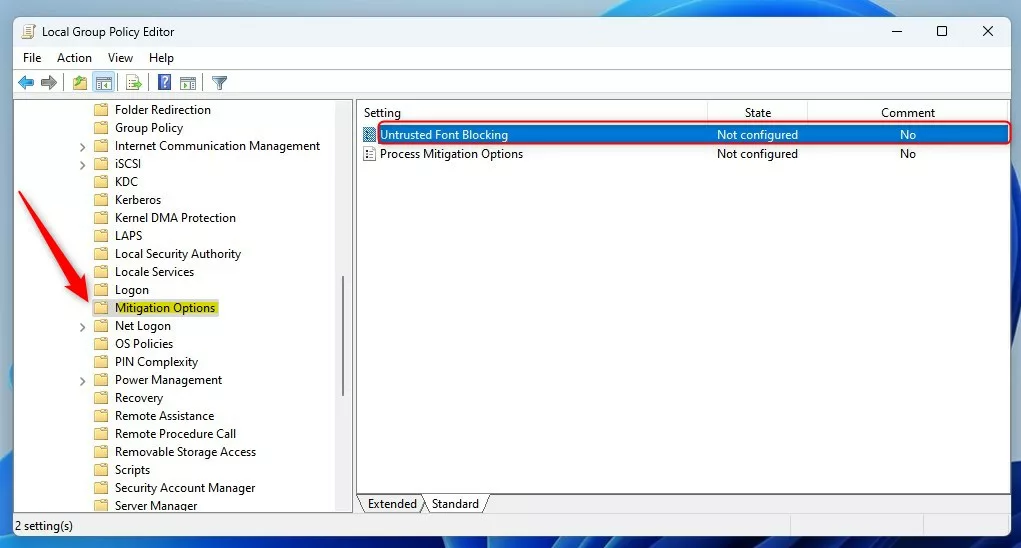
Computer Configuration > Administrative Templates > System > Mitigation OptionsThe path runs through Computer Configuration Administrative Templates System Mitigation Options - In the right pane, find and double-click
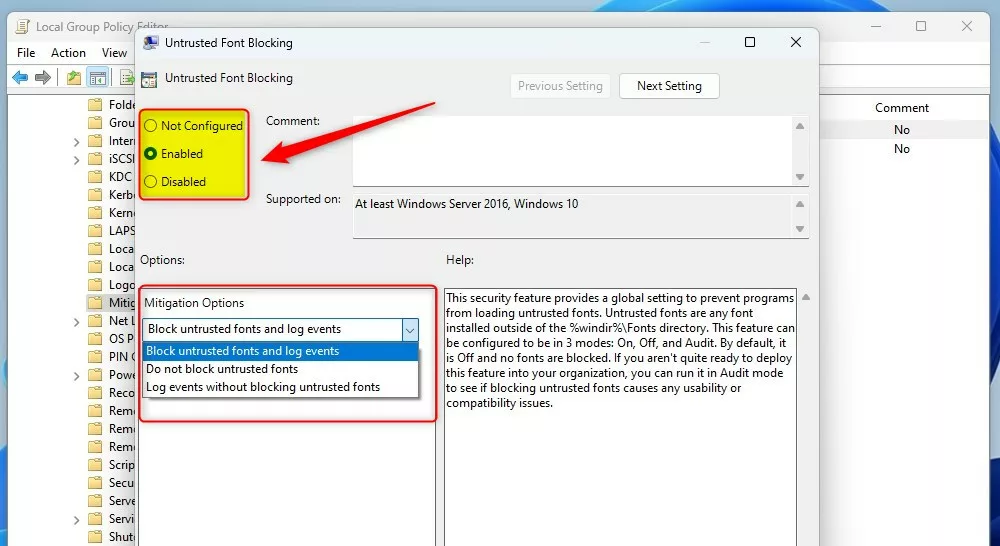
Untrusted Font Blocking. A settings window opens for that policy. - Choose one of these options:
- Not Configured (default) – No fonts are blocked.
- Enabled – Blocks untrusted fonts and logs events.
- Disabled – Same as Not Configured, no fonts are blocked.
- Click OK to save your changes and close the window. The policy now shows its new state in the right pane.
- Restart your PC so the setting applies everywhere.
To undo the change, open the same policy again and set it back to Not Configured.
Method 2Use the Windows Registry Editor
It also works on Pro. Editing the registry needs administrator rights, and a wrong change can cause problems. Before you start, back up the registry: in Registry Editor, choose File Export and save a copy.
- ⚠️ Requires admin privileges – Press Windows key + R, type
regedit, and press Enter. Click Yes if User Account Control asks for permission. The Registry Editor opens. (If you need help, see: How to open Windows Registry Editor) - In Registry Editor, go to this folder:
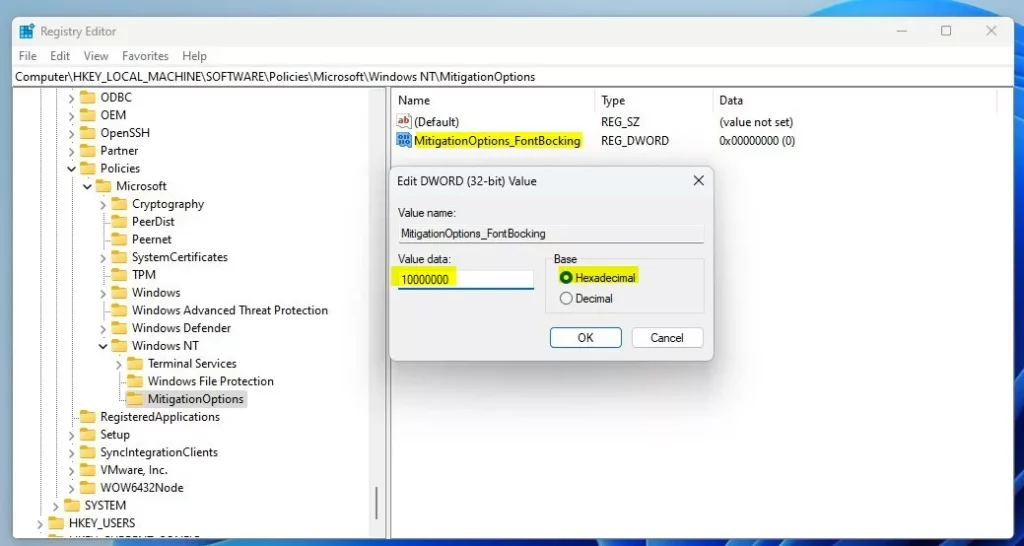
HKEY_LOCAL_MACHINE\SOFTWARE\Policies\Microsoft\Windows NT\MitigationOptions - If you don't see the MitigationOptions folder, right-click
Windows NT, selectNew > Key, and name itMitigationOptions. The new folder (key) should appear in the left pane. - Select the MitigationOptions folder, then right-click an empty area on the right side and select
New > String Value. A new value appears in the right pane with its name highlighted. - Name this new value:
MitigationOptions_FontBlocking - Double-click the new value to edit it. Set the base to Hexadecimal and enter one of these values:
1000000000000– Turn on blocking.2000000000000– Turn off blocking.3000000000000– Audit only (log events, don't block).
- Click OK and close the Registry Editor.
- Restart your computer for the changes to take effect.
To undo the change, open the value again and enter the "turn off blocking" value from the list above, then restart.
Summary
- Blocking untrusted fonts helps protect your Windows 11 PC from harmful files.
- You can control this setting using either the Local Group Policy Editor (Pro and Enterprise) or the Registry Editor (Home and Pro).
- Choose to block, audit, or allow untrusted fonts based on your needs. Auditing first is the safer way to find out what would break.
- Remember to restart your PC after making changes.
- If you want to learn more about fonts on Windows 11, check out this easy guide on how to install fonts in Windows 11.
Blocking untrusted fonts on Windows 11 helps protect your PC from harmful files by stopping unsafe typefaces from loading into memory. You can turn on this security feature using either the Local Group Policy Editor or the Registry Editor, depending on your Windows edition. Remember to restart your computer after you finish making changes.
Microsoft - Block Untrusted Fonts
Leave a comment below to share feedback or ask questions about the configuration process.
Have a question about this guide?
Answered by AI from this guide. Good questions may be added to this page — please don't include personal details.
Did this guide fix your problem?

About the Author
Richard
Tech Writer, IT Professional
Richard is a writer at Geek Rewind who turns complex IT tasks into clear, step-by-step guides. He draws on years of hands-on experience in system administration and enterprise IT operations, focusing on Windows, Linux and WordPress: the problems people actually run into, and the fixes that work. His server and WordPress guides come from systems he runs himself. Richard builds and maintains the platform behind Geek Rewind, from its Ubuntu servers and Nginx configuration to its custom WordPress plugins. Many new tutorials start with readers' questions, and he's always glad to answer them in the comments.
No comments yet — be the first to share your thoughts!