How to Copy File and Folder Paths in Windows 11


Copying a file or folder path in Windows 11 uses a simple built-in tool.
A file path is like a specific address for a file or folder on your computer. It shows Windows exactly where to find it.
This simple address is super helpful when you need to share files, fix problems, or use commands in Windows.
Windows 11 makes it easy with a “Copy path” option right in File Explorer . This means you don’t have to type out long, complicated addresses anymore.
To copy a file or folder path, select the item in File Explorer and press Ctrl+Shift+C. Alternatively, right-click the item, select “Copy as path.” For paths without quotes, use the address bar and select “Copy address.
Why do this?
Typing long file paths is slow and prone to errors. Copying the path automatically ensures you get the address exactly right. This is helpful when dealing with complex folders like 📁C:\
What happens when done?
Once you copy the file or folder path, the path saves to your clipboard. You can then paste the path anywhere using Ctrl+V. You can paste the path into a text document, an email, or the Windows Terminal.
Using the Keyboard Shortcut: Ctrl + Shift + C
A keyboard shortcut, Ctrl + Shift + C, makes copying a file or folder path in Windows 11 efficient. After opening File Explorer and selecting the desired file or folder, press Ctrl + Shift + C. The full path is then copied to your clipboard, ready for you to paste it anywhere.
- Open File Explorer.
- Select the file or folder you want.
- Press Ctrl + Shift + C on your keyboard.
The copied file or folder path is now on your clipboard. Pressing the copy function multiple times will not overwrite your clipboard history; it just copies the path again. You can view your clipboard history by pressing the Windows Key + V.
Using the Context Menu
Copying a path with your mouse is another option.
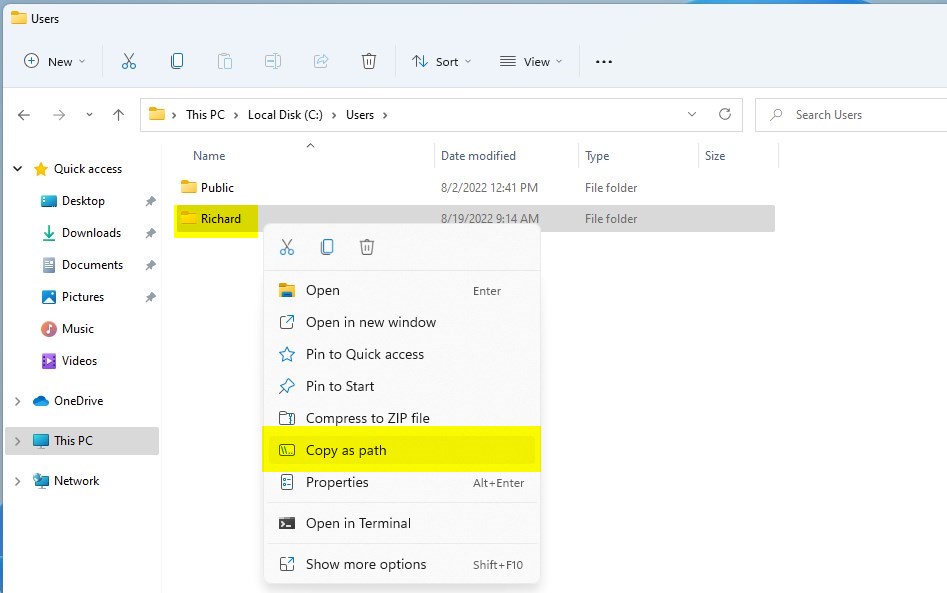
- Right-click the file or folder.
- Select Copy as path from the menu.
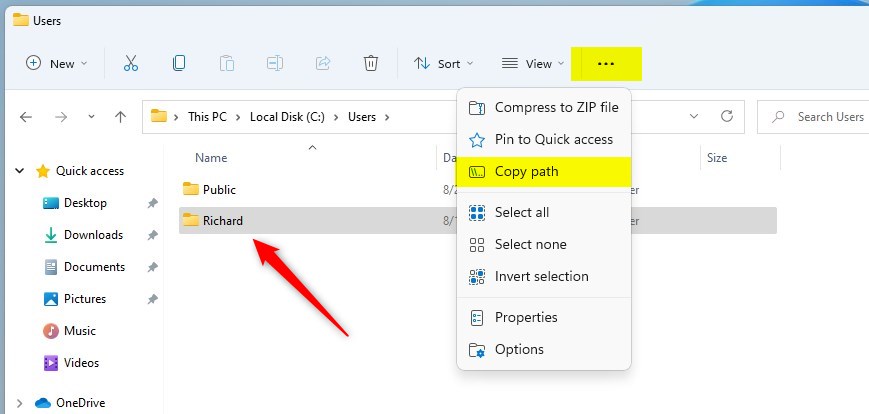
This option is also available in the command bar at the top of the window. Click the ellipses (...) icon.
How to Remove Quotation Marks
Windows 11 automatically adds quotation marks around paths when folder names include spaces. If you need the path without quotes, paste the path into Notepad. Highlight the quotes and press Backspace to delete them. Alternatively, use the Address Bar method below.
Copying Multiple File Paths
You can copy the paths of many files at once.
- Highlight all the files you want.
- Press Ctrl + Shift + C.
- When you paste, each file path will appear on a new line.
Using the Address Bar
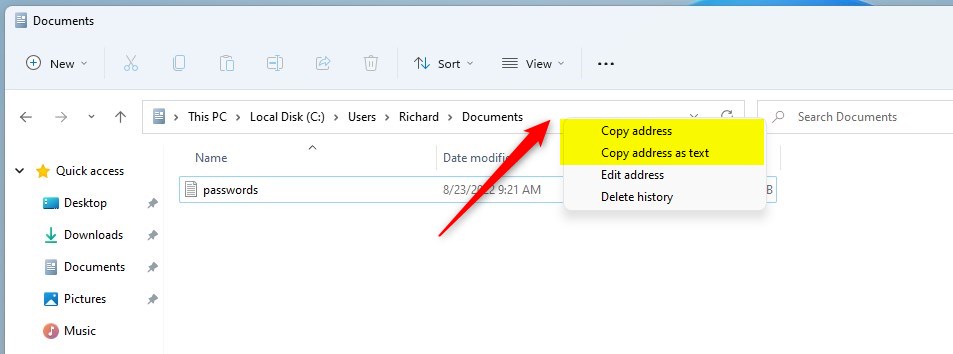
For folder locations without quotation marks, the address bar at the top of the window is your tool.
- Navigate to the folder in File Explorer.
- Right-click inside the address bar at the top.
- Choose Copy address or Copy address as text.
Important Note on Privileges
You don't need special permissions to copy the path of any file or folder in Windows 11. This includes protected system files found in locations such as C:\Windows\System32. While copying a path is relatively simple, be aware that actually changing or running commands on these system files might require administrator rights.
If you are trying to copy the path of a system file in C:\Windows\System32, you do not need special permissions to copy the path. However, if you intend to run commands on that file, you must launch your terminal with administrator privileges. (Requires Admin Privileges): Search for "Command Prompt" or "PowerShell" in the start menu, right-click it, and select Run as administrator.
Summary
File paths can be copied easily using the Ctrl + Shift + C shortcut, the right-click menu, or the address bar. Use these tools to save time and avoid typos when working with file locations in Windows 11.
How do I copy a file path without quotes in 🪟 Windows 11?
To copy a path without quotes, click the address bar at the top of File Explorer. Right-click the highlighted text and select Copy address. This provides the raw path without the quotation marks that the standard Copy as path command automatically adds to your clipboard.
Was this guide helpful?

About the Author
Richard
Tech Writer, IT Professional
Richard, a writer for Geek Rewind, is a tech enthusiast who loves breaking down complex IT topics into simple, easy-to-understand ideas. With years of hands-on experience in system administration and enterprise IT operations, he’s developed a knack for offering practical tips and solutions. Richard aims to make technology more accessible and actionable. He's deeply committed to the Geek Rewind community, always ready to answer questions and engage in discussions.



No comments yet — be the first to share your thoughts!