Adjust Mouse and Touchpad Speed In Ubuntu Linux


Adjusting the mouse and touchpad speed in Ubuntu Linux changes how fast your cursor moves across your display. Ubuntu 22.04 LTS and newer versions include built-in speed controls to help you speed up or slow down the pointer.
Getting the right pointer speed keeps your mouse or laptop trackpad feeling sharp and easy to control as you work.
Open Settings , then click Mouse & Touchpad. Use the Mouse Speed or Touchpad Speed slider to adjust how quickly your cursor moves across the screen until it feels comfortable.
How to adjust mouse and touchpad speed in Ubuntu Linux
You can adjust mouse and touchpad speed in Ubuntu Linux by opening the Settings app and selecting the Mouse & Touchpad menu. From there, drag the slider for pointer speed left to slow it down or right to speed it up. This quick change works for both external mice and built-in laptop touchpads without needing any extra tools or terminal commands.
Here is how to adjust the mouse and touchpad speed settings in Ubuntu Linux:
Ubuntu Linux keeps its settings in one central place. Manage your system configurations, user accounts, and updates from the System Settings panel.

Alternatively, click the System menu at the top-right corner of your desktop’s top bar.
Select Settings from the System menu, as shown here.

Click the Mouse & Touchpad tile in the Settings app to open its panel.
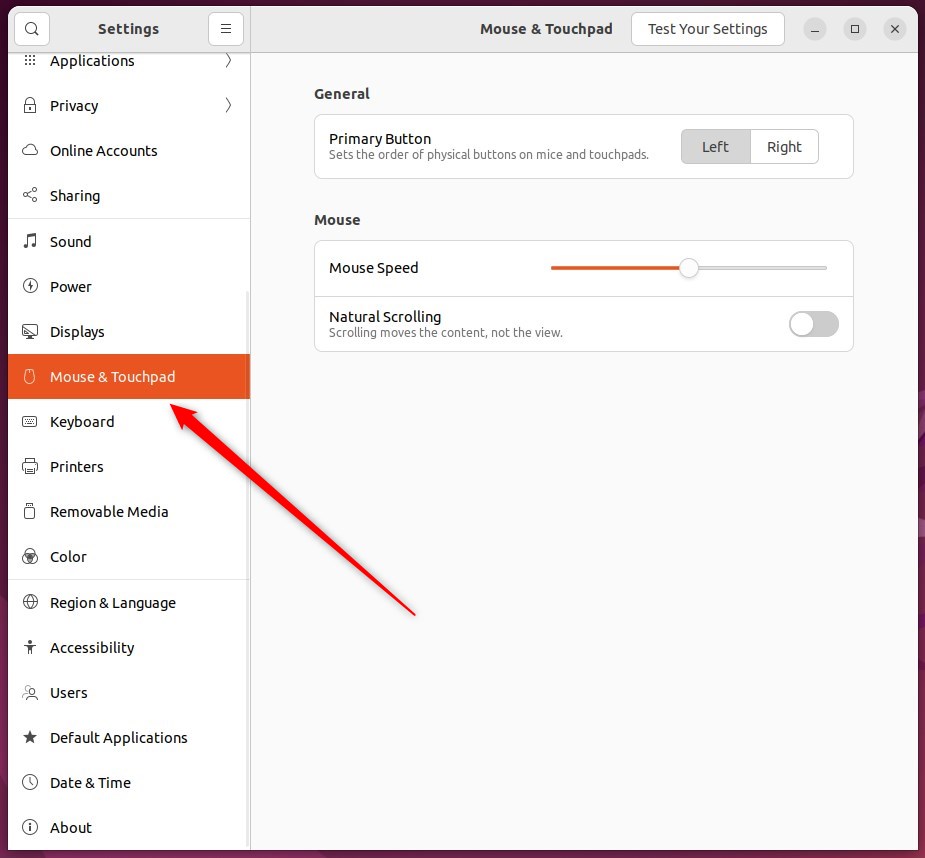
In the 'System Settings - Mouse & Touchpad' panel, look under 'Mouse'. Adjust the 'Mouse Speed' or 'Touchpad Speed' slider until the pointer motion feels comfortable.
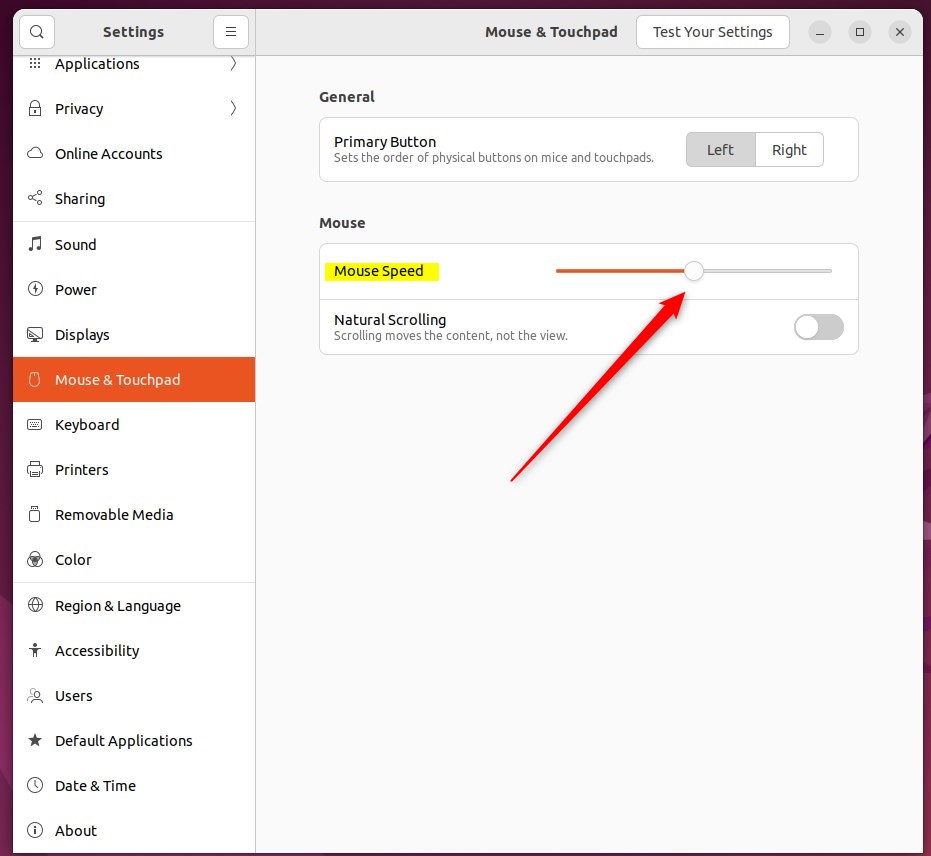
Settings that work well for a mouse might not suit a trackpad.
Close the Settings app to finish the process.
Dialing in the right pointer speed ensures your hardware feels natural and responsive under your fingertips.
- Adjusting the mouse and touchpad speed in Ubuntu Linux is crucial for a comfortable user experience.
- Ubuntu Linux provides a centralized location in the System Settings panel for adjusting these speed settings.
- Following the outlined steps, users can easily customize the pointer speed for their mouse and touchpad devices.
- Finding the optimal settings for mouse and touchpad devices can significantly enhance productivity and user comfort.
Was this guide helpful?

About the Author
Richard
Tech Writer, IT Professional
Richard is a writer at Geek Rewind who turns complex IT tasks into clear, step-by-step guides. He draws on years of hands-on experience in system administration and enterprise IT operations, focusing on Windows, Linux and WordPress: the problems people actually run into, and the fixes that work. His server and WordPress guides come from systems he runs himself. Richard builds and maintains the platform behind Geek Rewind, from its Ubuntu servers and Nginx configuration to its custom WordPress plugins. Many new tutorials start with readers' questions, and he's always glad to answer them in the comments.


No comments yet — be the first to share your thoughts!