How to Select Preferred Windows Hello Camera for Facial Recognition in Windows 11

Preferred Windows Hello cameras in Windows 11 let you choose which webcam handles facial recognition so you can use the highest quality sensor plugged into your PC. Windows Hello is a built-in security tool that lets you log in to your desktop using your face, a fingerprint, or a PIN instead of typing a password.
You can set up an external webcam or use a built-in sensor when multiple cameras connect to a single device running Windows 11 version 22H2 or later. This setup works well if your monitor has a better camera than your laptop lid or if you plug in an infrared sensor for safer logins.
Open Settings , navigate to Accounts, then Sign-in options. Expand Facial recognition (Windows Hello) and select your preferred camera from the drop-down menu. This lets you choose which camera Windows Hello uses for sign-in if you have multiple options.
What is Windows Hello?
This authentication system uses biometrics like your face, a fingerprint, or a PIN instead of a traditional password.
Why Choose Your Preferred Camera?
Connecting multiple Windows Hello-compatible cameras means you must designate the specific sensor that performs best.
Built-in infrared sensors work well, though external infrared cameras connect effectively for daily logins.
How to Select Your Preferred Windows Hello Camera
- Open Settings by pressing
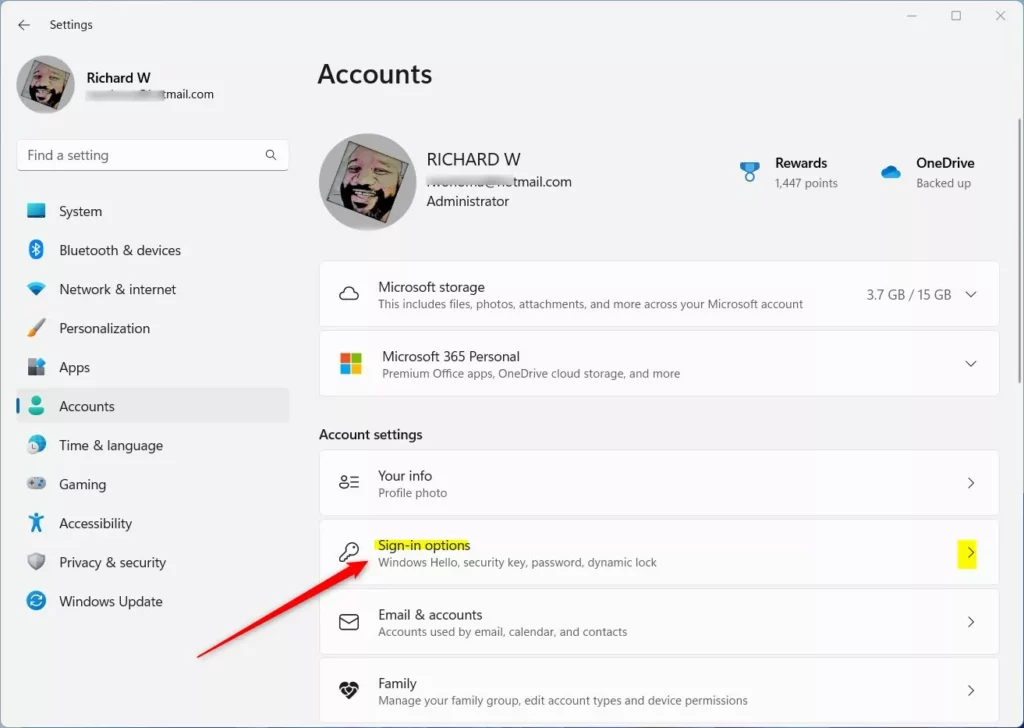
Win+I. - Click Accounts on the left side. Then click Sign-in options on the right side.
- Under Ways to sign in, click Facial recognition (Windows Hello) to open it.
- Select your preferred camera from the drop-down menu.
Choosing your Windows Hello preferred camera lets you pick which device Windows 11 uses for facial recognition when you have multiple webcams or a built-in sensor. You can change this device inside the main Settings app so Windows uses the sharpest lens for faster logins.
- You can close Settings now if you want.
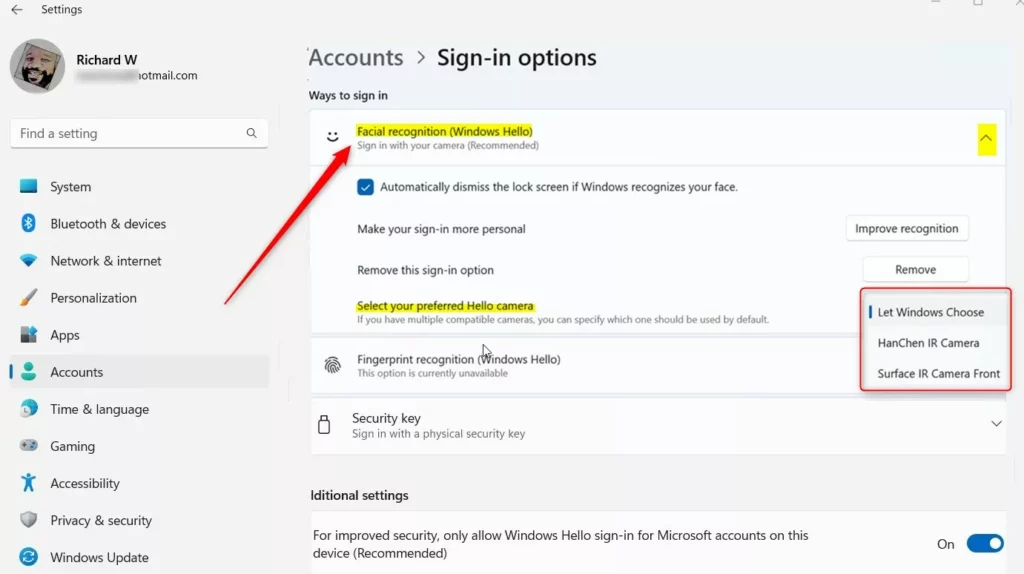
The preferred hardware sensor is now fully active.
Summary
Setting a Windows Hello preferred camera ensures your PC uses the sharpest sensor available for faster and more reliable face logins. Picking this device manually stops Windows from using a lower quality backup lens when you have more than one image capture tool plugged into your computer.
Biometric authentication replaces traditional passwords with facial recognition, fingerprints, or PIN codes. Systems equipped with multiple image capture devices require manual configuration to route authentication properly. Press the Windows key + I to open Settings, then click Accounts and select Sign-in options. Expand Facial recognition (Windows Hello) under the sign-in methods list, then pick the preferred hardware from the drop-down menu. The default setting is 'Let Windows Choose,' but manual changes apply immediately.
How do I choose which camera to use for Windows Hello?
Click on “Set up” or “Manage” under Windows Hello Face. 5. Choose Camera: • Hardware selection options appear directly beneath the Windows Hello settings. Connected external monitor cameras populate automatically within the dropdown menu.
How to change default camera for Windows Hello?
Default image hardware settings require navigating to Start Settings Bluetooth & devices Cameras. Selecting any hardware under 'Connected cameras' launches a live preview window equipped with calibration tools.
Do I need a special camera for Windows Hello?
Facial authentication requires specialized hardware compatible with the Windows Hello protocol.
What camera is needed for Windows Hello face recognition?
Face Recognition: Facial recognition requires an infrared (IR) camera—a specialized sensor that reads facial contours using invisible light. Modern laptop manufacturers often integrate these sensors natively. Dedicated display hardware like the Dell C2422HE and U3224KB includes built-in infrared webcams that integrate natively with Windows Hello.
Was this guide helpful?

About the Author
Richard
Tech Writer, IT Professional
Richard, a writer for Geek Rewind, is a tech enthusiast who loves breaking down complex IT topics into simple, easy-to-understand ideas. With years of hands-on experience in system administration and enterprise IT operations, he’s developed a knack for offering practical tips and solutions. Richard aims to make technology more accessible and actionable. He's deeply committed to the Geek Rewind community, always ready to answer questions and engage in discussions.




No comments yet — be the first to share your thoughts!