How to Sync Only Essential OneDrive Folders in Windows 11


Selective sync in OneDrive for Windows 11 lets you pick exact folders to download to your PC while keeping the rest stored safely in the cloud. This feature stops large photo collections and backup files from filling up your local hard drive space.
You can manage these sync settings with 3 clicks inside the OneDrive cloud icon on your taskbar . Unchecking any folder removes its local copy instantly, but your files remain untouched on the online server.
To sync only essential OneDrive folders, click the OneDrive icon in your taskbar , select Help & Settings (gear icon), then Settings. Navigate to the Account tab, click “Choose folders,” and uncheck folders you don’t want locally.
Choosing which folders to sync
You can sync OneDrive folders Windows 11 by opening your OneDrive settings from the taskbar , going to the account tab, and choosing which folders you want to keep on your computer. This stops OneDrive from downloading every single file to your hard drive, which saves space and keeps your files organised so you only download what you actually use.

Follow these steps to change your sync settings:
- Click the OneDrive icon in your taskbar .
- Click the Help & Settings (gear) icon.
- Select Settings from the menu.
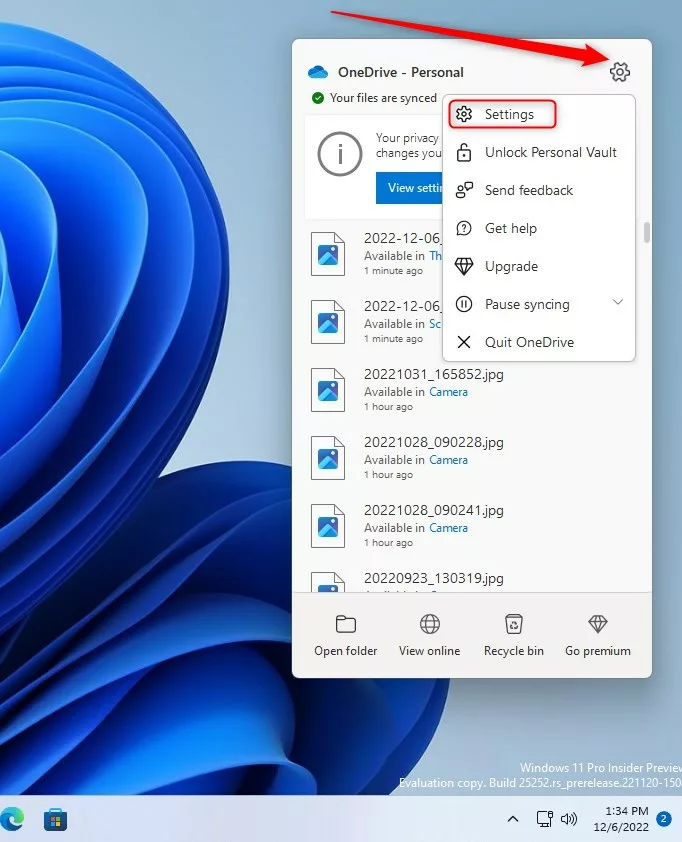
- On the Settings screen, click on the Account tab.
- Click the Choose folders button.

- A new window will pop up. Uncheck the folders you do not want to keep on your computer.
- Click OK, then click OK again to save your changes.

Unchecked files disappear from your PC, but stay safely in your cloud storage until you need them again. Consulting the Microsoft support page at aka.ms/onedrive-files-on-demand provides additional details regarding cloud file management.
Files On-Demand and Storage Management
OneDrive's Files On-Demand feature lets users browse cloud files in File Explorer without downloading them locally.
Troubleshooting Sync Issues
If cloud folders fail to update on Windows 11, checking the taskbar icon for error notifications serves as the primary troubleshooting step.
Summary
Controlling directory synchronisation and utilising Files On-Demand helps maintain efficient storage management across Windows 11 machines.
Why are my OneDrive folders not syncing in 🪟 Windows 11?
OneDrive folders might not sync in Windows 11 because of a bad internet connection, a full storage space, or a temporary app problem.
Does unchecking a folder delete it from the cloud?
No, unchecking a folder in OneDrive's sync settings only removes it from your computer, not from your cloud storage.
How do I pause syncing in OneDrive?
To pause syncing, click the OneDrive icon in your taskbar, select the Help & Settings gear icon, and choose 'Pause syncing'. You can select a duration like 2, 8, or 24 hours. This is useful if you need to save bandwidth or stop background activity while working on important tasks.
Was this guide helpful?

About the Author
Richard
Tech Writer, IT Professional
Richard, a writer for Geek Rewind, is a tech enthusiast who loves breaking down complex IT topics into simple, easy-to-understand ideas. With years of hands-on experience in system administration and enterprise IT operations, he’s developed a knack for offering practical tips and solutions. Richard aims to make technology more accessible and actionable. He's deeply committed to the Geek Rewind community, always ready to answer questions and engage in discussions.


[…] can free up space manually at any time. Right-click any folder or file in your OneDrive folder and select Free up space. This removes the local copy while keeping the file safe in the […]