How to Adjust Projecting Settings in Windows 11


Projecting settings in Windows 11 control how you mirror a phone, tablet, or another computer screen directly onto your PC display. This built-in feature turns your monitor into a wireless screen so you can share photos, run work presentations, or watch videos without extra cables.
Wireless screen sharing requires a PC that supports Miracast (a standard for wireless video streaming) and an active Wi-Fi connection. You can change these projection preferences in your system settings to block random devices or ask for permission every time a new device tries to connect.
Open Settings , then go to System and click Projecting to this PC. Use the “Ask to project to this PC” dropdown to select “First time only” or “Every time a connection is requested”.
How to change when to ask to project to this PC in 🪟 Windows 11
Projecting settings Windows 11 options let you choose if and when your computer asks for permission before another device can connect to your screen. You can change these options in the Settings app so your PC only asks every time you try to connect, only the first time, or never at all depending on how often you share your screen with other devices.
Here’s how to adjust them in Windows 11.
Open the main configuration panel by pressing the Win+I, or by clicking Start Settings
Press Win+I, or click Start ==> Settings to open the main configuration panel, as shown in the image below:
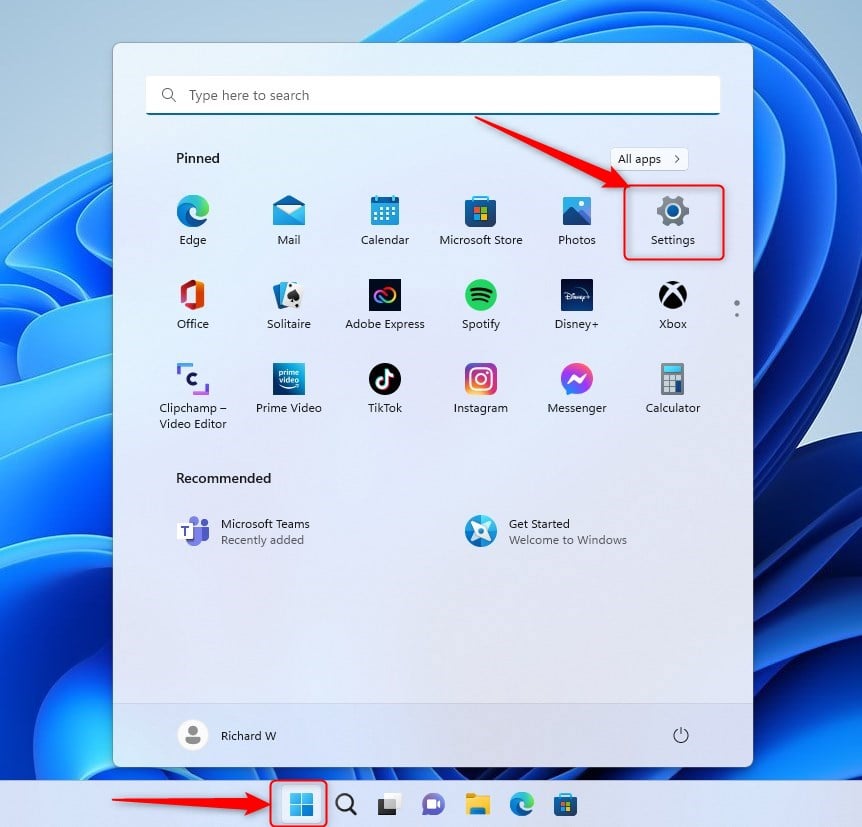
Alternatively, the search box on the taskbar works for finding Settings quickly. Select the result to open it.
Once open, your Windows Settings pane should look similar to the image below. In the Windows Settings app, click System on the left.
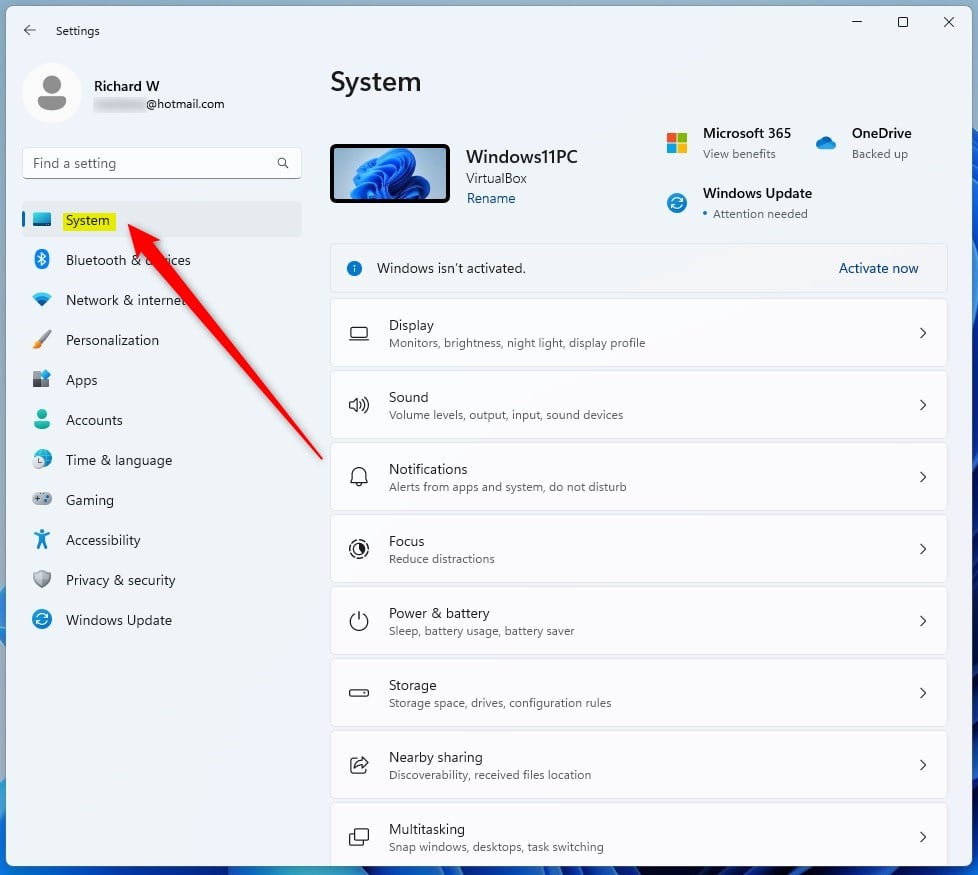
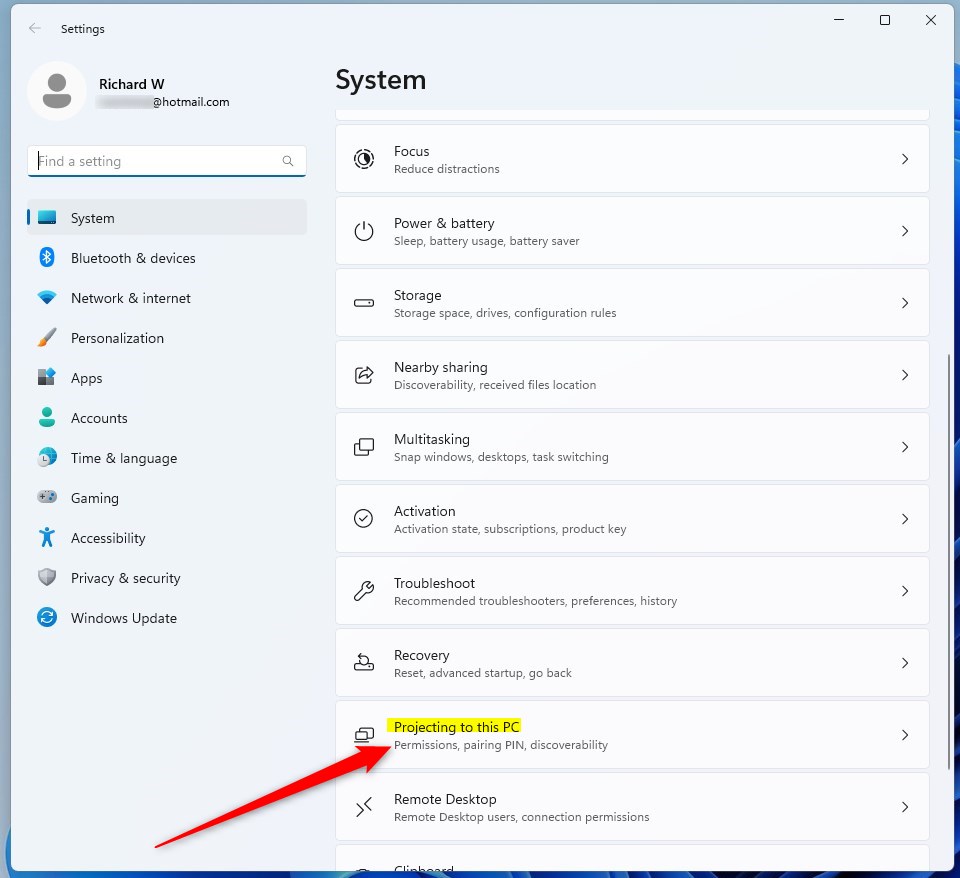
On the right, select Projecting to expand this PC tile.
On the System - Projecting to this PC settings panel, under "Ask to project to this PC", choose the option from the dropdown list.
- First time only
- Every time a connection is requested
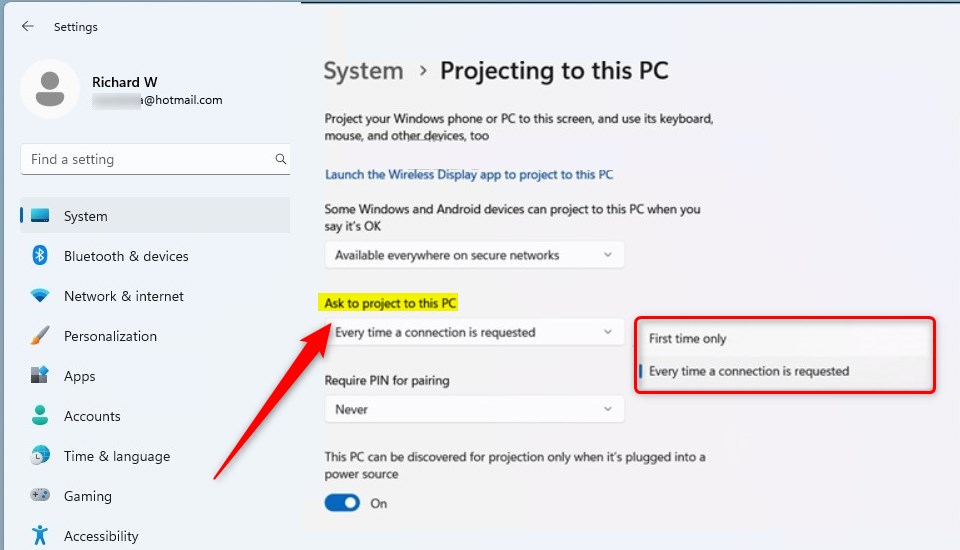
Whatever option you select will apply when a device wants to project to Windows.
That should do it!
Your new preference takes effect immediately for any incoming connection requests.
- Windows 11 provides the option to control how often to prompt for projecting to the PC, allowing users to choose between "First time only" or "Every time a connection is requested".
- Users can easily adjust their preferences for projecting to their Windows 11 PC by following the simple steps within the System Settings.
- We hope this guide has helped customize your Windows 11 experience. If you have any feedback or additional insights, feel free to share them through the comment section below.
Was this guide helpful?

About the Author
Richard
Tech Writer, IT Professional
Richard is a writer at Geek Rewind who turns complex IT tasks into clear, step-by-step guides. He draws on years of hands-on experience in system administration and enterprise IT operations, focusing on Windows, Linux and WordPress: the problems people actually run into, and the fixes that work. His server and WordPress guides come from systems he runs himself. Richard builds and maintains the platform behind Geek Rewind, from its Ubuntu servers and Nginx configuration to its custom WordPress plugins. Many new tutorials start with readers' questions, and he's always glad to answer them in the comments.



No comments yet — be the first to share your thoughts!