How to Change Camera Resolution in Windows 11

Camera resolution in Windows 11 controls the picture quality and detail of your videos and photos. Starting with Windows 11 build 27758, the Settings app includes built-in camera options, so you can change these values without installing extra software.
Higher resolutions give you a sharper image during video calls. Lower resolutions use less bandwidth and less storage, and they can help prevent lag if your internet connection is slow. The steps below take a couple of minutes and work for most built-in and USB webcams.
Before you start, check your build. If you don’t see the camera options described below, your Windows 11 version may be older than build 27758. Run Windows Update , then try again. Some cameras also don’t offer every setting, because the options come from the camera and its driver.
Open Settings , go to Bluetooth & devices, then Cameras, select your camera, and click Advanced camera options. Use the Media type drop-down to choose your desired resolution. Click Apply to save.
How to Set Your Camera Resolution in 🪟 Windows 11
You change camera resolution in the main Settings app . You can raise it to make your video clearer for work calls, or lower it if your connection is slow. The path is Settings Bluetooth & devices > Cameras.
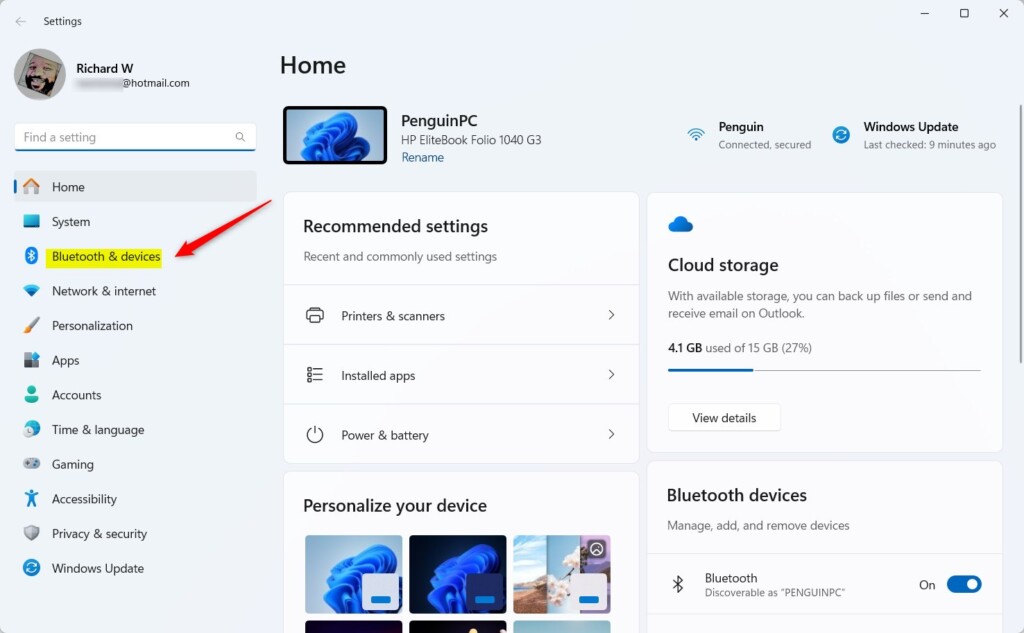
- Open Settings . Click the Start menu (the Windows icon on the taskbar ) and select Settings. Or press
Windows key + Ion your keyboard to open it faster. The Settings window opens with a list of categories on the left. - Go to Bluetooth & devices. Click Bluetooth & devices in the left-hand menu. The device options appear on the right.
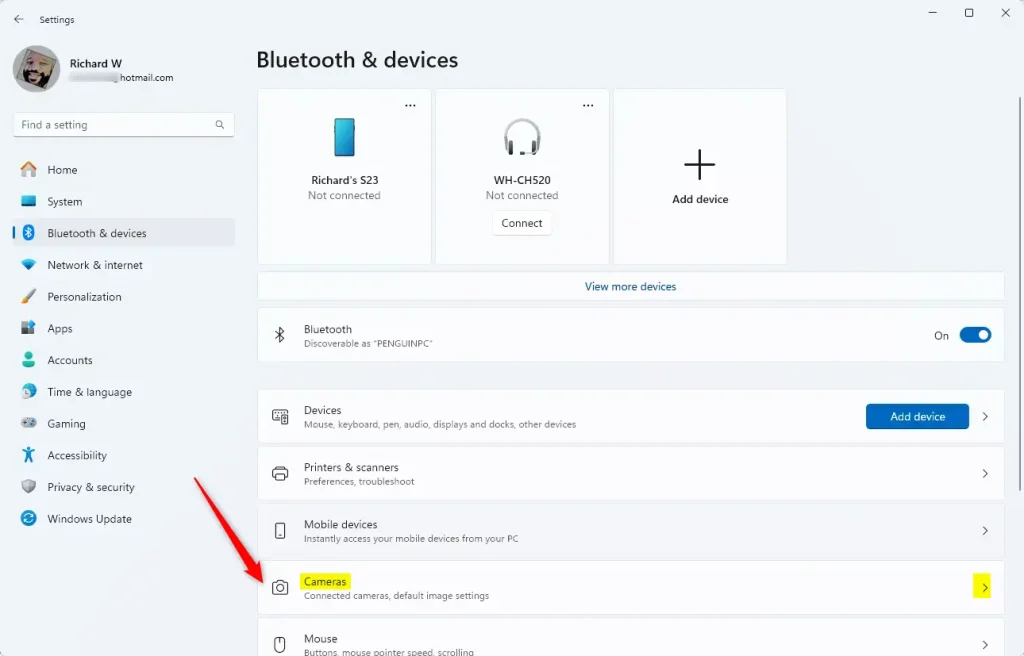
- Open the camera settings. Find and click the Cameras tile. You should now see a list under Connected cameras.
- Pick your camera. Under Connected cameras, select the camera you want to adjust. If you have more than one, such as a built-in webcam and a USB camera, each one has its own settings. A page with that camera’s preview and options opens.
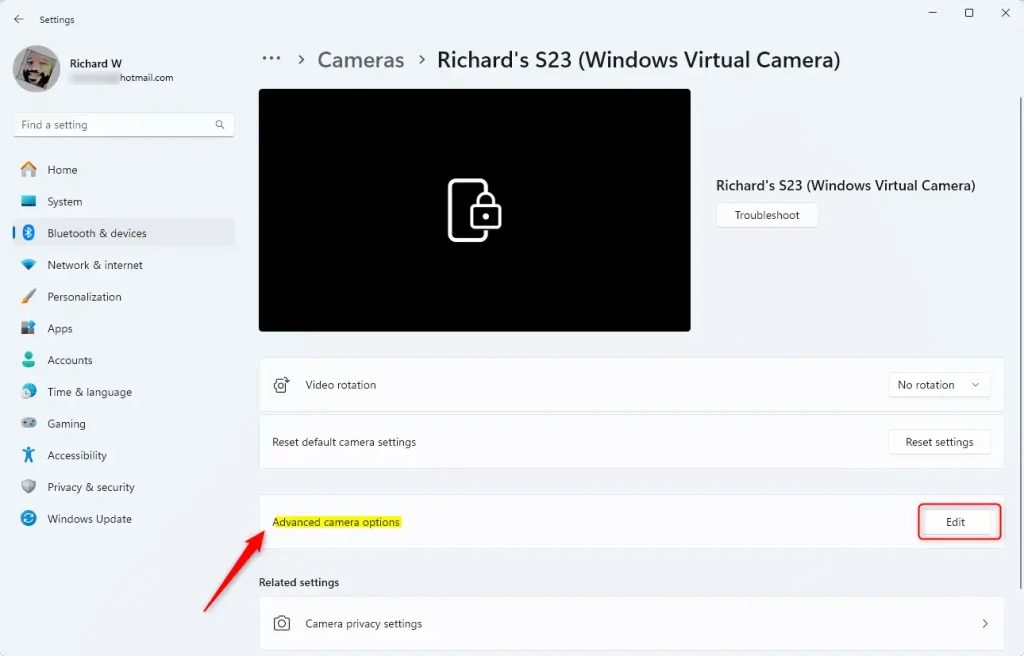
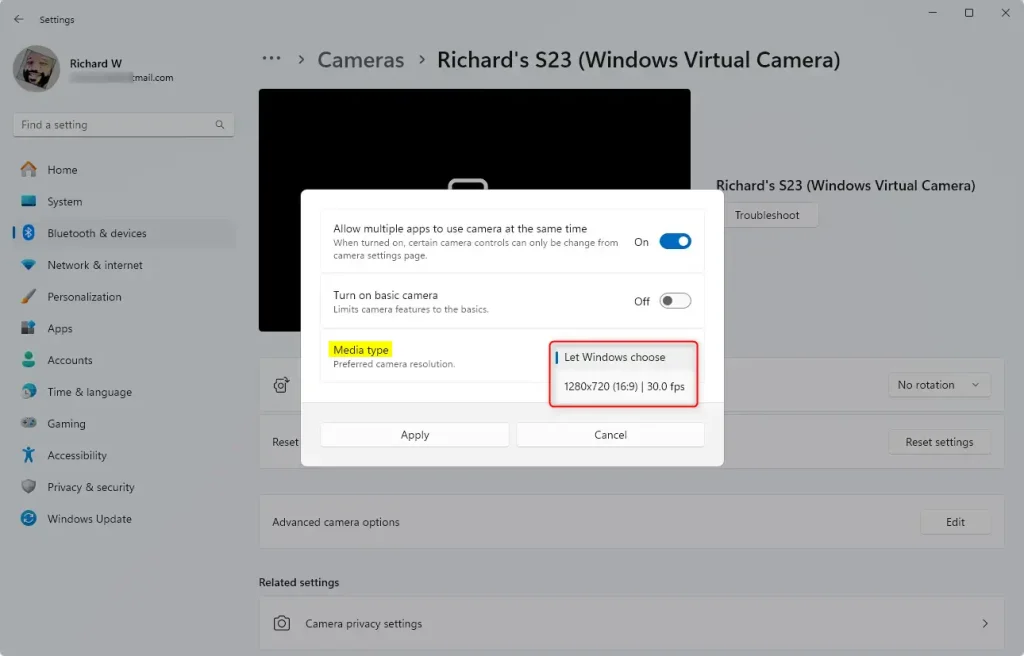
- Open Advanced camera options. Click the Advanced camera options tile, then click the Edit button.
- Allow multiple apps if needed. Make sure Allow multiple apps to use camera at the same time is turned on. This setting lets you change the media type resolution. If the resolution list is missing or greyed out, check this option first.
- Choose the resolution. Open the drop-down menu under Media type and pick the resolution you want. The default is Let Windows choose, which works well for most people. Only pick a fixed resolution if you have a reason, such as saving bandwidth or getting a sharper image.
- Save your changes. Click Apply, then close the window.
Windows applies the new configuration immediately, and your camera feed updates to match the selected resolution. You don’t need to restart the PC. If an app such as a video-call program was already using the camera, close and reopen it, or restart the camera inside the app, so it picks up the change.
To undo the change, repeat the steps and set Media type back to Let Windows choose. Keep in mind that some apps set their own video quality in their own settings, so the result you see there may not match what you chose in Windows.
Why Change Your Camera Resolution?
Windows 11 camera resolution adjustments help you balance video quality and system performance during video calls. Choosing a higher pixel count gives you a sharper, clearer picture so people can see you better. Lowering the resolution is helpful if your internet connection drops frequently, or if your computer struggles to run video apps smoothly alongside other open programs.- Better video quality: Higher resolution means clearer and sharper pictures or videos. Everyone on your call will see you better.
- Save space: Lower resolution uses less storage and less internet bandwidth during video calls. This is helpful if you have a slow connection.
- Customize for apps: Different apps might work better with different resolutions. You can adjust based on what you're using.
More Tips
- Keep your camera drivers up to date. Updated drivers help your camera perform its best.
- Try different resolutions to see what looks best on your screen and camera.
- Use privacy settings to control which apps can access your camera. This keeps you safe.
References
For more details about Windows 11 camera updates, visit the official Windows Insider Blog.
Summary
Refining video capture parameters enhances overall communication quality across supported hardware.
Have a question about this guide?
Answered by AI from this guide. Good questions may be added to this page — please don't include personal details.
Did this guide fix your problem?

About the Author
Richard
Tech Writer, IT Professional
Richard is a writer at Geek Rewind who turns complex IT tasks into clear, step-by-step guides. He draws on years of hands-on experience in system administration and enterprise IT operations, focusing on Windows, Linux and WordPress: the problems people actually run into, and the fixes that work. His server and WordPress guides come from systems he runs himself. Richard builds and maintains the platform behind Geek Rewind, from its Ubuntu servers and Nginx configuration to its custom WordPress plugins. Many new tutorials start with readers' questions, and he's always glad to answer them in the comments.
No comments yet — be the first to share your thoughts!