How to Use Kids Mode in Microsoft Edge


Kids Mode in Microsoft Edge is a built-in browser setting designed to create a safe online space for children aged 12 and under. It blocks thousands of popular adult websites by default and only lets kids visit sites you manually approve.
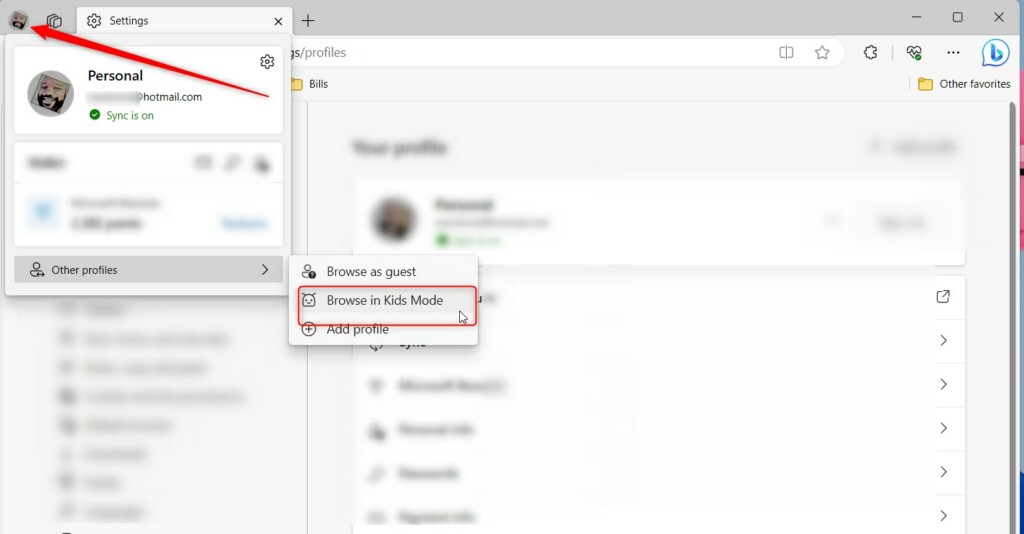
You can turn on this feature in Windows 11 within seconds by opening your profile menu in the top corner of the browser and choosing “Browse in Kids Mode”. This locks the browser in full-screen so kids cannot wander off to unsafe parts of the web or change important computer settings.
Click the profile icon in the top-right corner of Microsoft Edge and select “Browse in Kids Mode.” Choose an age range to start, which restricts access to pre-approved websites and blocks adult content.
Why use Kids Mode?
This environment blocks adult content automatically and disables advanced features like Copilot (Microsoft’s AI assistant) to keep browsing worry-free.
What happens when done?
Once turned on, Kids Mode limits browsing to pre-approved websites, blocks adult content, and disables advanced AI tools.
Kids Mode is currently available in US English for Windows and macOS users.
Use Kids Mode with Microsoft Edge
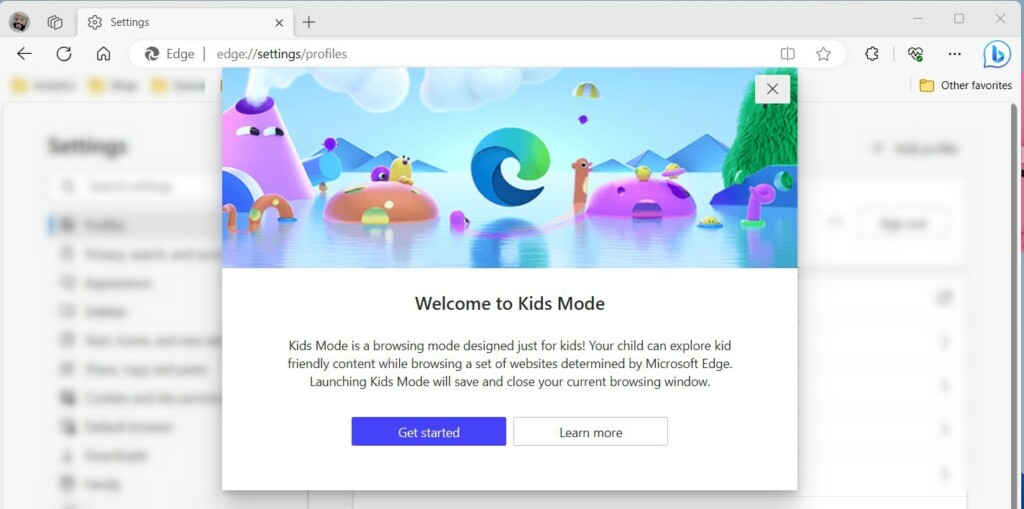
You can use Kids Mode Microsoft Edge without setting up a separate child account. Open Microsoft Edge, click your profile picture in the top-right corner of the window, and choose Browse in Kids Mode from the menu. First-time users see a welcome screen explaining how it works. Click the button on that screen to start browsing safely.
- Click the profile icon in the top-right corner.
- Select Browse in Kids Mode from the menu.
First-time users encounter a welcome screen outlining core functionality.
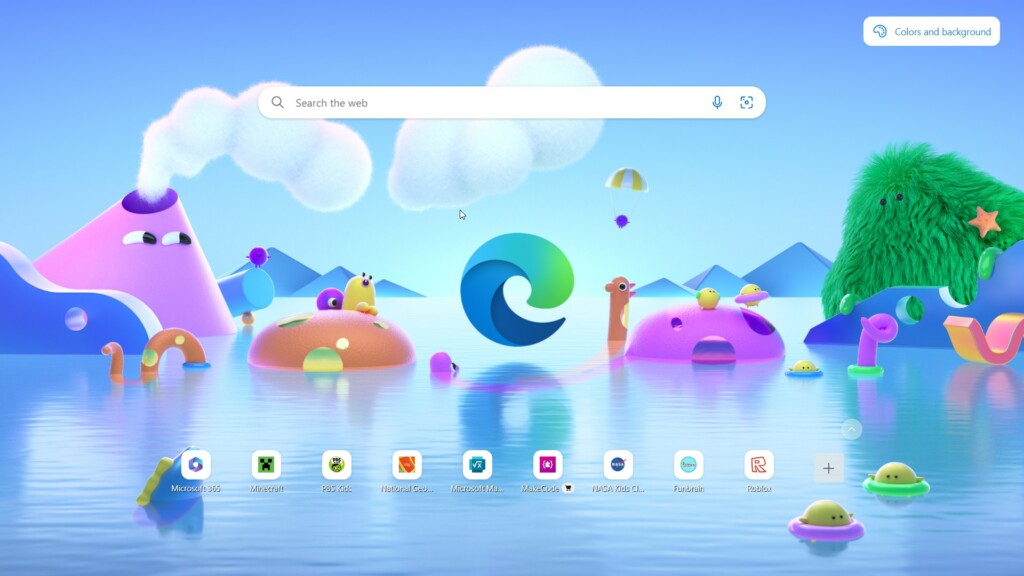
Clicking the Get started button prompts an age range selection, after which the browser switches to full-screen mode.
Managing Permissions and Screen Time
Managing permissions and screen time in Kids Mode Microsoft Edge happens through the Microsoft Family Safety website. You can use this online dashboard to set daily time limits, check browsing history reports, and manually add or block specific websites to keep your child safe online.
- Set specific screen time limits for browsing.
- Review activity reports to see which sites your child visited.
- Manually add or remove websites from the allowed list.
AI tools and Copilot features remain restricted automatically throughout Kids Mode sessions for maximum safety.
Reference:
Conclusion
Microsoft Edge Kids Mode offers a secure environment for children to explore the web. Following these steps helps parents build confidence regarding online activity. Signing in to a Microsoft account keeps these preferences synchronized across multiple machines.
Was this guide helpful?

About the Author
Richard
Tech Writer, IT Professional
Richard is a writer at Geek Rewind who turns complex IT tasks into clear, step-by-step guides. He draws on years of hands-on experience in system administration and enterprise IT operations, focusing on Windows, Linux and WordPress: the problems people actually run into, and the fixes that work. His server and WordPress guides come from systems he runs himself. Richard builds and maintains the platform behind Geek Rewind, from its Ubuntu servers and Nginx configuration to its custom WordPress plugins. Many new tutorials start with readers' questions, and he's always glad to answer them in the comments.



No comments yet — be the first to share your thoughts!