How to Backup and Restore Microsoft Defender Firewall in Windows 11

Backing up and restoring Microsoft Defender Firewall rules in Windows 11 saves your custom security settings to a single file, so you do not have to recreate them by hand. Microsoft Defender Firewall is the built-in security tool in Windows 11 that guards your PC by blocking unsafe network traffic.
Exporting your rules takes a few clicks. It is worth doing before a system reset, before a big change to your rules, or when you move to a new PC. You can import the backup file at any time to bring back your exact firewall configuration. This guide covers two ways to do it: the Windows Security app and the command line. Both work on Windows 11 Home and Pro.
To backup your Windows 11 firewall settings, open Windows Security, go to Firewall & network protection, then Advanced settings, and click Export Policy. To restore, return to Advanced settings and click Import Policy, then select your backup file.
Method 1Using Windows Security App
The Windows Security app lets you back up Microsoft Defender Firewall settings without any command-line tools. You use its built-in Export Policy option to save your current firewall rules to a file on your computer. If your settings get reset or something goes wrong, you can restore them from that file.
You will first open Windows Security, then go to the advanced firewall console, where the export and import options live. Follow the steps in order.
- Click the Start button on your taskbar . The Start menu opens.
- Select Settings from the menu. The Settings app opens. You can also press Win+I to get there faster.

You should now see the Settings window with a list of categories on the left.
- Click Privacy & security on the left side. The privacy options appear on the right.
- Find the Windows Security tile and click it. It sits near the top of the list, under the Security heading.
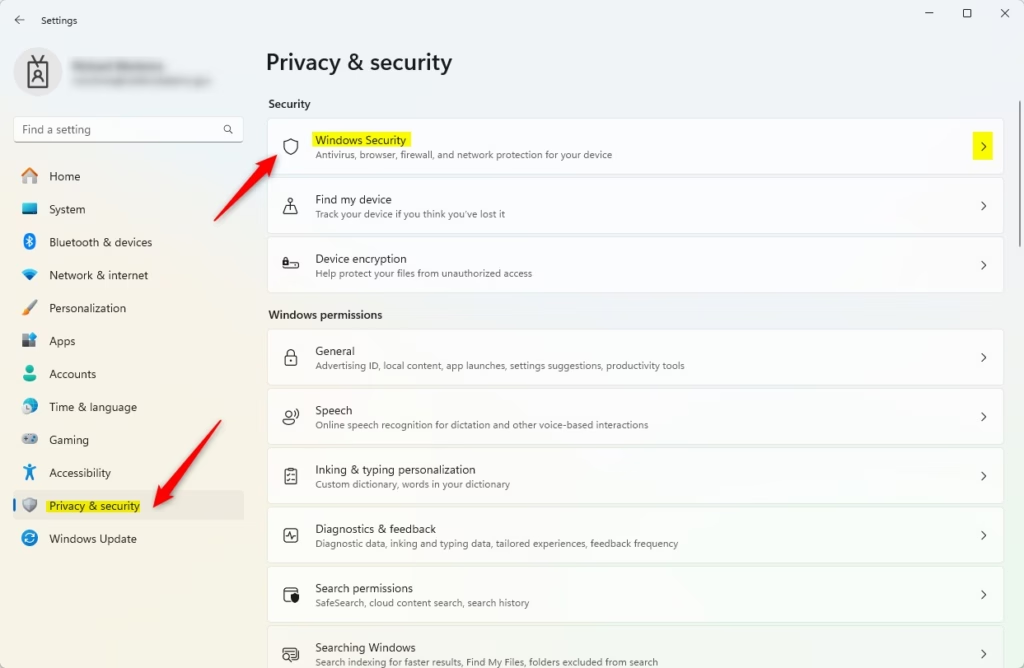
The Windows Security page now shows your protection areas and a button to open the app.
- Click the Open Windows Security button. The Windows Security app opens in its own window.
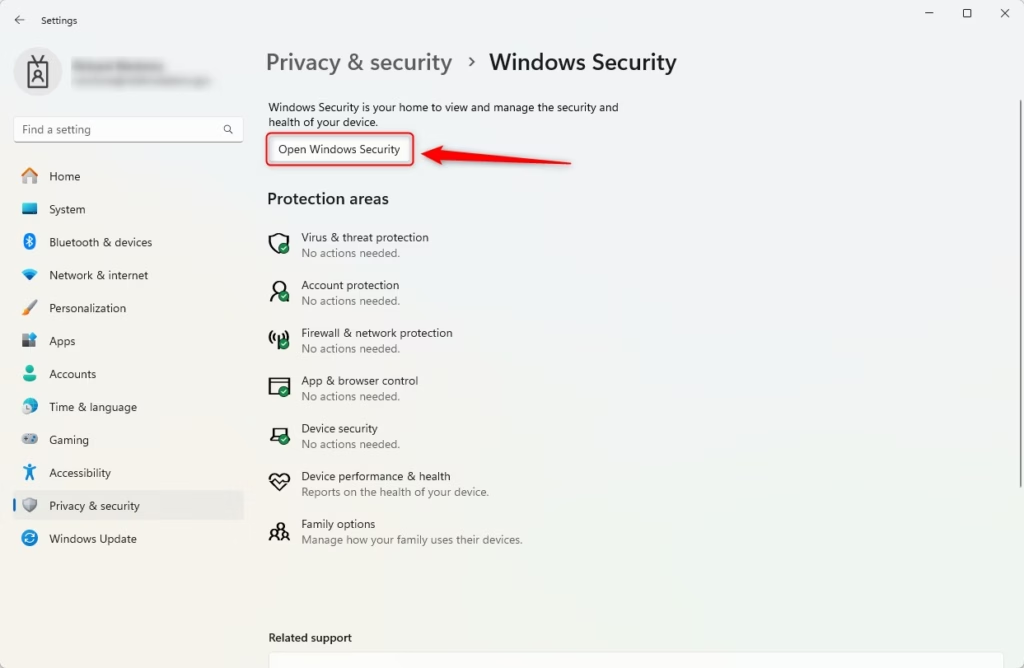
You should see the Windows Security home page, with tiles for each protection area.
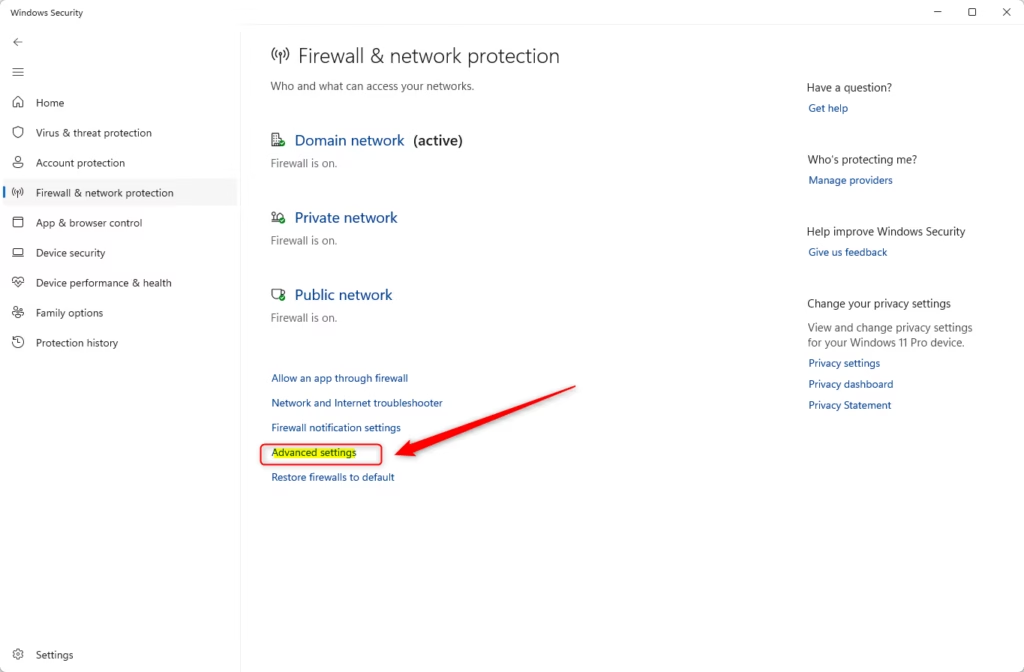
- In the Windows Security app, select Firewall & network protection. You can also use this shortcut: Firewall & network protection. The page lists the Domain, Private and Public network profiles.
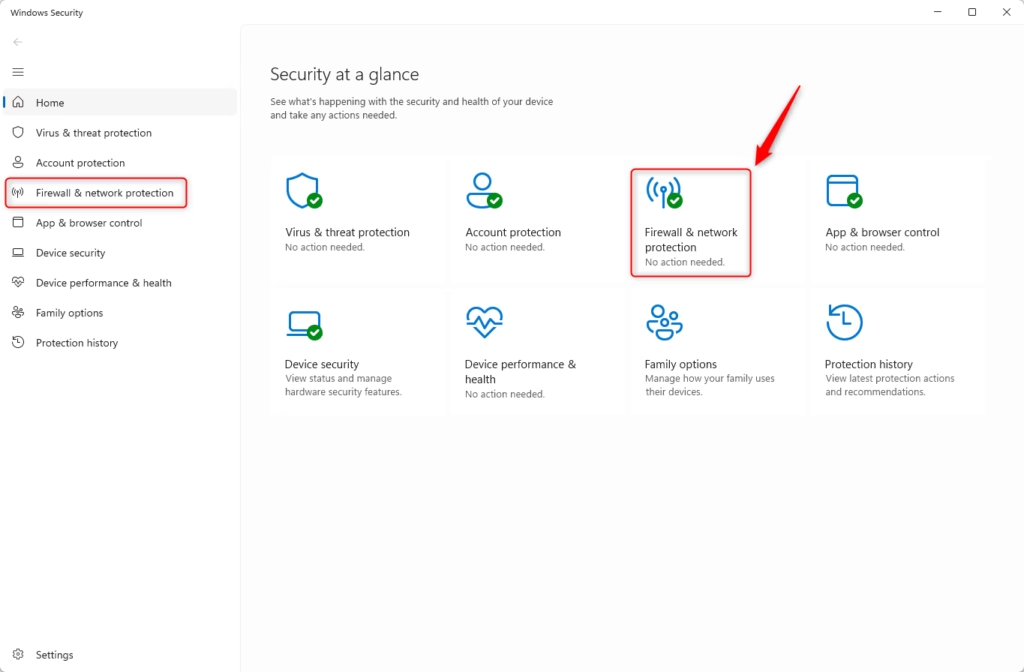
If this page is greyed out or says your settings are managed, your PC is probably controlled by an organization or by third-party security software. In that case you may not be able to change or export the rules from here.
- Scroll down and click the Advanced settings link at the bottom. Click Yes if a User Account Control prompt appears. You need an administrator account for this.
A separate Microsoft Defender Firewall with Advanced Security window opens. It shows inbound and outbound rules, and an Actions pane on the right side.
To Back Up Your Settings:
- In the window that opens, click Export Policy. You will find it in the Actions pane on the right. A Save As dialog opens.
- Choose where you want to save your backup file. A folder outside the system drive, or a USB drive or cloud folder, is safest if you plan to reset the PC.
- Give the file a name (it will be a .wfw file). Use something clear, such as the date, so you can tell backups apart later.
- Click Save. A message tells you the policy was exported successfully. Click OK.
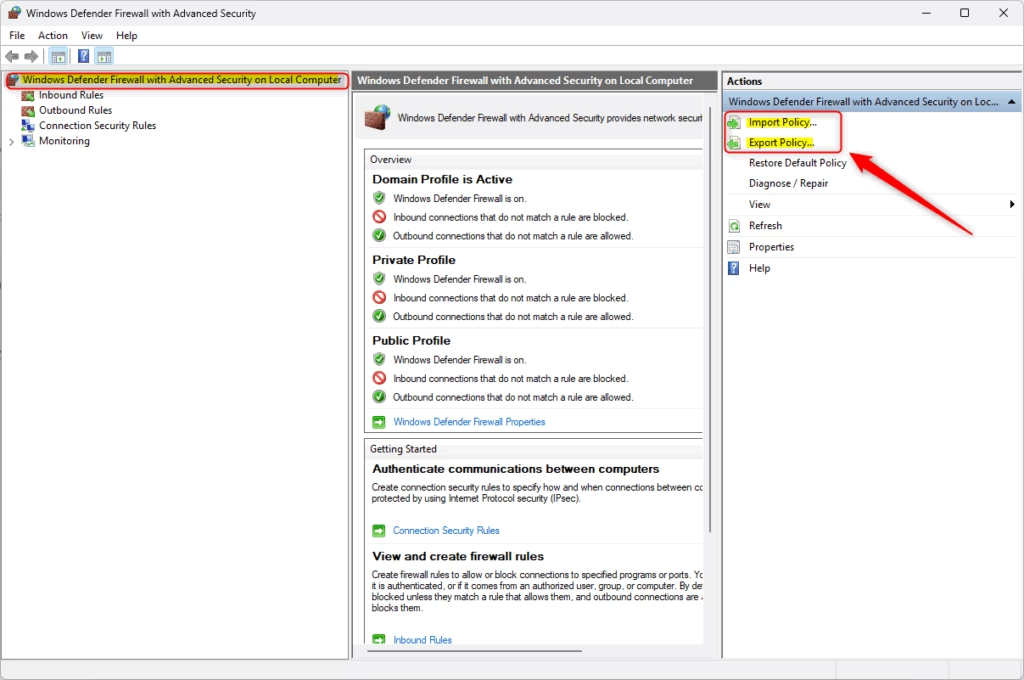
To back up Microsoft Defender Firewall settings, you use the Export Policy option inside the Windows Security interface. The process saves all your active firewall rules into a single file with a .wfw extension. You can store this backup anywhere on your computer and use it later to restore your exact security configuration.
To Restore Your Settings:
Importing a policy replaces your current firewall rules with the ones in the file. If you have made changes since the backup that you want to keep, export a fresh backup first. That way you can undo the import if needed.
- Go back to the Advanced settings window. If you closed it, repeat steps 1 to 7 above to open it again.
- Click Import Policy. You will find it in the Actions pane on the right. Windows warns that importing overwrites your current settings. Click Yes to continue.
- Find your backup file and open it. Only .wfw files exported from Windows Firewall will work.
- Your firewall settings will be restored. A message confirms the import succeeded. You do not need to restart your PC.
Method 2Using Command Prompt or PowerShell
Administrator privileges are required for this method. If you are signed in with a standard account, Windows will ask for an administrator password.
- Open the Windows Terminal app as administrator. Click Yes if a User Account Control prompt appears.
- Choose either the Command Prompt or PowerShell tab. Both accept the commands below. Use whichever you prefer.
To Back Up Your Settings:
Using Command Prompt:
netsh advfirewall export "%userprofile%\Desktop\FirewallBackup.wfw"Using PowerShell:
netsh advfirewall export "$Env:USERPROFILE\Desktop\FirewallBackup.wfw"This command creates a backup file named “FirewallBackup.wfw” directly on your Desktop. Your firewall settings are saved into a single file for future use. If the command reports an error, check that the window is running as administrator and that you can write to the folder.
To Restore Your Settings:
To restore, run this command in either Command Prompt or PowerShell. Like the Import Policy button, it replaces your current firewall rules with the ones in the file:
netsh advfirewall import "C:\Users\User\Desktop\FirewallBackup.wfw"⚠️ Note: Remember to replace “📁C:\
That completes the process. No restart is needed.
Summary
Backing up Microsoft Defender Firewall settings in Windows 11 gives you a safe way to preserve your custom rules. You can use the graphical Windows Security app for a quick click-based backup, or use command-line tools if you prefer working with text commands. Both methods let you restore your network security rules quickly if your computer runs into an issue.
- Windows Security App: Use the Export and Import Policy buttons. This is easier for most people.
- Command Prompt or PowerShell: Use special commands to back up and restore your settings. This method requires administrator privileges.
Backing up Microsoft Defender Firewall settings allows you to restore the firewall configuration quickly if issues arise. The same backup file also helps you set up a new computer with pre-configured firewall rules. Just import it on the new PC.
Keep your Microsoft Defender Firewall backup file in a safe location. A copy on a USB drive or in cloud storage survives a reset or drive failure. Your firewall settings stay unchanged until you import a file, so protection continues as normal. The file lists your rules, so only you should have access to it.
Have a question about this guide?
Answered by AI from this guide. Good questions may be added to this page — please don't include personal details.
Did this guide fix your problem?

About the Author
Richard
Tech Writer, IT Professional
Richard is a writer at Geek Rewind who turns complex IT tasks into clear, step-by-step guides. He draws on years of hands-on experience in system administration and enterprise IT operations, focusing on Windows, Linux and WordPress: the problems people actually run into, and the fixes that work. His server and WordPress guides come from systems he runs himself. Richard builds and maintains the platform behind Geek Rewind, from its Ubuntu servers and Nginx configuration to its custom WordPress plugins. Many new tutorials start with readers' questions, and he's always glad to answer them in the comments.
No comments yet — be the first to share your thoughts!