How to Change Geographic Location in Windows 11


Geographic location settings in Windows 11 control the GPS-style data your PC shares with apps and websites. Location tracking relies on your Wi-Fi network and nearby devices to pinpoint your exact spot on the map, which helps tools like the Weather app and automatic time zones work properly.
System region settings change date and currency formats, while location services track your physical whereabouts. Windows 11 stores a default location on your device when GPS data is unavailable, and you can update this spot anytime through the privacy menu.
Change your country or region in Settings Time & language Language & region To control app access or disable tracking, go to Settings Privacy & security Location. Advanced users can use gpedit.msc or regedit to disallow geographic location changes.
How to Change Your Region via Settings
You can change geographic location Windows 11 settings by opening the main system menu and updating your country or region. This quick adjustment helps local apps display the correct weather, news, and time formats for your current home. Open the Settings app , head to the language options, and pick your new country from the list to update your PC right away.
- Open Settings by pressing Win+I.
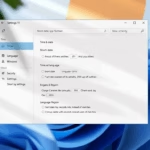
- Go to Time & language > Language & region.
- Under Region, select your new country from the Country or region dropdown menu.
Note that this does not change your Microsoft Store region automatically. To change your store region, visiting your Microsoft account profile online is necessary.
Privacy and Location Services
You can control which apps have access to your location. Go to Settings > Privacy & security > Location. Here, toggling the Location services switch to Off prevents all apps from tracking you. Managing permissions for individual apps works within this menu too.
Advanced Configuration (Admin Only)
Using the Local Group Policy Editor
- Open the Local Group Policy Editor by typing gpedit.msc in the search bar.
- Navigate to: Computer Configuration\Administrative Templates\System\Location Services.
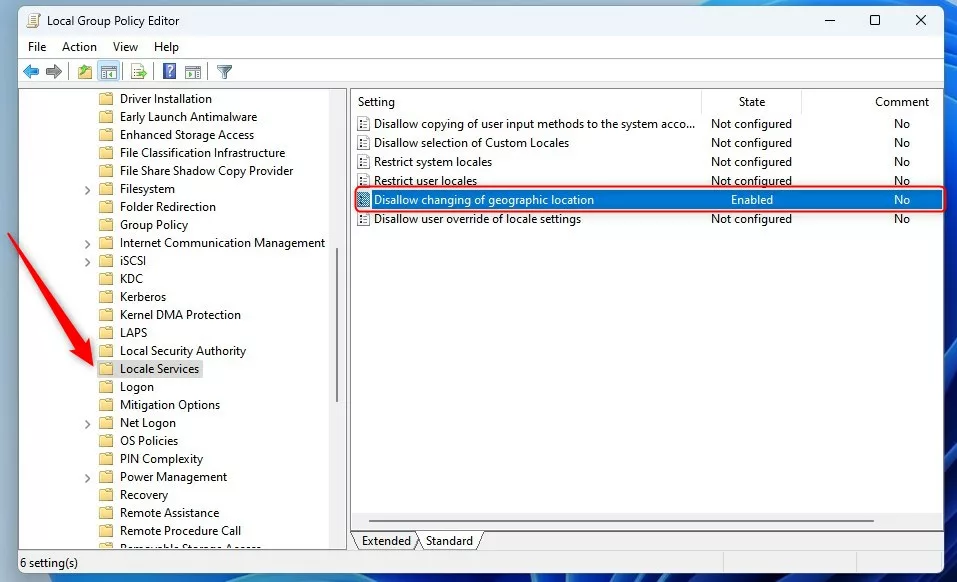
- Click on the Location Services folder.
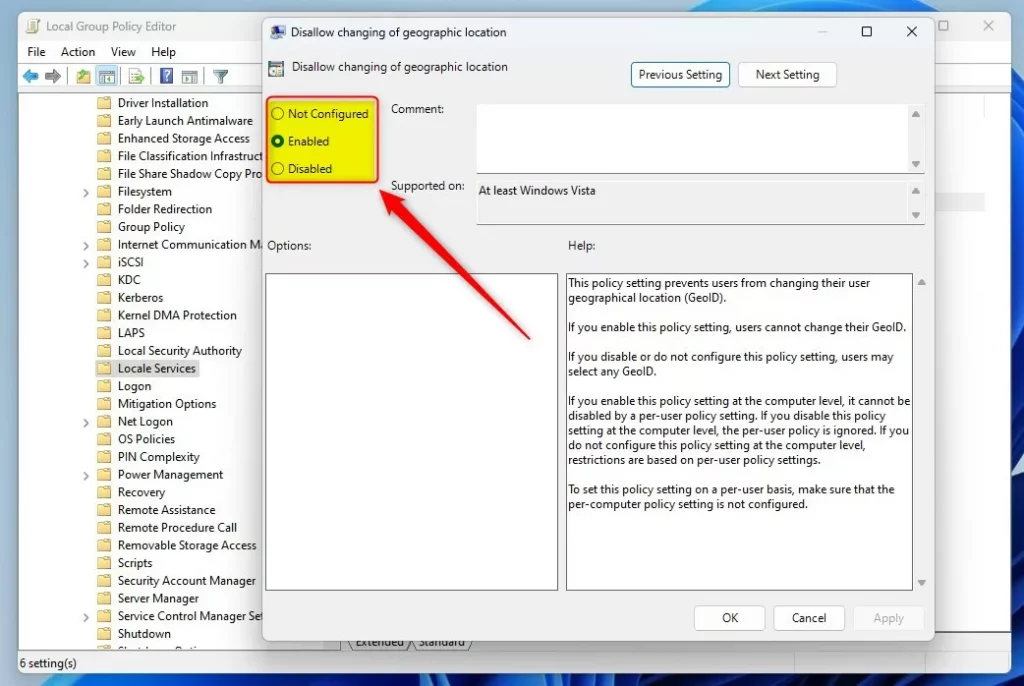
- Double-click Disallow changing of geographic location.
- Select Enabled to block users from changing the location, or Disabled to allow it.
Using the Windows Registry Editor
Use the Registry Editor if the Group Policy Editor is unavailable.
HKEY_LOCAL_MACHINE\SOFTWARE\Policies\Microsoft\Control Panel\International
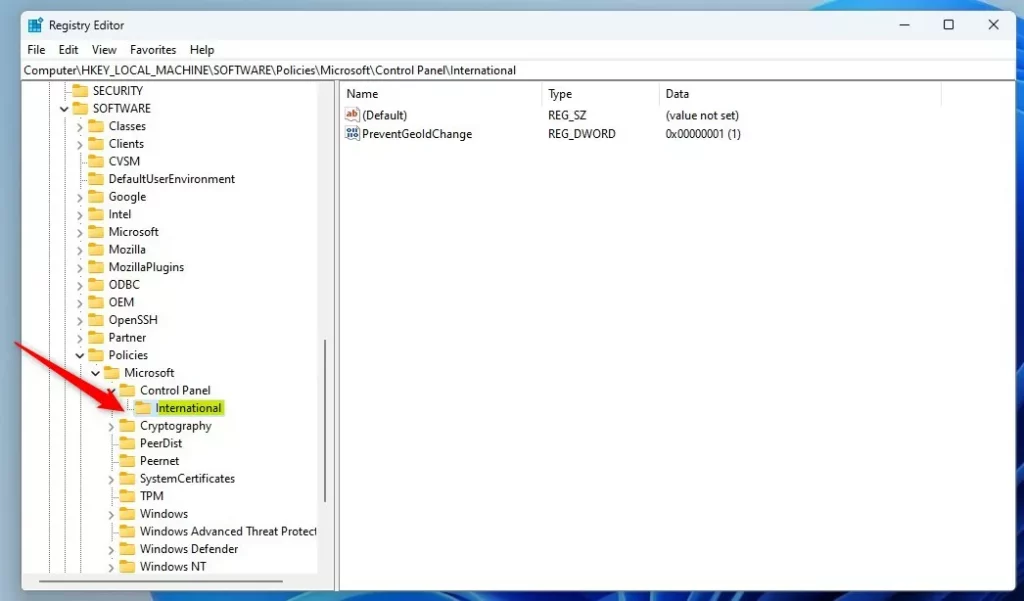
- Right-click in the empty space on the right side.
- Select New > DWORD (32-bit) Value.
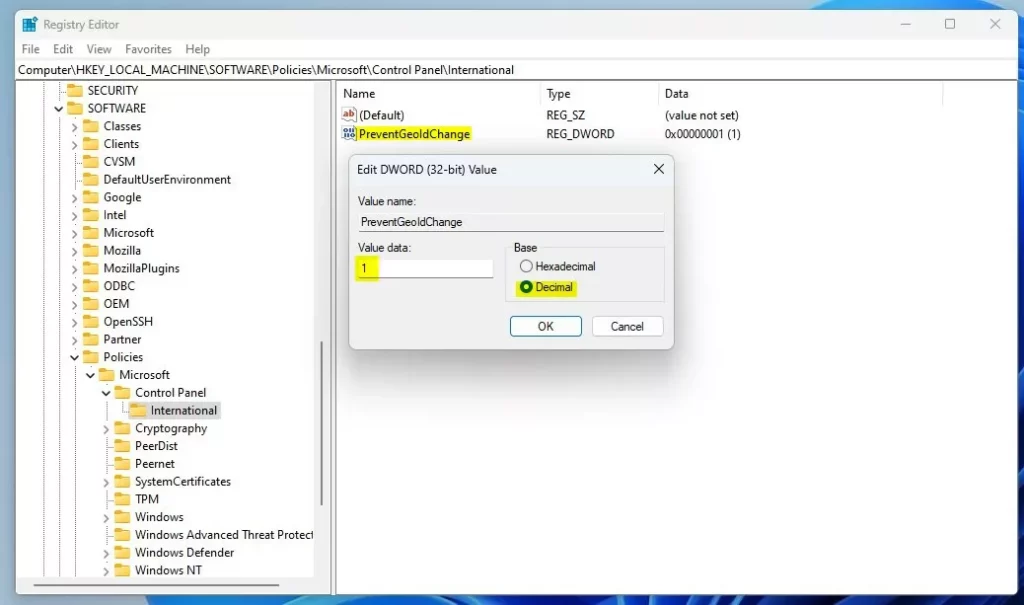
- Name it
PreventGeoIdChange. - Set the Value data to
1to block changes.
Summary
Changing your geographic location in Windows 11 lets you adjust settings for things like date formats or control privacy with location services.
Was this guide helpful?
0% of readers found this helpful (1 votes)

About the Author
Richard
Tech Writer, IT Professional
Richard is a writer at Geek Rewind who turns complex IT tasks into clear, step-by-step guides. He draws on years of hands-on experience in system administration and enterprise IT operations, focusing on Windows, Linux and WordPress: the problems people actually run into, and the fixes that work. His server and WordPress guides come from systems he runs himself. Richard builds and maintains the platform behind Geek Rewind, from its Ubuntu servers and Nginx configuration to its custom WordPress plugins. Many new tutorials start with readers' questions, and he's always glad to answer them in the comments.
No comments yet — be the first to share your thoughts!