How to Create Folders in Windows 11

Creating folders in Windows 11 lets you easily group and manage your files, like digital filing cabinets for your PC.
Folders are simple containers that hold other files and even other folders, making it much faster to find what you’re looking for.
For instance, you could make a folder for “Holiday Snaps 2024” to keep all your vacation pictures together, or a “Project Alpha Documents” folder for important work files.
Knowing how to create these folders is a fundamental step to keeping your computer tidy and your digital life under control.
Right-click on an empty space, select New, then Folder. Alternatively, open File Explorer , click the New button, and choose Folder. You can also press Ctrl+Shift+N.
1Create a Folder Using the Right-Click Menu
Creating a new folder in Windows 11 using the right-click menu is a common method, applicable on your Desktop, inside another folder, or on a drive. Right-click an empty spot, hover over ‘New,’ and then click ‘Folder’ to create a new folder ready for you to name.
- Go to the spot where you want the folder — your Desktop, inside another folder, or on a drive.
- Right-click on an empty space (not on a file or icon).
- From the menu, hover over New.
- Click Folder.
- You will see a new folder pop up, ready for you to name it. Just type the name you want and press Enter.
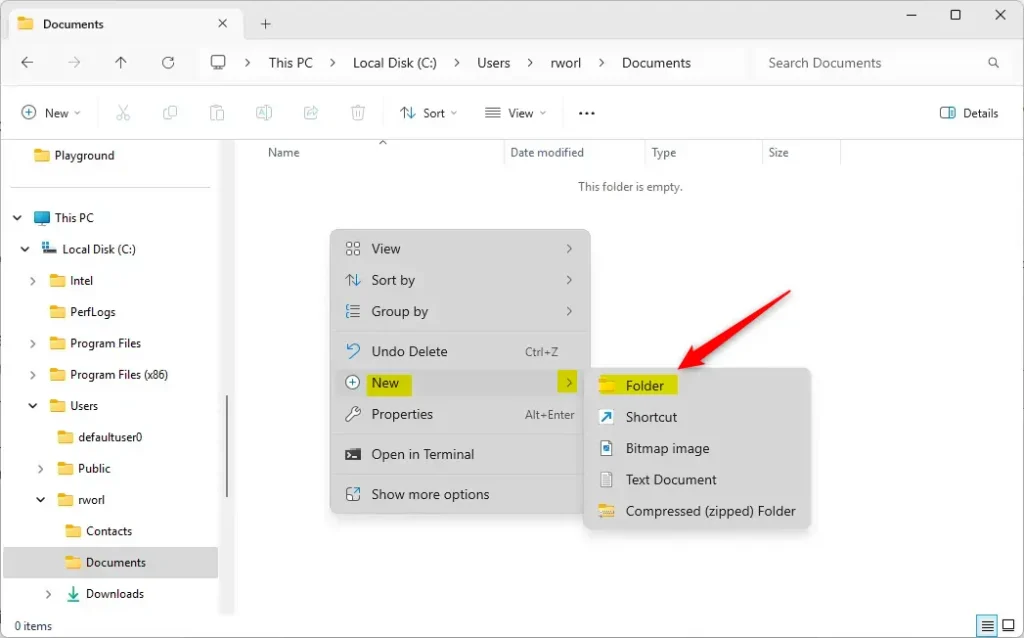
The process: right-click, choose New, then Folder.
2Create a Folder Using File Explorer's Command Bar
Creating a folder in Windows 11 is accessible using the command bar in File Explorer. Open File Explorer, navigate to where you want the folder, click the 'New' button, and then select 'Folder' from the dropdown list to create it.
- Open File Explorer by clicking its icon on the taskbar or pressing
Win + Eon your keyboard. - Go to the place where you want the new folder.
- Click the New button near the top.
- Select Folder from the dropdown.
- Type a name for your folder and press Enter.
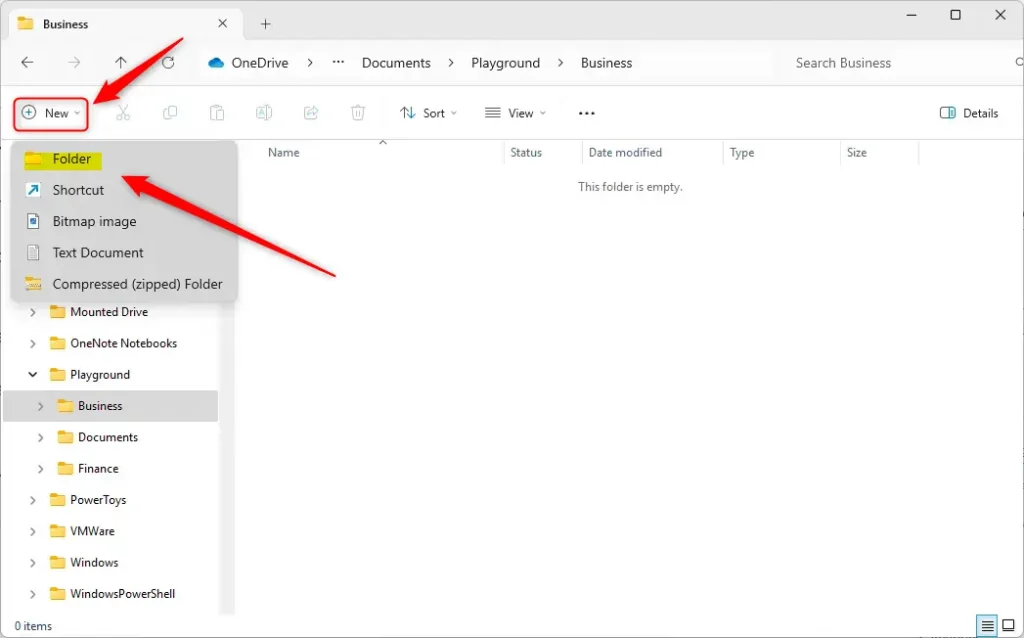
Click "New" then "Folder" in File Explorer.
3Create a Folder Using a Keyboard Shortcut
For a swift way to create a folder in Windows 11, use the keyboard shortcut Ctrl + Shift + N. Open the location where you want the folder and press these keys together, then type the name for your new folder and press Enter.
- Open the location where you want the new folder (like Desktop or inside File Explorer).
- Press
Ctrl + Shift + Nat the same time. - A new folder will appear. Just type the name and press Enter.
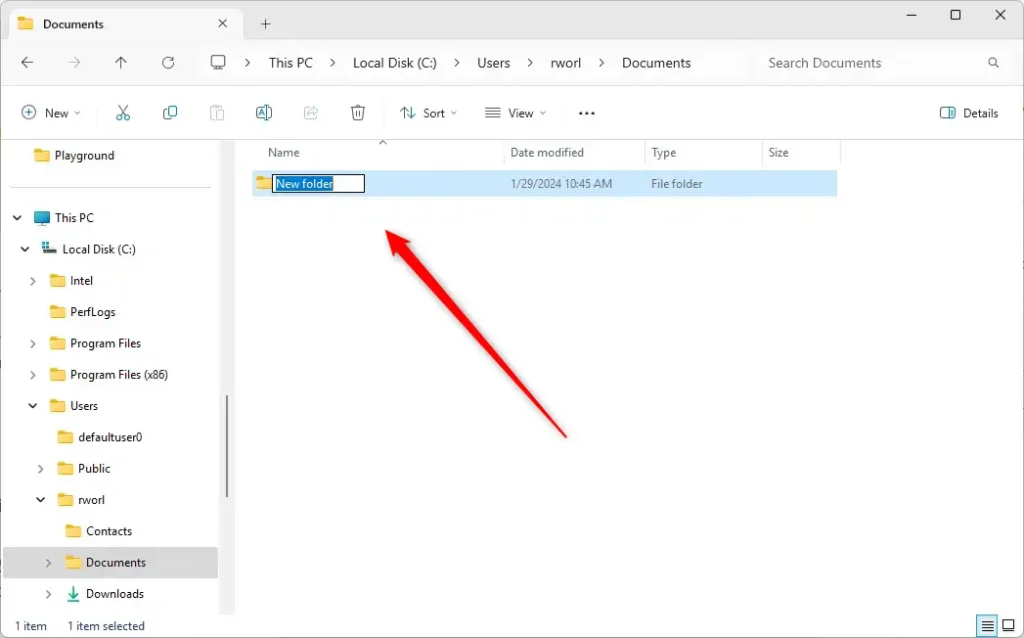
Pressing Ctrl + Shift + N together immediately creates a new folder in Windows 11. This new folder appears on the screen, allowing you to type a name for it, making it ready for use.
4Create a Folder Using Windows Terminal (Command Prompt)
Creating a new folder in Windows 11 through the Command Prompt involves typing specific commands. Open Command Prompt, use the 'cd' (change directory) command to navigate to the desired location, and then type 'mkdir' followed by your desired folder name to create it.
- Open Windows Terminal or Command Prompt by typing
cmdin the search box and clicking the app. - Type
cd Documents(or another folder path) and press Enter. This moves you to the folder where you want the new folder. - Type
mkdir NewFolderand press Enter. ReplaceNewFolderwith your folder name. - The folder will be created in that location.
cd Documents
mkdir NewFolder5Create a Folder Using Windows PowerShell
Windows PowerShell offers a command-line method to create folders in Windows 11. Open Windows PowerShell, use the 'cd' (change directory) command to navigate to where you want the folder, and then type 'New-Item -Type Directory -Name "FolderName"', replacing 'FolderName' with your chosen name.
- Open Windows PowerShell by searching in the Start menu.
- Use
cdto go to the folder where you want your new folder. - Type this command and press Enter:
New-Item -Type Directory -Name "FolderName"Type your desired folder name where it says FolderName.
Quick Tips
- Give your folders clear names so you know what's inside.
- Keep your desktop and files organized for easier access.
- Try different ways and pick what feels easiest for you!
Summary
- Folders help keep your files neat and easy to find.
- You can create folders by right-clicking, using File Explorer, keyboard shortcuts, or commands.
- Using descriptive folder names makes your computer more organized.
- Knowing how to make folders is a helpful skill for everyone who uses a Windows PC.
Folders help keep your files neat and easy to find in Windows 11. You can create folders by right-clicking, using File Explorer, keyboard shortcuts, or command-line tools like Command Prompt and PowerShell, making it simple to organize your computer.
Was this guide helpful?

About the Author
Richard
Tech Writer, IT Professional
Richard, a writer for Geek Rewind, is a tech enthusiast who loves breaking down complex IT topics into simple, easy-to-understand ideas. With years of hands-on experience in system administration and enterprise IT operations, he’s developed a knack for offering practical tips and solutions. Richard aims to make technology more accessible and actionable. He's deeply committed to the Geek Rewind community, always ready to answer questions and engage in discussions.



No comments yet — be the first to share your thoughts!