Find Out Which Antivirus Is Installed on Windows 11

Windows 11 names your active antivirus in the Windows Security app, under Virus & threat protection. If that page lists only Microsoft Defender Antivirus (the free antivirus built into Windows), no other antivirus product is registered with Windows.
Windows can also show a third-party product there, such as one you installed from a store or download site. Sometimes it shows two products, none at all, or one that has run out of time. Each case has a different fix.
This page shows four ways to check. You can use the Windows Security app, the list of installed apps, Control Panel , or PowerShell. The first method takes about a minute and works for most people.
To find out which antivirus you have on Windows 11, open Windows Security and select Virus & threat protection. The product named at the top of that page is your active antivirus. If it names only Microsoft Defender Antivirus, no third-party product is registered with Windows.
Check in Windows Security
Windows Security is the quickest check because it reads the same list Windows uses to decide whether Microsoft Defender Antivirus should stay active. You do not need administrator rights for any step in this section.
Open Windows Security and read the provider
- Open Start, type Windows Security, and press Enter. You can also go to Settings Privacy & security Windows Security and select Open Windows Security. The Windows Security home page opens with a grid of protection areas.
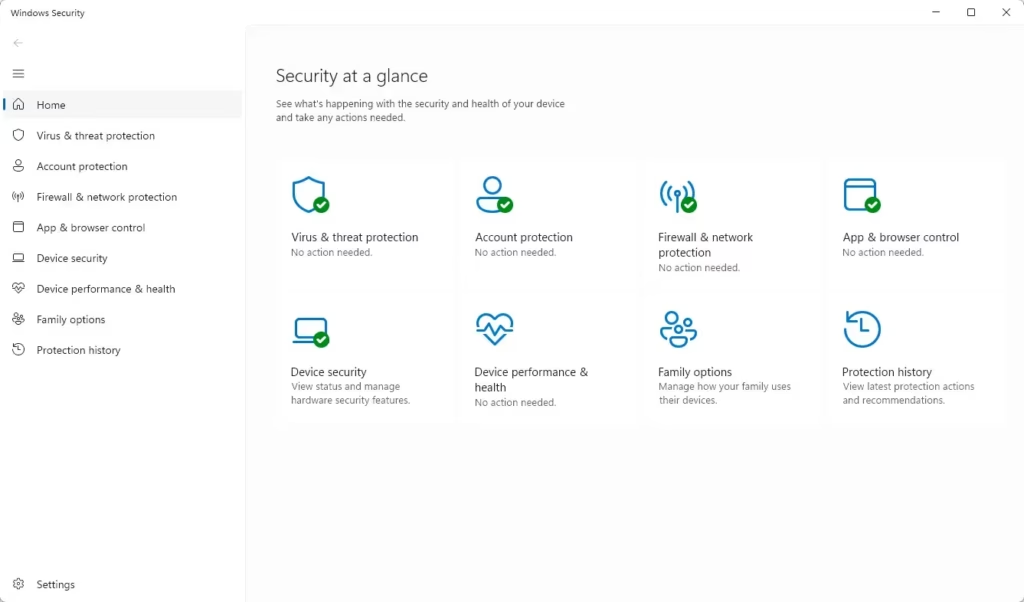
Windows Security dashboard showing an overview of PC protection status. - Select Virus & threat protection in the left pane. The page shows scan options and the status of your protection.
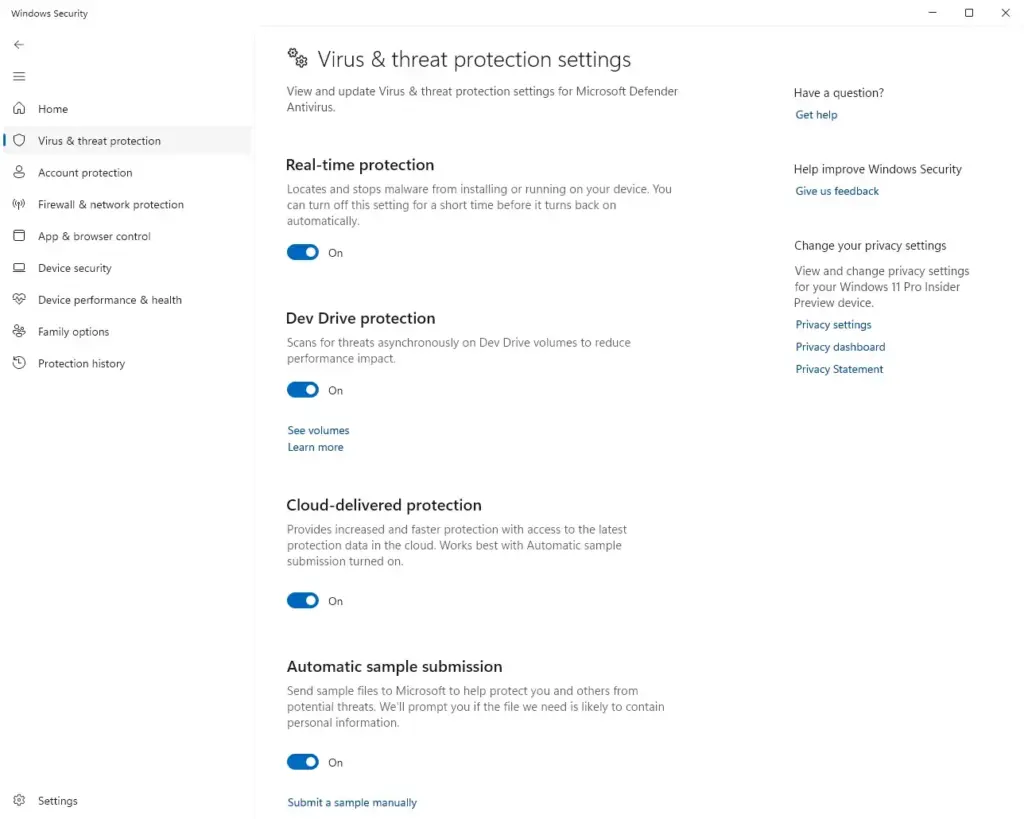
- Read the top of the page. With a third-party product active, Windows names it here, and the Microsoft Defender Antivirus scan options are limited or missing. With only Microsoft Defender Antivirus active, you see the full set of Microsoft scan and update options instead.
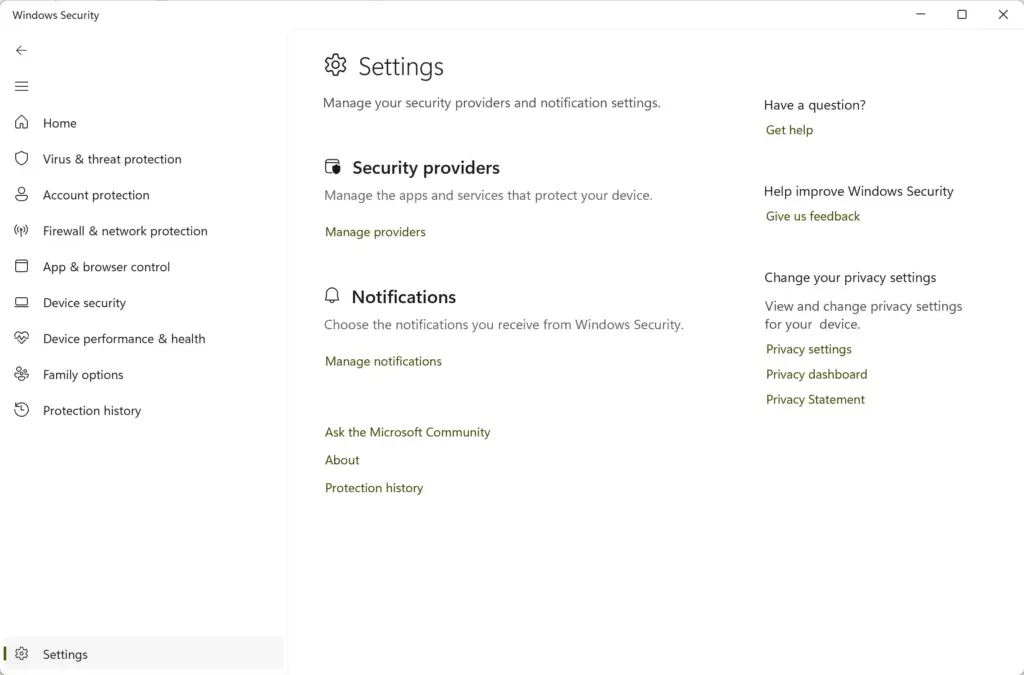
- Select Manage providers if you see it. On some Windows 11 builds the link sits in a “Who’s protecting me?” box on this page. The Security providers page opens.
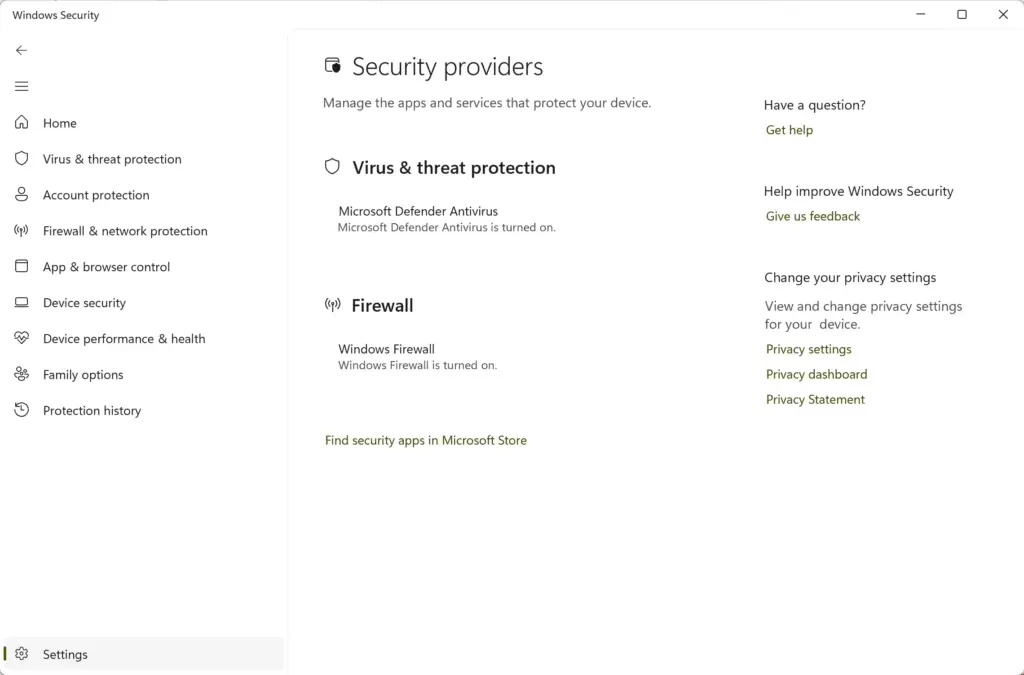
- Find the Antivirus heading. Each antivirus registered with Windows appears as a separate line with its name and a status of On or Off.
Wording and placement change slightly between Windows 11 versions. If you cannot find Manage providers, steps 1 to 3 still tell you what is running. The Security providers page is a bonus, not a requirement.
Read what the status means
The status shown depends on what is installed and what state it is in.
- Microsoft Defender Antivirus listed as On, nothing else: You have no third-party antivirus registered, and the built-in one is protecting you.
- A third-party product listed as On, and Microsoft Defender Antivirus listed as Off: This is normal. Windows turns off the Microsoft engine when another antivirus registers itself, so the two do not fight over files.
- A third-party product listed as Off or snoozed: The product is installed but not protecting you. Open the product itself and turn protection on, or remove it and let Microsoft Defender Antivirus take over.
- A message that settings are managed by your organization: An administrator controls the antivirus on this PC. Ask your IT department which product it is and why. You usually cannot change it yourself.
Check the Installed apps list
This method lists every installed program. It catches antivirus products that are installed but not registered with Windows. That includes expired trials and leftovers from older installs.
- Open Settings by pressing Windows key + I.

Windows 11 Start menu with Settings gear icon highlighted. - Go to Settings Apps Installed apps A list of installed programs opens.
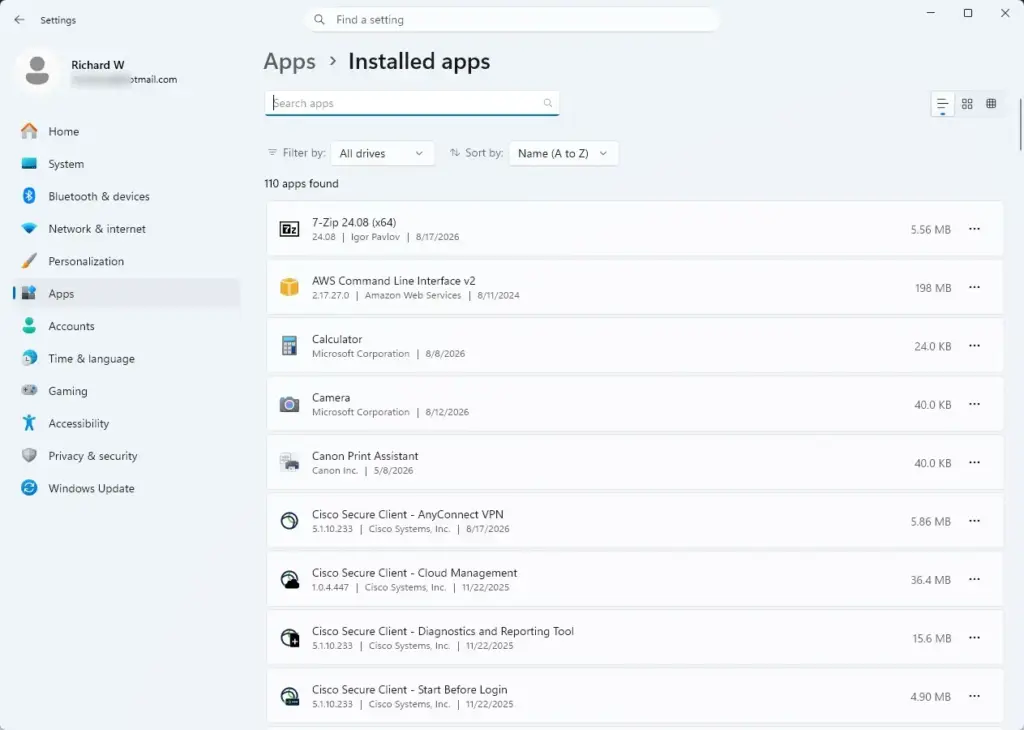
Settings › Apps › Installed apps - Type a keyword into the Search apps box, such as security, antivirus, protect or shield. Only names that contain the keyword remain.
- Scan the list for known antivirus names. Typical examples are Norton, McAfee, Avast, AVG, Bitdefender, Kaspersky, ESET, Malwarebytes and Trend Micro.
A product can be installed and switched off. Use it together with Windows Security, not instead of it.
The built-in Microsoft Defender Antivirus never appears in this list because it is part of Windows, not a separate app.
Check in Control Panel
Control Panel still has a security summary page. It is useful if you are on a PC where you cannot open Windows Security. The older "Security Center" name that some guides use belongs to earlier Windows versions. In Windows 11 the page is called Security and Maintenance.
- Press Windows key + R, type
control, and press Enter. Control Panel opens. - Select System and Security. If your Control Panel is set to icon view, skip to the next step and look for the icon instead.
- Select Security and Maintenance. A page opens with Security and Maintenance sections, both collapsed or expanded.
- Select the arrow next to Security to expand it if it is collapsed. The section lists the status of items such as network firewall, virus protection and Windows activation.
- Find Virus protection. The product name appears beside it with a status such as On. If a product is off or out of date, a warning appears here and a notification may appear in the taskbar.
If Virus protection is missing, Windows has no registered antivirus to report. Check Windows Security next.
List antivirus products with PowerShell
PowerShell prints the registered antivirus products as plain text. This is useful when you need to copy the names, check several PCs, or the graphical pages are not loading. None of these commands need administrator rights.
Run the antivirus query
This step queries the Windows Security Center, the part of Windows that keeps the list of registered security products. It only reads data and changes nothing.
- Right-click Start and select Terminal. Windows Terminal opens, usually with a PowerShell tab.
- Type the command below and press Enter.PowerShell
Get-CimInstance -Namespace root/SecurityCenter2 -ClassName AntivirusProduct | Select-Object displayName, productStateA table appears with one row for each registered antivirus. The
displayNamecolumn is the product name.
Microsoft Defender Antivirus appears as Windows Defender in this output, even though Windows 11 calls it Microsoft Defender Antivirus elsewhere. That is expected.
The productState column is a single encoded number. Do not try to read it by eye. For on or off status, use the Security providers page in Windows Security.
If the command prints nothing, no antivirus is registered with Windows. If it prints an error, close Terminal, open it again and retry. The query works on Windows 11 desktop editions. It does not work on Windows Server.
Check whether Microsoft Defender Antivirus itself is running
This step asks Microsoft Defender Antivirus directly whether it is protecting the PC. It is useful when the list above shows both Windows Defender and another product.
- In the same Terminal window, type the command below and press Enter.PowerShell
Get-MpComputerStatus | Select-Object AMRunningMode, AntivirusEnabled, RealTimeProtectionEnabledThree values appear.
- Read
AntivirusEnabledandRealTimeProtectionEnabled.Truemeans the Microsoft engine is active.Falseon a PC with a third-party antivirus is normal. - Read
AMRunningMode. It reports how Microsoft Defender Antivirus is running, for example normally or in a passive state, meaning another product does the main protection. The exact wording varies between Windows 11 versions, so treat this value as a hint and confirm it in Windows Security.
If the command fails with an error, another product or a policy has probably switched off Microsoft Defender Antivirus. That is not a problem if a third-party antivirus is active.
Why the results can disagree
Each method reads a different source, so you can get answers that do not match. Here are the common cases and what each one means.
Two antivirus products are listed
PCs from some manufacturers ship with a trial antivirus. If you also installed your own, both can appear in the list. Windows normally turns off Microsoft Defender Antivirus while another registered antivirus is on. Two third-party products can still conflict with each other. Running two at once slows the PC and can cause false alarms. Keep one and remove the other (see the closing section).
A product is listed that you uninstalled
A product can leave an old, leftover entry in the list if its uninstaller did not finish. Restart the PC and check again. If the entry remains, reinstall the product, then remove it again with the vendor's own removal tool or from Settings Apps Installed apps
The subscription has expired
Third-party products often stay registered after the subscription ends. Windows then shows the product as Off or shows a warning that protection is out of date, and Microsoft Defender Antivirus may not take over by itself. Open the product and renew or remove it. If you remove it and restart, Microsoft Defender Antivirus should become the active antivirus again.
Windows Security shows nothing or will not open
A blank Windows Security window, or one that says the page is unavailable, points to a problem with the app or the Security Center service rather than your antivirus. In that case, the Installed apps list and the PowerShell command still work. If the PowerShell command returns product names, use those.
The PC belongs to a school or employer
Work and school PCs often run an enterprise security product. The Windows Security pages may say the settings are managed by your organization, and some options are missing or greyed out. This is by design. The product name shown in Windows Security or PowerShell still tells you what is installed.
Home and Pro editions
Windows 11 Home and Windows 11 Pro show the same antivirus information in Windows Security. The difference appears on managed PCs, where Pro, Enterprise and Education editions are the ones usually controlled by an administrator.
Spot an antivirus without opening any settings
These quick checks do not prove protection is active, but they help you recognise a product fast.
- Select the Show hidden icons arrow (the small caret) in the taskbar corner. Antivirus products usually leave an icon in the notification area, and a shield or product logo is a good sign.
- Press Ctrl + Shift + Esc to open Task Manager, then select Startup apps in the left pane. Antivirus programs are often set to start with Windows and appear here with a status of Enabled.
- Check the Name and Publisher columns for a known security vendor.
A product that is not in the startup list may still be installed. Task Manager shows only what starts with Windows.
What to do next
If you removed your only third-party product, Microsoft Defender Antivirus should show as On after the restart. If you plan to keep a third-party product, check in Windows Security now and then, because an expired subscription can leave you without active protection.
Does 🪟 Windows 11 have a built-in antivirus?
Yes. Windows 11 includes Microsoft Defender Antivirus, a free antivirus that is turned on by default. It scans for viruses, spyware, and other malware in the background and updates itself. You can check its status in Windows Security under Virus & threat protection. If you install a different antivirus, Windows usually switches Defender off on its own.
How do I tell which antivirus I have?
Open Windows Security from the Start menu, then select Virus & threat protection and check the provider it lists. If only Microsoft Defender Antivirus appears, that is your active antivirus. If a different product is listed, such as one you installed from a download site, that product is active. Two listed products, or none at all, can mean a problem that needs fixing.
Is Microsoft Defender Antivirus automatically installed?
Yes, on most Windows 11 PCs. Microsoft Defender Antivirus comes with Windows and is turned on by default. It stays active until you install another antivirus that Windows recognizes. Then Windows turns it off to avoid conflicts. You do not need to download or install it, since it is part of Windows itself.
Does my PC have a built-in antivirus?
Windows 11 includes Microsoft Defender Antivirus, which is active unless another antivirus has taken over. To confirm, open Windows Security from the Start menu and look under Virus & threat protection. If another product is listed there, it has replaced Defender as your active antivirus.
Have a question about this guide?
Answered by AI from this guide. Good questions may be added to this page — please don't include personal details.
Did this guide fix your problem?

About the Author
Richard
Tech Writer, IT Professional
Richard is a writer at Geek Rewind who turns complex IT tasks into clear, step-by-step guides. He draws on years of hands-on experience in system administration and enterprise IT operations, focusing on Windows, Linux and WordPress: the problems people actually run into, and the fixes that work. His server and WordPress guides come from systems he runs himself. Richard builds and maintains the platform behind Geek Rewind, from its Ubuntu servers and Nginx configuration to its custom WordPress plugins. Many new tutorials start with readers' questions, and he's always glad to answer them in the comments.
No comments yet — be the first to share your thoughts!