
This article explains how to show or hide the clock in the Notification Center on Windows 11.
The Notification Center (Win+N) in Windows 11 gives you quick access to notifications, the calendar, and the ability to start or end a focus session from your taskbar. Microsoft is working on a new hidden feature in the latest Windows 11 builds (build 22635.5240) that will display the time in the Notification Center. This is similar to how it worked in Windows 10.
To try this feature, you’ll need to use ViVeTool and enable it with this command:
vivetool /enable /id:42651849,48433719
Show System Clock in the Notification Center
A new feature in the latest Windows build lets you display or hide the system clock in the Notification Center in Windows 11. Here’s how to do it.
First, learn how to download and use ViVeTool in Windows.
Then, open ViVeTool using the Command Prompt app. Run the command below as an administrator to enable it and restart your computer.
vivetool /enable /id:42651849,48433719
Once enabled, open the Settings app. You can do that by clicking on the Start menu and selecting Settings. Or press the keyboard shortcut (Windows key + I) to launch the Windows Settings.
When the Settings app opens, click the Personalization button on the left.
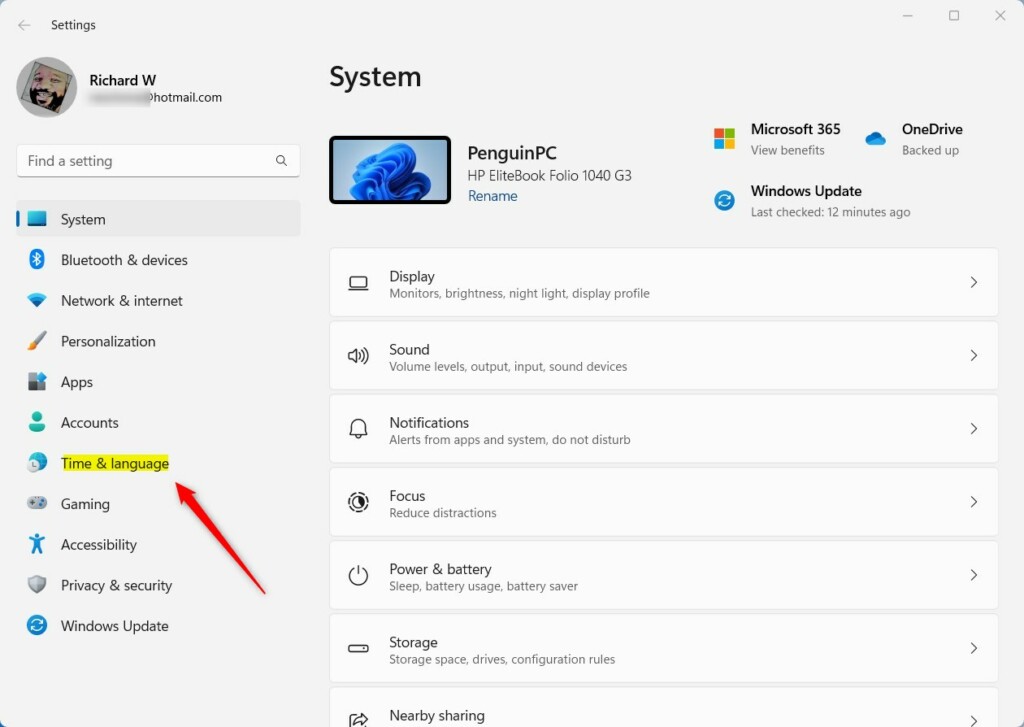
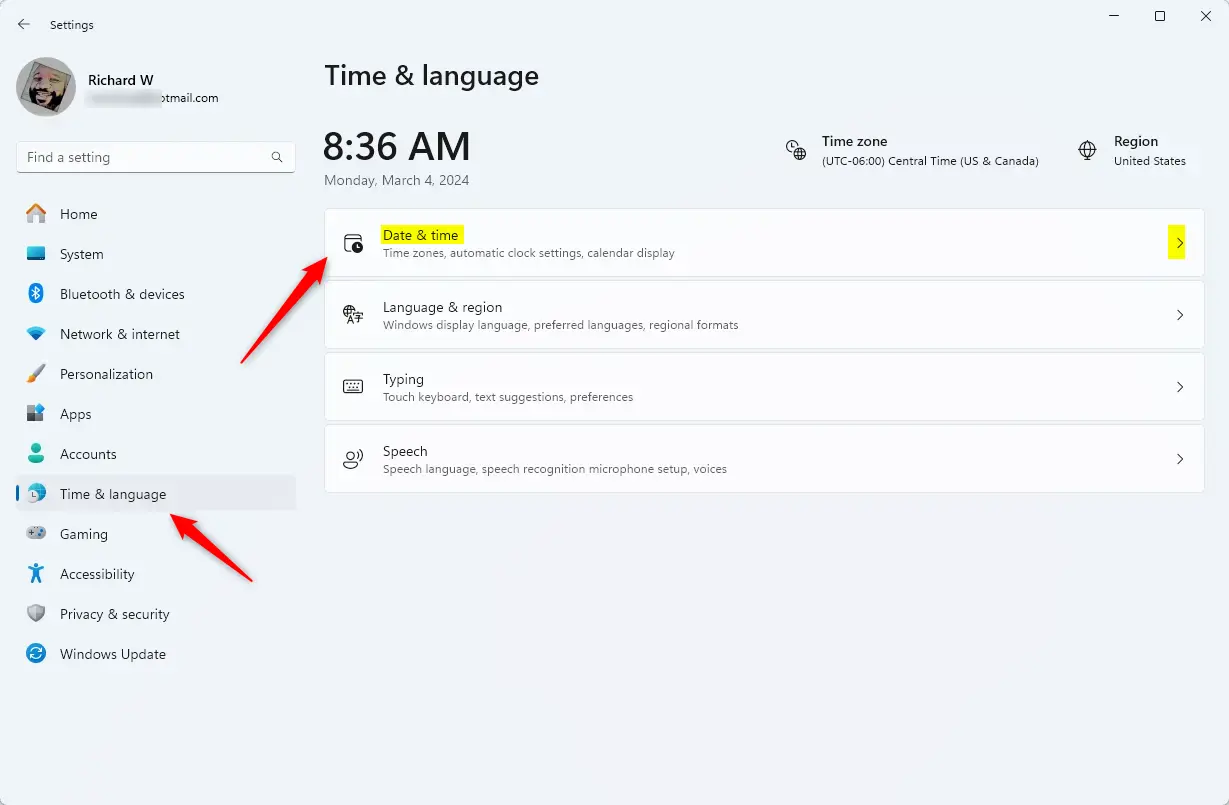
On the right, click the Date & time tile to open its settings.
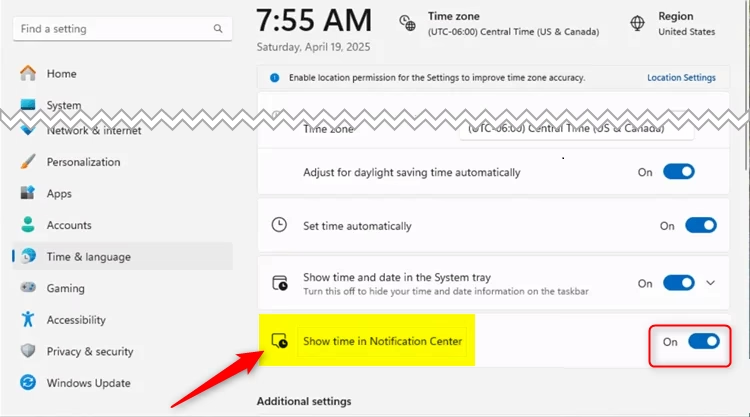
Then, turn on or off (default) the “Show time in Notification Center” feature in Windows 11.
Close the Settings app when you’re done.
Add or Remove Time in the Notification Center Using the Registry Editor
Another way to display or remove the system time in the Notification Center is to use the Settings app.
Remember to Windows Registry Editor before making any changes, or back up your registry as a precaution.
First, open the Registry Editor and navigate to the folder key path below.
Computer\HKEY_CURRENT_USER\Software\Microsoft\Windows\CurrentVersion\Explorer\AdvancedRight-click Advanced > New > DWORD (32-bit) Value and name the new DWORD ShowClockInNotificationCenter.
Double-click and open the ShowClockInNotificationCenter value and set it to 1 to display the system clock in the Notification Center.
Enter 0 to hide the system clock from the Notification Center.
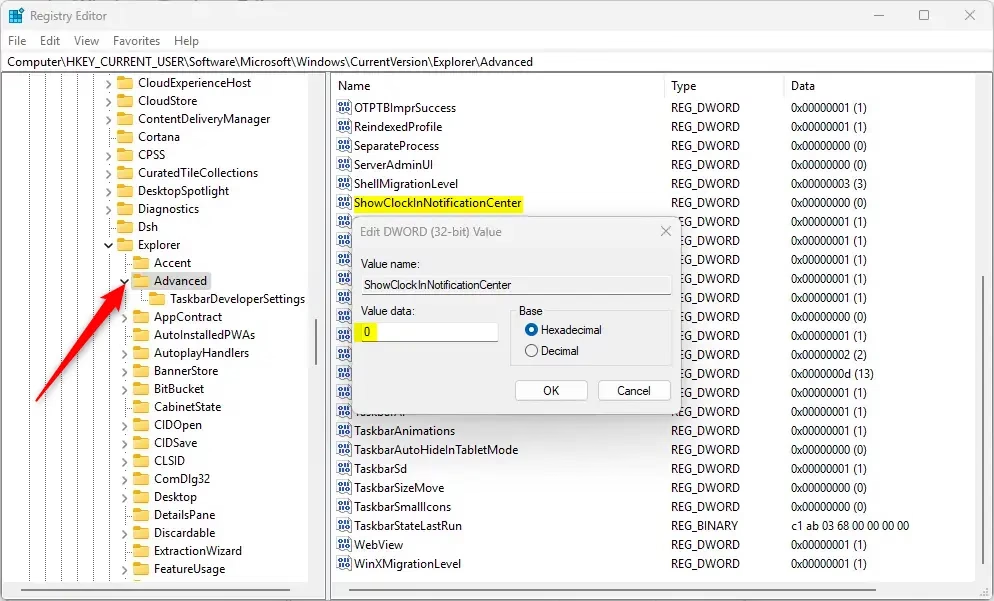
You may have to reboot your computer to apply the changes.
That should do it!
Summary
Windows 11 now lets you show or hide the system clock in your Notification Center. This makes it easier to see the time when you need it. You can enable this feature in two ways. The first way uses ViVeTool, which is a command-line tool. The second way uses the Registry Editor to create a new setting. Both methods require you to restart your computer to see the changes. Before making any changes to your registry, back up your system first to be safe.




Leave a Reply