Connect a phone as a webcam using Settings Bluetooth and devices Mobile devices
Before you start
🔢 29 steps
🛡 Needs administrator rights
Using your phone as a webcam gives you a sharper, brighter video feed for Zoom, Teams and other video calls without buying a separate camera. Windows 11 has a built-in feature that links your phone to your PC. You set it up in the Settings app under Bluetooth & devices and then Mobile devices.
Most laptop cameras use tiny lenses that look dark and grainy in normal indoor light. Your phone’s camera is almost always better. You don’t need any third-party webcam apps or paid software, because the connection is handled by Windows and Microsoft’s own Link to Windows app.
⚡ Quick Answer
To connect a phone as a webcam, open Settings, click Bluetooth & devices, then Mobile devices. Turn on the toggle to let your PC access mobile devices, click Manage devices, and scan the QR code with the Link to Windows app on your phone. Your phone’s camera then appears as a selectable input in Zoom, Teams and other video apps.
Advertisement
What You Need Before You Start
You need a Windows 11 computer, a phone, and the Link to Windows app. Both devices should be on the same Wi-Fi network, and both need Bluetooth turned on before you start.
A computer running Windows 11.
An Android phone or an iPhone. Note: the “use as a connected camera” feature is built for Android phones. An iPhone can be linked in the Link to Windows app, but it may not offer the camera option. Check this before you spend time on setup. Android 9.0 or later is the usual minimum.
The Link to Windows app installed on your phone. Some Android phones, such as many Samsung models, already include it.
Your computer and your phone on the same Wi-Fi network.
Bluetooth turned on for both devices.
📝NoteSome of these steps may need administrator privileges, which are the account permissions that let you make system-wide changes. If a pop-up asks for permission or an administrator password and you don’t have one, ask the person who manages your computer for help.
Advertisement
Step 1Update Your Windows Computer
The phone camera feature depends on recent Windows updates. If your PC is behind, the Mobile devices page or the camera option may be missing. Check for updates before you link anything.
Click the Start button on your taskbar🖥️.
Type Settings and press Enter, or click the Settings gear icon. Windows 11 Start menu with Settings gear icon highlighted.The Settings⚙️ window opens.
Click Windows Update🔃. It is on the left side or near the top of the window.
Click Check for updates🔃. Windows searches for anything pending.
If updates are found, let them download and install. You may see a Restart now button when they finish. Save your work and restart, because some updates only finish after a reboot.
If you see “You’re up to date”, you can move on.
Step 2Prepare Your Phone
Next, get your phone ready to talk to your computer. Android and iPhone users take slightly different paths here, but both are short. The goal is the same: have the latest Link to Windows app installed on the phone.
For Android Users
Android users should install or update the Link to Windows app from the Google Play Store. Windows needs a current version of the app to recognize the camera feed.
Open the Google Play Store on your phone.
Search for Link to Windows.
💡If the app shows up under a different name
If you can't find Link to Windows in the App Store, check that you are searching in the App Store and not in your iPhone's Settings. Then continue with step 11.
Tap Install. If the app is already there, you will see Update instead, so tap that.
Wait for the download to finish before you go on.
For iPhone Users
Open the App Store on your iPhone.
Search for Link to Windows.
Tap Get or the download icon to install it💿.
Remember the limit mentioned earlier: the connected camera option may not appear for an iPhone.
Step 3Connect a Phone as a Webcam Using Settings Bluetooth and Devices Mobile Devices
Now link the phone to the PC. You do this from the Bluetooth & devices page in Settings, then Mobile devices. You will turn on access for your PC and pair the phone by scanning a QR code.
Open the Start menu on your computer and click Settings.
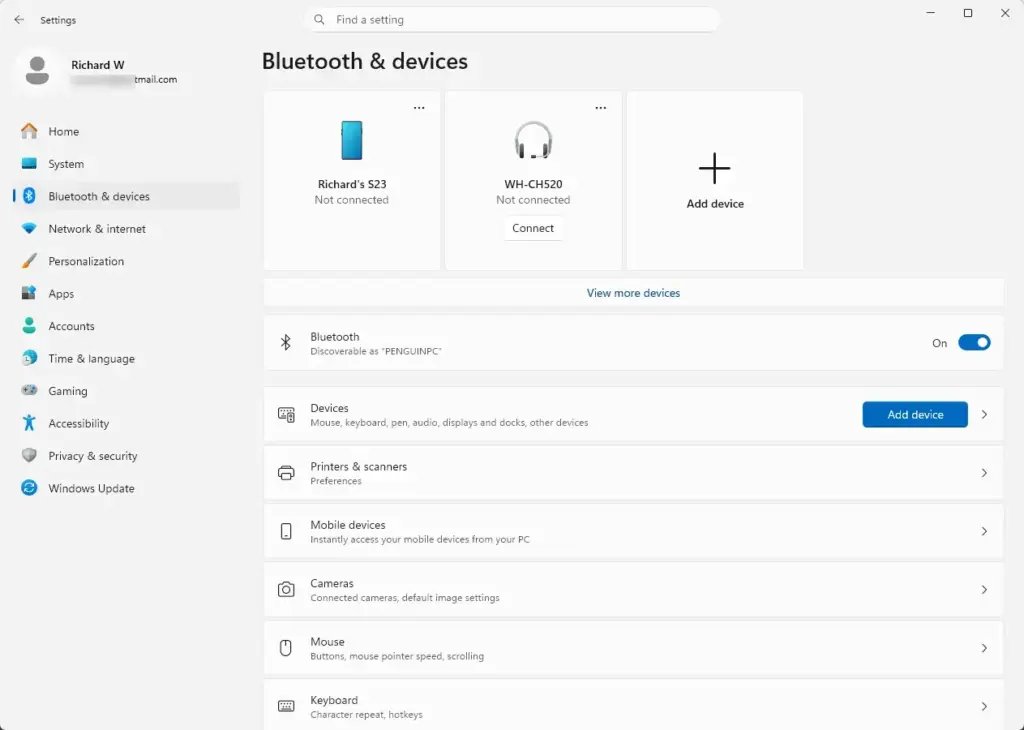
Click Bluetooth🔷 & devices in the menu on the left. Settings > Network & internet > Airplane mode
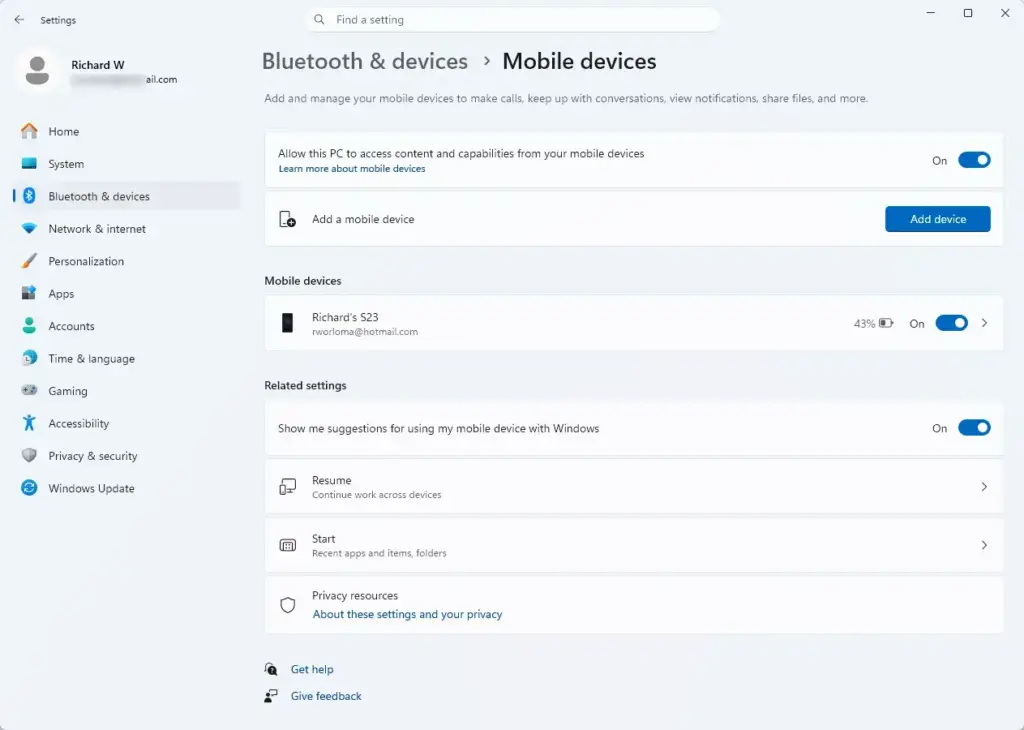
Click Mobile devices in the main options on the right. If you don’t see it, go back and finish Windows Update🔃, then restart.
Turn on the toggle that lets this PC access your mobile devices. Settings › Bluetooth & devices › Mobile devices The toggle should now show On.
Click Manage devices or Add device.
A window appears with a square barcode, known as a QR code (quick response code). Keep it on screen.
Open the Link to Windows app on your phone.
Scan the QR code on your computer screen with your phone.
Follow the prompts on both your phone and your computer to confirm the connection. You may be asked to sign in with your Microsoft account. Allow any permissions the phone asks for, such as permission to use the camera.
When the link works, your phone appears in the list of devices on the Mobile devices page. If the QR code times out, close the window and click Add device again to get a fresh one.
Advertisement
Step 4Turn on the Camera Experience in Windows
Linking the phone doesn’t turn on the camera by itself. You have to switch it on from the same Mobile devices page.
Open Settings on your computer.
Go to Bluetooth🔷 & devices and select Mobile devices. Windows 11 mobile devices settings for enabling phone notifications
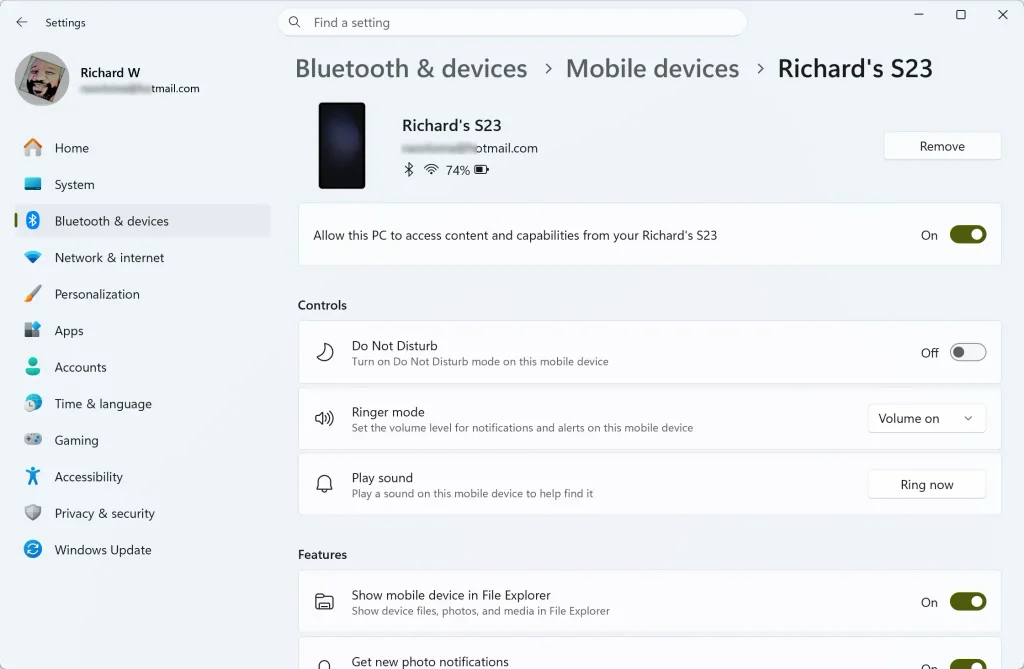
Find your connected phone in the list. If the camera option isn’t shown, click Manage devices to see the settings⚙️ for that phone.
Click the toggle next to Use as a connected camera to turn it on.
⚠️WarningYour computer may ask you to install a quick system update for the camera feature. If it does, click Install and wait for it to finish. To undo this later, return to the same page and turn the toggle off. That stops the phone from appearing as a camera but keeps it linked.
Step 5Test Your New Phone Webcam
Testing takes a few seconds. Use the built-in Camera app to confirm that your phone feed appears. Keep the phone unlocked and nearby, with the Link to Windows app allowed to run.
Click the Start button on your taskbar🖥️.
Type Camera and open the built-in Camera app.
Look at the top corner of the app window for the camera-switch icon. It usually looks like a camera with rotating arrows.
Click that icon until your phone camera starts streaming to your computer screen.
Wave at your phone to confirm the video moves smoothly.
If the icon only cycles between cameras that aren’t your phone, check that the toggle from the last section is on, that the phone is on the same Wi-Fi network, and that Bluetooth is on for both devices. Once it works here, the phone should also be selectable as a camera in your video call app’s video settings.
Summary
To sum up: Windows 11 lets you use your phone as a webcam without extra paid apps. Update Windows, install Link to Windows on the phone, pair the two with the QR code, and turn on Use as a connected camera. Then your phone is a high-quality camera for your video calls.
📬 Get new Windows tips in your inbox
One email when we publish something worth your time. We send a link to confirm. No spam, unsubscribe anytime.
Share
Questions readers asked
The App Store doesn't show 'Link to Windows' anymore. What is the app called now?
The app is still called Link to Windows in this guide. On your iPhone, open the App Store and search for Link to Windows. Tap Get or the download icon to install it. Keep in mind that the connected camera option may not appear for an iPhone.
Still have a question?
Answered by AI from this guide. Good questions may be added to this page — please don't include personal details.
Richard is a writer at Geek Rewind who turns complex IT tasks into clear, step-by-step guides. He draws on years of hands-on experience in system administration and enterprise IT operations, focusing on Windows, Linux and WordPress: the problems people actually run into, and the fixes that work.
His server and WordPress guides come from systems he runs himself. Richard builds and maintains the platform behind Geek Rewind, from its Ubuntu servers and Nginx configuration to its custom WordPress plugins.
Many new tutorials start with readers' questions, and he's always glad to answer them in the comments.




No comments yet — be the first to share your thoughts!