How to Find and Use Notepad in Windows 11


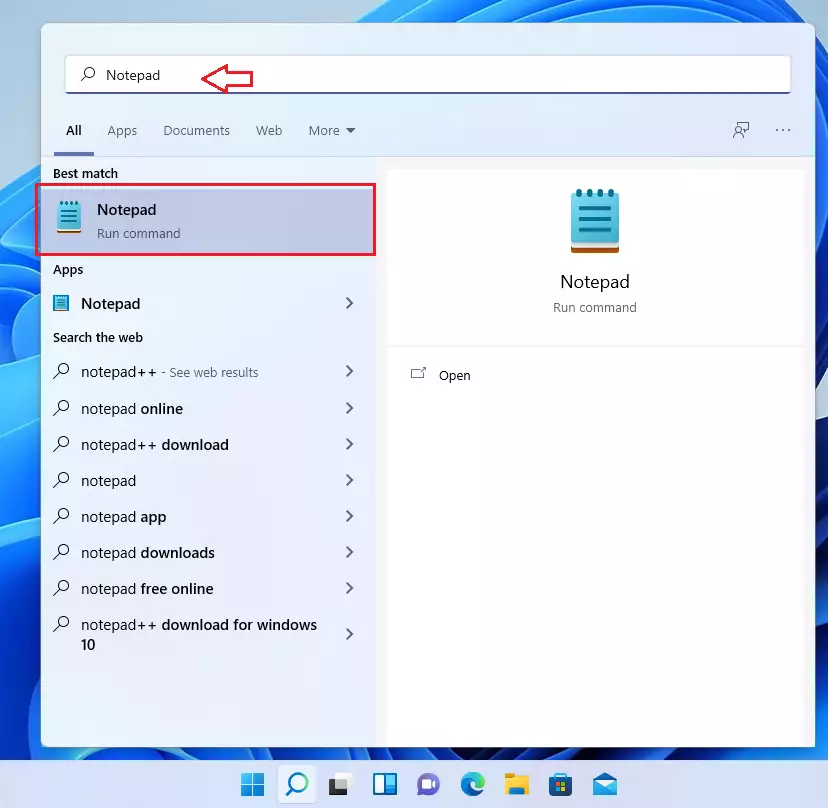
You find and use Notepad in Windows 11 by searching for it directly from the Start menu.
Notepad is your go-to, built-in text editor for Windows, designed for creating simple, unformatted text files.
This lightweight app, present since Windows 1.0, excels at quick notes, basic code snippets, and stripping formatting from copied text.
Unlike WordPad or Microsoft Word, Notepad strictly handles plain text, guaranteeing compatibility everywhere.
Its simplicity means you can launch and use it instantly for any urgent task.
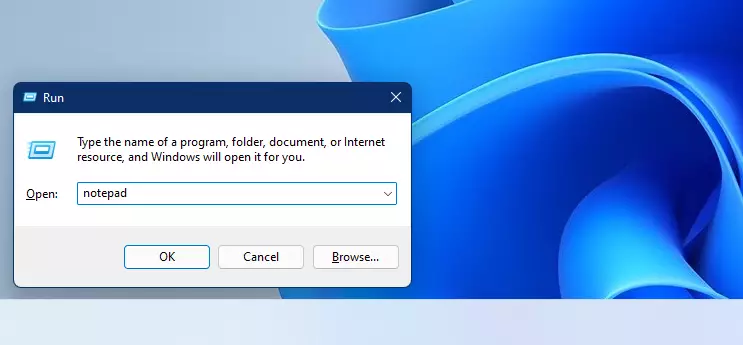
Find Notepad in Windows 11 by clicking the Start button and typing “Notepad” in the search bar. Click the Notepad app from the search results to open the text editor. You can also use the Run command by pressing Windows key + R and typing “notepad”.
How to open Notepad on 🪟 Windows 11
Notepad is best for simple tasks. If you need advanced features like spellcheck or tables, consider a more powerful app like WordPad or Microsoft Word Notepad++.
Method 1: The Start Menu
Click the Start button. Type “Notepad” into the search box. Click the Notepad app in the results to open it.
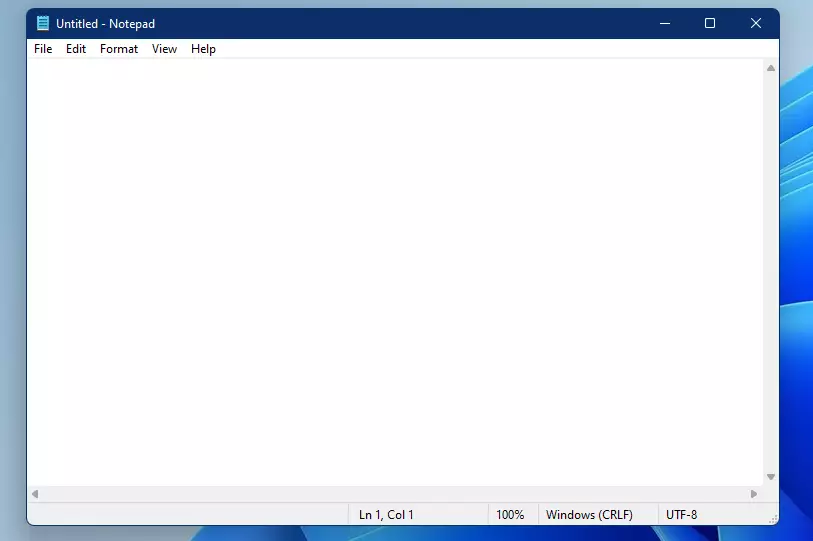
This will launch the Notepad window on your screen.
Method 2: The Run Command
Press the Windows key + R on your keyboard. Type ‘notepad’ in the box and press Enter.
Method 3: File Explorer
You can also find the program file directly in File Explorer File Explorer. Go to this path:
C:\Windows\notepad.exe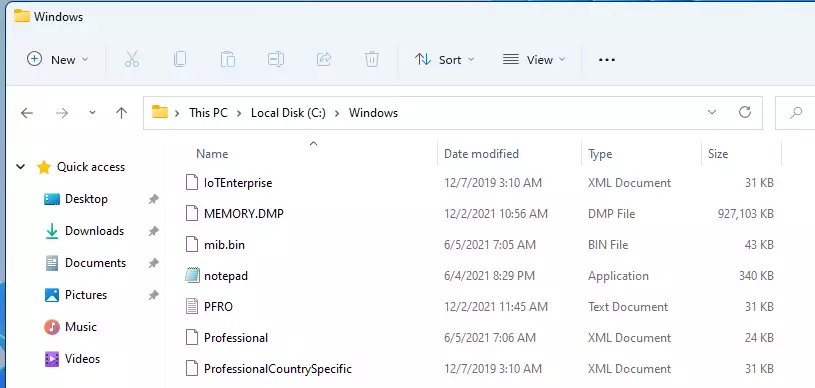
Note: If you need to make edits at the system level, you might need administrator privileges.
Managing your files
Use this table to handle your documents:
- Create a new file: Click File, then select New.
- Open a file: Click File, then select Open.
- Save a file: Click File, then select Save.
- Save with a new name: Click File, then select Save as.
Summary
Notepad is a reliable tool for simple text editing in Windows 11. It’s accessible using the Start menu, the Run command, or File Explorer. While it lacks advanced features like spellcheck or complex formatting, it is perfect for quick tasks. For more demanding needs, consider using WordPad or Notepad++.
Was this guide helpful?

About the Author
Richard
Tech Writer, IT Professional
Richard, a writer for Geek Rewind, is a tech enthusiast who loves breaking down complex IT topics into simple, easy-to-understand ideas. With years of hands-on experience in system administration and enterprise IT operations, he’s developed a knack for offering practical tips and solutions. Richard aims to make technology more accessible and actionable. He's deeply committed to the Geek Rewind community, always ready to answer questions and engage in discussions.


No comments yet — be the first to share your thoughts!