How to Reset Your Microsoft Account Password


Lost access to your files? Resetting your Microsoft account password is the quickest way back in, whether you’ve forgotten your login details or suspect someone else has accessed your account.
Think of your Microsoft account as the main switchboard for all your Microsoft stuff, like Outlook and OneDrive. Keeping it secure is key to protecting your files and settings.
Resetting your password usually means proving it’s really you. You’ll typically do this through a linked email address or phone number, often with a security code sent to one of those.
Once you’ve successfully proved your identity, you can create a new, strong password to lock down your account and get back to your digital life.
Go to the Microsoft account sign-in page and enter your email. Follow the prompts to verify your identity using a code sent to your linked email or phone number, then create a new password. If you can’t access your security info, use the Microsoft Account Recovery Form.
Step-by-Step: Resetting Your Password
If you need to reset your Microsoft account password, the quickest way is to use the official Microsoft sign-in page and follow the prompts to verify your identity.
- Go to the official Microsoft account sign-in page.
- Enter your email address or username and click Next.
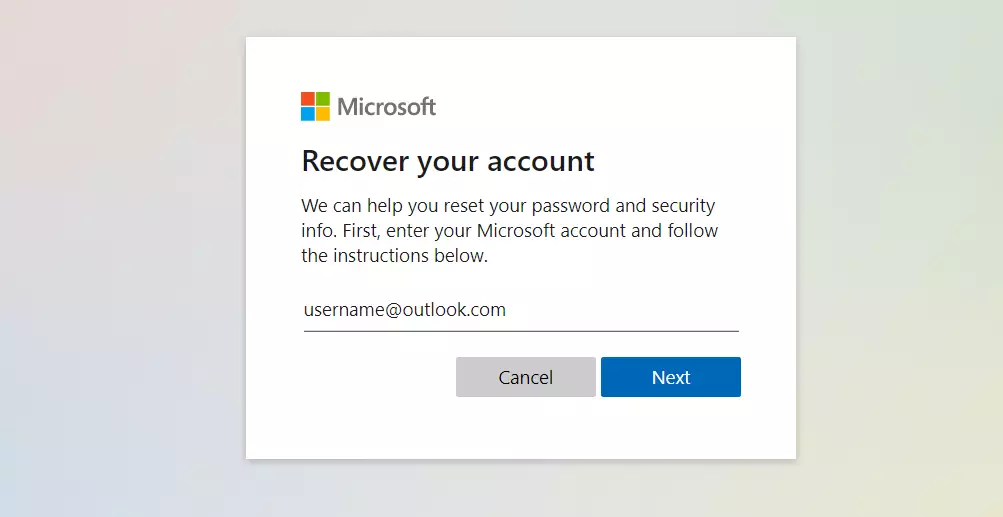
Microsoft needs to confirm who you are. They’ll send a verification code to your linked security info, like an email address or phone number.
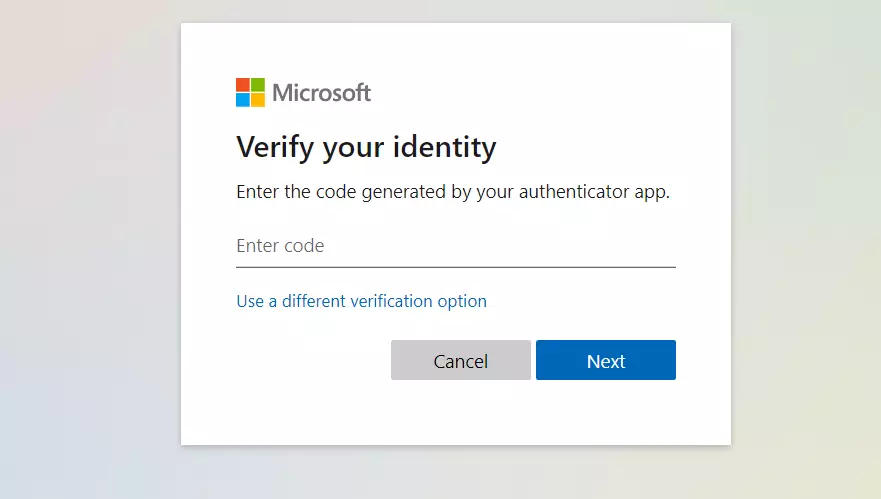
If you don’t get the code, click “Use a different verification option.”
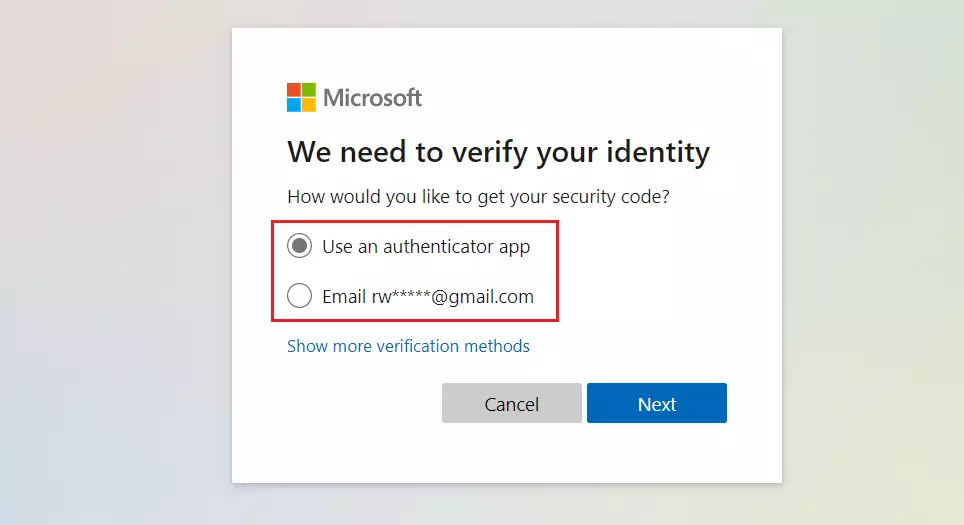
Select how you’d like to be contacted and click Next.
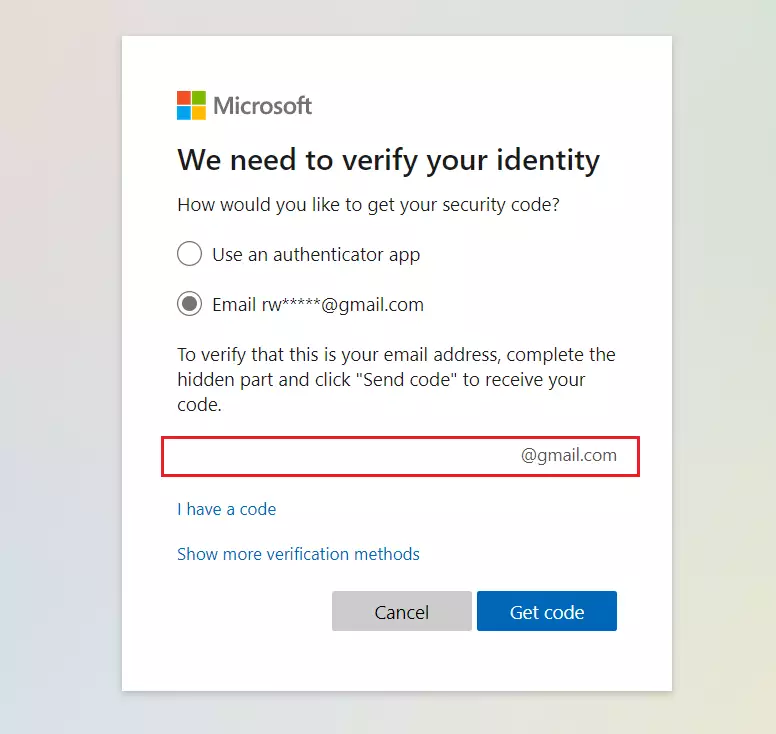
If you chose email, type in the full address. Click “Get code” and enter it to move forward. If you can’t access that email, click “Show more verification methods” to use your phone number instead.
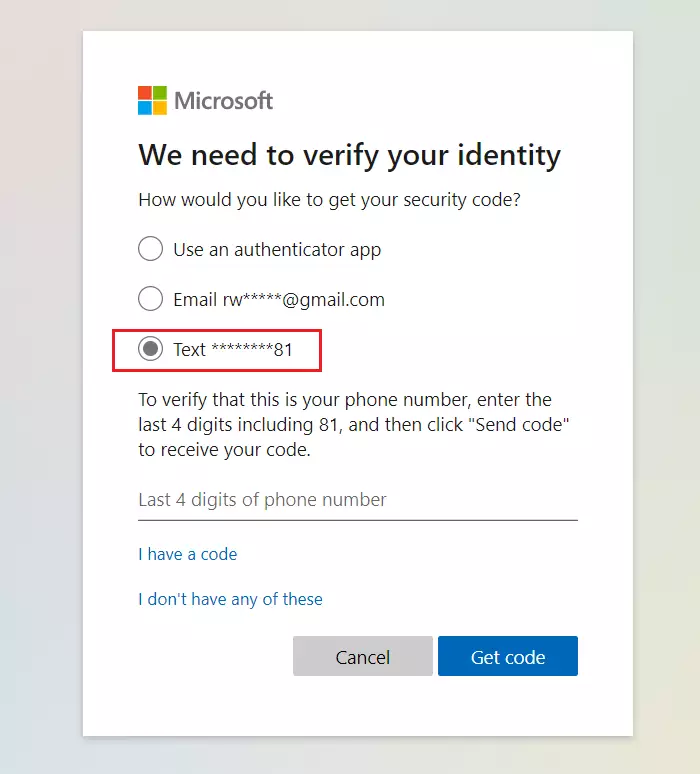
Enter the last 4 digits of your phone number to get a text message. Once that’s confirmed, you can set up a new, strong password.
Account Recovery and Troubleshooting
When you can’t reset your Microsoft account password with the usual steps, the Account Recovery Form is your next best option to prove you own the account.
Go to the Account Recovery Page to get started.
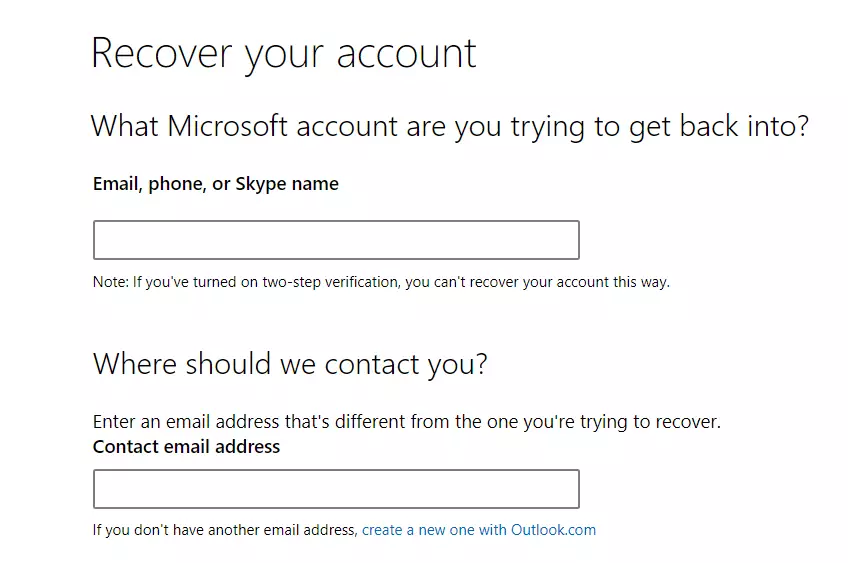
Note: This form won’t work if you have two-step verification turned on. If you have two-step verification (an extra layer of security that usually involves a code sent to your phone or email) enabled, you’ll need to use your registered recovery devices.
Security Best Practices
Keeping your Microsoft account secure is important, and you can do this by using the Authenticator app, keeping your security info up-to-date, and watching out for fake emails.- Use the Authenticator App: It is safer than SMS codes.
- Update Security Info: Regularly check your recovery email and phone number.
- Beware of Phishing: Microsoft will never ask for your password via email. Only use the official account.live.com domain.
- Account Lockout: If you enter the wrong password too many times, your account may be locked for security. Wait 24 hours before trying again.
Summary
- Resetting your password is the fastest way to regain access to your files.
- Always verify your identity using your linked email or phone number.
- If a standard reset fails, use the account recovery form to prove ownership.
- Keep your contact information updated to avoid future lockouts.
What if I no longer have access to my recovery email or phone number?
If you can’t access your recovery email or phone number, you’ll need to use the Microsoft Account Recovery Form to prove your identity.
How long does the account recovery process take?
After you send in the recovery form, Microsoft usually checks it within 24 hours. They’ll send the results to the contact email you provided when you submitted it. Make sure to check your spam folder if you don’t hear back in that time.
Can I reset my password if I have two-factor authentication enabled?
Yes, you can reset your password, but you need access to at least two ways to verify yourself. If you’ve lost access to both your main and backup security info, you won’t be able to reset your password, because two-factor authentication is designed to stop unauthorized access.
What should I do if I suspect my account was hacked?
If you suspect your Microsoft account has been hacked, the first and most important step is to change your password immediately.
Was this guide helpful?
100% of readers found this helpful (1 votes)

About the Author
Richard
Tech Writer, IT Professional
Richard, a writer for Geek Rewind, is a tech enthusiast who loves breaking down complex IT topics into simple, easy-to-understand ideas. With years of hands-on experience in system administration and enterprise IT operations, he’s developed a knack for offering practical tips and solutions. Richard aims to make technology more accessible and actionable. He's deeply committed to the Geek Rewind community, always ready to answer questions and engage in discussions.



No comments yet — be the first to share your thoughts!