How to Reset OneDrive Sync on Windows 11


Resetting OneDrive sync on Windows 11 forces the application to re-establish its connection with cloud servers and resolve syncing issues.
This process effectively clears temporary glitches, cache errors, and file conflicts that prevent your files from synchronizing correctly across all your devices.
When you see an error on your OneDrive icon or notice files aren’t updating, resetting OneDrive is a quick and effective solution.
You can perform this reset by simply restarting the OneDrive application, ensuring your cloud files remain safe and untouched.
Press Windows key + R, then enter 📂%localappdata%\Microsoft\OneDrive\onedrive.exe /reset and click OK. The OneDrive icon will disappear and then reappear, starting a fresh sync.
What happens when you reset?
Resetting OneDrive sync won’t delete your files, but it does start a fresh scan to compare what’s on your computer with what’s in the cloud.
Resetting on Windows
Method 1Reset using the Run command
You can easily reset OneDrive sync on your Windows 11 computer using a quick command in the Run box, which doesn’t need special admin rights.
- Press the Windows key + R on your keyboard to open the Run box.

- Copy and paste the following command into the box and click OK:
%localappdata%\Microsoft\OneDrive\onedrive.exe /reset
The OneDrive icon on your taskbar will disappear for a few minutes. It’ll reappear and start syncing your files again.
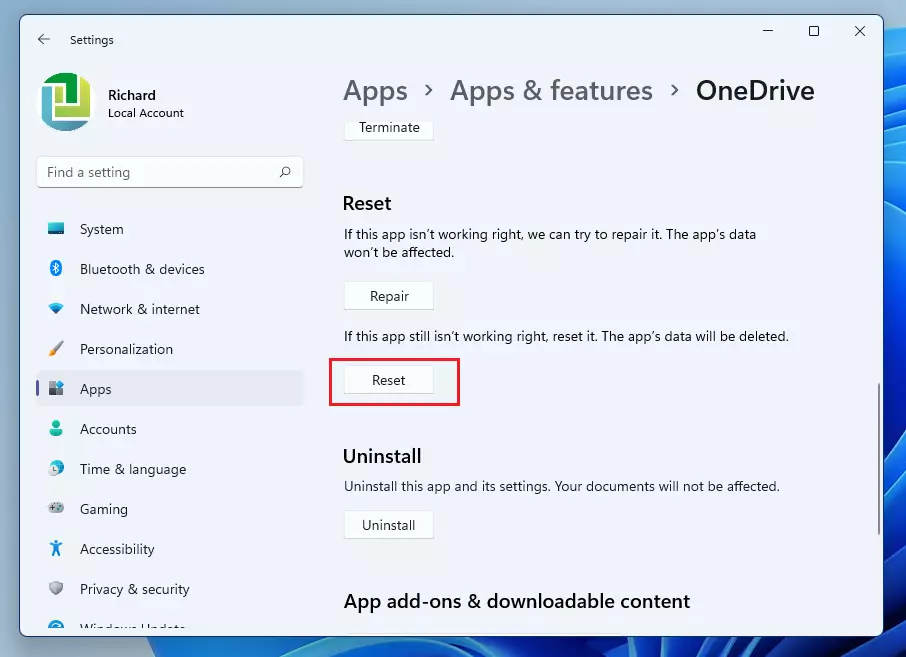
Method 2Reset the OneDrive Store app
If you’re using the Microsoft Store version of OneDrive, you can reset it through your settings. This does not require admin privileges.
- Click the Start button.
- Search for OneDrive.
- Right-click the app and select App settings.

- In the window that opens, scroll down and click the Reset button.
Resetting on macOS
If OneDrive isn’t syncing right on your Mac, you can reset the app to fix it without needing admin privileges.
- Quit OneDrive by clicking the cloud icon in the top menu bar and selecting Quit OneDrive.
- Open your Applications folder.
- Find the OneDrive app, right-click it, and select Show Package Contents.
- Navigate to Contents > Resources.
- Double-click the ResetOneDriveApp.command file.
Resetting on Android and iOS
To fix OneDrive sync problems on your Android or iOS phone or tablet, the simplest methods involve clearing the app’s cache or reinstalling it.
- Open your device Settings.
- Go to Apps or Application Manager.
- Find OneDrive in the list.
- Select Storage and tap Clear Cache or Clear Data.
- If the issue persists, uninstall and reinstall the app from the App Store or Google Play Store.
Common OneDrive Error Codes
If you see specific error codes, they often point to file conflicts or permission issues. Common codes include 0x8004de40 (for network issues), 0x8004de85 (for account issues), and 0x8004de8a (for sign-in issues). Always ensure your OneDrive client version is up to date to resolve these.
Summary
Resetting OneDrive sync is a good way to fix it when files aren’t updating correctly, and it helps start a fresh connection without losing your data.
Will resetting OneDrive delete my files?
No, resetting OneDrive does not delete your files. It only resets the sync settings and the local cache. Your files remain safe in the cloud and on your local drive. The app will simply re-verify the files to ensure they match the cloud version during the next sync cycle.
How long does a OneDrive reset take?
The time it takes to reset OneDrive sync depends on how many files you have, ranging from a few minutes to an hour or more.
What should I do if resetting OneDrive doesn’t fix the sync issue?
If a reset fails, check your internet connection and ensure you have enough storage space. You may also need to check for Windows updates or reinstall the OneDrive app entirely. If the problem persists, visit the official Microsoft support portal to check for known service outages in your region.
Was this guide helpful?

About the Author
Richard
Tech Writer, IT Professional
Richard, a writer for Geek Rewind, is a tech enthusiast who loves breaking down complex IT topics into simple, easy-to-understand ideas. With years of hands-on experience in system administration and enterprise IT operations, he’s developed a knack for offering practical tips and solutions. Richard aims to make technology more accessible and actionable. He's deeply committed to the Geek Rewind community, always ready to answer questions and engage in discussions.




I copied this line in %localappdata%\Microsoft\OneDrive\onedrive.exe /reset to reset my onedrive. Nothing happened. It still says it is trying to sync and never disappeared like the instructions said it would. It just continues (after days) of letting it run to say it is trying to sync but does not make any progress. I did get an email on my phone that says onedrive was finished backing up files but that is not what I see when I open onedrive. It still says it is trying to sync.
yeah solution does not work
I had to dig a bit to get the correct path for my puter. The principle is the same though. The command I used is:
C:\Program Files (x86)\Microsoft OneDrive\onedrive.exe /reset
I’m on Win11.
[…] If you encounter a problem using the OneDrive app, you can reset it allowing you to clear settings and resync all your files. […]
[…] you install OneDrive on Windows 11, it automatically adds its icon to the taskbar. You can right-click the OneDrive app icon in the […]