Keep Windows PCs Awake with PowerToys

You can keep your Windows PC awake and prevent it from sleeping or turning off the display using Microsoft PowerToys’ Awake utility.
The Awake utility is a free tool within Microsoft’s PowerToys suite, designed to give you more control over your PC’s power settings without complex configuration.
This means your computer stays active for crucial tasks like large file downloads or extended presentations, bypassing default sleep timers that might shut down your display after just five minutes.
Use the Awake utility in Microsoft PowerToys to keep your PC awake. Install PowerToys, run it as administrator, enable Awake, and select your desired mode like “Keep awake indefinitely” or “Keep awake temporarily.” You can then manage Awake settings from the Taskbar.
How to stop Windows from turning the screen or display off
You can keep your Windows PC screen from turning off automatically by using a free tool called PowerToys, which is made by Microsoft.
To do that, go to the link below and download PowerToys.
Releases · microsoft/PowerToys · GitHub
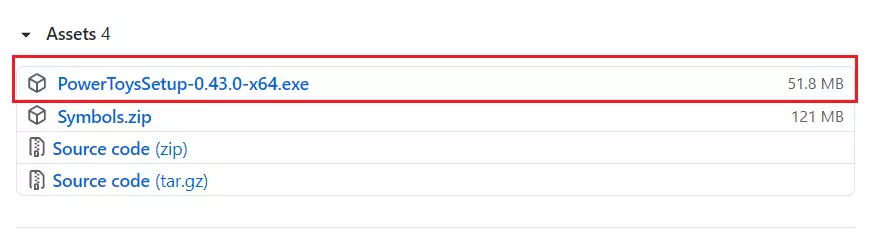
On the screen, click on PowerToysSetup-0.43.0-x64.exe
Keep in mind that future versions might show a different version number than what’s in the image.
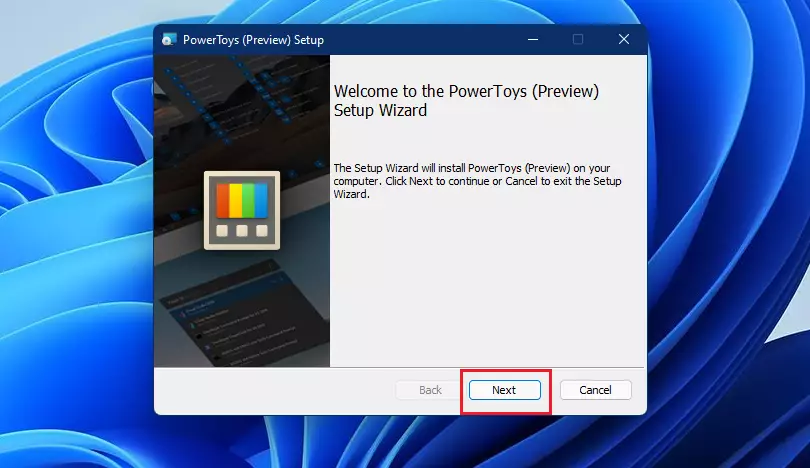
After downloading the file, navigate to your Downloads folder, double-click the file, and start the installation.
Click Next to begin the setup wizard.
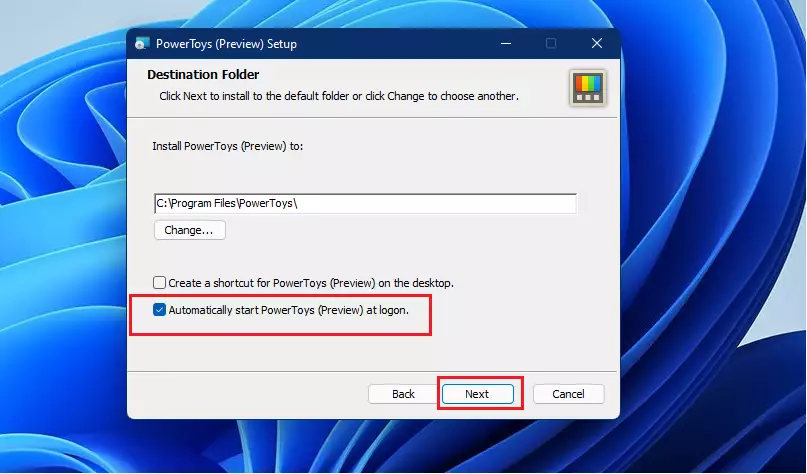
Select Automatically start PowerToys (Preview) on the next screen at logon.
Finally, click Install to add PowerToys to your Windows 11 PC.
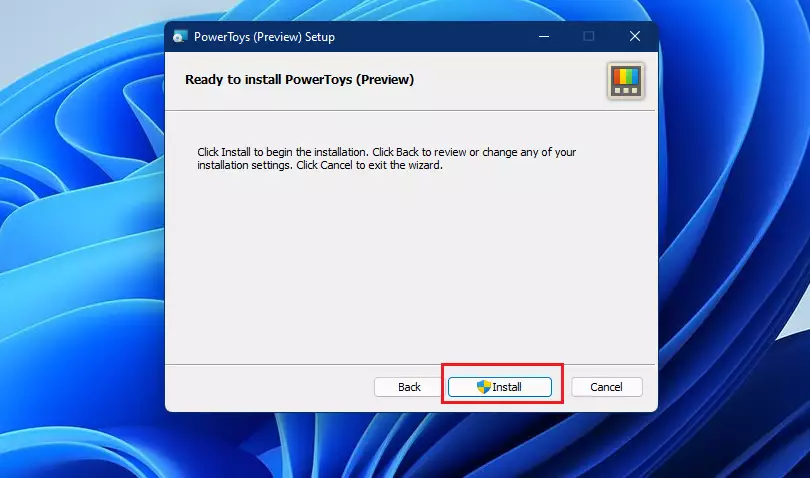
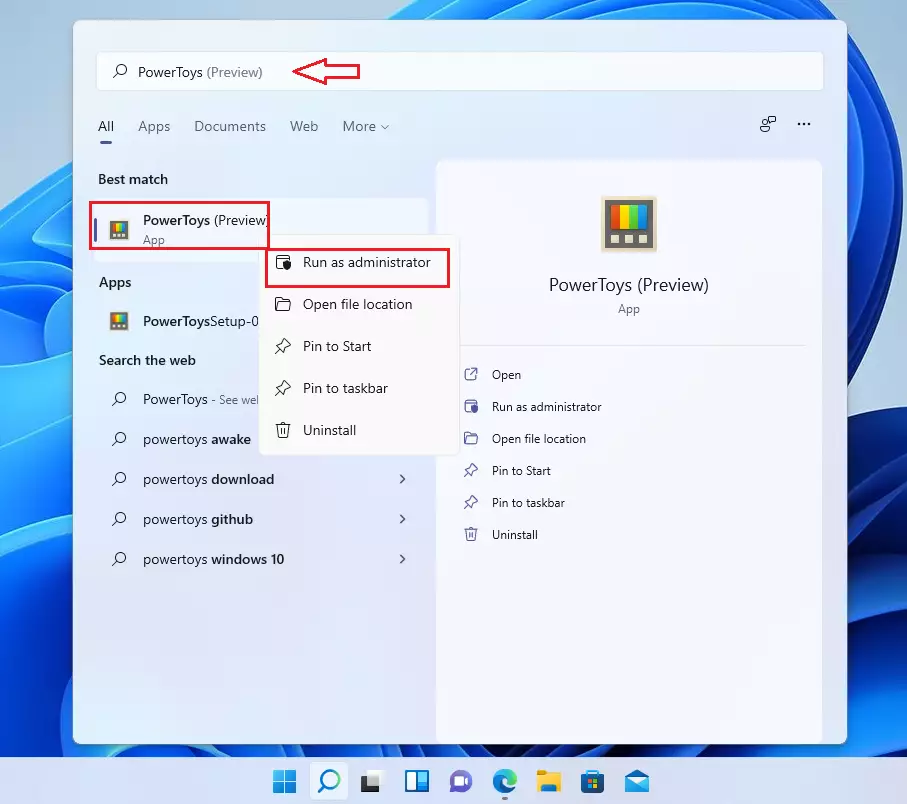
After installing the app, close the PowerToys Welcome screen when it first launches. Then go to the Start menu and search for “PowerToys,” as highlighted below.
Then right-click the app icon and select Run as administrator.
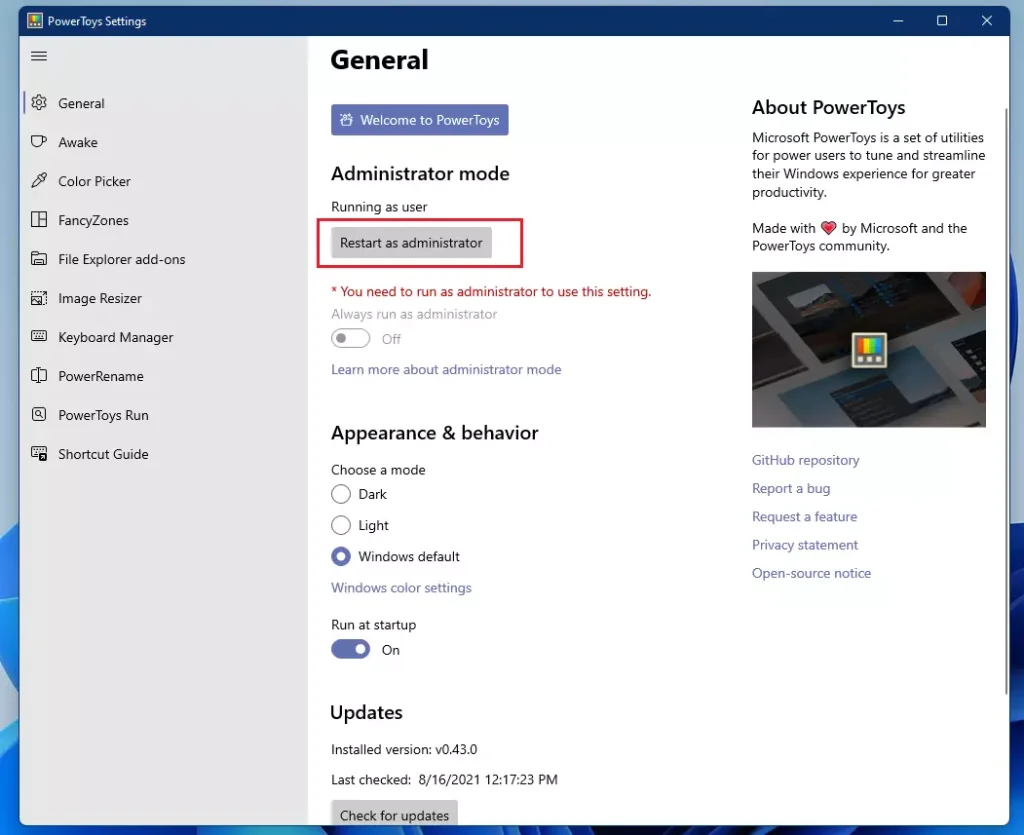
Click the Restart as Administrator button on the General tab, as highlighted below.
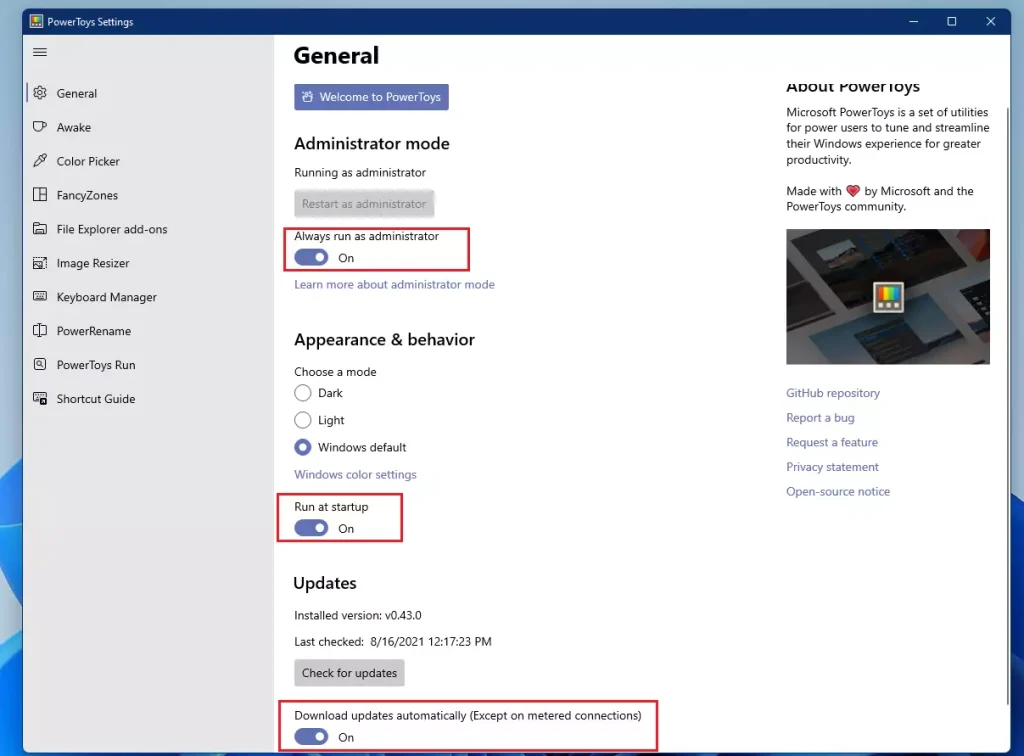
When the app re-opens, toggle the button to On to Always run as administrator. Also, turn on Run as a startup and Download update automatically, as highlighted in the image below.
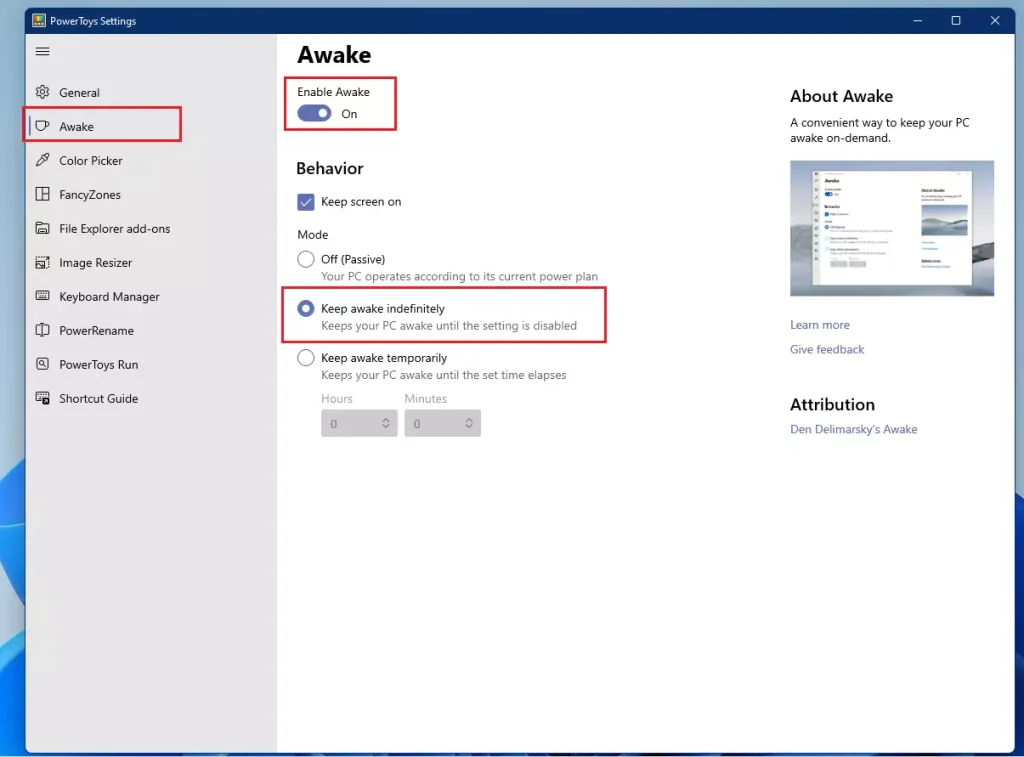
Next, click the Awake tab on the left menu, then toggle the button to enable it. Check the box to keep the screen on, then change the mode.
The following Awake states can be selected:
- Off (Passive) – The computer’s awakeness state is unaffected. The application is waiting for user input.
- Keep awake indefinitely – The computer stays awake until the user explicitly puts the machine to sleep or exits/disables the application.
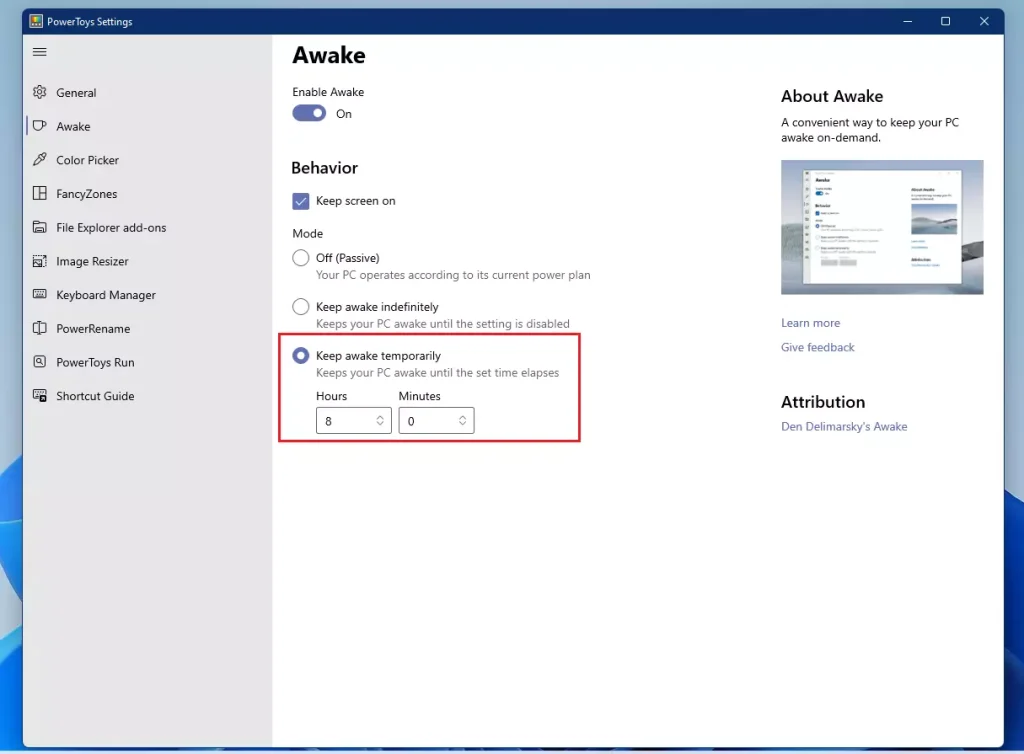
- Keep awake temporarily – Keep the machine awake for a pre-defined limited time. Once the time elapses, the computer resumes its previous awakeness state.
You can also keep the PC awake temporarily, then specify how long.
Exit and restart your computer.
How to use Awake from the Taskbar
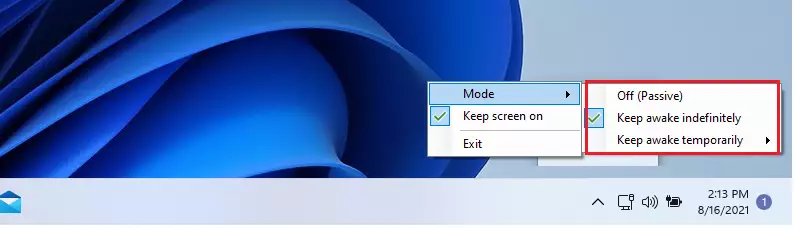
After you set up the Awake tool in PowerToys, you can easily control it right from your Windows Taskbar without opening the main PowerToys app.

Click the show icons up arrow, then right-click on the Awake teacup icon and select the mode you want the computer to stay awake or turn off to use the default power & sleep settings on the PC.
That should do it!
Conclusion:
- Microsoft PowerToys offers the Awake utility to prevent your Windows PC from going to sleep or turning off the display.
- It is especially useful in environments where corporate settings automatically limit display time, enhancing productivity.
- Users can customize Awake settings to keep their computers awake indefinitely or for a specified timeframe.
- Access and adjust Awake settings conveniently from the Taskbar for on-the-fly changes.
- Installing PowerToys is a straightforward process, ensuring you can quickly implement these features and improve your Windows experience.
Was this guide helpful?

About the Author
Richard
Tech Writer, IT Professional
Richard, a writer for Geek Rewind, is a tech enthusiast who loves breaking down complex IT topics into simple, easy-to-understand ideas. With years of hands-on experience in system administration and enterprise IT operations, he’s developed a knack for offering practical tips and solutions. Richard aims to make technology more accessible and actionable. He's deeply committed to the Geek Rewind community, always ready to answer questions and engage in discussions.



Running v0.51.1
Since installing Windows 11 Pro Keep Screen On does not work any more!!
[…] How to keep Windows awake with PowerToys […]
[…] Windows users can install PowerToys to control up to 4 computers from the same machine. No additional hardware is […]
[…] How to keep Windows awake with PowerToys […]
[…] add this, you need to install a free tool from Microsoft called PowerToys PowerToys. This tool adds useful extra features to your […]