How to change the notification tone in Microsoft Teams


You change your Microsoft Teams notification tone by navigating to Settings > Notifications > Play sound. This allows you to select a unique alert for incoming messages and calls, distinguishing them from other application alerts on your PC.
Personalizing your notification sound is a simple yet effective way to streamline your workflow. It helps you instantly recognize when a new Teams message arrives, which is particularly useful in busy work environments or when managing multiple communication platforms.
Once you set your custom sound, your PC will play it for every new Teams notification, ensuring you never miss an important message.
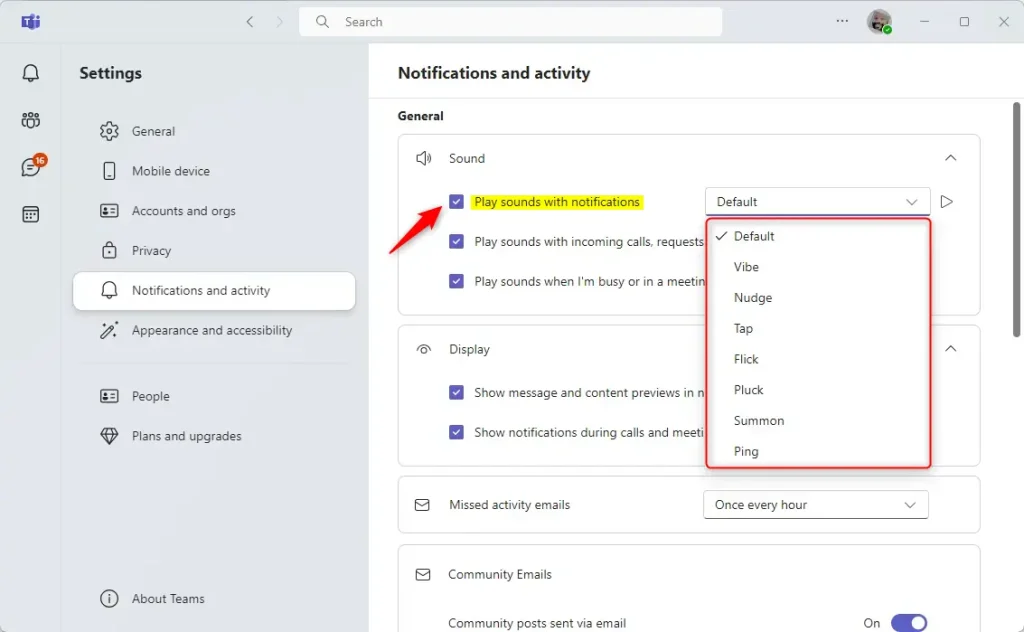
Navigate to Settings > Notifications and activity within Microsoft Teams. Ensure “Sounds with notifications” is checked, then select your desired tone from the dropdown menu. Your chosen sound will now play for new notifications.
How to change your notification tone
Changing your Microsoft Teams notification tone is simple and can be done right from the app’s settings on Windows 11.
- Open the Start menu and find Microsoft Teams in your list of apps to launch it.
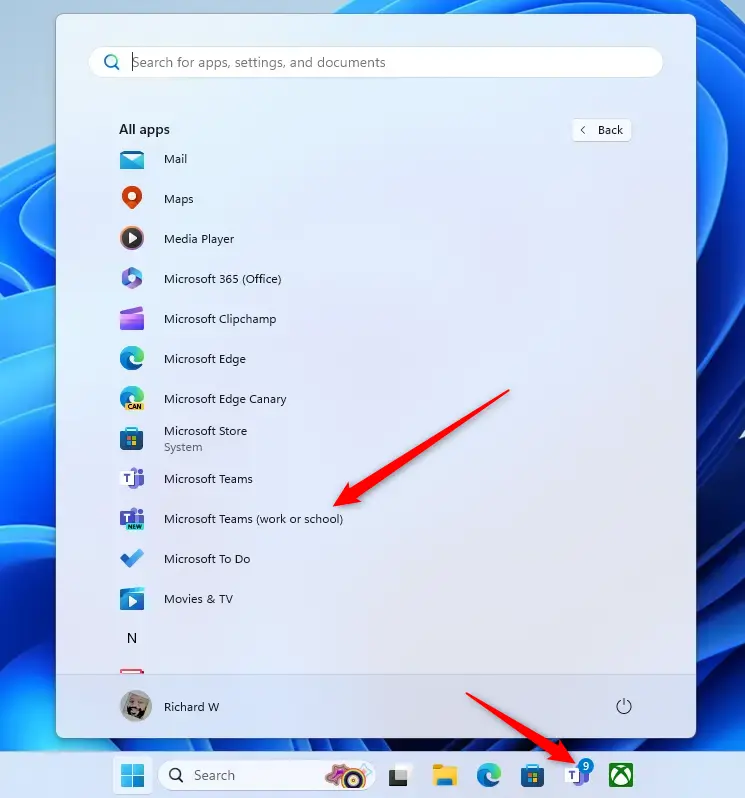
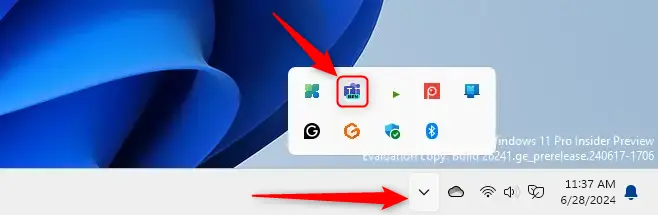
You can also open the app using the Taskbar or Taskbar overflow.
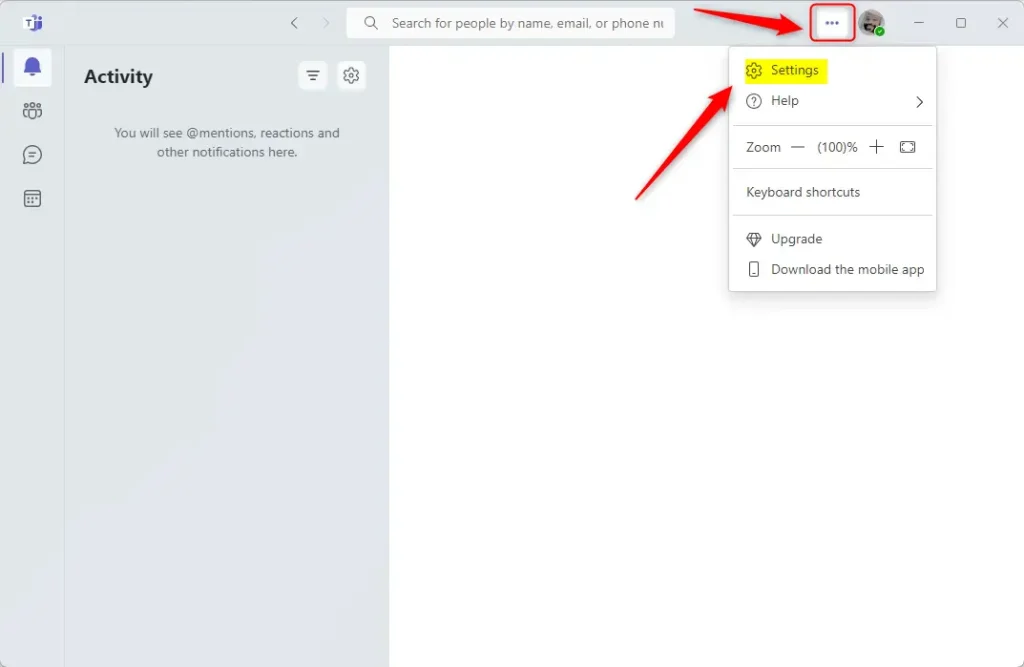
- Once the main Teams window is open, click the Settings and more button (the three dots icon) near your profile picture. Select Settings from the menu.
- On the left side of the screen, click Notifications and activity.
- Look for the Sound section on the right. Make sure you check the box to enable sounds with notifications.
- Click the drop-down menu to pick your favorite sound. You can choose from options like Default, Vibe, Nudge, Tab, Flick, Pluck, Summon, or Ping.
Note: These settings are user-specific and do not require admin privileges to change.
Summary
Customizing your notification sound in Microsoft Teams is a quick way to personalize your workspace. Follow these steps in the Settings menu to select a unique tone that helps you stay alert for new messages, without needing to manage complex system files.
How do you change your tone on Teams?
And that's basically how you do it if you want to listen to sounds you have the play button on the right. And so you can always go ahead and preview those sounds if you so desire.
Was this guide helpful?

About the Author
Richard
Tech Writer, IT Professional
Richard, a writer for Geek Rewind, is a tech enthusiast who loves breaking down complex IT topics into simple, easy-to-understand ideas. With years of hands-on experience in system administration and enterprise IT operations, he’s developed a knack for offering practical tips and solutions. Richard aims to make technology more accessible and actionable. He's deeply committed to the Geek Rewind community, always ready to answer questions and engage in discussions.



No comments yet — be the first to share your thoughts!