How to Hide Your Mobile Screen on Windows 11


You hide your mobile screen on Windows 11 by using the Phone Link app’s “Hide my phone screen” feature.
Phone Link, a Microsoft application, seamlessly connects your Android or iPhone to your Windows 11 PC, allowing you to manage apps, messages, and calls directly from your computer.
This built-in privacy setting is perfect for when you’re using your phone in public or sharing your screen during presentations.
Once activated, your phone’s display will turn black when you interact with it through your PC, safeguarding your sensitive information from prying eyes.
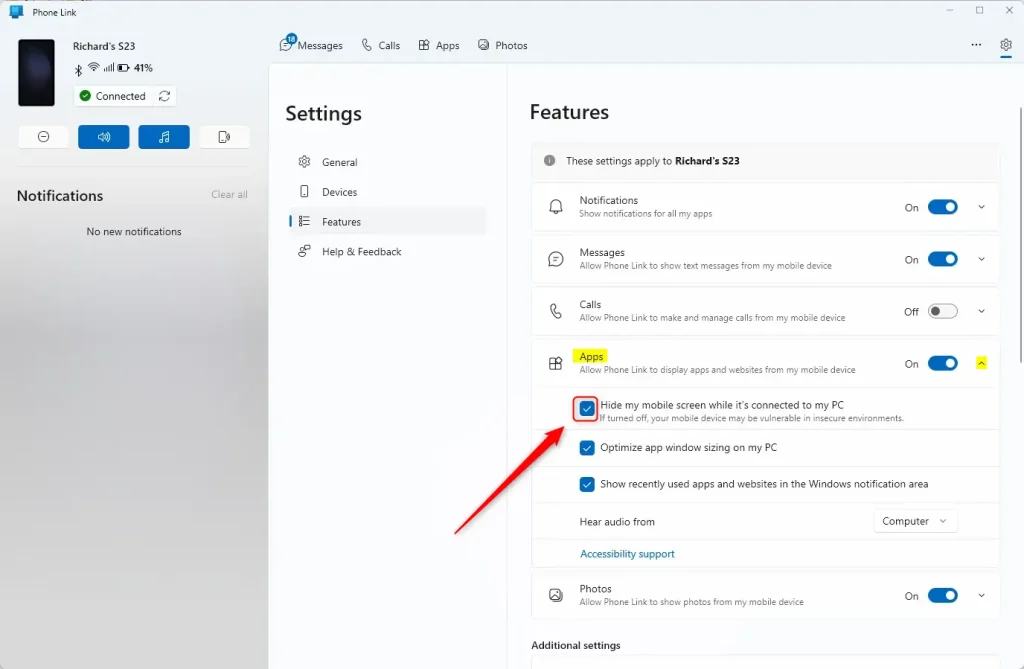
Open the Phone Link app, go to Settings > Features > Apps, and check the box for “Hide my mobile screen while it’s connected to my PC.” This will turn your phone’s display black while you use it through your computer.
How to hide your mobile screen
Hiding your mobile screen on Windows 11 is easy with the Phone Link app; you just need to adjust one setting.
- Open the Phone Link app on your computer.
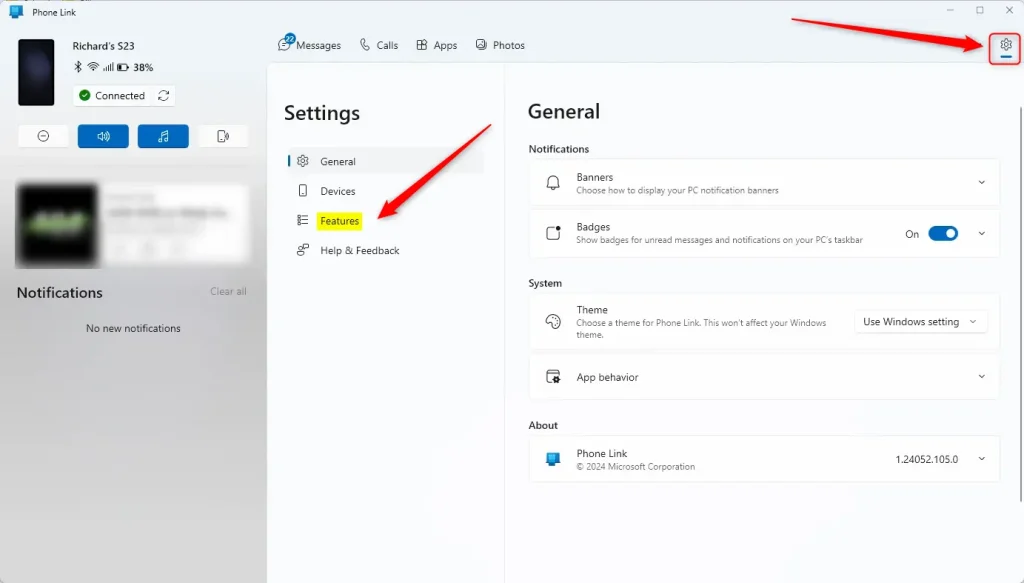
- If your phone is already connected, click the Settings button (the gear icon) in the top right corner.
- Select the Features tab.
On the right side of the window, look for the Apps section. Click it to open the menu. Check the box that says “Hide my mobile screen while it’s connected to my PC” to turn this feature on.
To see your phone screen again, uncheck that same box.
Close the settings menu when you are finished. Your changes will save automatically.
Summary
Phone Link lets you use your phone on your PC, and hiding your mobile screen adds a layer of privacy.
How do I hide the phone screen?
Get a privacy screen protector – screen will be unreadable at angles greater than 30 degrees. This, OP. If you want to, you could install this on your phone.
How to display mobile screen on 🪟 Windows 11?
Network my laptop's name has come so I'll click on it then click on start now here on my laptop I've got this notification i'll click on okay. And now my phone screen is getting cast to my PC.
Was this guide helpful?

About the Author
Richard
Tech Writer, IT Professional
Richard, a writer for Geek Rewind, is a tech enthusiast who loves breaking down complex IT topics into simple, easy-to-understand ideas. With years of hands-on experience in system administration and enterprise IT operations, he’s developed a knack for offering practical tips and solutions. Richard aims to make technology more accessible and actionable. He's deeply committed to the Geek Rewind community, always ready to answer questions and engage in discussions.




No comments yet — be the first to share your thoughts!