How to Manage Chat Notifications in Microsoft Teams


You manage Microsoft Teams chat notifications by adjusting settings within the Teams app itself.
Microsoft Teams chat notifications are alerts that pop up on your screen, play sounds, or appear in your activity feed when someone sends you a message. Controlling these helps you stay focused and avoid constant interruptions.
For instance, the Teams mobile app alone can generate dozens of notifications daily if left unchecked.
You can silence all chat pop-ups, choose specific channels to notify you, or set quiet hours for focused work.
Taking charge of your Teams notifications lets you tailor the experience to your workflow, ensuring you see what’s important without losing concentration.
Manage Microsoft Teams chat notifications by going to Settings and more (…) > Settings > Notifications and activity. In the Chat section, choose “Show in banner” for pop-up alerts or “Off” to disable them.
How to change your chat notifications
You can easily change your Microsoft Teams chat notifications to decide exactly when and how you get alerts, so you don’t miss important messages or get too many distractions.

You can also open it from your Taskbar.

If a small window opens, click the expansion button on the top menu bar to see the full app.

In the main window, click the “Settings and more (…)” button next to your profile picture. Select Settings from the menu.

Click the Notifications and activity tab on the left. Look for the “Chat” section on the right. Use the drop-down menu to pick your preference:
- Show in banner: You will see a pop-up alert for every message.
- Off: You will not see pop-up alerts.
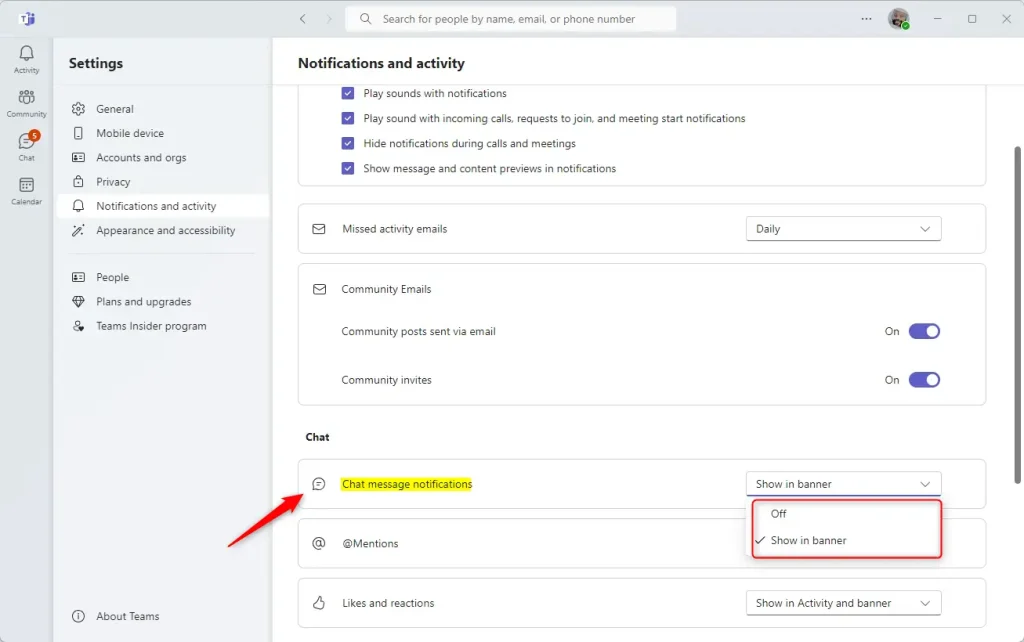
Note: You do not need admin privileges to change these settings. These changes apply to your specific user profile.
Summary
- Open Microsoft Teams from your Start menu or taskbar.
- Expand the window if it is in mini-mode.
- Go to the Settings and more (…) menu and click Settings.
- Select Notifications and activity.
- Adjust the “Chat” settings to “Show in banner” or “Off” to match your needs.
Was this guide helpful?

About the Author
Richard
Tech Writer, IT Professional
Richard, a writer for Geek Rewind, is a tech enthusiast who loves breaking down complex IT topics into simple, easy-to-understand ideas. With years of hands-on experience in system administration and enterprise IT operations, he’s developed a knack for offering practical tips and solutions. Richard aims to make technology more accessible and actionable. He's deeply committed to the Geek Rewind community, always ready to answer questions and engage in discussions.


[…] incoming calls and meetings, enable or disable notifications during calls and meetings, enable or disable chat message notifications, turn @mentions notifications banners on or off, turn notifications for likes and […]