How to Enable Microsoft Edge’s Super Drag and Drop Feature


You enable Microsoft Edge’s Super Drag and Drop feature by navigating to its experimental flags.
This feature lets you quickly open links and images in new tabs simply by dragging them onto a blank part of a webpage. Think of it as a supercharged way to add content to your browsing session without clicking.
Super Drag and Drop is currently an experimental feature available in Microsoft Edge Canary, Beta, and Dev channels, not the stable release. You can easily toggle this powerful browsing enhancement on or off to suit your workflow.
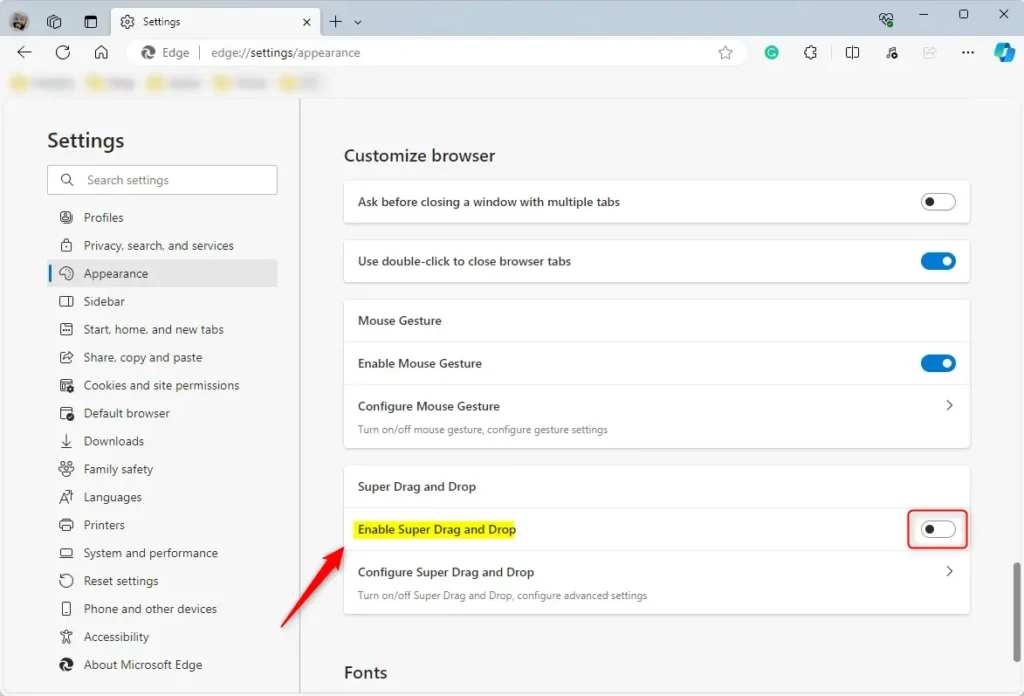
Go to Settings and more (three dots), then Appearance. Under Customize browser, find “Enable Super Drag and Drop” and toggle the switch to On. This feature is experimental and may not be available in all Edge versions.
Enable or disable the Super Drag Drop feature in Microsoft Edge
You can turn on or off Microsoft Edge’s Super Drag Drop feature right from the browser’s settings menu to make browsing more convenient.
Here’s how.
First, open the Microsoft Edge browser.
Then click on Setting and more (Alt+F) three dots (…) in the upper right-hand corner to access the Settings menu.

On the Settings page, click Appearance in the left panel.

On the right side, under ‘Customize browser,’ select the “Enable Super and Drop” tile.
Then, toggle the button to the On position to enable the new Super Drag and Drop feature in Microsoft Edge.
Toggle the switch button to the Off position to disable it.
Close Edge settings when you’re done.
If you don’t see the Super Drag and Drop feature in Edge, it means it’s not enabled yet.
To activate it, copy and paste this link into your browser’s address bar and hit Enter.
edge://flags/#edge-super-drag-drop
Then, use the dropdown menu to select ‘Default’ (which acts like it’s disabled), ‘Enabled,’ or ‘Disabled’ for the Super Drag Drop flag.

Click the Restart button at the bottom to apply the changes.
Enable or disable Super Drag Drop using the Windows Registry editor
If you prefer, you can also change the Microsoft Edge Super Drag Drop setting by editing the Windows Registry.
First, open Windows Registry Editor.
Then, find the registry key mentioned below.
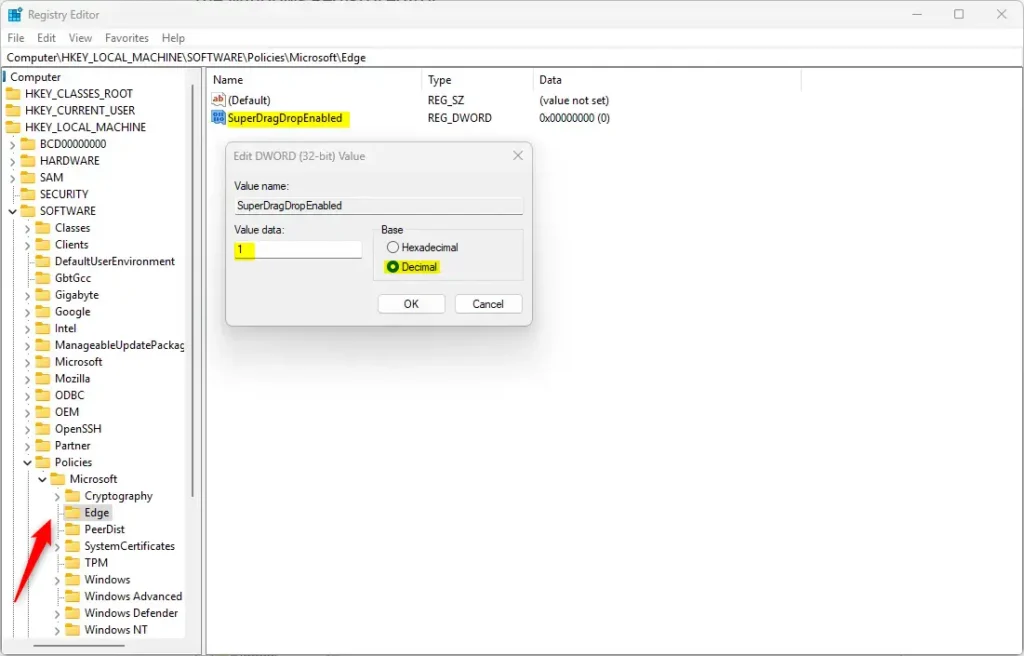
ComputerHKEY_LOCAL_MACHINESOFTWAREPoliciesMicrosoftEdge
Then, in the right pane of the ‘Explorer‘ key, double-click on ‘SuperDragDropEnabled‘ (this is a type of registry value called REG_DWORD) to open it.
Enter the value 1 to enable the new Super Drag and Drop feature in Edge.
To disable it, enter a value of 0.
If you don’t see ‘SuperDragDropEnabled‘ listed, right-click an empty space and choose ‘New‘ > ‘DWORD (32-bit) Value.’ Then, name it ‘SuperDragDropEnabled.’
You may need to reboot your computer for the changes to take effect.
That should do it!
Conclusion:
- The Super Drag and Drop feature in Microsoft Edge enhances the browsing experience by allowing easy drag-and-drop functionality for links and images.
- Enabling or disabling this feature can personalize the browsing experience based on individual preferences and workflow needs.
- Users can enable the Super Drag and Drop feature through the Microsoft Edge browser settings or the Windows Registry editor, providing flexibility in customization.
- This guide has demonstrated step-by-step instructions to empower users to efficiently manage the Super Drag and Drop feature according to their requirements.
How do I enable drag and drop in Edge?
Super Drag Drop in Settings: Enable/disable Super Drag Drop via Edge Settings → Appearance → Browser behavior → toggle “Enable Super Drag Drop”; configure foreground/background tab behavior. Use edge://flags to Unhide Super Drag Drop: Go to edge://flags → enable “Microsoft Edge Super Drag Drop”, then restart Edge.
What does Shift F5 do in Edge?
SHIFT F5. Clearing the Cache (Settings > Clear browsing data > ticked everything > Show more > ticked everything in there > Clear) Restarting Edge.
How do I enable drop feature in Microsoft Edge?
You can access Drop on your desktop by going to icon Settings and more ▸ More tools ▸ Drop. For mobile, you can find Drop by clicking the icon mobile menu in the app footer ▸ All Menu ▸ Drop.
Was this guide helpful?

About the Author
Richard
Tech Writer, IT Professional
Richard, a writer for Geek Rewind, is a tech enthusiast who loves breaking down complex IT topics into simple, easy-to-understand ideas. With years of hands-on experience in system administration and enterprise IT operations, he’s developed a knack for offering practical tips and solutions. Richard aims to make technology more accessible and actionable. He's deeply committed to the Geek Rewind community, always ready to answer questions and engage in discussions.



No comments yet — be the first to share your thoughts!