Follow
Browsers

How to Enable or Disable Bypass Enhanced Security Mode in Microsoft Edge


Richard
Written by
Richard
Jan 23, 2024 Updated Apr 21, 2026 3 min read
How to Enable or Disable Bypass Enhanced Security Mode in Microsoft Edge

Microsoft Edge Microsoft Edge is the main web browser for Windows 11. While you can  switch to their preferred or favorite browser if you prefer, Edge has a built-in security tool called Enhanced Security Mode.

Why use this? This feature acts like a safety shield. It isolates your browser from the rest of your computer, which stops bad software from damaging your files.

What happens when done? By changing these settings, you control whether you or other users can skip this security layer when visiting specific websites. This is often used in work environments to keep computers safe.

How to change security settings using the Registry Editor

Note: You need admin privileges to make these changes.

Follow these steps to enable or disable the ability to bypass security mode:

  1. Open Windows Registry Editor on your computer.
  2. Go to the following location in the registry:
💻Code
Computer\HKEY_LOCAL_MACHINE\SOFTWARE\Policies\Microsoft\Edge
  1. Look for EnhanceSecurityModeAllowUserBypass on the right side. Double-click it.
  2. To stop users from bypassing security, set the value to: 0

If you do not see that file, right-click on an empty space, select New, and choose DWORD (32-bit) Value. Name it EnhanceSecurityModeAllowUserBypass.

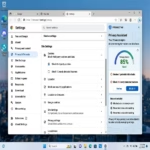
turn bypass enhanced security mode on or off in Edge

To go back to the original settings, simply delete the EnhanceSecurityModeAllowUserBypass file you created. You may need to restart your computer for the changes to take effect.

Summary

Enhanced Security Mode adds a vital layer of protection to your browsing. You now know how to use the Registry Editor to control whether this security can be bypassed. This helps balance your need for safety with the need to access specific websites. If you are in a strict work environment, disabling the bypass option is a great way to ensure everyone stays secure.

You can also use the EnhanceSecurityModeAllowUserBypass policy if you are managing multiple computers.

What is Enhanced Security Mode in Microsoft Edge?

Enhanced Security Mode is a feature in Microsoft Edge that protects users from potentially dangerous websites and downloads by isolating the browser from the system. It adds an extra layer of security to enhance the user's browsing experience.


How can I enable or disable Enhanced Security Mode bypass?

You can enable or disable the Enhanced Security Mode bypass by using the Windows Registry Editor. Navigate to the registry key for Edge and modify the 'EnhanceSecurityModeAllowUserBypass' DWORD value to 0 to disable or delete it to allow bypassing.


Why would I need to bypass Enhanced Security Mode?

Bypassing Enhanced Security Mode may be necessary if you need to access a website that is blocked by this feature. Users in corporate environments might also need to disable this feature to allow specific applications or sites.


What happens if I delete the 'EnhanceSecurityModeAllowUserBypass' item?

Deleting the 'EnhanceSecurityModeAllowUserBypass' item will restore the default behavior, allowing users to bypass Enhanced Security Mode again. This action may require a reboot to apply the changes.


Is Enhanced Security Mode important for my browsing safety?

Yes, Enhanced Security Mode is crucial for protecting your system from malicious code and unsafe downloads. It is designed to enhance your browsing security, making it more difficult for threats to infect your system.

Was this guide helpful?

Richard

About the Author

Richard

Tech Writer, IT Professional

Richard, a writer for Geek Rewind, is a tech enthusiast who loves breaking down complex IT topics into simple, easy-to-understand ideas. With years of hands-on experience in system administration and enterprise IT operations, he’s developed a knack for offering practical tips and solutions. Richard aims to make technology more accessible and actionable. He's deeply committed to the Geek Rewind community, always ready to answer questions and engage in discussions.


2469 articles → Twitter

📚 Related Tutorials

How to Repair Microsoft Edge in Windows 11
Windows How to Repair Microsoft Edge in Windows 11
How to Enable Enhanced Security Mode in Microsoft Edge
Browsers How to Enable Enhanced Security Mode in Microsoft Edge
How to Enable or Disable Browse as Guest in Microsoft Edge
Browsers How to Enable or Disable Browse as Guest in Microsoft Edge
How to Enable or Disable Autofill Passwords and Passkeys in Microsoft Edge on Windows 11
Browsers How to Enable or Disable Autofill Passwords and Passkeys in Microsoft Edge on Windows 11

Leave a Reply

Your email address will not be published. Required fields are marked *