How to Remove Library Locations in Windows Media Player


This guide explains how to remove folder locations from the settings-in-windows-11-media-player/" class="sal-link" rel="noopener" target="_blank" data-sal-id="20097">Windows Media Player app on Windows 11.
The Windows Media Player app is a built-in app that plays videos, music, and images. It helps you keep your media files organized in one place. It supports many file types and has standard buttons like play, pause, and stop.
Windows automatically saves video files in the Videos folder of your home directory and music files in the music folder of your home directory.
You can add your own folders containing music and video files so the app can find them. If your files are missing, you can refresh and re-index your libraries to fix the issue.
Why remove a library location?
You might want to clean up your app if you added a folder by mistake. You might also want to remove a folder if you no longer want those specific files to show up in your player.
What happens when you are done?
Once you remove a folder, the app will stop scanning that location. The files will disappear from your library view, but your actual files will remain safe in their original folders on your computer.
Remove a library location in Media Player
Follow these steps to remove a folder from your library:
- Click the Settings button located on the left sidebar.

- Select the Music or Video library tile.
- Click the drop-down arrow to see the list of folders.
- Click the X button next to the folder you want to remove.
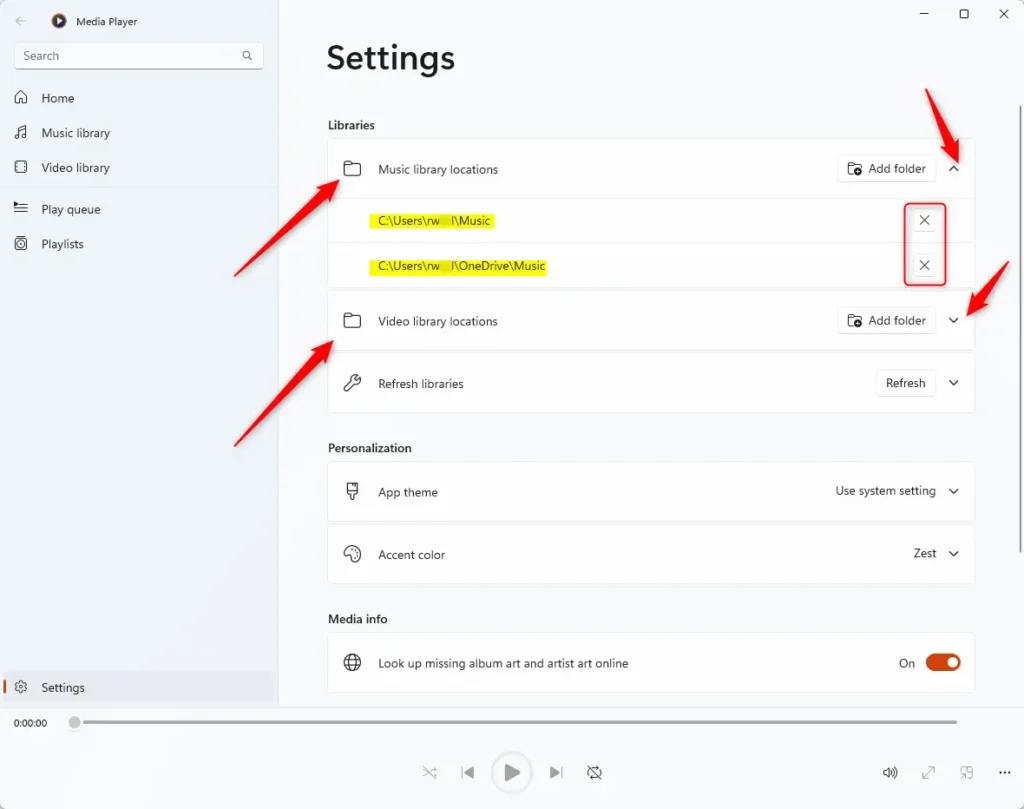
Exit the Settings page when you are finished.
Summary
Windows Media Player is a great tool for organizing your media. By adding and removing library locations, you keep your collection tidy and easy to browse. You can manage these folders at any time by visiting the Settings menu within the app.
How do I remove a library location from Windows Media Player?
Why would I want to remove a library location in Windows Media Player?
Can I remove the default Music and Videos folders from Windows Media Player?
What happens to my files when I remove a library location in Windows Media Player?
How do I refresh my Windows Media Player library after removing a location?
Was this guide helpful?

About the Author
Richard
Tech Writer, IT Professional
Richard, a writer for Geek Rewind, is a tech enthusiast who loves breaking down complex IT topics into simple, easy-to-understand ideas. With years of hands-on experience in system administration and enterprise IT operations, he’s developed a knack for offering practical tips and solutions. Richard aims to make technology more accessible and actionable. He's deeply committed to the Geek Rewind community, always ready to answer questions and engage in discussions.



No comments yet — be the first to share your thoughts!